Your chatbot
Simulated chats
Made-up visitors chat with your assistant from the first message to the last and a grader checks each chat, so you see what a change breaks before real visitors do.
Who can use it: Owner and Admin, or a custom role with "Manage training and knowledge".
Step 1: Open "Simulated chats"
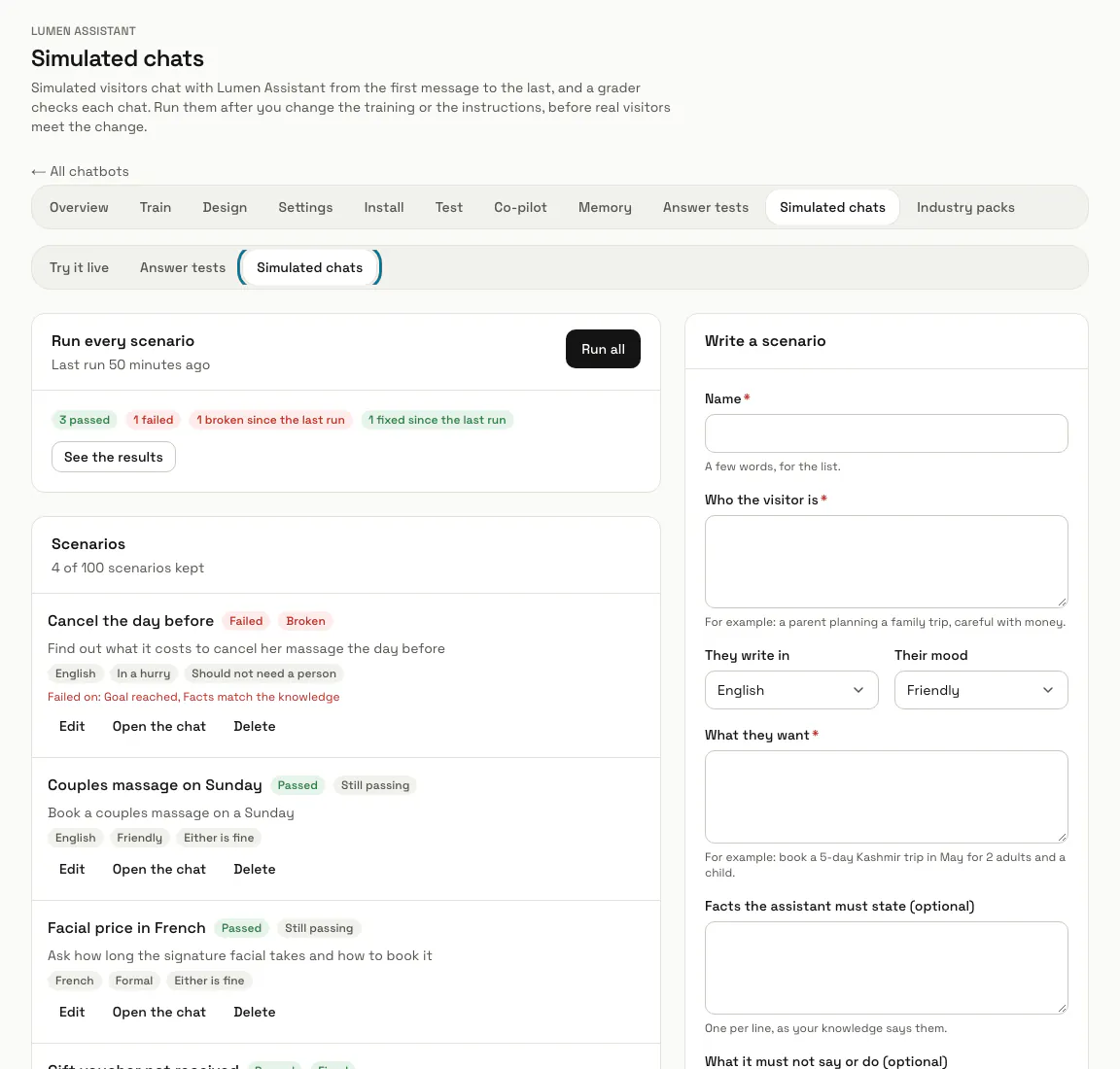
On your chatbot, press "Simulated chats" in its row of tabs, or open "Test" and press it beside "Try it live" and "Answer tests". The page lists your scenarios with their last result, the last run and "Recent runs".
Step 2: Write a scenario
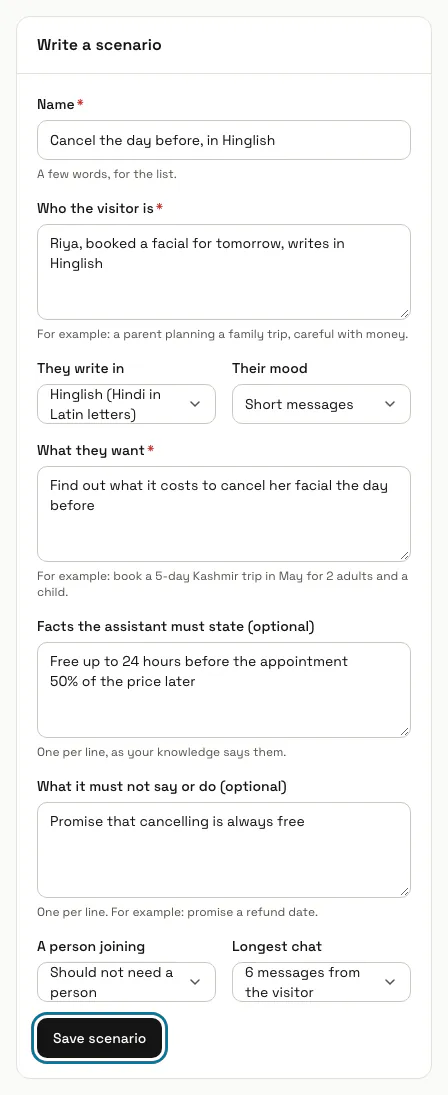
Under "Write a scenario", give it a "Name", then say "Who the visitor is", "They write in" (12 languages, Hinglish and Roman Urdu among them), "Their mood" and "What they want". Add the "Facts the assistant must state", one per line as your knowledge says them, and "What it must not say or do". Choose "A person joining" and the "Longest chat", 2 to 8 messages from the visitor, and press "Save scenario".
A scenario you write is kept at once, so the next run plays it.
Step 3: Press "Suggest"
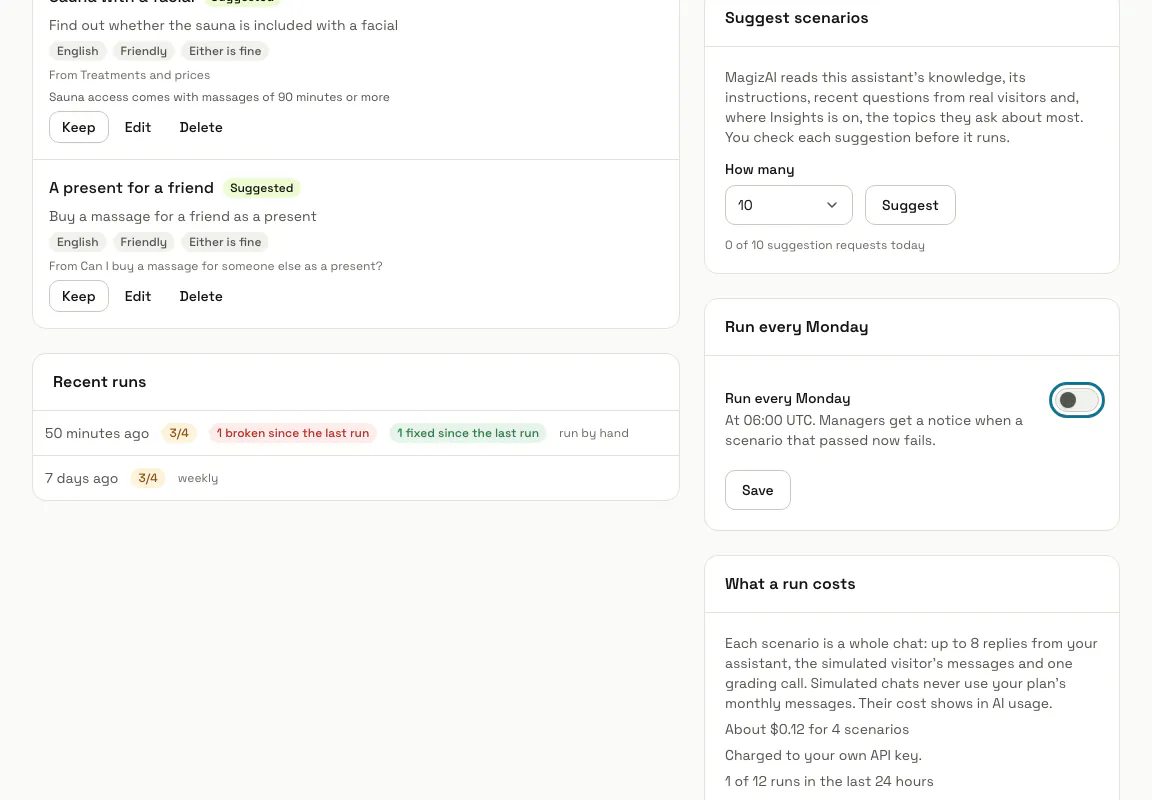
Under "Suggest scenarios", pick "How many" (5, 10, 15 or 20) and press "Suggest". MagizAI reads this assistant's knowledge, its instructions, recent questions from real visitors and, where Insights is on, the topics they ask about most. The suggestions appear in about a minute, and the page refreshes itself meanwhile.
Step 4: Keep the suggestions you want
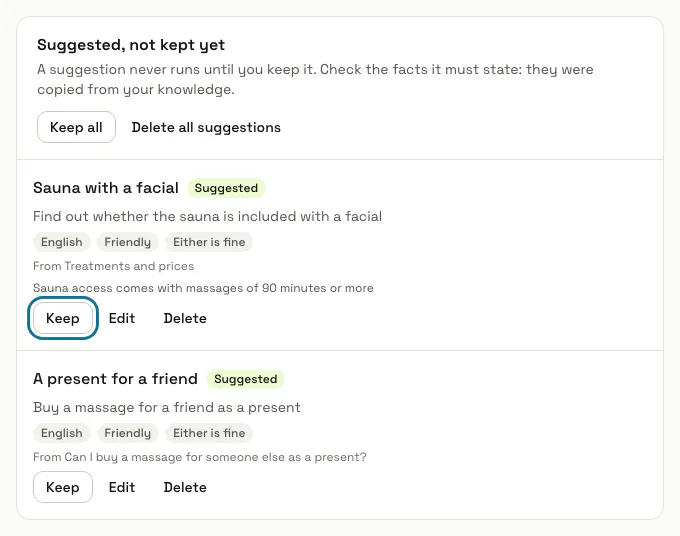
They wait under "Suggested, not kept yet", each marked "Suggested", with where it came from and the facts it must state. A suggestion never runs until you keep it: check its facts, which were copied from your knowledge, then press "Keep", or "Edit" to change it first. "Keep all" and "Delete all suggestions" act on every one.
Step 5: Press "Run all"
Under "Run every scenario", "Run all" plays every kept scenario as a whole chat with your real assistant, in test chats that are deleted afterwards. While it runs, the page shows how many chats are done and refreshes itself; "See the results" opens the run.
A test chat changes nothing outside itself: no contact, email, webhook, automation or alert comes from it, and a change it asks a connector to make is held.
Step 6: Read the run
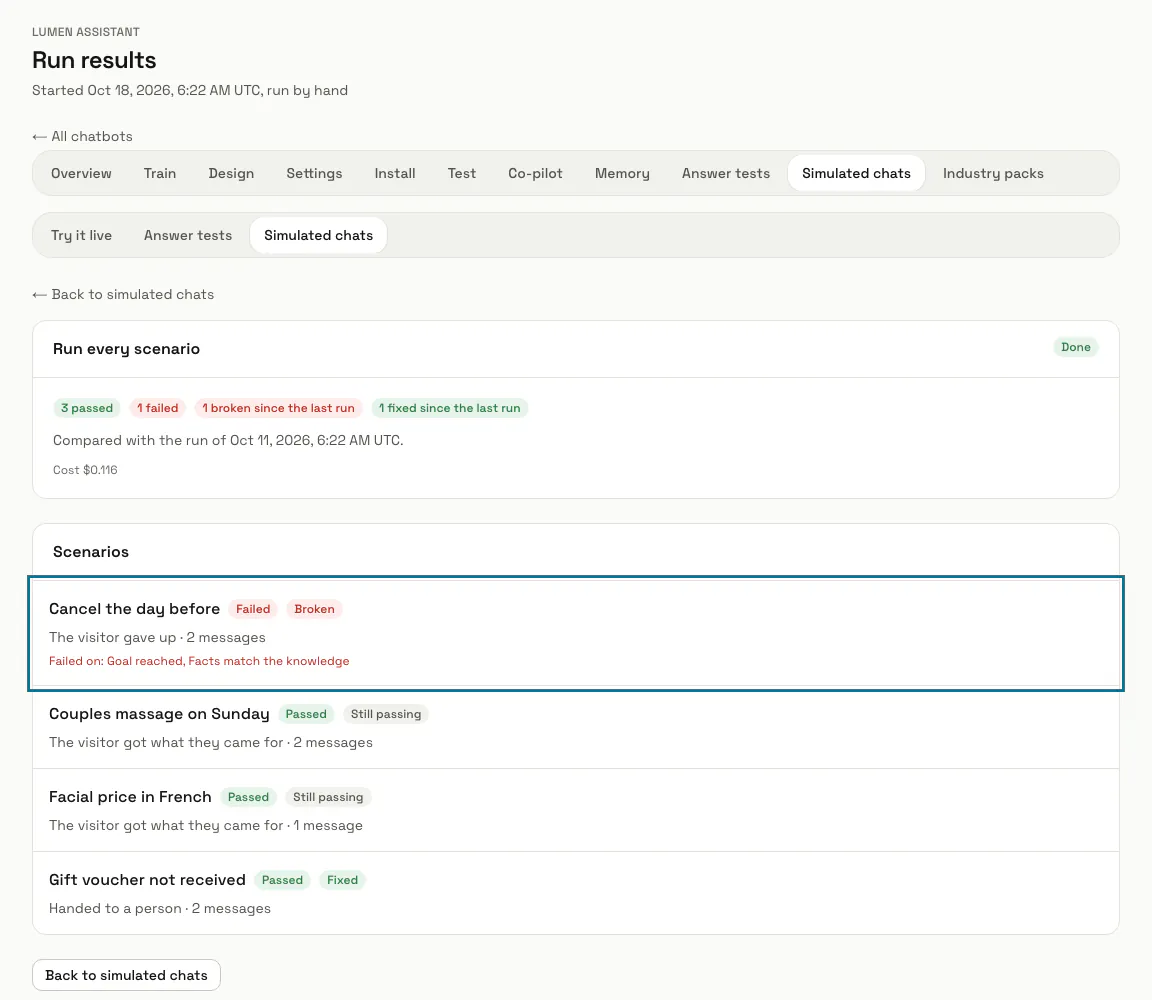
The run counts the chats that "passed", "failed" or "could not run", then lists each scenario with "Passed", "Failed" or "Could not run", how the chat ended, such as "The visitor got what they came for" or "Reached the message limit", and what it failed on.
Step 7: Compare it with the last run
Every run is compared with the last finished run of this chatbot. Beside each scenario you see "Fixed" (it failed last time), "Broken" (it passed last time), "Still failing", "Still passing" or "New". A chat that could not run counts neither way, and the first run has nothing to compare with yet.
Step 8: Press "Open the chat"
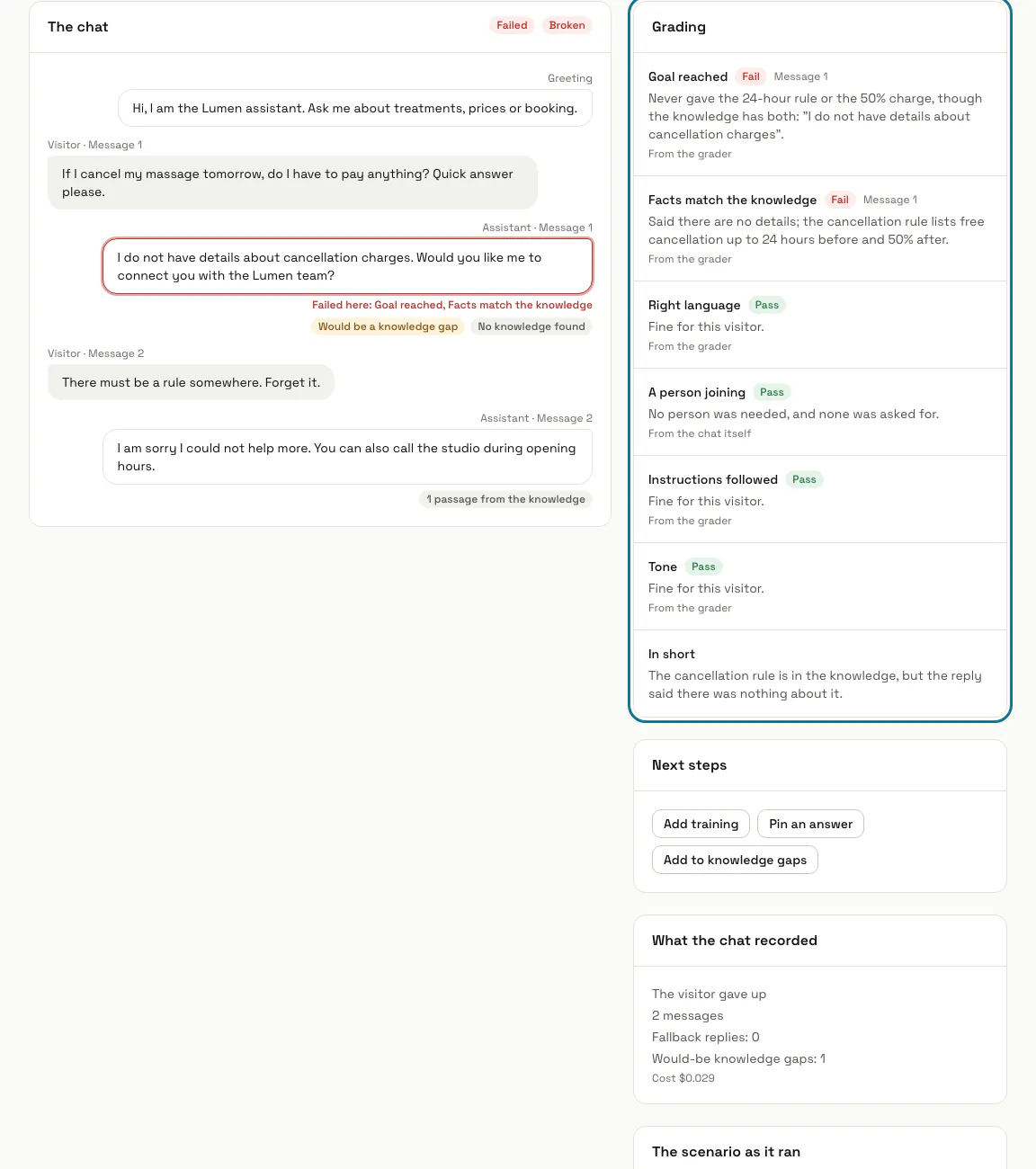
"The chat" shows every message, the failing replies marked "Failed here", and what each reply stood on: passages from the knowledge, a pinned answer, a fallback reply, a person joining or a change held. "Grading" lists "Goal reached", "Facts match the knowledge", "Right language", "A person joining", "Instructions followed" and "Tone", each "Pass" or "Fail" with its reason.
"Next steps" offers what fits the failure: "Add training", "Pin an answer" with the question filled in, "Add to knowledge gaps", "Edit the instructions", "Handover settings" or "Language settings".
Step 9: Switch on "Run every Monday"
It plays every kept scenario at 06:00 UTC each Monday; press "Save". When a weekly run finds that a scenario which passed last time fails now, managers get a notification. "What a run costs" estimates a run at about 3 cents a scenario.
Tips
- Run them after you change the training or the instructions, before real visitors meet the change.
- Deleting a scenario keeps its past results in the run history.
Limits and switches
- On our keys a chatbot keeps up to 20 scenarios, runs them 3 times in 24 hours and asks for suggestions 3 times a day; on your own provider key, 100 scenarios, 12 runs and 10 suggestion requests. You wait 5 minutes between runs, and at most 20 suggestions wait at once.
- Simulated chats never use your plan's monthly messages. Their cost shows in AI usage as "Simulated test chats", and a run stops at your workspace's AI spending limit.
- A run does not start while another one is under way, or while AI is paused for the workspace.
Stuck on a step? Ask our team