Your chatbot
Products
Keep a catalog of what you sell, so the chatbot can suggest the right product as a card in the chat.
Who can use it: Owner and Admin, or a custom role with "Manage training and knowledge". Everyone in the workspace can see the catalog. The product settings of a chatbot need "Create, edit and delete chatbots" (Owner and Admin).
Step 1: Open "Products"
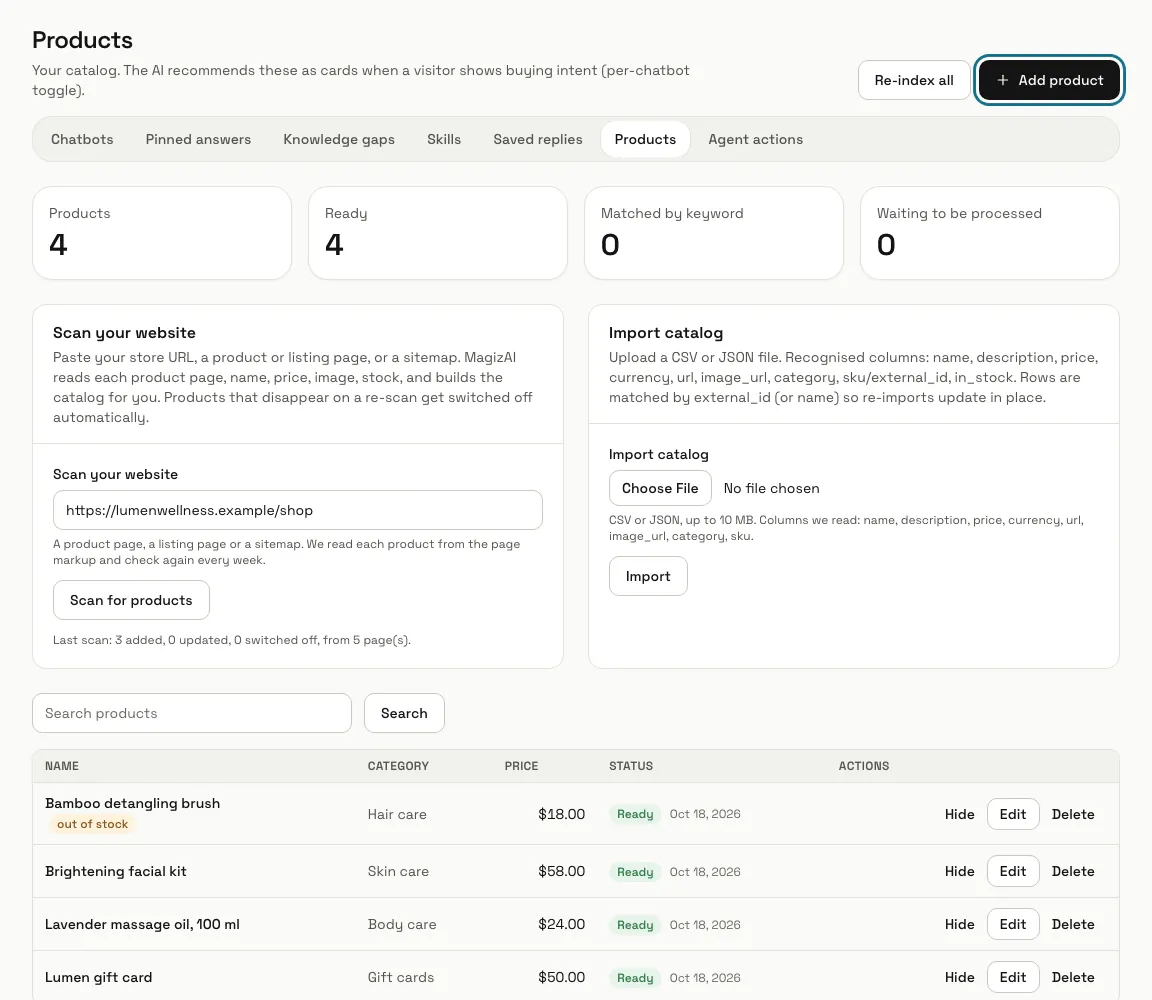
Press "AI agent" in the left menu, then "Products" in the row of tabs. The page counts your products and how many are "Ready", "Matched by keyword" or still waiting, and lists each with its category, price and status.
Step 2: Press "Scan for products"
In "Scan your website", paste your store's address, a product or listing page, or a sitemap. For a store's home address it reads the pages its sitemap lists (the one robots.txt names, or /sitemap.xml), product pages first, up to 60 a scan. MagizAI reads each product's name, price, image and stock from the page's product markup (JSON-LD, Microdata, RDFa or OpenGraph tags) in the background, so refresh after a minute. A product whose page does not say whether it is in stock is marked "stock not stated". It checks again every week and switches off products that have gone from your site.
Step 3: Import a catalog file
In "Import catalog", choose a CSV or JSON file of up to 10 MB and press "Import". The columns read are name, description, price, currency, url, image_url, category, sku or external_id, and in_stock; a row with no in_stock value is "Not stated". Rows are matched by external_id (or name), so importing again updates them.
Step 4: Press "Add product"
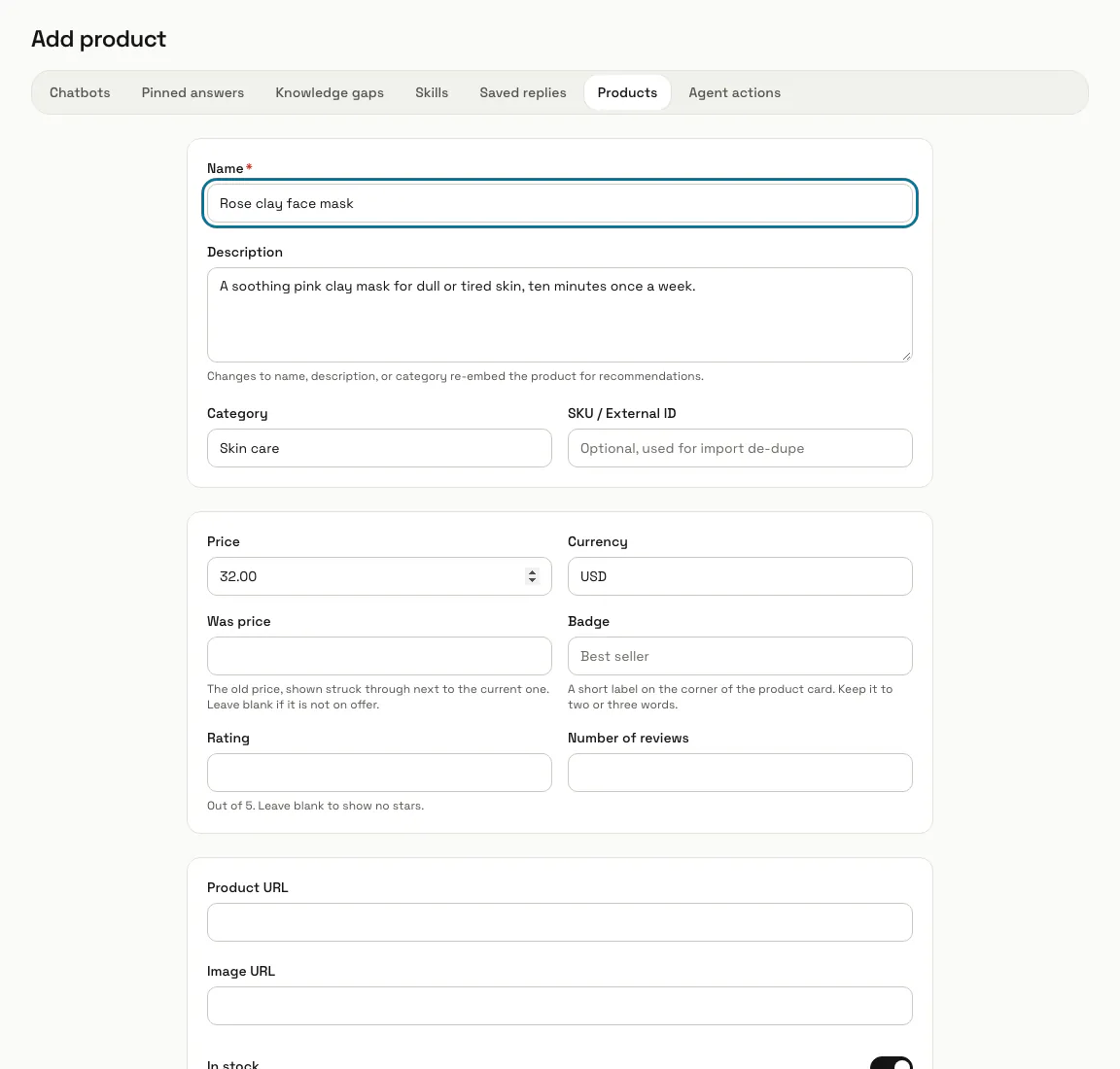
Only "Name" is required. Add a "Description", "Category", "Price" and "Currency", and if you like a "Was price" shown struck through, a short "Badge", a "Rating" out of 5, the "Product URL" and an "Image URL". Under "Stock" choose "In stock", "Out of stock" or "Not stated". Switch "Active (recommendable)" off to keep a product out of suggestions.
Step 5: Keep the catalog up to date
"Hide" keeps a product but stops it being suggested, "Show" brings it back, and "Delete" removes it after asking. "Edit" opens the same form, and a new name, description or category is read again for suggestions. A product "Matched by keyword" is found by its words only until an AI provider key is added under Settings; then "Re-embed" reads it again.
Step 6: Switch suggestions on for a chatbot
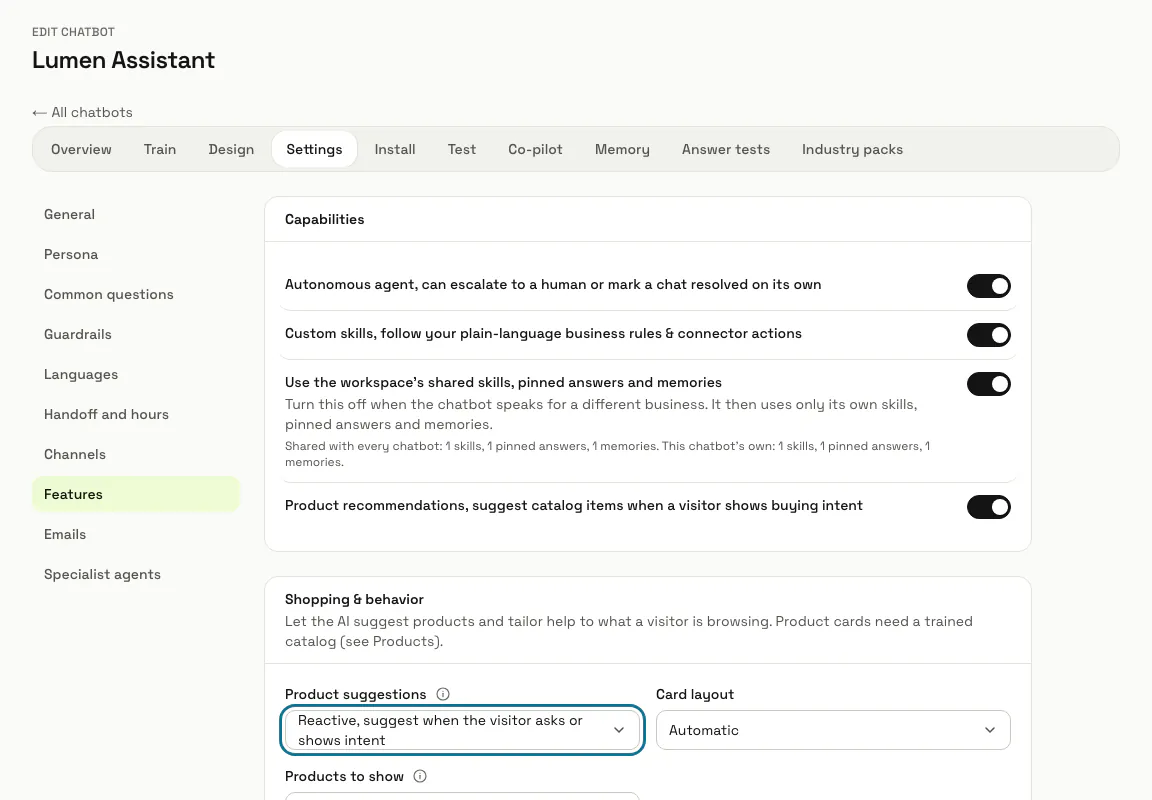
Open the chatbot's Settings, then "Features". The "Product recommendations" switch is on for a new chatbot. Under "Shopping & behavior", "Product suggestions" is "Reactive" (when the visitor asks or shows intent), "Proactive" (also from what they browse) or "Off", and "Products to show" sets how many cards appear at once, 1 to 12.
Tips
- The catalog belongs to the workspace: every chatbot with suggestions on picks from the same products. The "Use the workspace's shared skills, pinned answers and memories" switch does not change that.
- "Track visitor behavior on your site" lets the widget note the pages and products a visitor views, so suggestions fit what they browse. It is off until you switch it on, honours Do-Not-Track and never reads password, card or hidden fields.
- A visitor asking for help with a problem, such as a refund, is not shown product cards.
Limits and switches
- Import: CSV or JSON, up to 10 MB per file.
- Product recommendations need a plan that includes them. Without one, the catalogue cannot be scanned, imported or added to, the assistant shows no product cards and visitor behaviour is not tracked.
Stuck on a step? Ask our team