Your chatbot
Reaching a human
Decide how visitors reach your team, what the assistant does while they wait, and what happens when nobody picks the chat up.
Who can use it: Owner and Admin, or a custom role with "Create, edit and delete chatbots". Answering the chats that come in needs "Reply to, take over and assign conversations" (Owner, Admin and Agent).
Step 1: Open the "Handoff and hours" tab
On your chatbot's "Settings", open "Handoff and hours". Everything on it is saved with that tab's "Save changes" button.
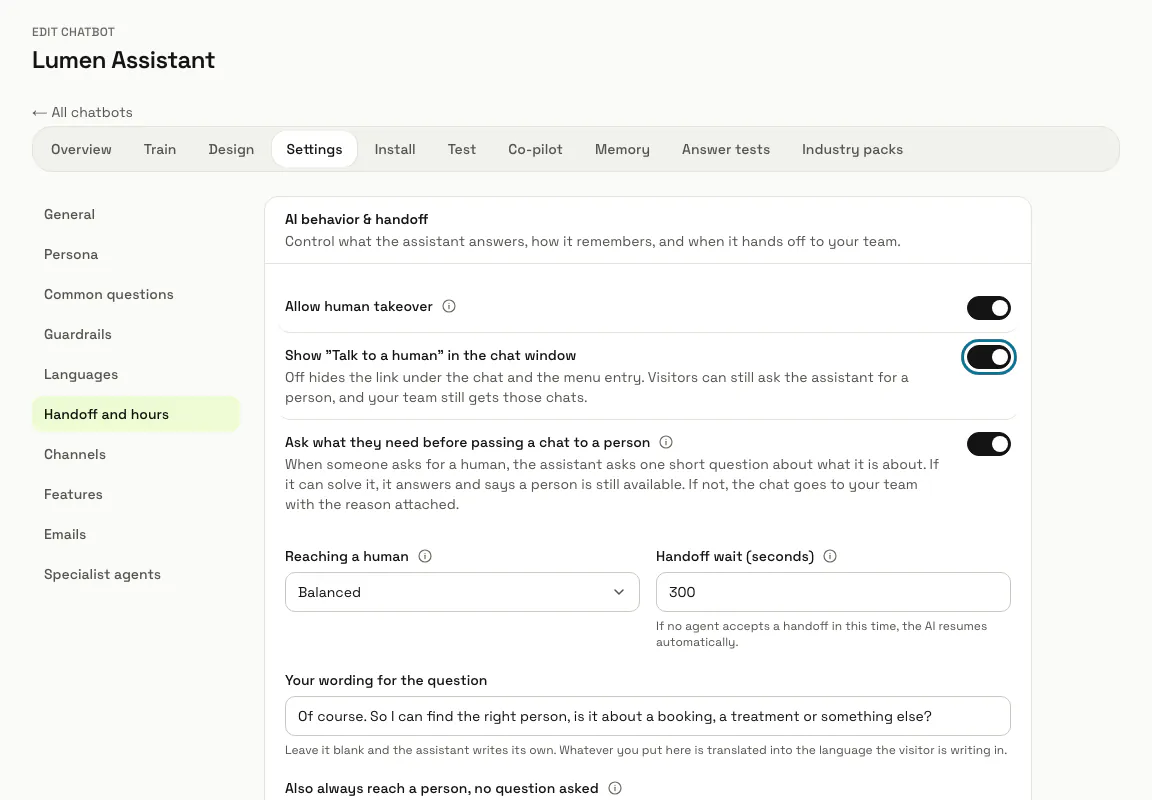
Step 2: Keep "Allow human takeover" on
It is on for a new chatbot. With it off, the chat window shows no "Talk to a human" link and the assistant does not offer to pass the visitor's email address to your team.
Step 3: Choose whether to show "Talk to a human"
This switch adds a link to the chat window that opens a short form: an optional name, an email and "How can we help?". Sending it puts the chat in your inbox with those details, and the visitor is told your team will email them back. Off hides the link, but visitors can still ask the assistant for a person.
Step 4: Set "Reaching a human"
"Easy" brings a person in at once. "Balanced", the default, asks once what it is about. "Strict" answers the question first, then offers a person.
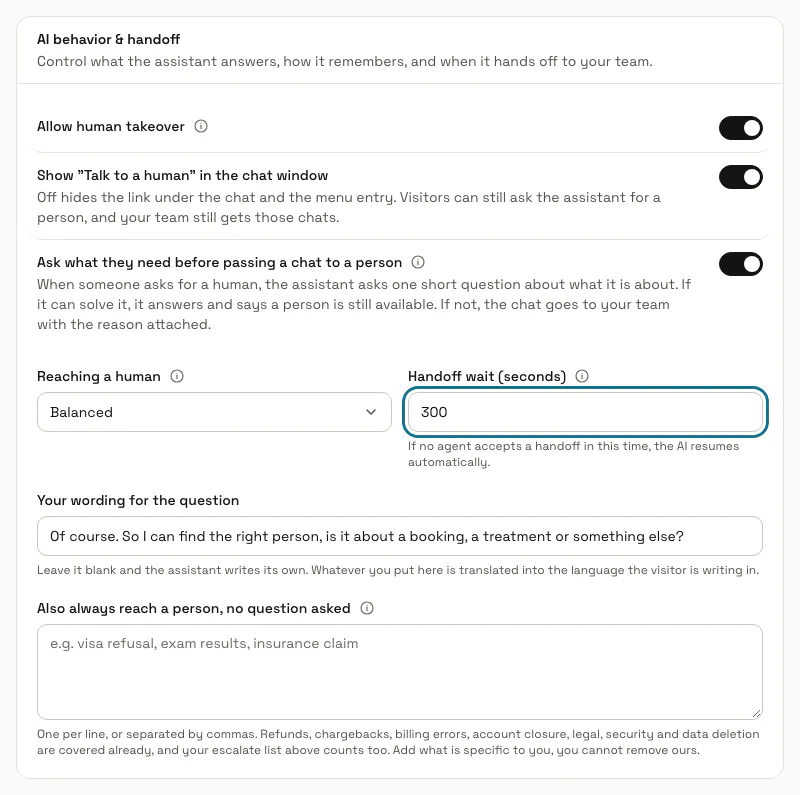
Step 5: Decide on the question before a handoff
With "Ask what they need before passing a chat to a person" on, the assistant asks one short question: if it can solve it, it answers and says a person is still available, and if not, the chat goes to your team with the reason. "Your wording for the question" replaces its own wording and is translated into the visitor's language.
Step 6: Set the "Handoff wait (seconds)"
This is how long a chat waits for a person: 300 seconds unless you change it, from 30 to 3,600. If nobody picks it up in time, the assistant tells the visitor nobody could join, keeps helping, offers to pass their email address on, and your team gets an alert.
Step 7: Answer the chat from the inbox
A handed-over chat shows in the inbox under "Waiting for a human". The assistant keeps answering the visitor until one of your team writes, then stays quiet in that chat.
If a handoff timed out and the visitor asks for a person again soon after, the chat is not queued a second time: the assistant says nobody is available and offers to pass their email address to your team.
Step 8: Press "Edit opening hours"
Hours belong to the whole workspace, and outside them the assistant tells people when your team is back instead of promising someone is coming. Business hours and routing rules have their own topic.
Tips
- "Also always reach a person, no question asked" takes topics that skip the question, one per line or separated by commas. Refunds, chargebacks, billing errors, account closure, legal, security and data deletion are covered already, and those cannot be removed.
- Topics listed on the Guardrails tab under "Topics to avoid & escalate to a human" also go straight to your team.
Stuck on a step? Ask our team