Your chatbot
Make the widget yours
Choose the chat widget's design, colours, logo, name and greetings, and see them in a live preview before you save.
Who can use it: Owner and Admin, or a custom role with "Create, edit and delete chatbots".
Step 1: Open the Design tab
Open the chatbot and press "Design". "Start from a style" at the top applies a complete look in one click, colour included, and keeps your texts and links. Everything else on the page waits for "Save changes".
A style's "Apply" button saves at once.
Step 2: Choose a widget design
Under "Widget design", pick "Classic", "Messenger" (a home screen, your logo and eight launcher styles) or "Card" (a clean header, product cards, dictation and file upload). The "Preview" on the right is the real widget with your unsaved choices: switch it between "Open" and "Closed", and between "Desktop" and "Phone".
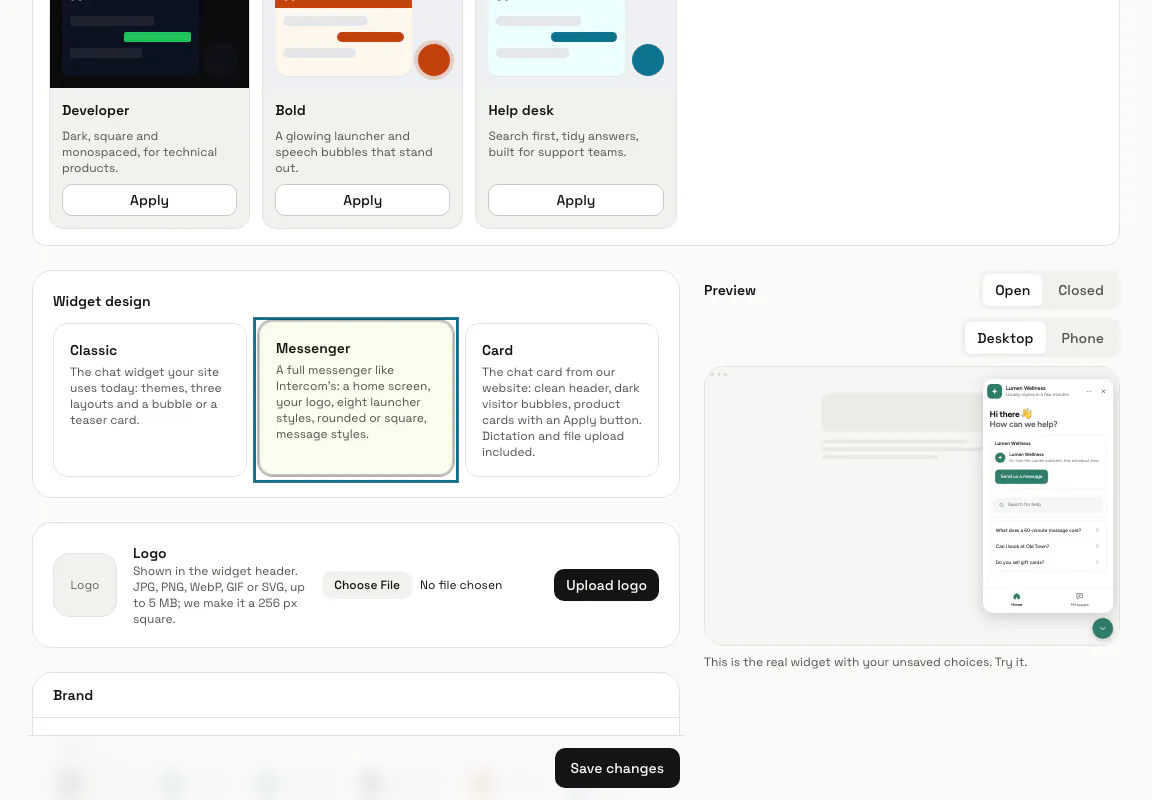
Step 3: Press "Upload logo"
Under "Logo", choose a JPG, PNG, WebP, GIF or SVG file of up to 5 MB; it is made into a 256 px square and shown in the widget header. The logo saves on its own, and "Remove" takes it off.
Step 4: Set your colours and the chat button
Pick a "Theme" or type your "Brand color", used for the launcher, visitor messages and buttons. Under "Launcher", choose the "Launcher style", the "Position" (bottom right or bottom left) and the "Launcher text". Messenger and Card add a "Second color", "Light or dark" and a "Font".
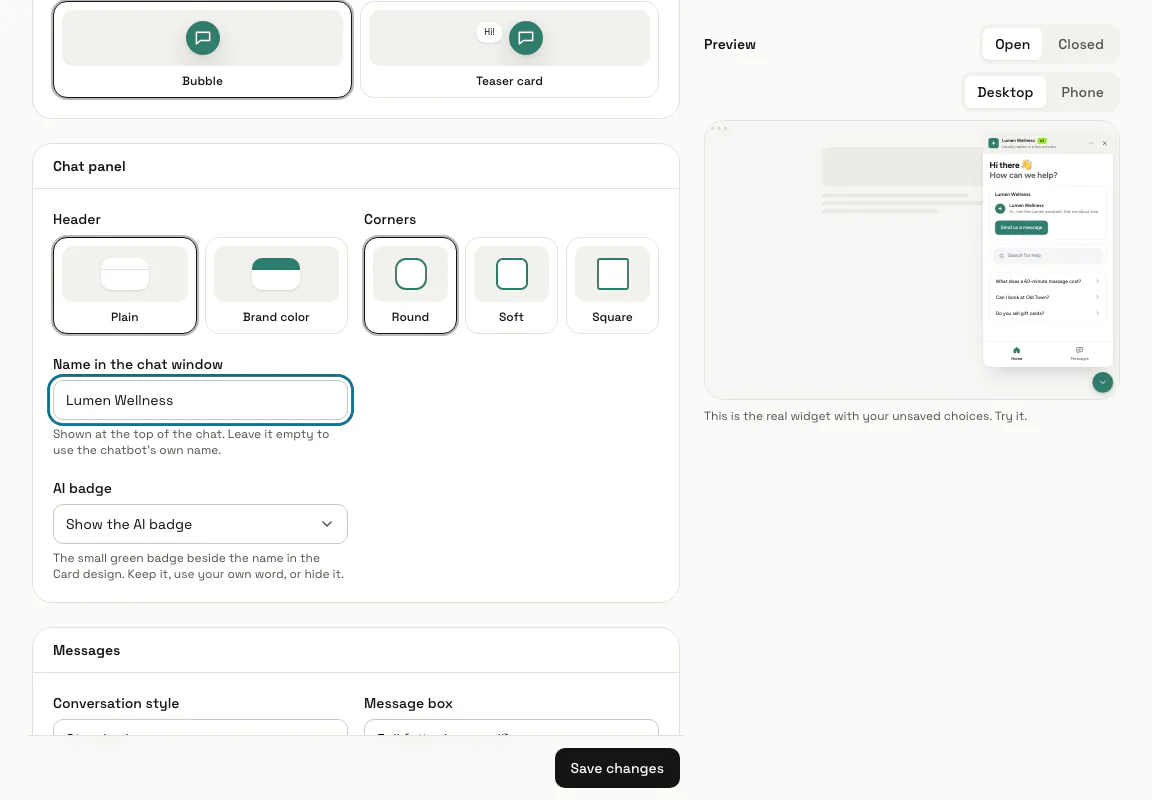
Step 5: Fill in "Name in the chat window"
It is shown at the top of the chat; left empty, the chatbot's own name shows. In the Card design, "AI badge" keeps the small badge beside the name, swaps it for your own word of up to 8 characters, or hides it. In Messenger and Card, the line under the name is "Reply time" under "Home screen"; left empty, it reads "We typically reply in a few seconds".
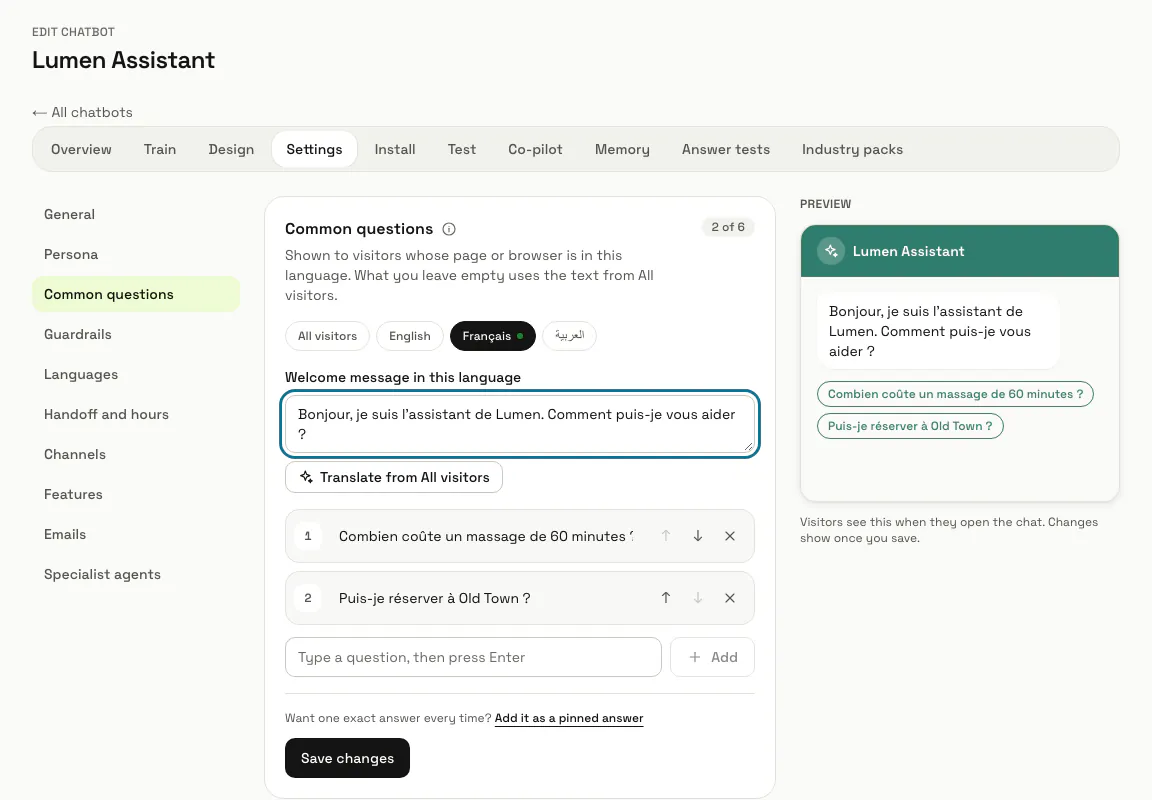
Step 6: Write the greeting and common questions for each language
The welcome message is under Settings, General, and the questions a visitor can tap, up to 6, are under Settings, "Common questions". There, a language tab such as "Français" gives visitors whose page or browser is in that language their own "Welcome message in this language" and questions. Anything you leave empty uses the text from "All visitors".
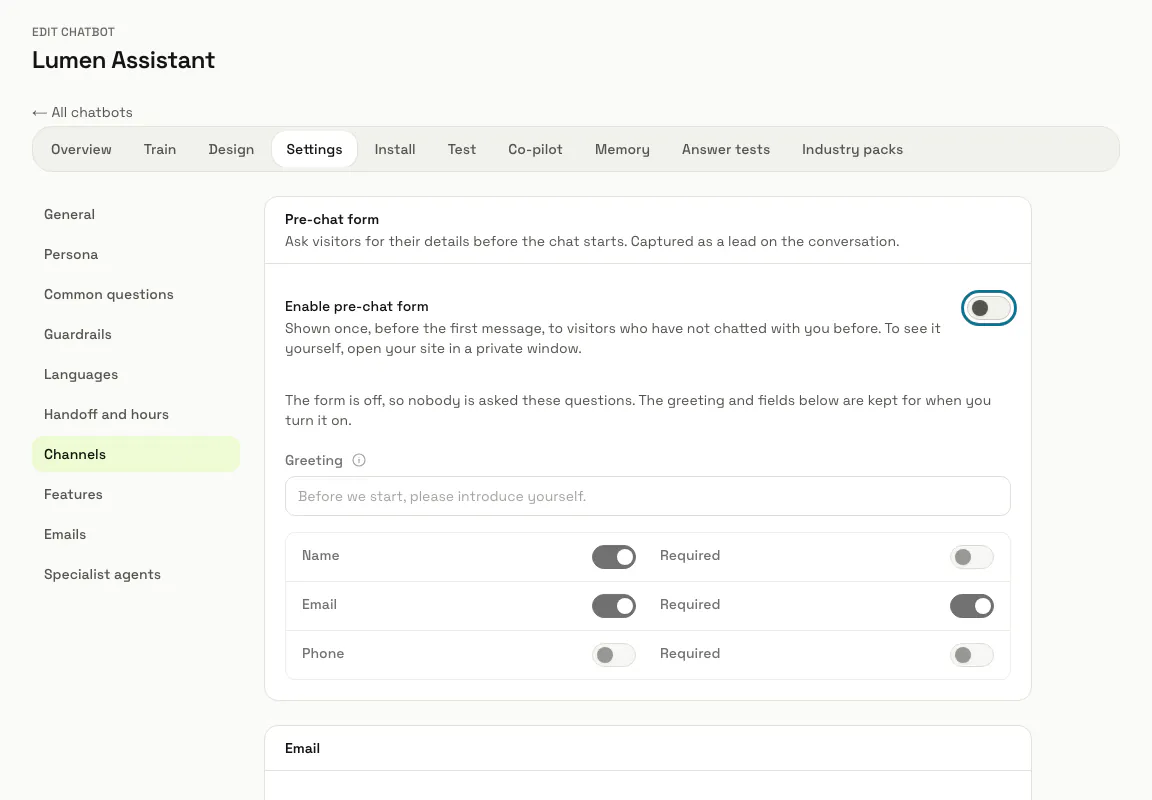
Step 7: Switch on "Enable pre-chat form"
It is under Settings, "Channels". The form asks visitors who have not chatted with you before for a name, email or phone, each marked "Required" or not, and what they give is saved as a lead on the conversation. To see the form yourself, open your site in a private window.
Step 8: Press "Save changes"
Nothing is live in the widget on your site until you save. Each tab saves only its own settings, so saving the Design tab leaves your common questions and greetings as they are.
Tips
- The widget's own words follow the visitor: the language of their page, else their browser. Classic speaks English, French and Arabic; Messenger and Card also speak Bengali and have a language menu. Arabic is laid out right to left.
- "Let visitors send files", "Play a sound on new replies", "Voice dictation" and "Show where answers came from" are under "Extras".
Limits and switches
- The "Powered by" line in the widget goes when your plan includes White label, or when the workspace has the add-on that removes it. The Design tab has no switch for it.
- Up to 6 common questions, for all visitors and for each language.
Stuck on a step? Ask our team