Your chatbot
Skills
Plain-language rules your assistant follows. Guidance skills shape what it says; action skills call a connector for live data while it replies.
Who can use it: Owner and Admin, or a custom role with "Change workspace settings and connections". Everyone in the workspace can see Skills and the ready-made library; adding, editing, importing and switching skills needs these roles.
Step 1: Open "Skills"
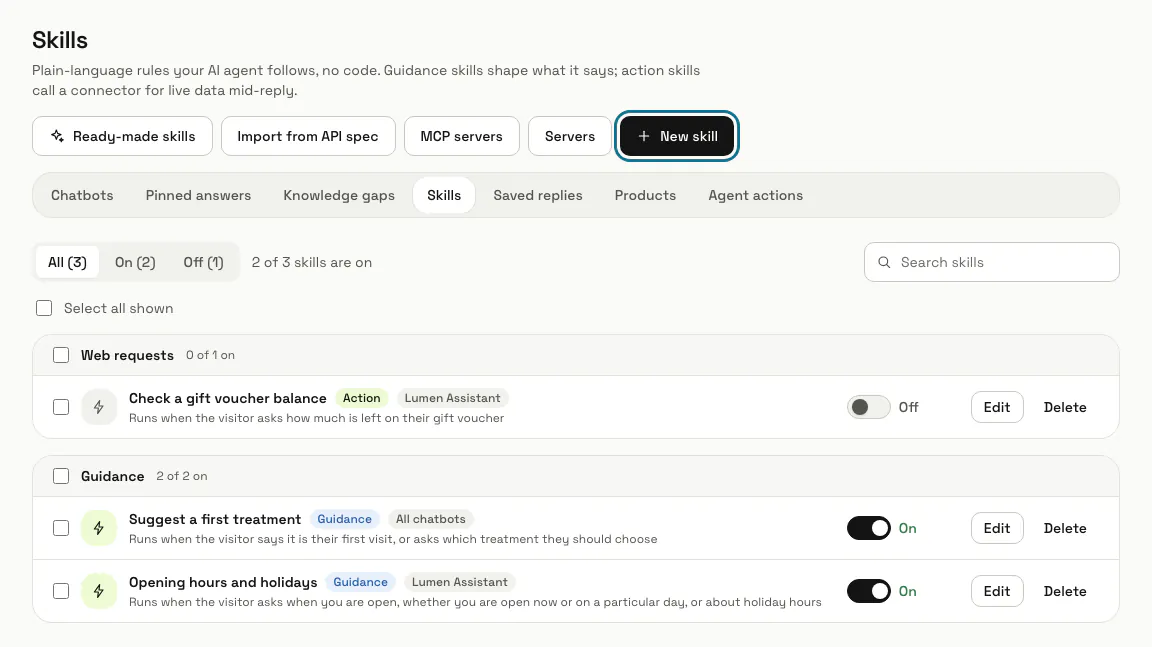
Open "AI agent" in the left menu, then "Skills". Each skill shows its type, the chatbot it applies to, when it runs and an On or Off switch, grouped into guidance and actions by connector.
Step 2: Start from "Ready-made skills"
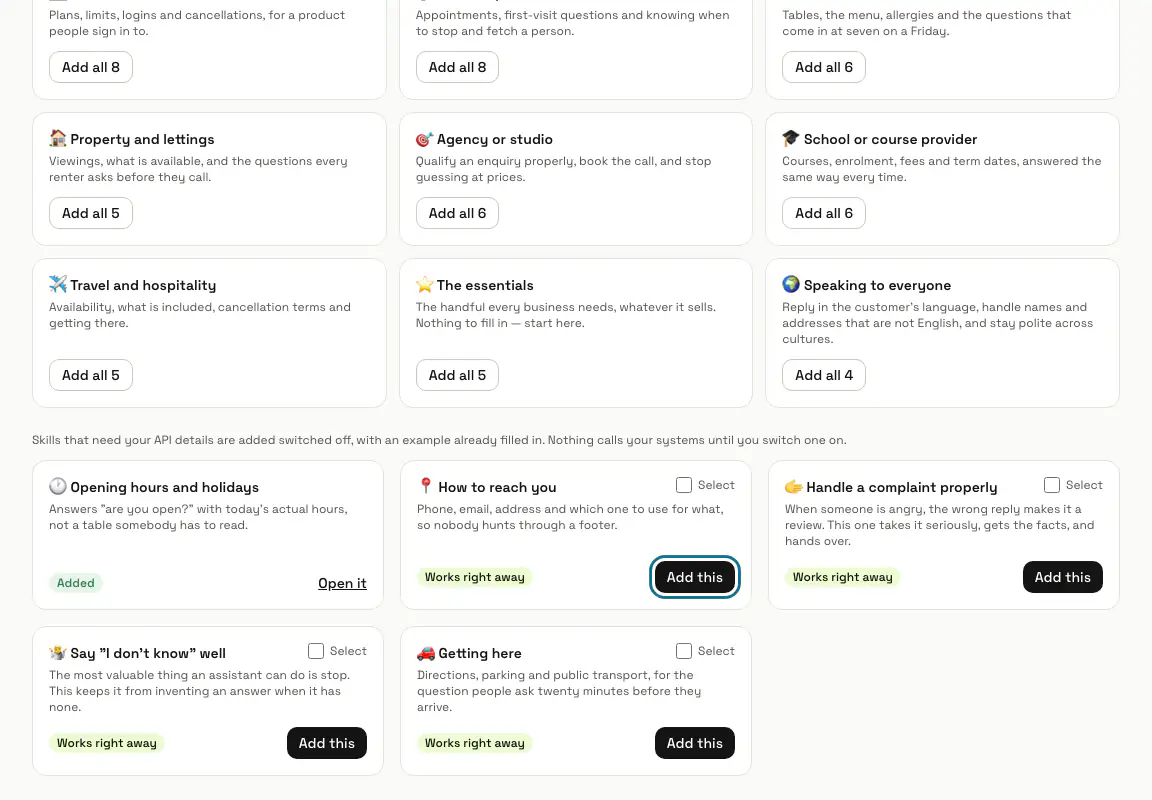
The library holds skills for shops, support desks, bookings, billing and more, by category. With more than one chatbot, pick it under "Adding to", then press "Add this" on a skill.
Skills marked "Needs your API details" are added switched off, with an example filled in. Nothing calls your systems until you put in your own details and switch the skill on.
Step 3: Press "New skill" to write your own
Give it a "Skill name" and choose "Applies to": "All chatbots" or one chatbot.
Step 4: Say when and what
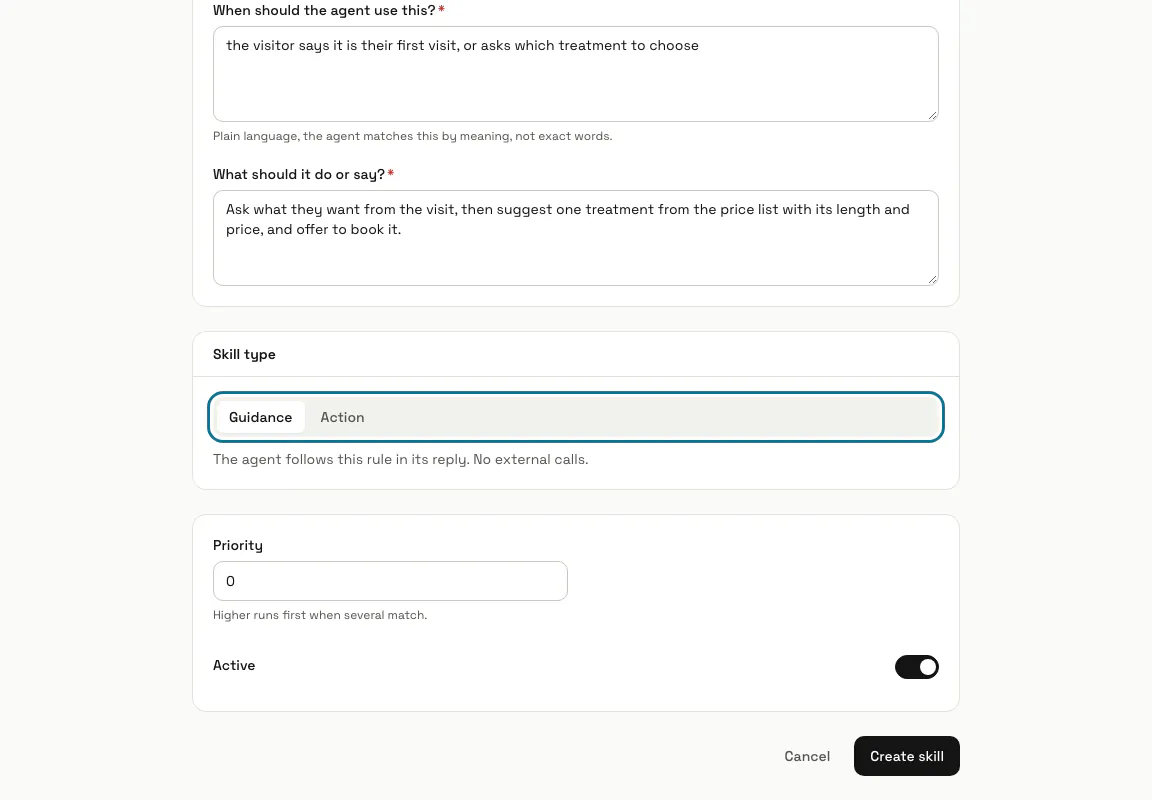
Under "When should the agent use this?" describe the situation in plain words; it is matched by meaning, not exact words. Under "What should it do or say?" write the rule itself.
Step 5: Choose the "Skill type"
"Guidance" is a rule it follows in its reply, with no outside calls. "Action" runs a connector (a web request, Slack, email or Google Sheets) and works the result into the reply. For an action you also set the "Risk level", "Require confirmation before running" and "Only for signed-in visitors".
Step 6: Press "Create skill"
With "Active" on, the assistant uses it from the next message. When several skills match, "Priority" decides: the higher number runs first.
Step 7: Switch skills on or off for one chatbot
On the chatbot's Settings, Features tab, the "Custom skills" switch turns every skill on or off for that chatbot. Adding a ready-made skill switches it on for you.
Step 8: Press "Import from API spec"
Paste the address of a public OpenAPI (Swagger) JSON file and press "Read the spec": you get one draft skill per documented GET endpoint to tick and import. Imported skills start switched off, and only GET endpoints are imported, so nothing can write to your systems by accident.
Limits and switches
- A skill that uses a connector needs a plan with connectors; guidance skills do not.
Stuck on a step? Ask our team