Your chatbot
Install the widget
Put the chat on your website with one line of code or a plugin, and check that it loads.
Who can use it: Everyone in the workspace. Signed visitor identity, on the same page, needs "Create, edit and delete chatbots" (Owner and Admin).
Step 1: Open the Install tab
Open the chatbot and press "Install", or press "Install" beside it in the chatbots list. "Install for web" at the top says "Not installed yet" until the chat button first loads on your site, then "Installed" with the site and the time it was last seen.
Step 2: Choose how to install
Under "Choose how to install", pick "Code snippet", React, Next.js, Vue, Angular, WordPress, Shopify, "Google Tag Manager", "Wix, Squarespace, Webflow" or WHMCS. Each one shows its own steps and the code to use, with this chatbot's embed key already in it.
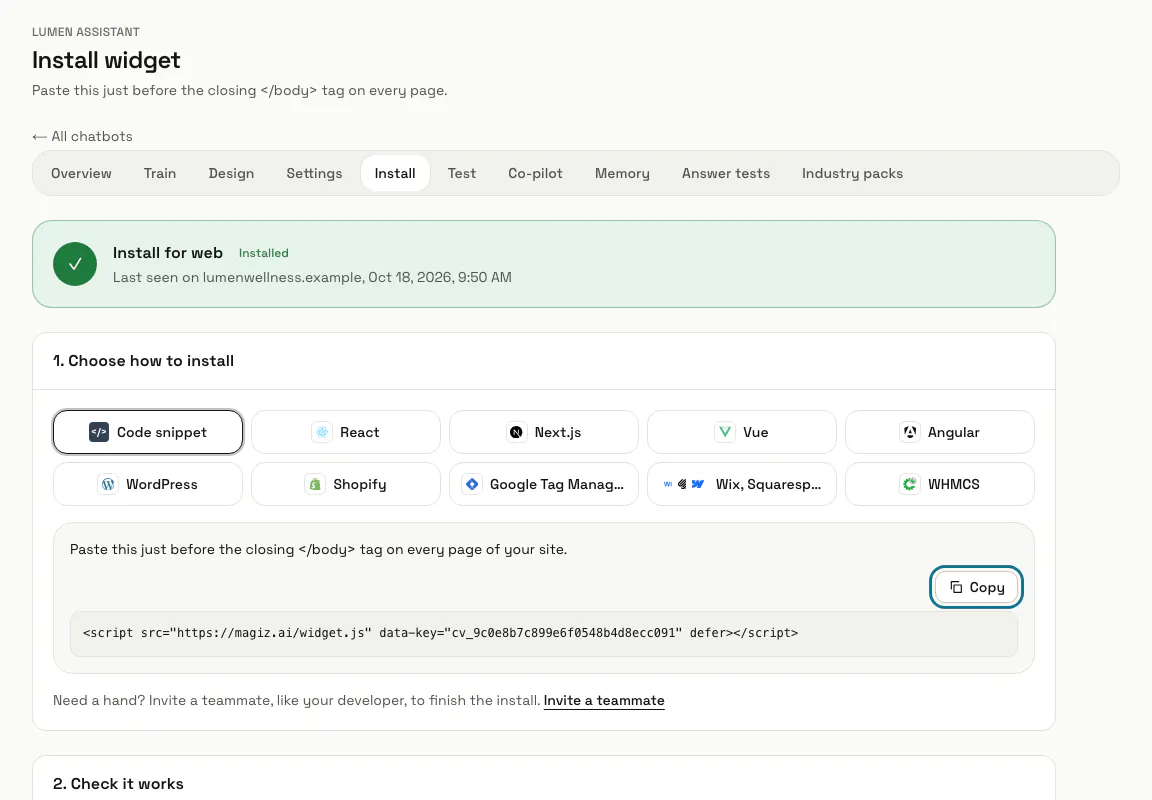
Step 3: Press "Copy"
For "Code snippet", paste the line just before the closing </body> tag on every page of your site. In Shopify it goes into theme.liquid the same way, and Google Tag Manager takes it as a Custom HTML tag on All Pages.
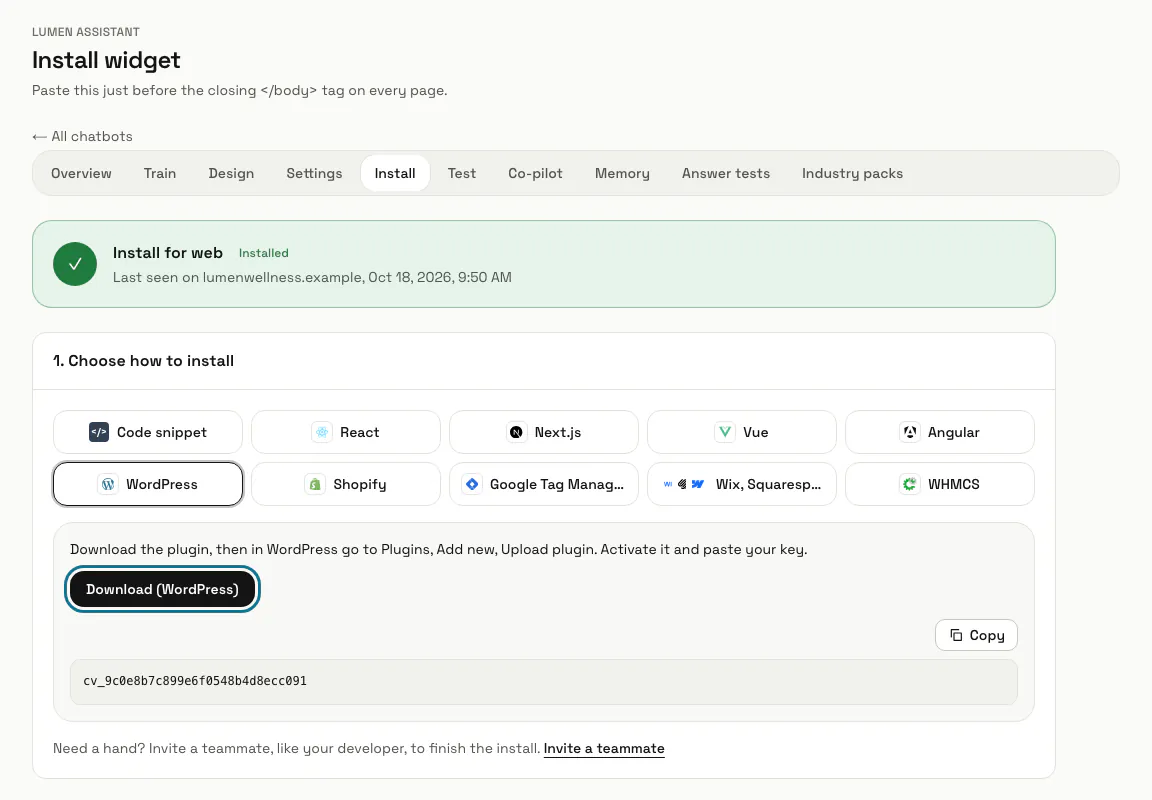
Step 4: Press "Download (WordPress)"
On the WordPress tab, download the plugin, then in WordPress go to Plugins, Add new, Upload plugin. Activate it and paste the key shown under the button.
Step 5: Check it works
Open your site in a new tab: the chat button appears in the corner, and the Install page turns green after the first visit. "Try it live" loads the real widget on the Install page itself, with the chatbot's live settings and knowledge.
A paused chatbot shows a notice instead of "Try it live". Switch it on from its overview first.
Step 6: Set up "Signed visitor identity"
It lets the chatbot answer account questions, such as where an order is, for visitors your site has signed in. Press "Generate secret", copy it while it is shown, and have your server sign a short-lived token with it; the Developers part of this guide has the details.
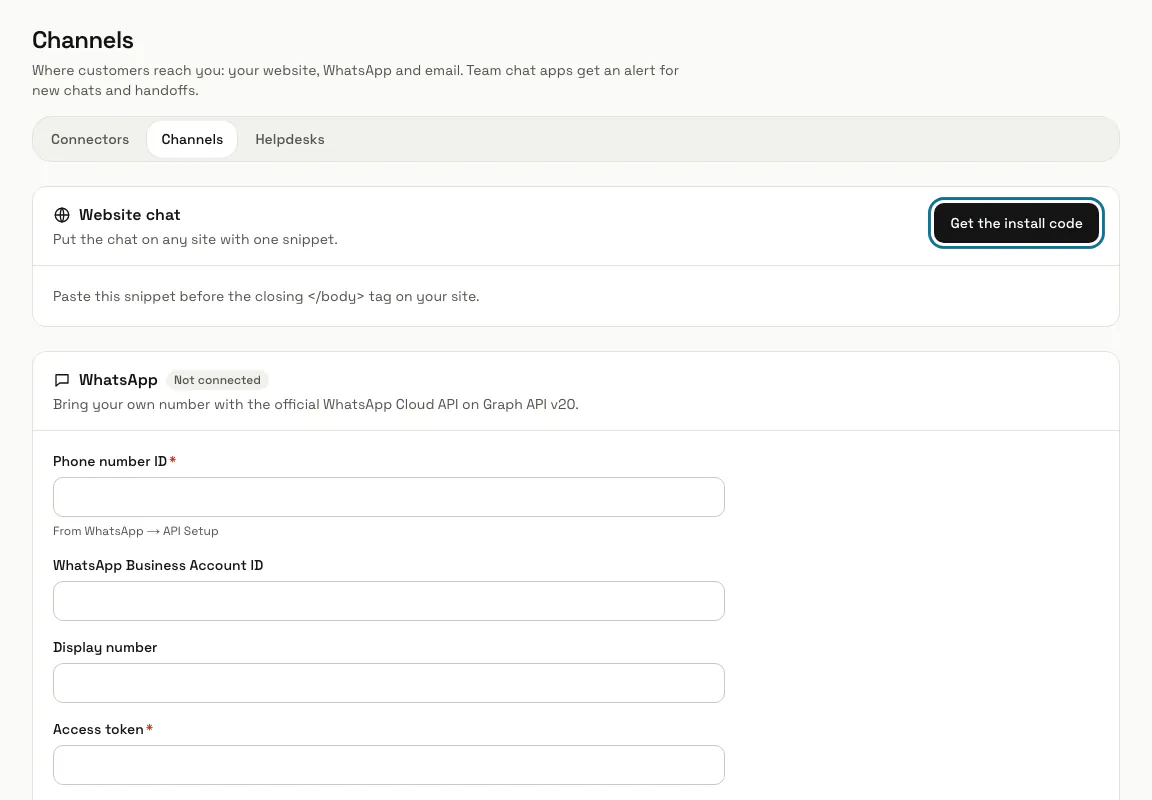
Step 7: Find the install code from Connectors
In "Connectors", "Channels", the "Website chat" card has "Get the install code", which opens the Install page of your newest chatbot.
Step 8: Switch on "Store a visitor ID only after the visitor opens the chat"
Off, as on every chatbot until you change it, the widget keeps a visitor ID in a cookie and in the browser's storage for 365 days as soon as a page with the chat loads, and live visitors and browsing tracking start then, unless the browser sends Do Not Track. Switched on in the chatbot's settings, "Features" tab, under "Visitor privacy", nothing is stored and no live visitor or browsing data is sent until the visitor opens the chat. Press "Save changes".
With a cookie banner, add data-consent="wait" to the line on your site and have the banner call MagizAI.consent(true) when the visitor agrees, or MagizAI.consent(false) to take away what the widget stored. The API docs show both.
Tips
- The line on your site stays the same when you change the widget's design: Messenger and Card load through it too.
- Need a developer to finish? "Invite a teammate" under the platform steps opens Team (for people who may manage the team).
Stuck on a step? Ask our team