Your chatbot
Train your AI
Give the chatbot your website, files, text and answers, so it replies from your own information.
Who can use it: Owner and Admin, or a custom role with "Manage training and knowledge". Everyone in the workspace can see the Train page and its sources. Adding, retraining, changing and deleting knowledge need this permission.
Step 1: Open the Train tab
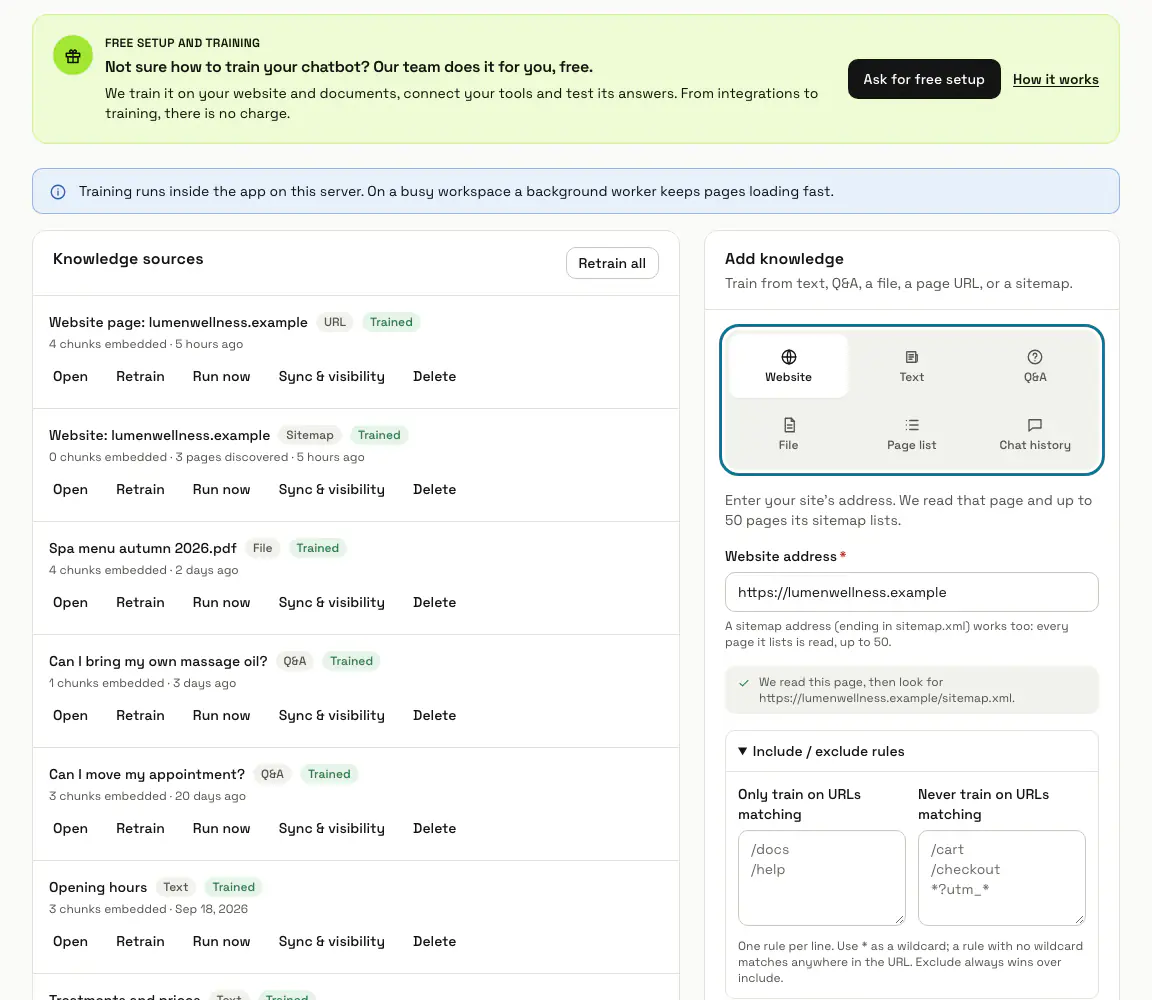
Open the chatbot and press "Train". "Knowledge sources" lists everything it learns from, each with its type, a status ("Trained", "Waiting", "Reading", "Failed" or "Unreachable") and how many chunks were embedded. The "Add knowledge" card has a tile for each kind of knowledge: Website, Text, Q&A, File, Page list and Chat history.
Step 2: Add your website
On the "Website" tile, enter your address in "Website address" and press "Add & train". MagizAI reads that page and up to 50 pages listed in its sitemap, and a sitemap address (ending in sitemap.xml) works too. "Preview pages" shows which pages would be trained before anything is added.
Step 3: Drop in your files
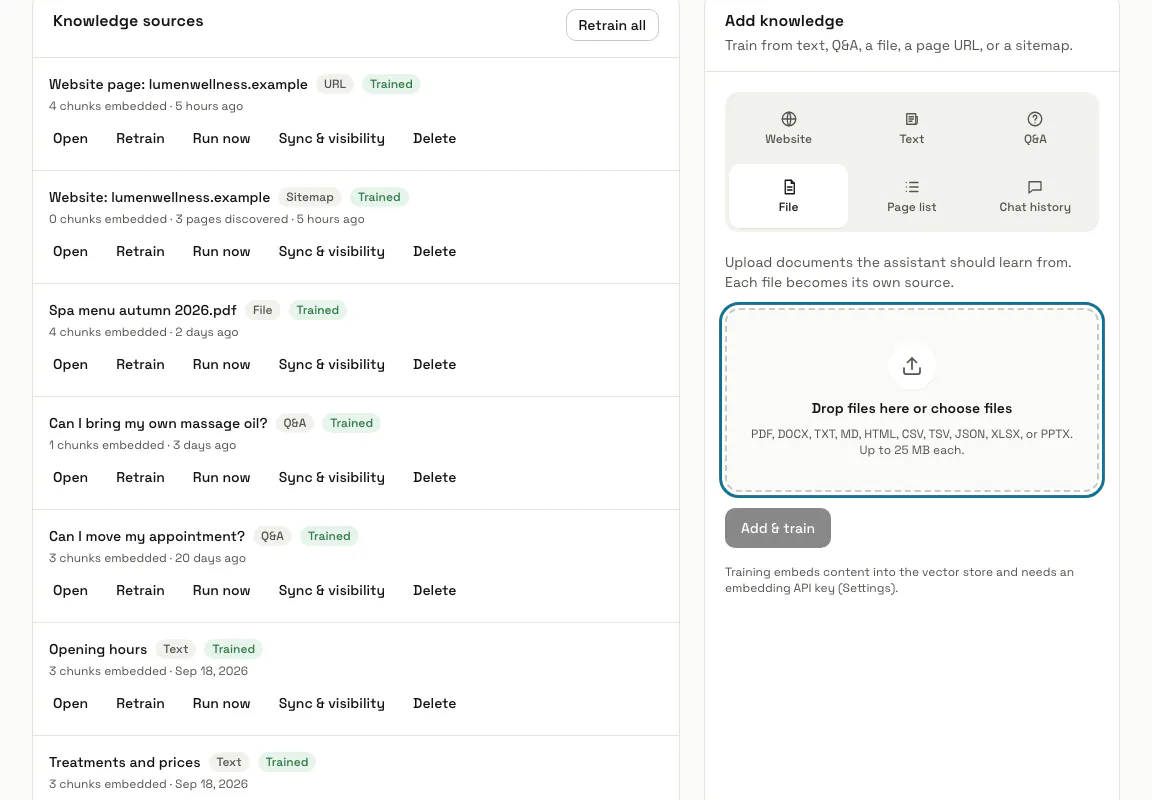
On the "File" tile, drop files on "Drop files here or choose files", or press it to pick them. Each file shows "Ready" or why it cannot be added, such as "This kind of file cannot be read for training.", and can be removed before you press "Add & train". Each upload then shows its own progress and ends with "Added" or "Not added".
Step 4: Paste text, questions and answers or page addresses
"Text" takes a policy, product details or opening hours, with an optional title. "Q&A" takes a question the way a visitor would ask it with its answer, either "One by one" or "Many at once" (one pair per line, split by | or a tab), and "Page list" reads only the addresses you paste. "Chat history" learns from this chatbot's own finished chats, with email addresses, phone numbers and the visitor's name replaced first.
Step 5: Draft answers with "Write with AI"
Name a "Topic", such as refunds and cancellations, choose "How many" (up to 20) and press "Draft". The AI writes questions and answers from what the chatbot already knows; each starts ticked "Keep", and you can edit or untick it. Nothing is saved until you press the "Save ... and train" button.
Step 6: Press "Sync & visibility"
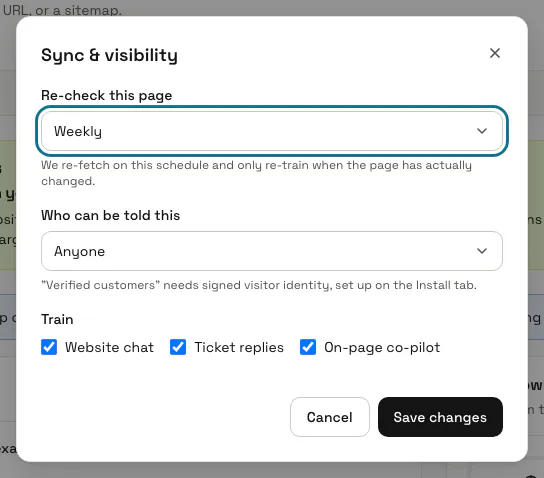
"Re-check this page" (Never, Daily, Weekly or Monthly) works for web pages only, and re-trains only when the page has changed. "Who can be told this" is "Anyone", "Verified customers only" or "Never shown to visitors". The "Train" boxes pick where the source is used: "Website chat", "Ticket replies" and "On-page co-pilot".
"Verified customers only" needs signed visitor identity, set up on the Install tab.
Step 7: Open a source
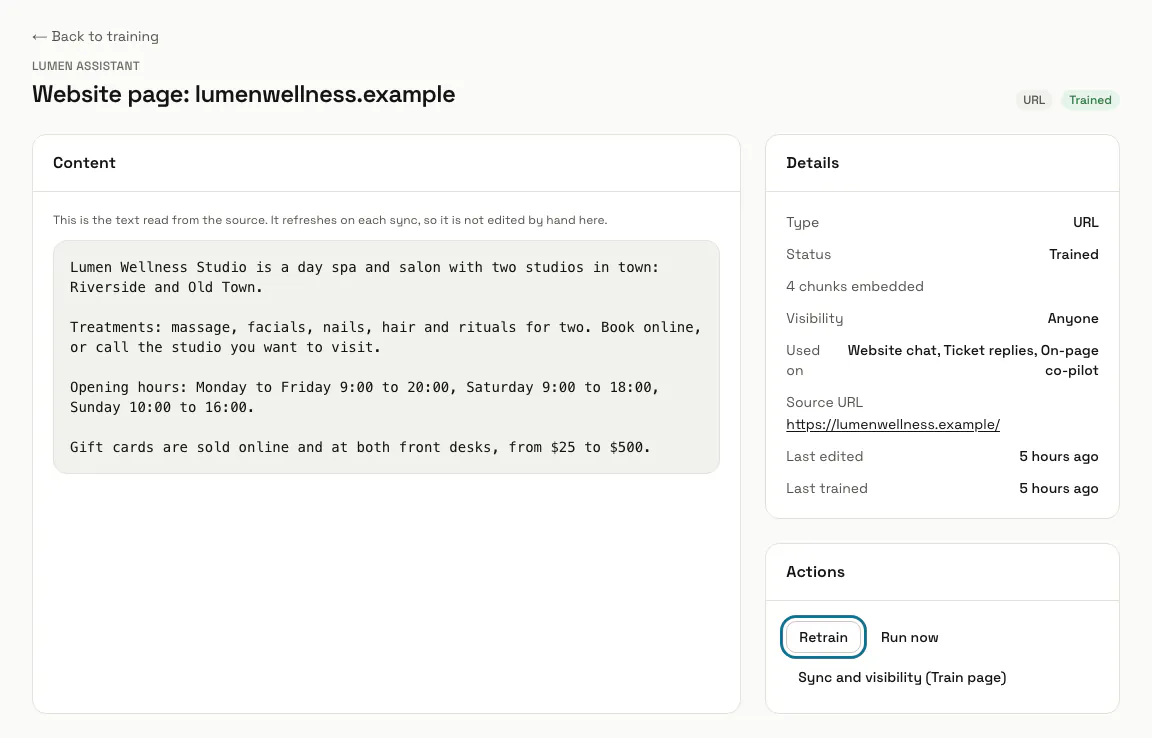
Press a source's title to see its type, status, chunks, visibility, where it is used, its address and when it was last trained. A text source can be edited there and saved with "Save and retrain"; a web page shows the text that was read, which refreshes on each sync. "Retrain" queues the source again, and "Run now" trains it while you wait.
Step 8: Press "Import a help centre"
Upload a CSV, TSV, JSON or Excel (.xlsx) export of your help articles, or a two-column sheet of questions and answers, and press "Import and train". MagizAI first shows the entries it found and saves nothing yet; pick "Who may be shown this" and where they are used, then press the "Import ... entries and train" button. Entries with a title this chatbot already has are left alone.
Tips
- In "Include / exclude rules" on the Website tile, write one rule per line, with * as a wildcard. A rule without a wildcard matches anywhere in the address, and an exclude rule always wins.
- Adding a website adds two sources: the page itself, and the website, whose pages from the sitemap are counted under it.
- The list refreshes by itself while a source shows "Waiting" or "Reading".
- A source that shows "Trained" with 0 chunks embedded was read but not embedded, because no embedding key was available. The assistant still finds it by its words. "Retrain all" embeds every source again, and that use is billed.
- Where no background worker runs, training runs inside the app and the Train page says so.
Limits and switches
- Files: PDF, DOCX, TXT, MD, HTML, CSV, TSV, JSON, XLSX or PPTX, up to 25 MB each and 20 at a time.
- Website: the page you enter plus up to 50 pages from its sitemap. Page list: up to 50 addresses at a time.
- Q&A "Many at once": up to 200 pairs at a time. Chat history: up to the 500 most recent finished chats.
- Help centre import: one file of up to 25 MB.
- Your plan sets how many knowledge sources the workspace may add, across all its chatbots; the pages a website brings in are not counted. Past the limit a new source is refused and an import stops; nothing already added is removed.
Stuck on a step? Ask our team