Your chatbot
Control what the AI says
Set who the assistant is, the rules it follows, how good and how long its answers are, and the facts it always knows.
Who can use it: Owner and Admin, or a custom role with "Create, edit and delete chatbots". Everyone in the workspace can open a chatbot's Memory page; only these roles can add, pause or delete a memory.
Step 1: Open the "Settings" tab of your chatbot
Open "AI agent" in the left menu, pick the chatbot and open "Settings". The settings are split into tabs down the side (General, Persona, Guardrails, Languages and more), and each tab has its own "Save changes" button, so saving one tab never changes another.
Step 2: Name the business it speaks for
On the General tab, "Business name" is the business this assistant speaks for; leave it empty and it uses the workspace name. "Role" is a short label such as support or sales that only your team sees.
Step 3: Choose the answer quality and reply length
The "AI model" box depends on your keys. On our keys you pick "Answer quality" (Fastest, Standard or Advanced); on your own provider key you pick the "Provider" and "Model" instead. "Max reply tokens" caps one reply, from 128 to 8,192 tokens, and 500 tokens is about 375 English words.
Which of the two you see is set under Settings, "API key mode": "Use our keys" or "Use your own keys".
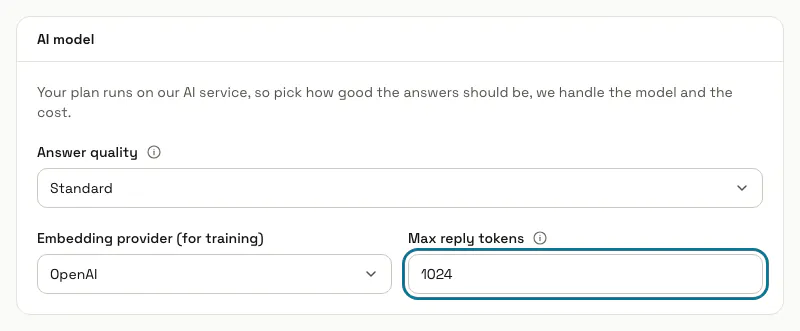
Step 4: Fill in the Persona tab
"Persona" says who the assistant is and how it sounds, like a short brief for a new team member (up to 2,000 characters). "Extra instructions" holds the rules it always follows, one per line (up to 4,000 characters). "Write with AI" under each box drafts or rewrites the text for you to check before you save.
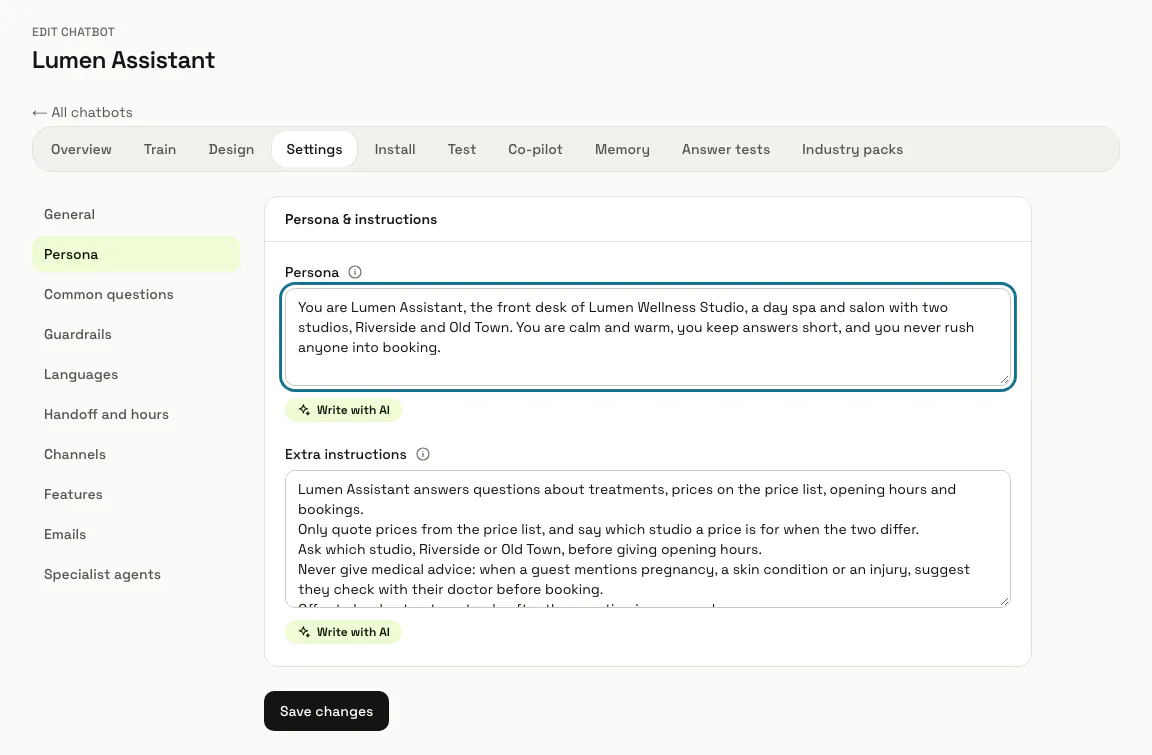
Step 5: Set the guardrails
On the Guardrails tab, fill in "What to help with", list "Competitors to never recommend", and list "Topics to avoid & escalate to a human": the assistant is told to pass chats about those to your team instead of answering them. A new chatbot starts with refund and return requests, cancellations it cannot do itself, chargebacks and payment disputes, and legal threats on that list, in your dashboard language; change or clear it as you like. "When a question is off topic" is what it says to questions that have nothing to do with your business, and {company} becomes your company name.
Switch on "Answer only from trained knowledge" for prices and policies. The assistant is then told never to use general knowledge: when your content does not cover a question, to say plainly that it does not have that information and offer to connect the visitor with your team. Expect it to say it does not know more often.
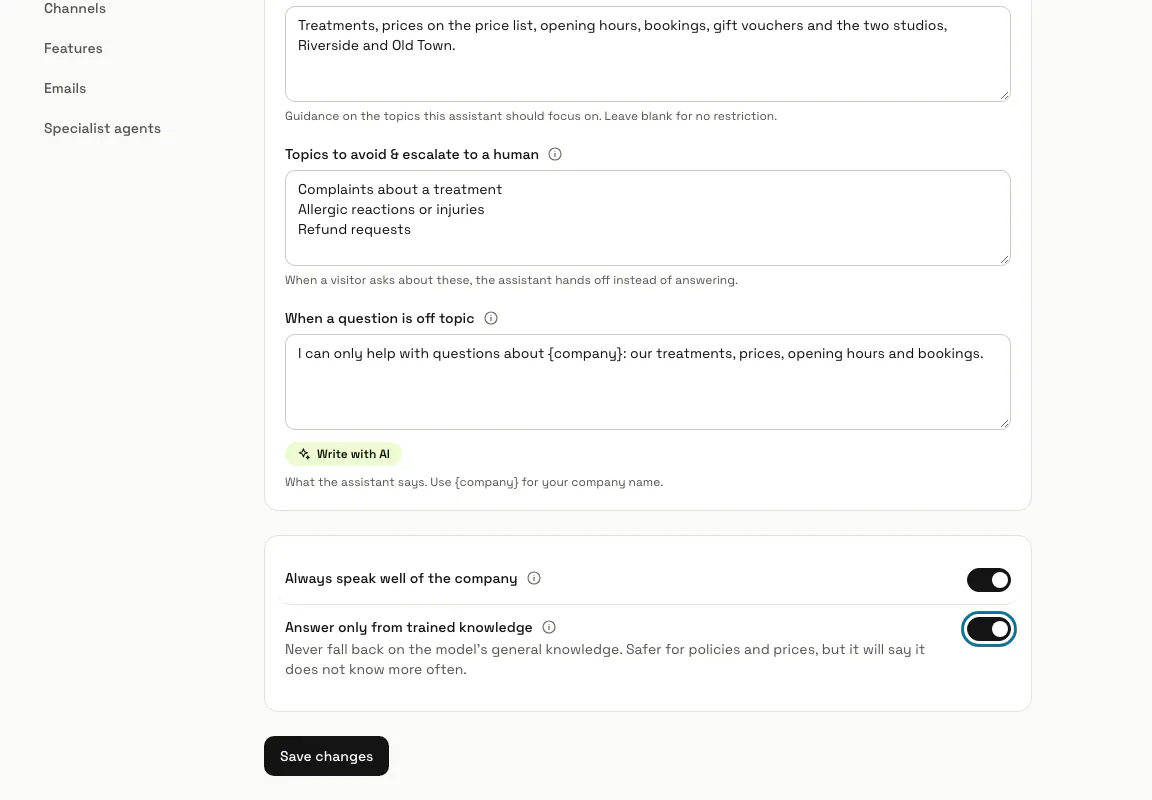
Step 6: Choose the reply language on the Languages tab
"Reply in the visitor's language" is on by default: each visitor gets answers in the language they write in, even when your content is in another one. Switch it off and the assistant always replies in the language chosen under "Reply language when this is off" (English, French or Arabic; English until you choose). A visitor who writes Arabic in Latin letters (Arabizi) gets the answer in Arabic script unless your instructions say otherwise. The same tab holds "Remember returning visitors" and "Memory window (turns)", the number of recent messages it reads before it replies (0 uses the platform default).
Step 7: Decide what this chatbot shares with the others
On the Features tab, "Use the workspace's shared skills, pinned answers and memories" is on by default. Turn it off when this chatbot speaks for a different business: it then uses only its own, and the line under the switch counts what is shared and what is its own.
Step 8: Add facts on the "Memory" page
Open "Memory" in the chatbot's row of tabs. Write a "Fact" the assistant treats as true in every conversation, add a label if you like, choose "Applies to" ("All my chatbots" or "This chatbot only") and press "Save memory". "Disable" pauses a fact without deleting it.
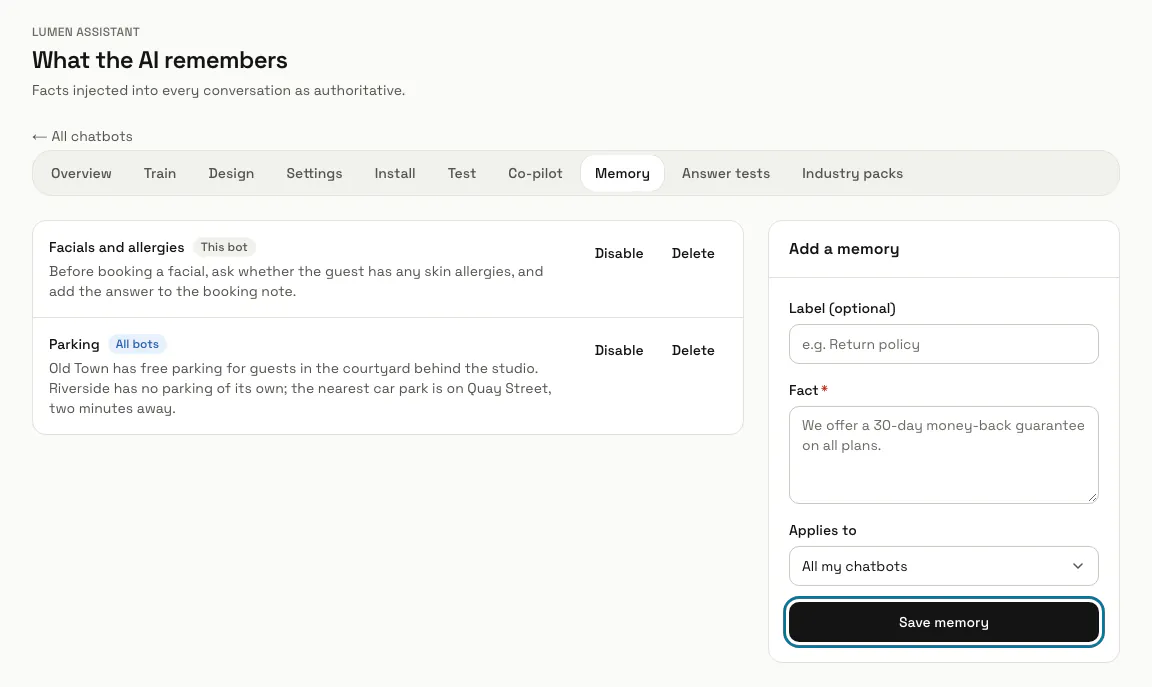
Tips
- The (i) button beside a setting explains it, with an example.
- To greet visitors in their own language, open the "Common questions" tab and pick the language.
- A chatbot that speaks for a health practice also follows MagizAI's health safety rules, whatever its own instructions say: it gives no diagnosis or treatment advice, tells anyone who describes an emergency to call the local emergency number or go to an emergency department, and asks for no health details. That is a chatbot set up with the "Clinic & health" pack, and every chatbot of a workspace with a booking form made from a health template or showing the health privacy notice (linked to that chatbot or to none).
Limits and switches
- Your plan sets which answer quality levels you can pick. When it allows none, the General tab says so instead of showing the choice.
Stuck on a step? Ask our team