Your chatbot
Create a chatbot
Make a chatbot from a template, find your way around its pages, and pause, switch on or delete it.
Who can use it: Owner and Admin, or a custom role with "Create, edit and delete chatbots". Everyone in the workspace can open the chatbots list and a chatbot's overview. Creating, pausing, deleting and applying an industry pack need this permission.
Step 1: Open "AI agent"
Press "AI agent" in the left menu. "Chatbots" lists every chatbot in the workspace with an "Active" or "Paused" badge and how many sources and chats it has. "Manage" opens a chatbot and "Install" goes straight to its install code.
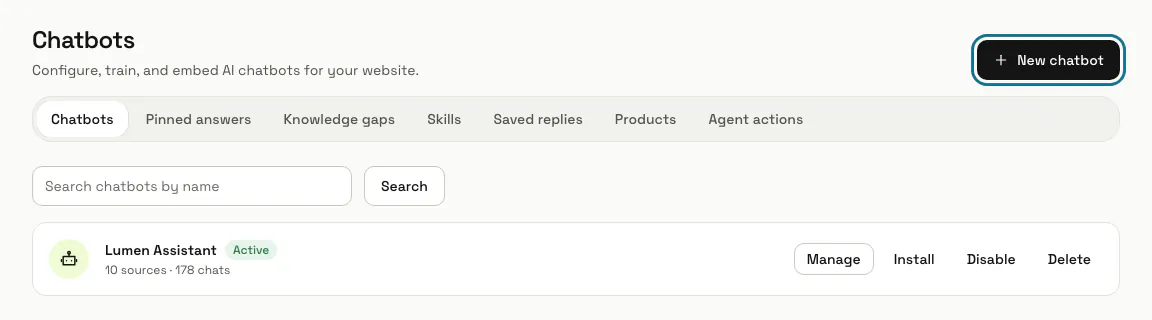
Step 2: Press "New chatbot"
Pick a starting point under "Start from": Tech support, Sales assistant, Booking assistant, Front desk, FAQ answerer or Start from scratch. Every template but Start from scratch fills in a persona and instructions for that job, and the name follows your pick until you type your own. Every chatbot starts with a welcome message that says it is an AI assistant and how to reach your team, in English, French and Arabic, led in your dashboard language.
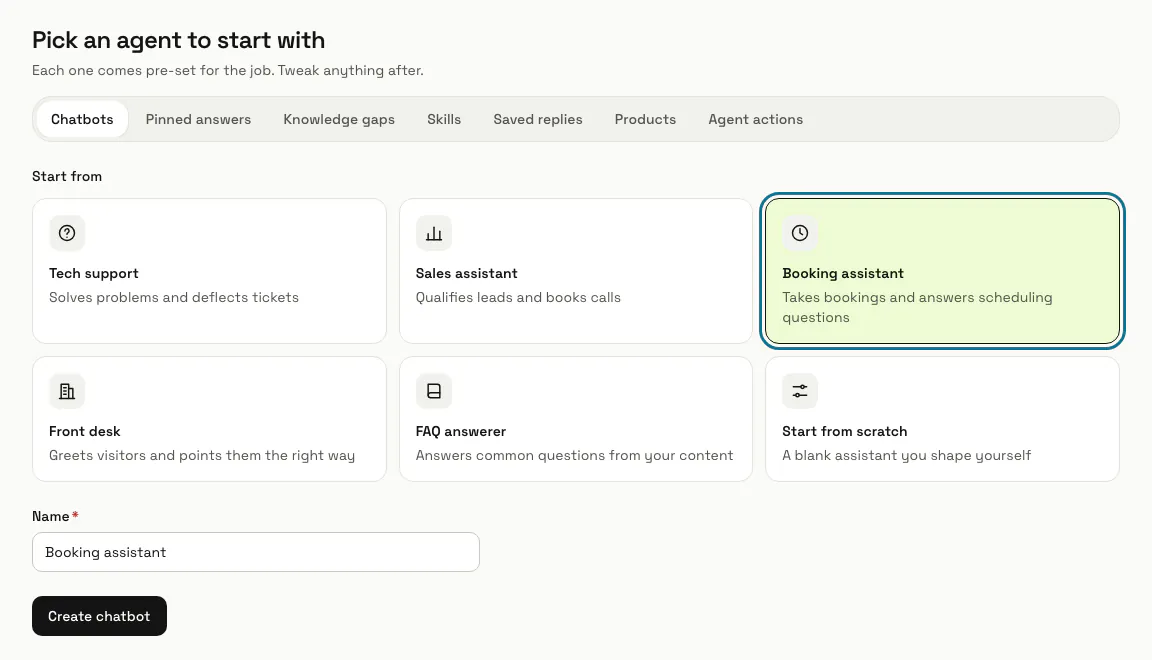
Step 3: Press "Create chatbot"
"Name" is the only field you must fill in, up to 120 characters. The chatbot starts active, with human handoff and product recommendations switched on, and opens on its overview page.
When the workspace already has as many chatbots as your plan allows, paused ones included, the page says so and nothing is created.
Step 4: Follow "Get your assistant live"
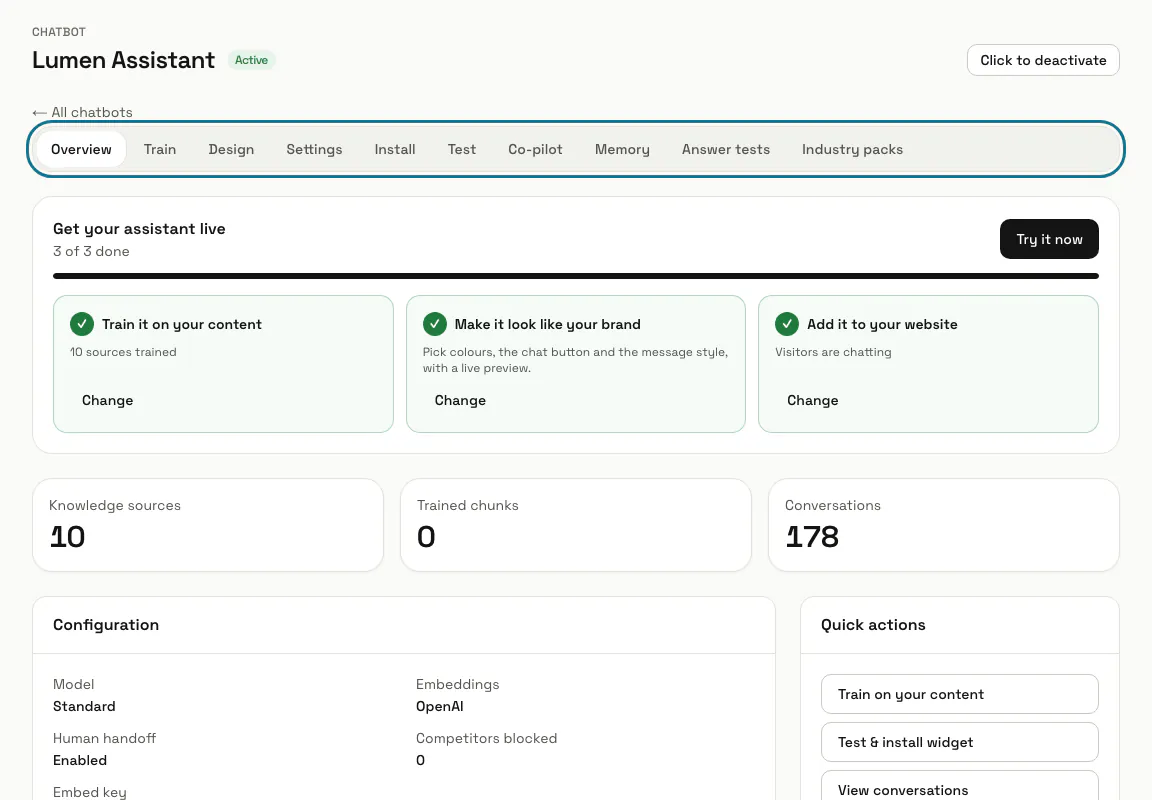
The overview lists three steps, "Train it on your content", "Make it look like your brand" and "Add it to your website", each ticked once done, and "Try it now" opens the test chat. Below are the counts of knowledge sources, trained chunks and conversations, the AI model and the chatbot's "Embed key". The row of tabs leads to its other pages: Train, Design, Settings, Install, Test, Co-pilot, Memory, Answer tests and Industry packs.
Step 5: Pause a chatbot
Press "Click to deactivate" on the overview, or "Disable" in the chatbots list: the chatbot stops replying on your site, and its pages say it is paused. "Click to activate" or "Enable" switches it back on, as long as your plan allows another active chatbot.
Step 6: Press "Apply pack"
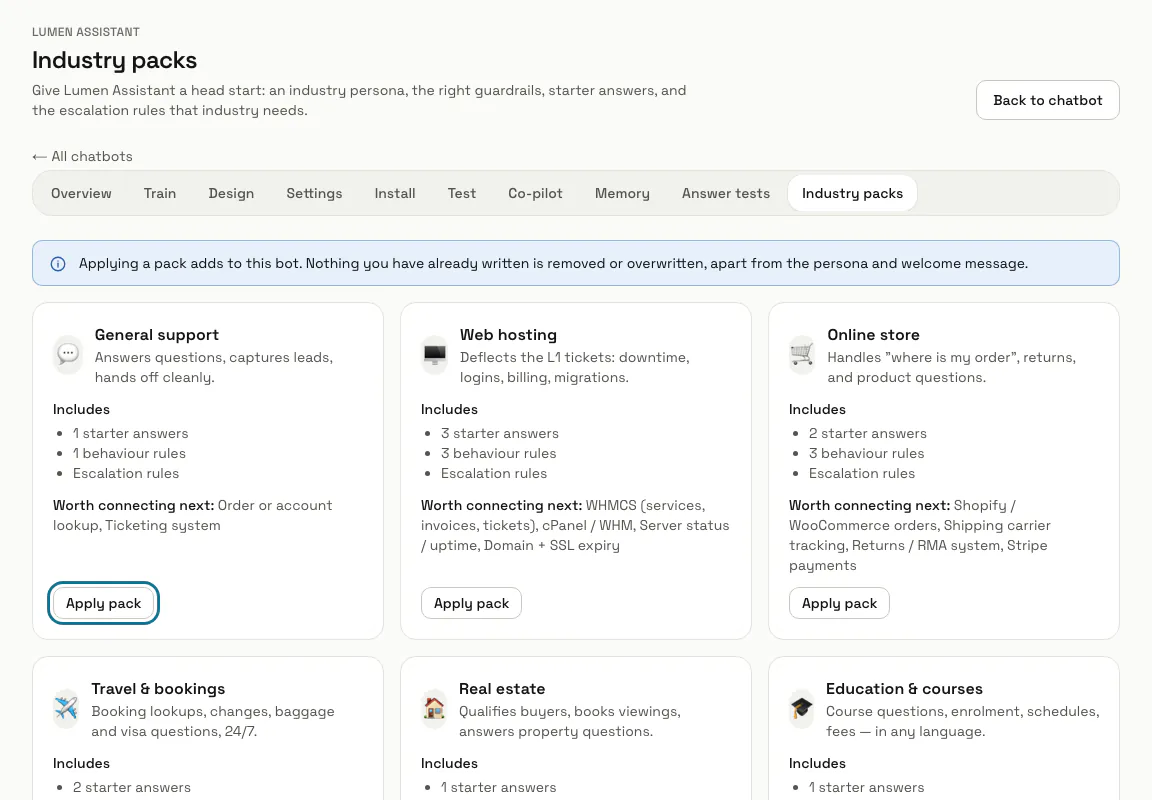
Open "Industry packs" in the chatbot's tabs. Each card lists the pack's starter answers, behaviour rules and escalation rules, and the tools worth connecting next. "Apply pack" asks once more, then adds them and starts training the starter answers.
A pack replaces the chatbot's "Persona" and "What to help with" with its own, adds its rules after your "Extra instructions" and its topics to your "Topics to avoid & escalate to a human", and some packs also switch "Answer only from trained knowledge" on or off. A welcome message you wrote stays as it is; the default greeting becomes the pack's, in English, French and Arabic, led in your dashboard language (or in the chatbot's reply language when it always replies in one).
Step 7: Press "Delete"
In the chatbots list, "Delete" asks first: "Delete Lumen Assistant and all its data? This cannot be undone." Deleting removes the chatbot together with its knowledge and its conversations.
Tips
- Three templates switch on the pre-chat form: Tech support (email required), Sales assistant (name and email required, phone optional) and Booking assistant (name, email and phone required). You can change it later under Settings, Channels.
- To have a chatbot speak for a different business than the workspace, fill in "Business name" under its Settings, General.
Limits and switches
- Your plan sets how many chatbots the workspace may have. Creating one counts every chatbot, paused ones too; switching one on counts only the active ones.
- When a plan change leaves more active chatbots than the new plan allows, the newest ones are paused and the oldest stay on.
Stuck on a step? Ask our team