Getting started
What's new
Where to see each new feature, improvement and fix in MagizAI, newest first, with the day it went live.
Who can use it: Everyone in the workspace. The page is public: you do not need to sign in to read it.
Step 1: Open the What's new page
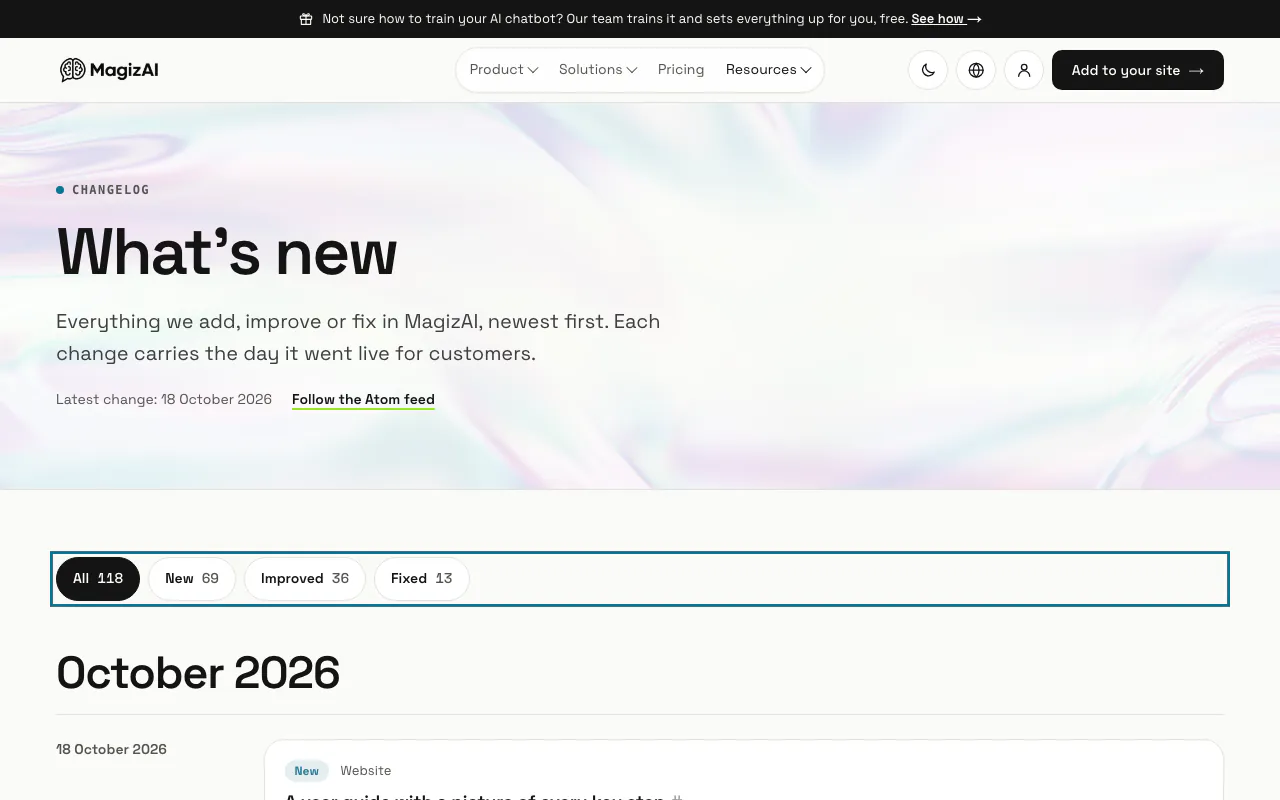
Go to /whats-new on the MagizAI website. Every change is listed newest first, grouped by month and day, with the day it went live for customers and the part of the product it touches, such as Inbox or Billing.
Step 2: Pick "New", "Improved" or "Fixed"
The row above the list filters it, and each choice shows how many changes it holds; "All" brings every change back. The address keeps your choice, so a filtered list can be shared.
Step 3: Press "Open the page"
A change that has its own page links to it. The title of each change is a link to that change alone, handy to send to a colleague.
Step 4: Follow the Atom feed
Press "Follow the Atom feed", or add /whats-new/feed.xml to your feed reader, to get each change as it is published. The page and the feed are also in French and Arabic, at /fr/whats-new and /ar/whats-new.
Tips
- This guide is updated with each new feature, so the steps here match the screens you see.
Stuck on a step? Ask our team