Getting started
Find your way around
Home, the left menu, search, keyboard shortcuts, notifications, and the menus for your account and for help.
Who can use it: Everyone in the workspace. Each person sees only the menu items, apps and shortcuts their role can open.
Step 1: Start from Home
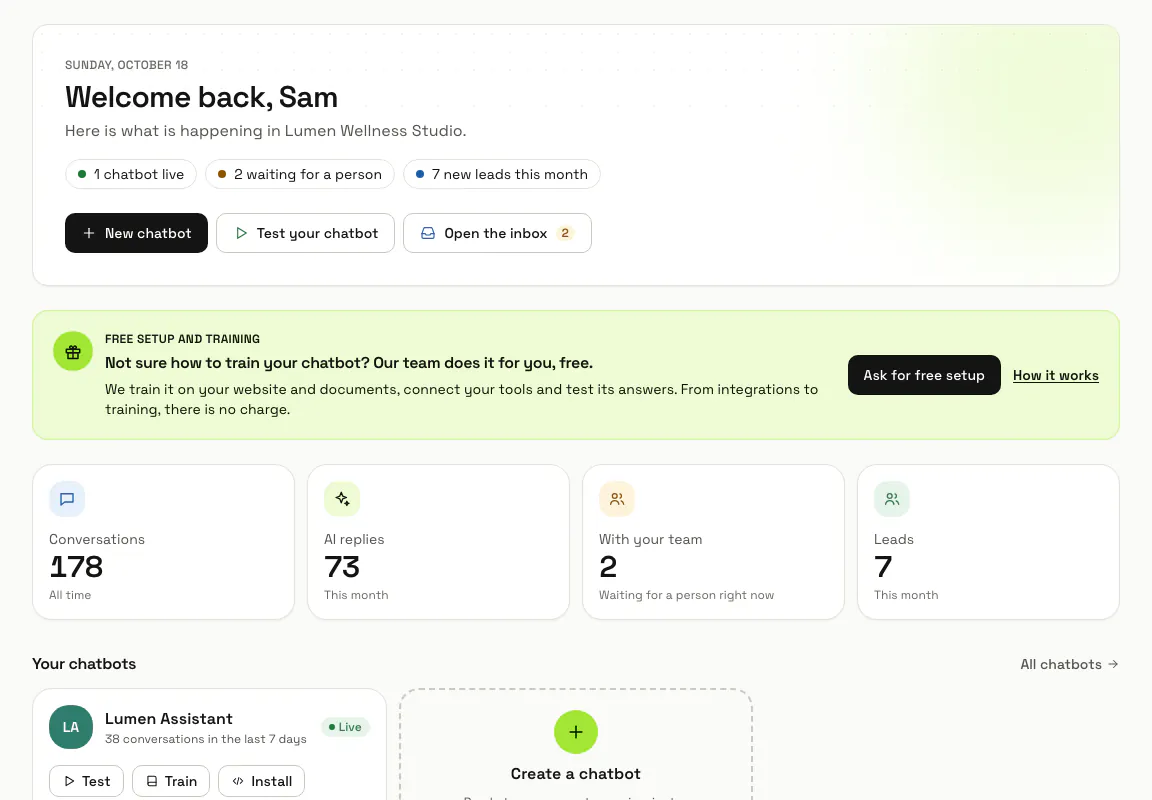
Home opens with "New chatbot", "Test your chatbot" and "Open the inbox", then "Key numbers": conversations of all time, AI replies this month, chats waiting for a person and new leads this month. Below come "Your chatbots" with Test, Train and Install, the last 14 days of conversations, the "Latest conversations", "Quick access" and the "Get set up" list.
Step 2: Use the left menu
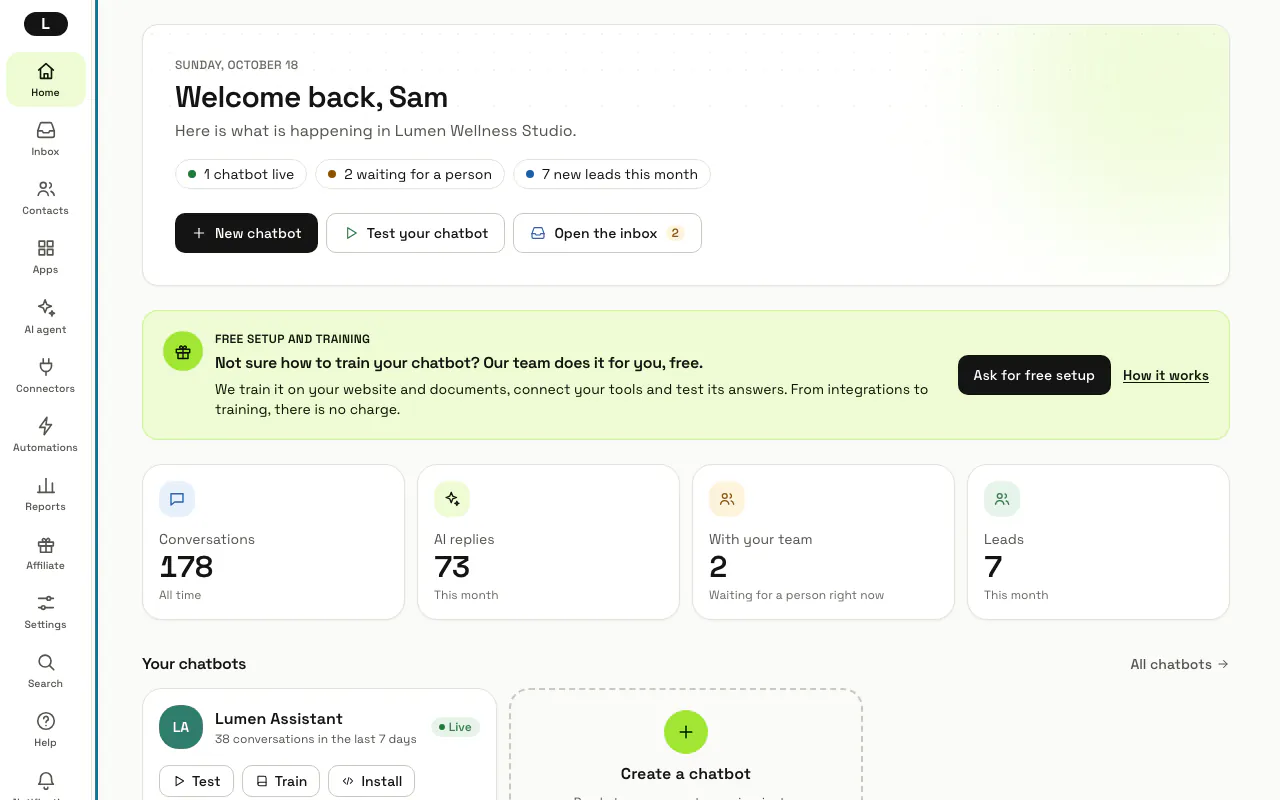
The menu holds Home, Inbox, Contacts, Apps, AI agent, Connectors, Automations, Reports, Affiliate and Settings, and shows only what your role can open. The square at the top, with your workspace's first letter, shows your plan and links to Team and Billing. For someone who cannot change workspace settings, Settings opens Your profile.
Step 3: Open an app from "Apps"
Apps lists the business apps that are on for your workspace and that your role may open, each with one line on what it is for. "All apps" at the bottom opens the Apps page, where Owners and Admins switch apps on and off.
Step 4: Press "Search"
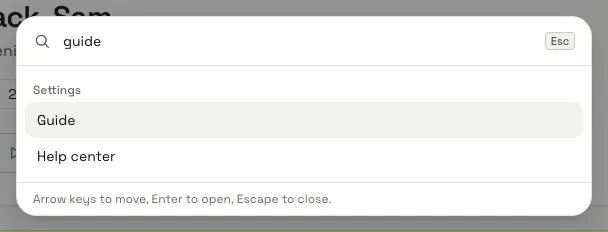
"Search" near the bottom of the menu, or Control and K (Command and K on a Mac), opens the command palette. Type a few letters of a page or an action, such as "guide" or "dark", move with the arrow keys and press Enter.
Step 5: Press "g" and then a letter
Outside the inbox, g then d opens the Dashboard, g i the Inbox, g c Contacts and leads, g a Chatbots, g k Skills, g o Connectors, g u Automations, g r Analytics, g s Workspace settings and g b Billing, for the screens your role can open. Press ? to see the list in "Keyboard shortcuts".
Step 6: Open "Notifications"
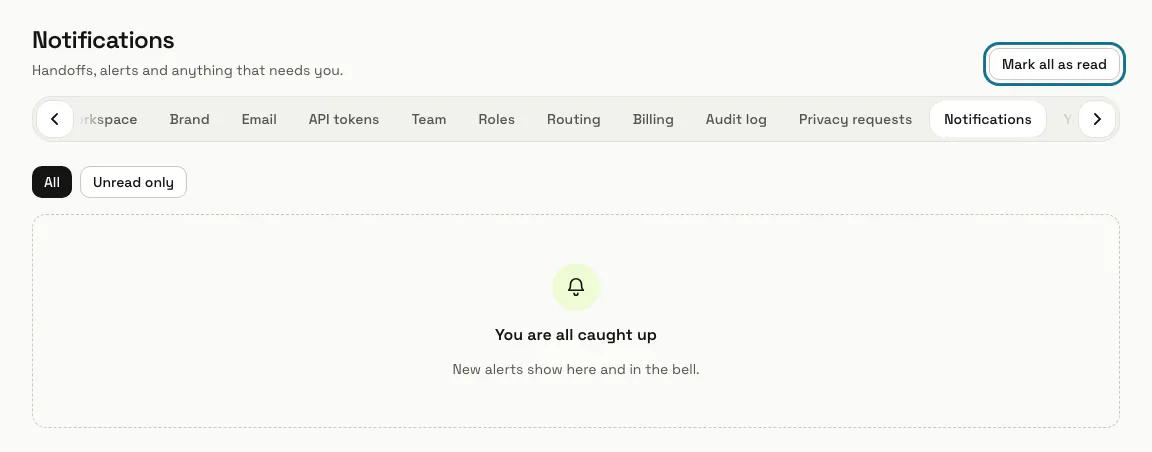
The bell near the bottom of the menu counts what is unread: handoffs, alerts and anything that needs you. Click one to open it, or press "Mark all as read". The Notifications page lists them all, with "All" and "Unread only".
Step 7: Open the account menu
Your picture at the very bottom of the menu opens "Your profile", the "Theme" (Light, Dark or Match my device), the "Language" of the dashboard and "Sign out".
Step 8: Open "Help"
"Help" holds "Help center", "Guide" (this guide) and "Contact support". The page of each business app also has a "Guide" button in its header that opens its own topic.
Tips
- On a narrow screen the left menu becomes a drawer: "Open navigation menu" at the top opens it.
- The command palette also switches the theme and the language, so you never need to leave the page you are on.
Limits and switches
- Apps switched off for the workspace, and screens your role cannot open, are left out of the menu, the palette and the shortcuts.
Stuck on a step? Ask our team