Getting started
Your first 15 minutes
Create your workspace, go through the five setup steps and get a first answer from your own assistant.
Who can use it: Owner and Admin, or a custom role with "Change workspace settings and connections". Anyone can sign up. The person who signs up is the Owner, and the setup wizard opens for them once.
Step 1: Press "Create workspace"
On the sign-up page, fill in "Your name", "Email", "Company name", "Password" and "Confirm password" (at least 8 characters), then press "Create workspace". MagizAI creates the workspace, your Owner login and a first assistant, then opens the setup wizard.
MagizAI has no free plan and no free trial. A new workspace starts with no plan and nothing is charged at sign-up: you choose a plan in Billing (see below).
Step 2: Fill in "Tell us about your business"
Step 1 of 5 asks for your "Business name" and, if you like, your "Website", then "Continue". This is the one step you cannot skip. MagizAI scans the website for products right away and then every week, when your plan includes product recommendations; your assistant learns your pages only from what you add on Train.
Step 3: Name your assistant
Step 2 sets the "Assistant name" and the "First message visitors see". Step 3, "Make the chat look like your brand", sets your "Brand colour" and "Logo" with a live preview. "Skip for now" leaves either for later; the brand can be changed any time in Settings, Brand.
Step 4: Copy the install code
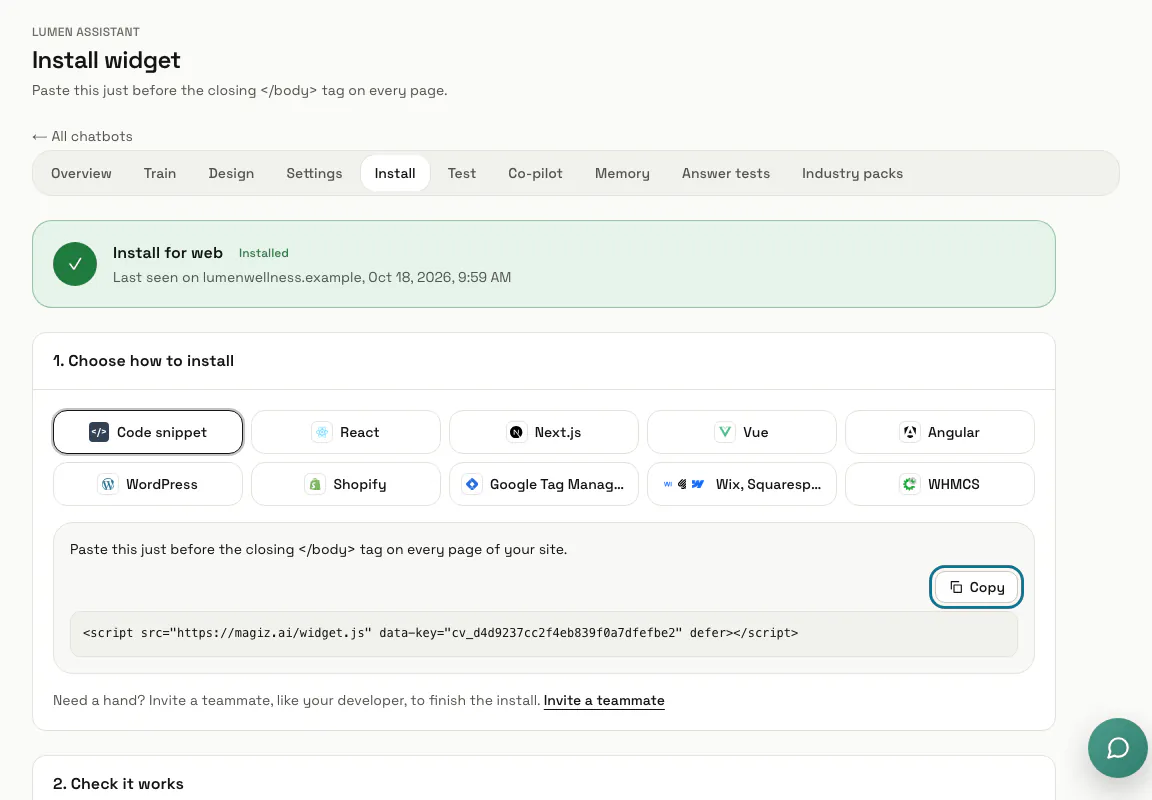
Step 4 shows one line: press "Copy code" and paste it just before the closing </body> tag on every page where you want the chat. The wizard shows "Waiting for your first visit" until your site loads the chat, then says your assistant is live. The same line, with steps for WordPress, Shopify, Wix and other platforms, is always on the chatbot's Install page.
Step 5: Press "Finish setup"
Step 5, "Invite a teammate", is optional: give a "Teammate email", a "Teammate name" and a "Role" to send an invitation, or press "Skip for now". Finishing opens Home with "Your workspace is ready."
Step 6: Add your content on Train
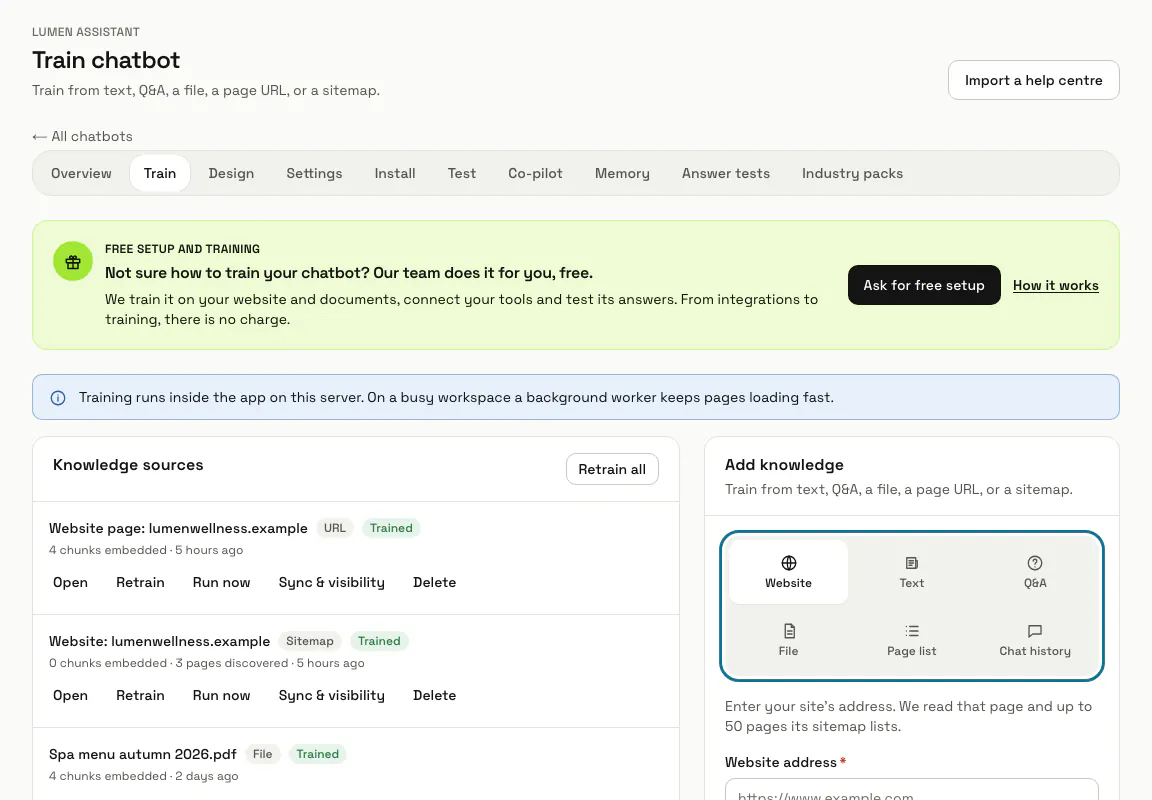
Open AI agent, pick your chatbot and open its Train tab. Add your website, text, Q&A pairs, files, a page list or past chat history, and press "Add & train". Each source shows "Waiting", then "Reading", then "Trained"; the assistant answers from these sources.
Step 7: Choose a plan
Open Billing and press "Change plan", or follow "Choose a plan" in the "Get set up" list on Home. If a page says "Your workspace needs an active plan", press "Go to billing".
Step 8: Send a test message
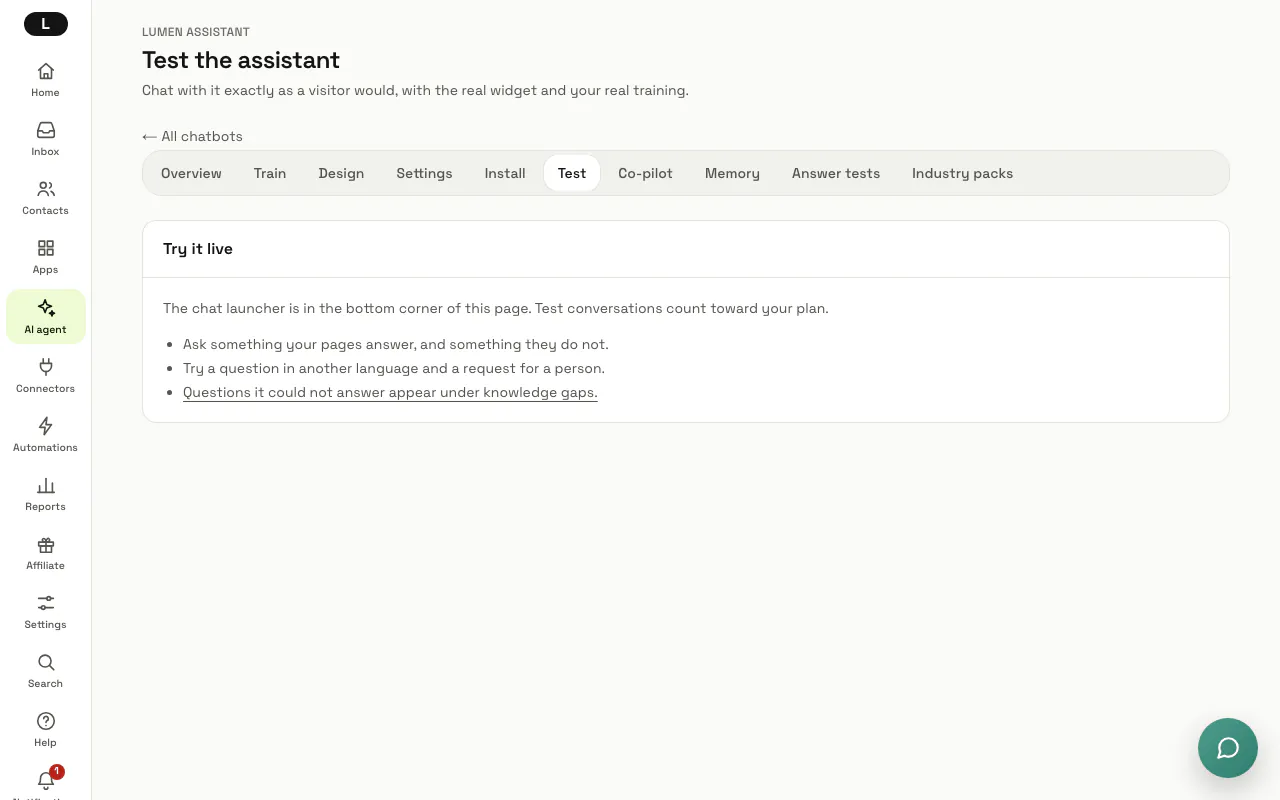
Open the chatbot's Test tab: the real chat button sits in the bottom corner of the page, with your real training behind it. Ask something your content answers and something it does not. Test conversations count toward your plan.
Tips
- Confirm your email address with the link we send at sign-up. It works for 60 minutes, and "Send the link again" on the "Check your email" page sends a new one. Until then, Home lists "Verify your email address".
- A plan you picked on the pricing page before signing up is remembered: the sign-up page names it, and you confirm it in Billing after setup.
- The wizard opens only once. Everything it asks can be changed later in Settings and on the chatbot's own pages.
Limits and switches
- There is no free plan and no free trial. Nothing is charged at sign-up; you pay when you choose a plan.
- Your plan sets how many chatbots, teammates and AI messages a month you get. Billing shows the AI messages left this month.
Stuck on a step? Ask our team