Your chatbot
On-page co-pilot
Let the assistant help on the page itself: point at the right button or box and, if you allow it, click and type for the visitor.
Who can use it: Owner and Admin, or a custom role with "Create, edit and delete chatbots". Other members can open the page, but it only tells them that owners and admins can change the co-pilot.
Step 1: Open the "Co-pilot" tab of your chatbot
Open "AI agent", pick the chatbot and open "Co-pilot" in its row of tabs. It works on the pages where this chatbot's widget is installed.
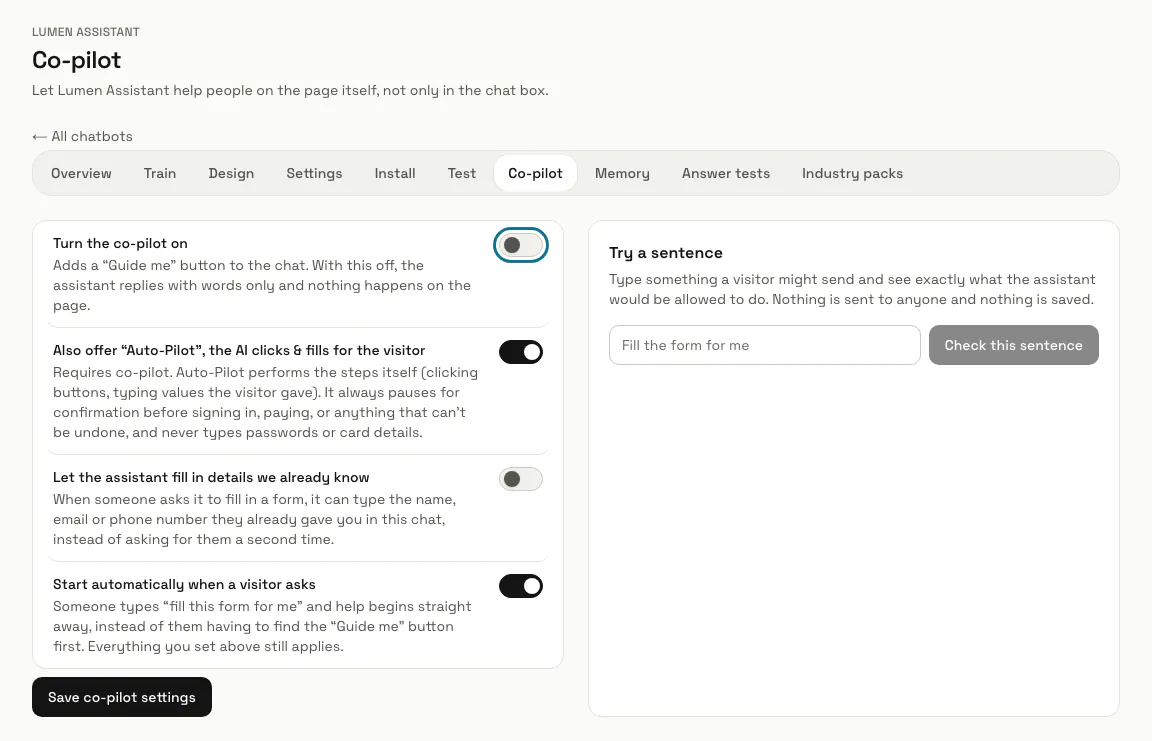
Step 2: Switch on "Turn the co-pilot on"
It is off by default. On, the chat gets a "Guide me" button and the assistant can point at the right button or box on the page; off, it replies with words only.
Step 3: Decide whether to offer Auto-Pilot
The "Also offer Auto-Pilot" switch lets the assistant click buttons and type values the visitor gave while they watch. Turn it off for Guide only: the assistant points and the visitor does the clicking and typing.
This switch is on by default, so turning the co-pilot on also offers Auto-Pilot. Switch it off before you save if you want Guide only.
Step 4: Choose whether it fills in details it already knows
"Let the assistant fill in details we already know" lets it type the name, email or phone number the visitor already gave in the chat instead of asking again. It is off by default and works only with Auto-Pilot.
Step 5: Choose whether it starts by itself
"Start automatically when a visitor asks" begins as soon as someone writes something like "fill this form for me", without pressing "Guide me" first. It is on by default and also needs Auto-Pilot.
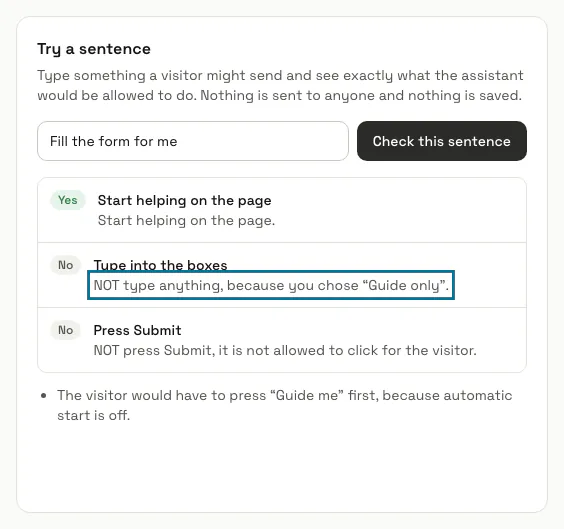
Step 6: Check a sentence under "Try a sentence"
Type something a visitor might send and press "Check this sentence". You see whether the assistant would start helping on the page, type into the boxes and press Submit, with the switches as they are on screen; nothing is sent or saved.
Step 7: Press "Save co-pilot settings"
The switches apply to every visitor on every page where the widget runs.
Payment forms, password forms and delete buttons always stop and ask the visitor first, and the assistant never types a password or card number. No setting turns this off.
Tips
- A sentence with "do not" in it is read as a refusal: "Fill the form but do not submit it" never presses Submit.
Limits and switches
- The co-pilot needs a plan that includes it. Without one, Guide Me and Auto-Pilot do not show in the chat window and the switch cannot be turned on; the page names the plan that includes it.
Stuck on a step? Ask our team