Your chatbot
Import past chats
Upload chats exported from another tool. The AI keeps the answers worth reusing and adds them as questions and answers.
Who can use it: Owner and Admin, or a custom role with "Manage training and knowledge".
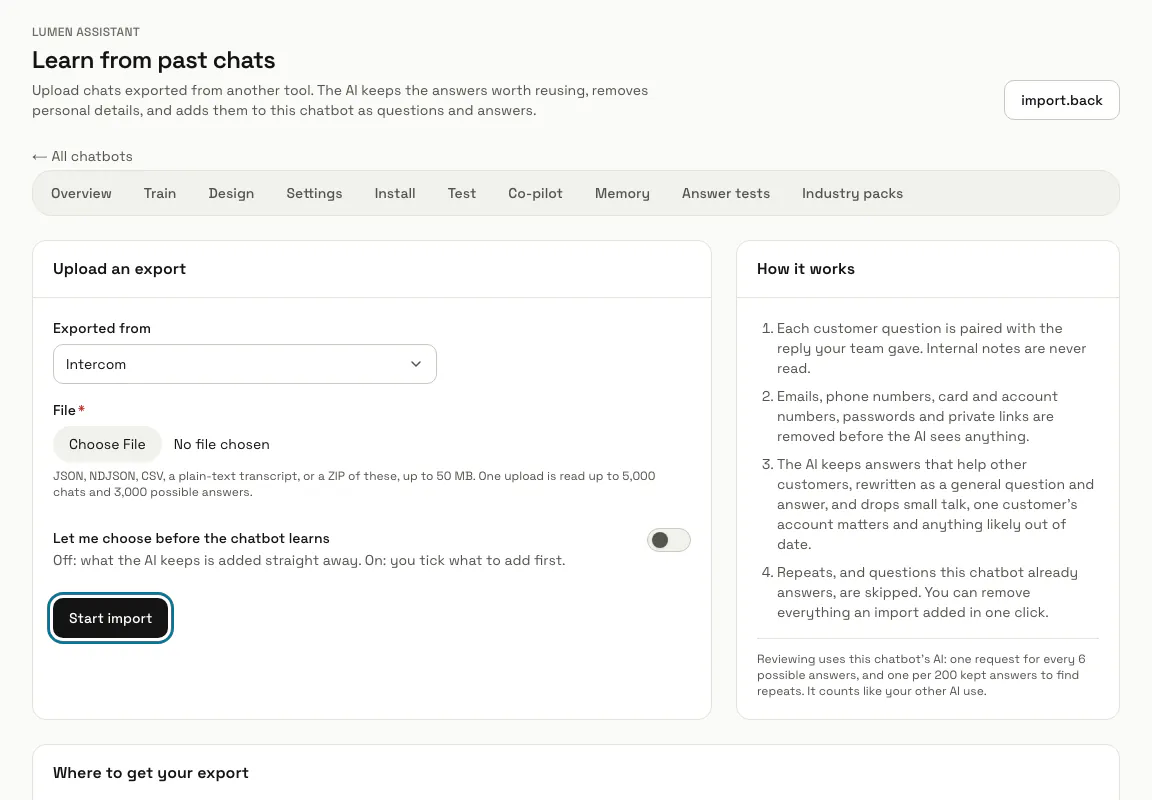
Step 1: Open "Learn from past chats"
On the Train page, press "Import a help centre", then "Learn from past chats" in the box "Past chats in Intercom, Zendesk or another tool?". Under the "Chat history" tile of "Add knowledge", the link "Past chats in Intercom, Zendesk or another tool?" opens the same page.
Step 2: Get the export from your old tool
"Where to get your export" says how for Intercom, Zendesk, Crisp, tawk.to, Freshdesk and Help Scout. Any JSON, NDJSON or CSV file where each message says who wrote it, or a transcript with "Name: message" lines, works too, and several files can go in one ZIP.
Step 3: Choose "Exported from" and the file
Pick the tool, or "Another tool, or my own file", then choose the file: JSON, NDJSON, CSV, plain text, or a ZIP of these, up to 50 MB.
Step 4: Switch on "Let me choose before the chatbot learns"
On, you tick what is added before the chatbot learns anything. Off, what the AI keeps is added straight away.
Step 5: Press "Start import"
The file is read at once and the page shows how many chats and possible answers it found. The AI then pairs each customer question with your team's reply, removes emails, phone numbers, card and account numbers, passwords and private links, and keeps the answers that help other customers, about 70 a minute. The page updates by itself.
Reviewing uses this chatbot's AI: one request for every 6 possible answers, and one per 200 kept answers to find repeats. It counts like your other AI use.
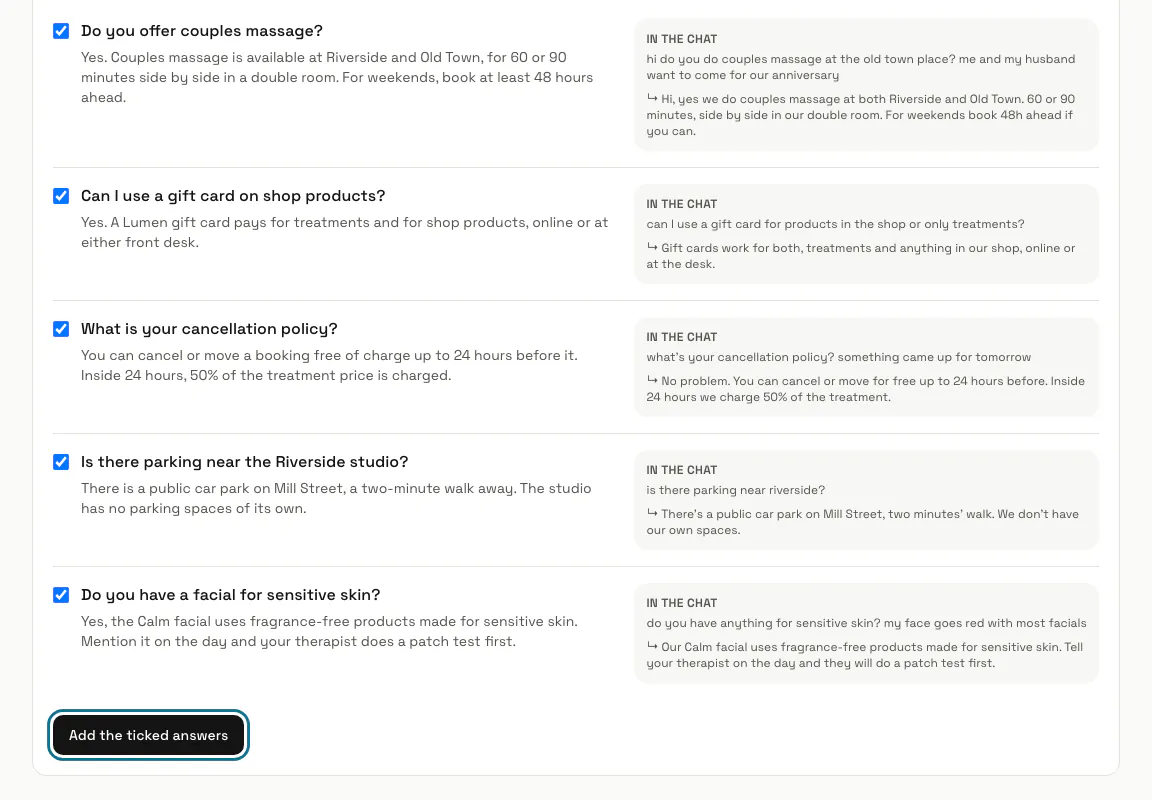
Step 6: Press "Add the ticked answers"
When you chose to pick first, the import waits as "Waiting for you". "Kept" shows each rewritten question and answer beside what was said in the chat, all ticked; untick what you do not want, then press "Add the ticked answers". Each one is trained like a question and answer you add by hand.
Step 7: Check what was dropped
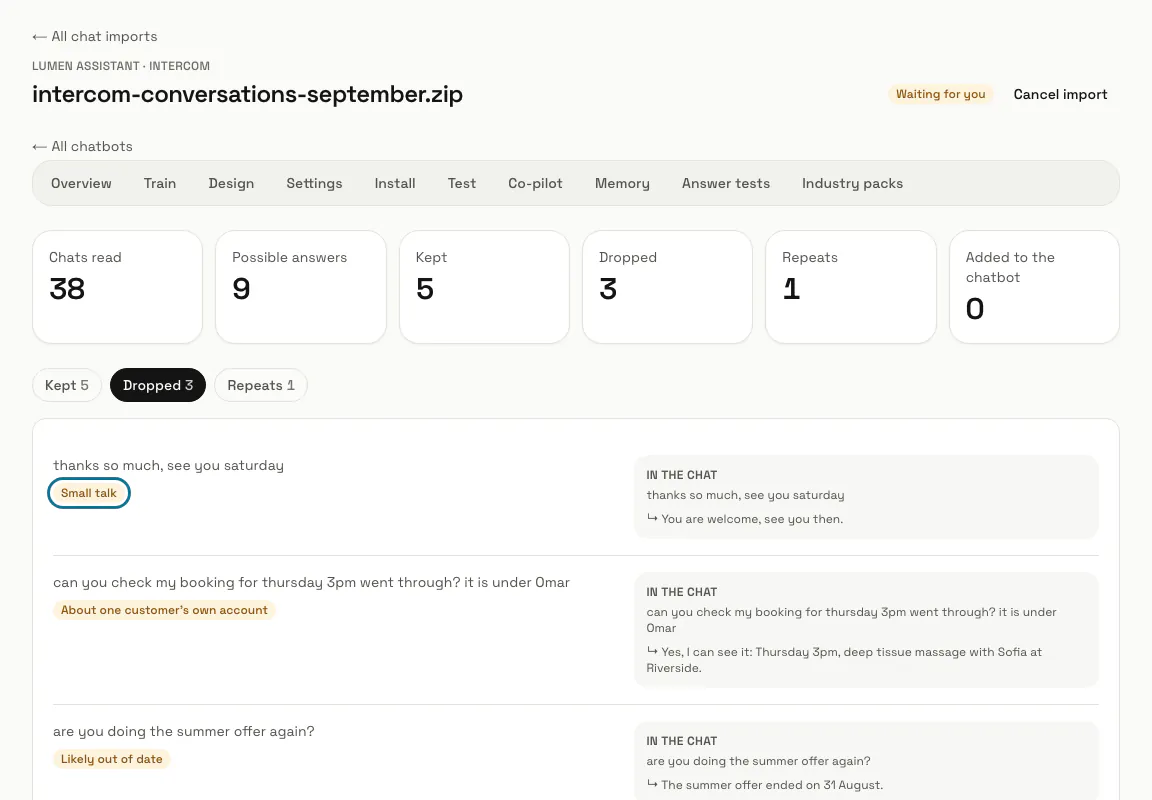
"Dropped" shows what the AI left out and why, such as "Small talk", "About one customer's own account" or "Likely out of date". "Repeats" shows questions asked earlier in the same import, or that the chatbot already answers.
Step 8: Press "Remove what this import added"
Every answer the import added is deleted from the chatbot's knowledge, and the report stays. "Cancel import" stops an import that is still running or waiting for you; answers already added stay until you remove them.
Tips
- Internal notes in the export are never read.
- Help centre articles go in through "Import a help centre" instead, described in Train your AI.
Limits and switches
- One upload is read up to 5,000 chats and 3,000 possible answers.
- One import at a time per chatbot, and up to 6 started in an hour.
- While the workspace's AI is switched off for an overdue invoice, an import cannot be started.
Stuck on a step? Ask our team