Inbox and team
The inbox
Read and answer every chat from your website and WhatsApp in one place, take over from the AI and hand chats back.
Who can use it: Owner, Admin, Agent and Viewer, or a custom role with "See the shared inbox and conversations". Replying, taking over, notes, tags and closing need "Reply to, take over and assign conversations" (Owner, Admin and Agent). A Viewer can read the inbox but not reply.
Step 1: Press "Inbox" in the left menu
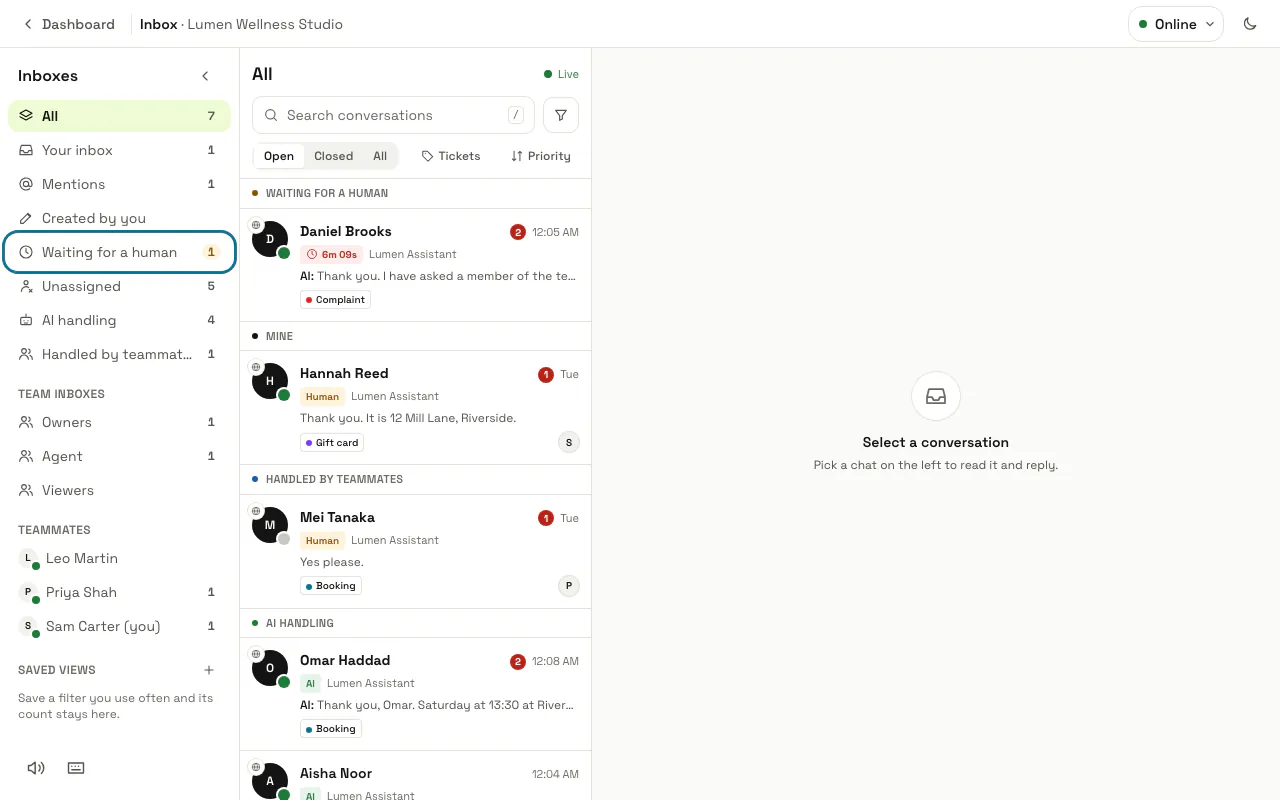
The inbox fills the whole window: your inboxes on the left, the conversation list in the middle and the open conversation on the right. "Dashboard" at the top left takes you back, and the menu at the top right sets your status to Online, Away or Offline, which your teammates see next to your name.
Step 2: Choose an inbox on the left
"All" shows every open chat, "Your inbox" the chats assigned to you, "Mentions" the chats where a teammate wrote @ and your name in a note, and "Waiting for a human" the visitors who asked for a person that nobody has answered yet. "AI handling" holds the chats the AI is still answering, and further down you find one inbox per role ("Team inboxes"), one per teammate and, when the workspace has more than one chatbot, "Widgets" with a line for each chatbot.
Step 3: Narrow the list with the filters
Switch between "Open", "Closed" and "All" above the list, press "Tickets" for help desk tickets, or use the filter button beside the search box to pick a channel, a chatbot or a tag. "Search conversations" finds a name, an email address, a phone number or, from three letters on, words in the messages; the plus beside "Saved views" keeps the filters you have open under a name.
Saved views are kept in this browser only, up to eight of them.
Step 4: Press "Take over"
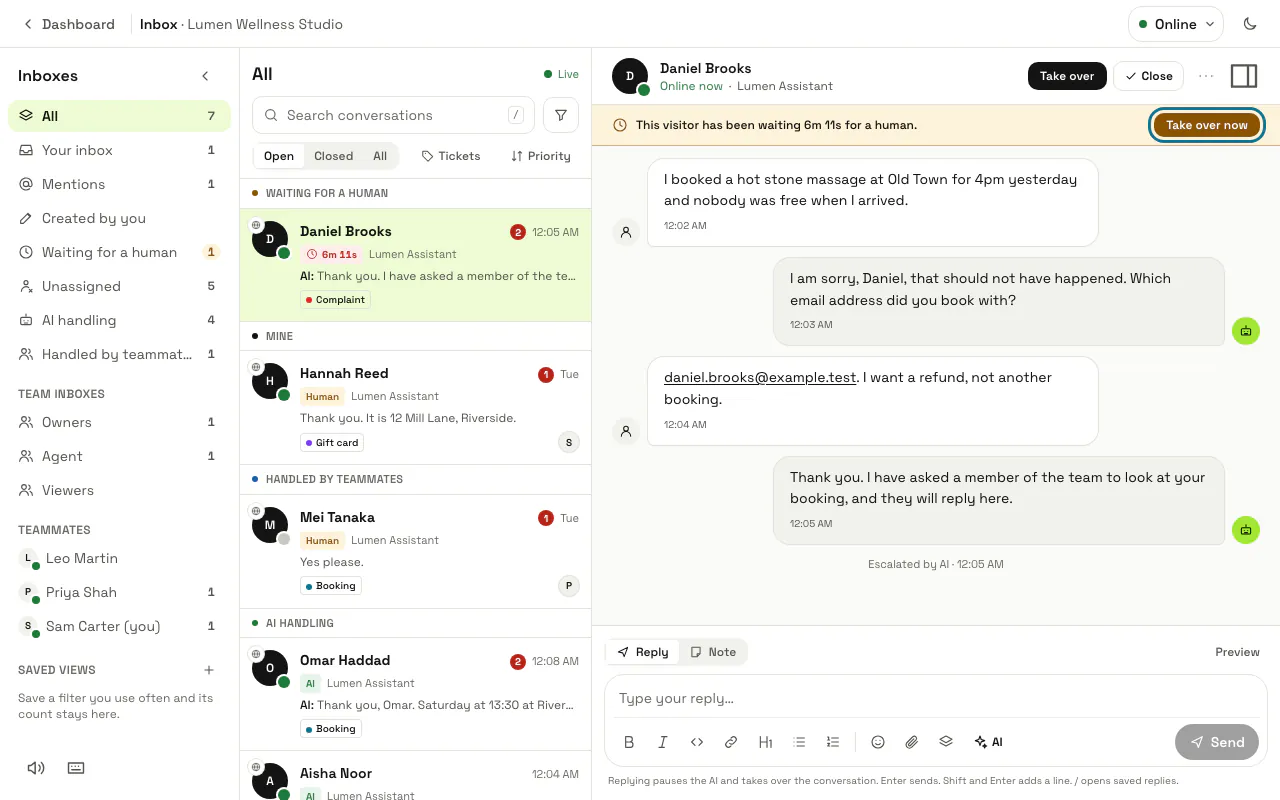
Open a conversation and press "Take over" at the top, or "Take over now" on the yellow banner of a visitor who has been waiting. The chat is assigned to you and the AI stops answering it until you press "Hand back to AI".
Step 5: Reply to the visitor
Type in "Type your reply…" at the bottom and press Enter to send; Shift and Enter adds a new line. Sending a reply takes the chat over too. Type / to insert a saved reply, or press "AI" for the writing tools: Expand, Rephrase, My tone of voice, More friendly, More formal, Fix grammar and spelling, Make it shorter, Translate and Suggest a reply.
On WhatsApp the visitor sees formatting marks such as ** exactly as typed, so leave bold and lists out there.
Step 6: Press "Translate" under a customer's message
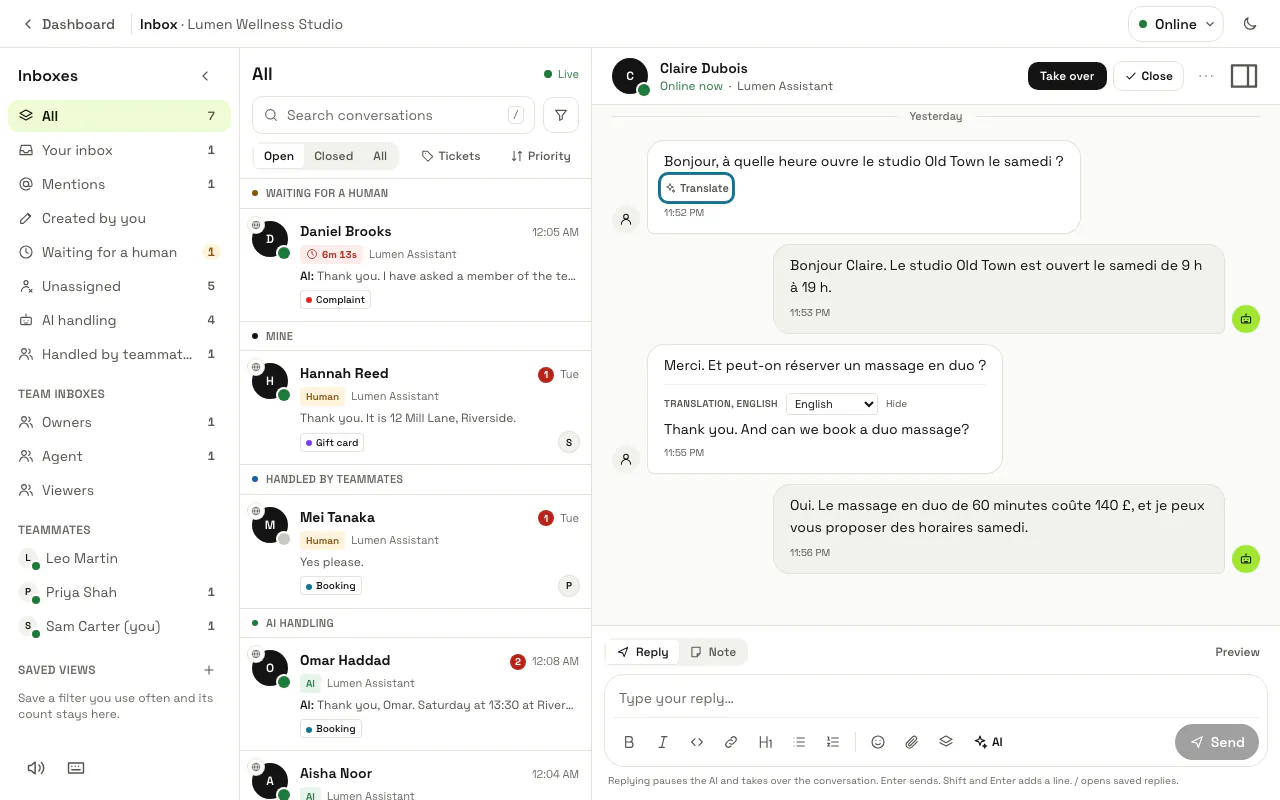
A customer's message that is not in your dashboard language has "Translate" under it. The translation shows below the original, in your language; pick another language in the list beside it, or press "Hide". The customer sees nothing, and a message translated once shows its translation to everyone at no further cost.
With "Translate customer messages in the inbox" on in Settings, messages in another language are translated as you open the chat. Translations use the same AI as the writing tools and count as their use.
Step 7: Switch to "Note" for an internal note
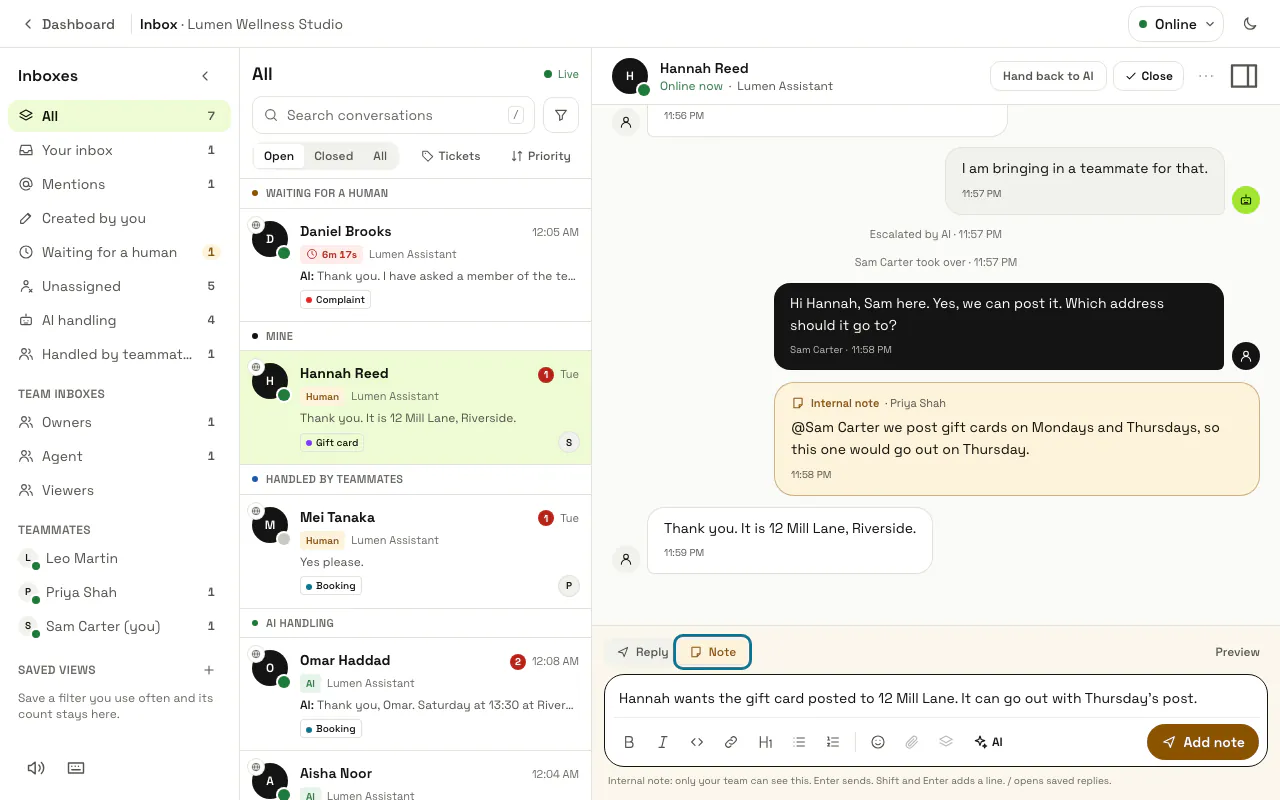
Press "Note" above the box to write something only your team sees: the box turns yellow and the button reads "Add note". Type @ and a teammate's name to mention them, and the chat appears in their "Mentions".
Step 8: Press "Show visitor details"
The panel button at the top right of the conversation opens the details: who the chat is assigned to, its priority and status, the tags, where the visitor is on your site and the "AI summary" ("Generate" writes one). "Assign to me" takes the chat. Type a tag name in "Add a tag…" and press Enter to add it; a name you have not used before becomes a new tag.
Assigning a chat to another teammate by hand is not available yet. Routing rules can do it.
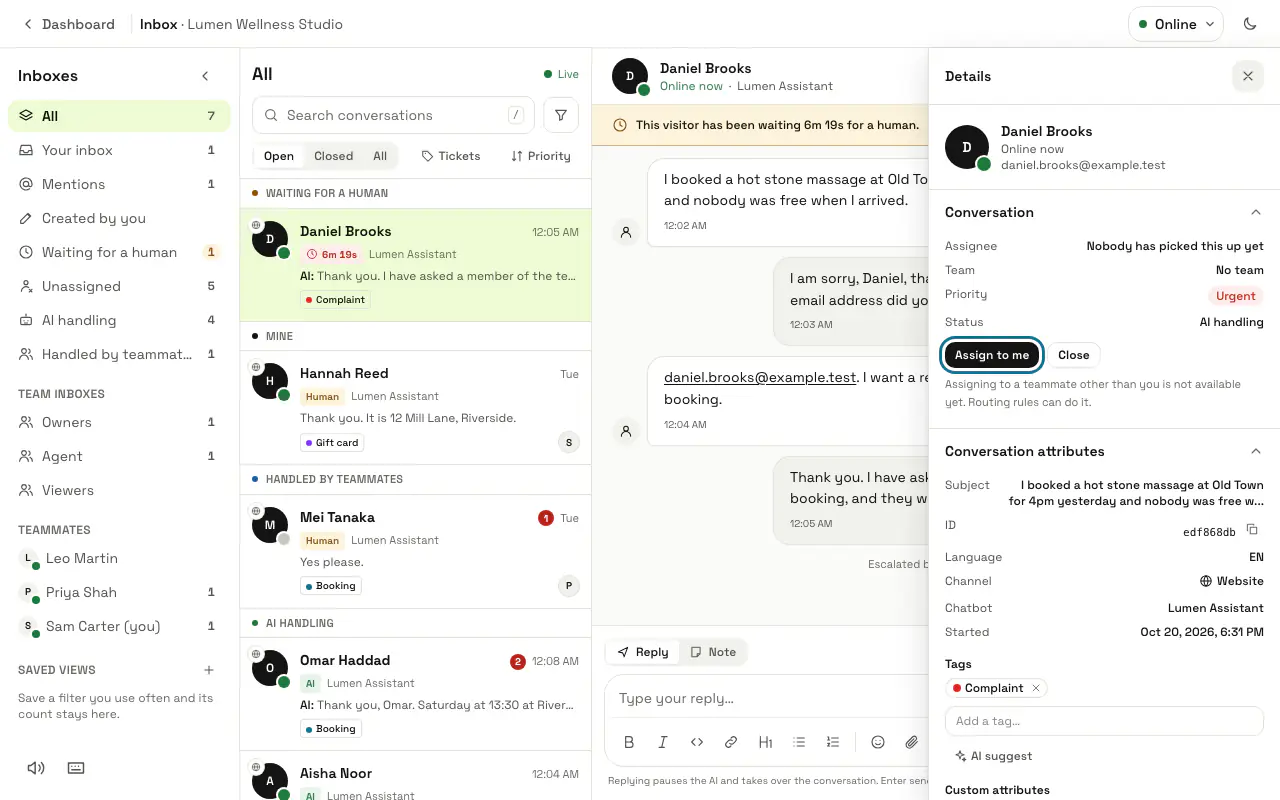
Step 9: Press "Close" when the chat is done
"Close" moves the conversation to "Closed", and "Reopen" brings it back to the AI. A conversation that comes from a ticket system such as WHMCS carries a Ticket label above the thread with its number, department and status: your reply is posted to the ticket, and Close or Reopen also sets the ticket's status there.
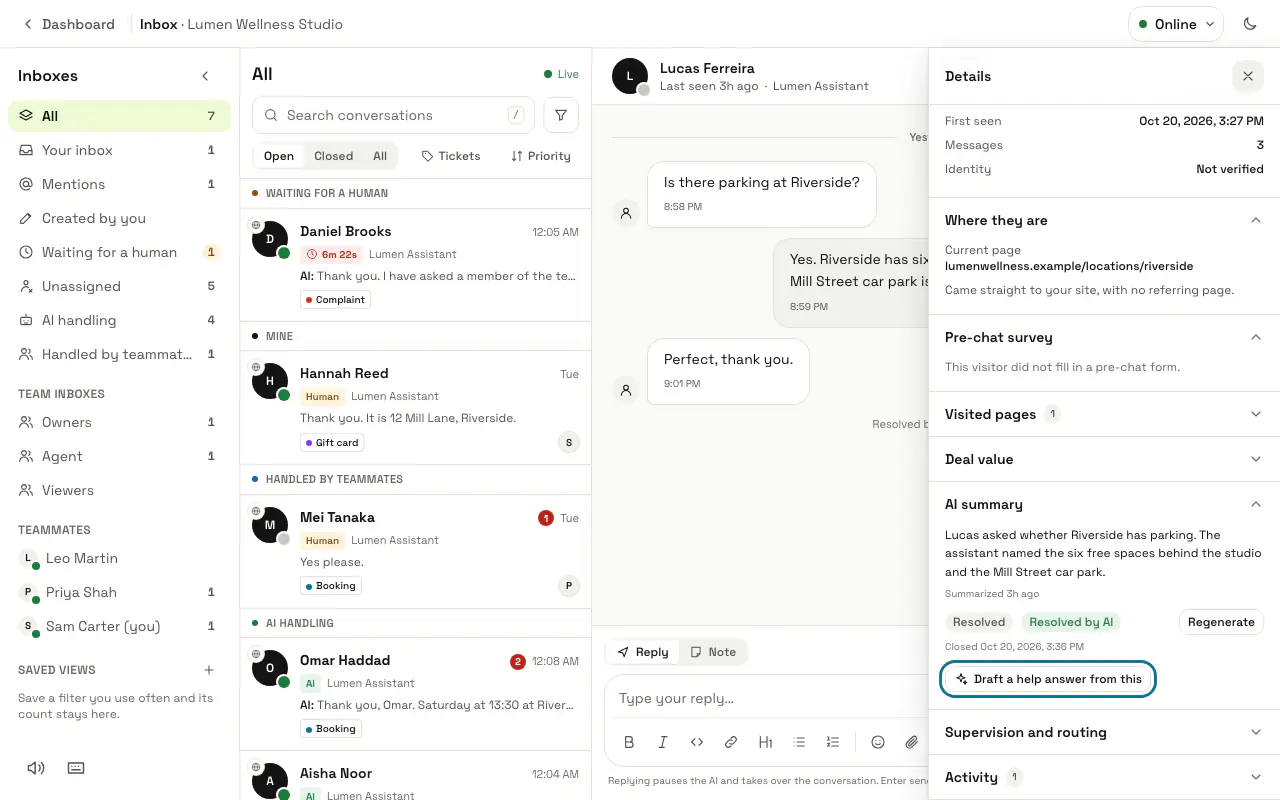
Step 10: Press "Draft a help answer from this" on a solved conversation
In the details, under "AI summary", a closed ticket or chat has "Draft a help answer from this". Names, email addresses, phone numbers, order and invoice numbers, the customer's domains and anything that looks like a password are taken out before the AI reads it. The drafts open in a window: change what is wrong, untick what you do not want and press "Save to knowledge"; nothing is added before that.
It is there for people who manage knowledge (Owner and Admin, or a custom role with "Manage training and knowledge"). Knowledge gaps can draft from many solved conversations at once.
Tips
- Press ? in the inbox for the keyboard shortcuts: J and K move between chats, R replies, N writes a note, A takes over, E closes, . shows the details, and G then I opens your inbox.
- Each conversation has its own address, /inbox?conversation= followed by its ID. "Copy link to this conversation" under "More actions" copies it for a teammate.
- A chatbot's old conversation list, /chatbots/<id>/conversations, now opens the inbox showing that chatbot's chats, open and closed.
- "Save as lead" under "More actions" adds the visitor to Contacts, and "Supervise" lets you follow the chat as a supervisor.
- The speaker button at the bottom of the list of inboxes mutes or unmutes the sound for new messages.
Limits and switches
- Priority is worked out from who is waiting and for how long, and cannot be changed by hand yet.
- A conversation shows its newest 1,000 messages.
Stuck on a step? Ask our team