Inbox and team
Contacts and leads
Everyone your assistant or your team captured from chats, sorted by status, grouped into lists and emailed with campaigns.
Who can use it: Owner, Admin and Agent, or a custom role with "Reply to, take over and assign conversations". Lists, email campaigns and deleting contacts need "Change workspace settings and connections" (Owner and Admin).
Step 1: Press "Contacts" in the left menu
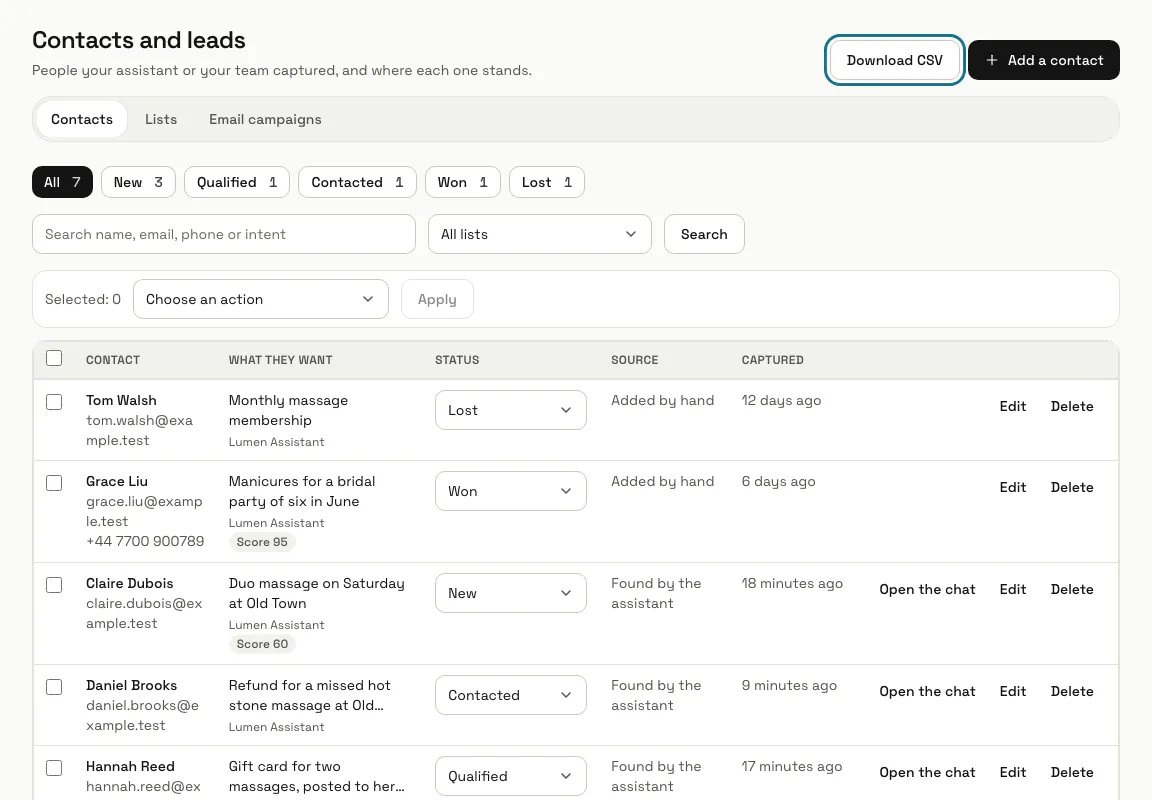
"Contacts and leads" lists the people captured so far. The assistant adds someone when a visitor gives a name, an email address or a phone number in a chat, and "Save as lead" under "More actions" in the inbox adds the visitor of the chat you have open. Each row shows what they want, their status, the source ("Found by the assistant" or "Added by hand") and when they were captured.
Step 2: Press "Add a contact"
Fill in a name, an email address or a phone number (one of them is enough), what they want, notes, a score from 0 to 100 and a status, then press "Save contact".
Step 3: Change a status from the list
The status menu on each row saves straight away: New, Qualified, Contacted, Won or Lost. The buttons above the list filter by status and show how many people have each one, and "Open the chat" goes to the person's conversation.
Step 4: Press "Download CSV"
The file holds the contacts that the current search and filters match, with their name, email, phone, intent, status, source, score, chatbot and the date they were captured.
Step 5: Press "New list" under Lists
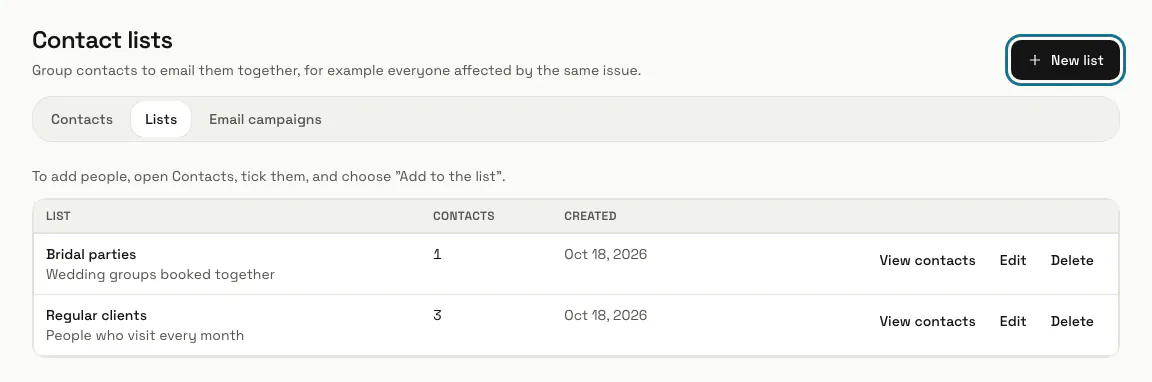
Open "Lists" in the row of links, press "New list", give it a name and press "Create list". To fill it, tick people in Contacts, choose "Add to the list" followed by the list's name under "Choose an action", and press "Apply".
Step 6: Press "New campaign" under Email campaigns
Write the "Campaign name", the "Subject" and the "Message"; :name and :company fill in each person's first name and your workspace name. Under "Who gets it", choose "Every contact with an email address" or "Only contacts in these lists", tick statuses if you want only some, then press "Save draft".
Step 7: Press "Send me a test"
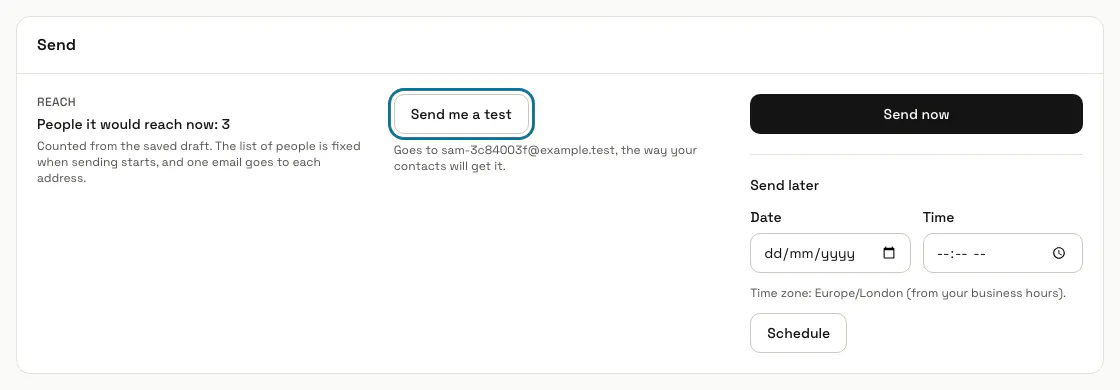
The saved draft's page shows how many people it would reach, and the test goes to your own email address the way your contacts will get it. When it reads right, press "Send now", or pick a date and a time under "Send later" and press "Schedule".
Sending cannot be called back. "Stop sending" stops the rest, but emails already sent stay sent.
Tips
- A scheduled campaign cannot be edited. "Back to draft" puts it back so you can change it.
- Deleting a list keeps its contacts, and deleting a contact keeps their chat in the inbox.
Limits and switches
- Campaign emails go out at up to 200 a minute, one per email address. Every copy has an unsubscribe link, and anyone who unsubscribed is skipped.
- Campaigns are sent through your own mail server when one is set up under Settings, "Email", and through MagizAI's mail otherwise.
- Exporting leads to CSV needs a plan with analytics export.
Stuck on a step? Ask our team