Inbox and team
Team
Invite the people who answer your chats, give each one a role and take access away when someone leaves.
Who can use it: Owner and Admin, or a custom role with "Invite, change and remove teammates and roles".
Step 1: Open "Team" in Settings
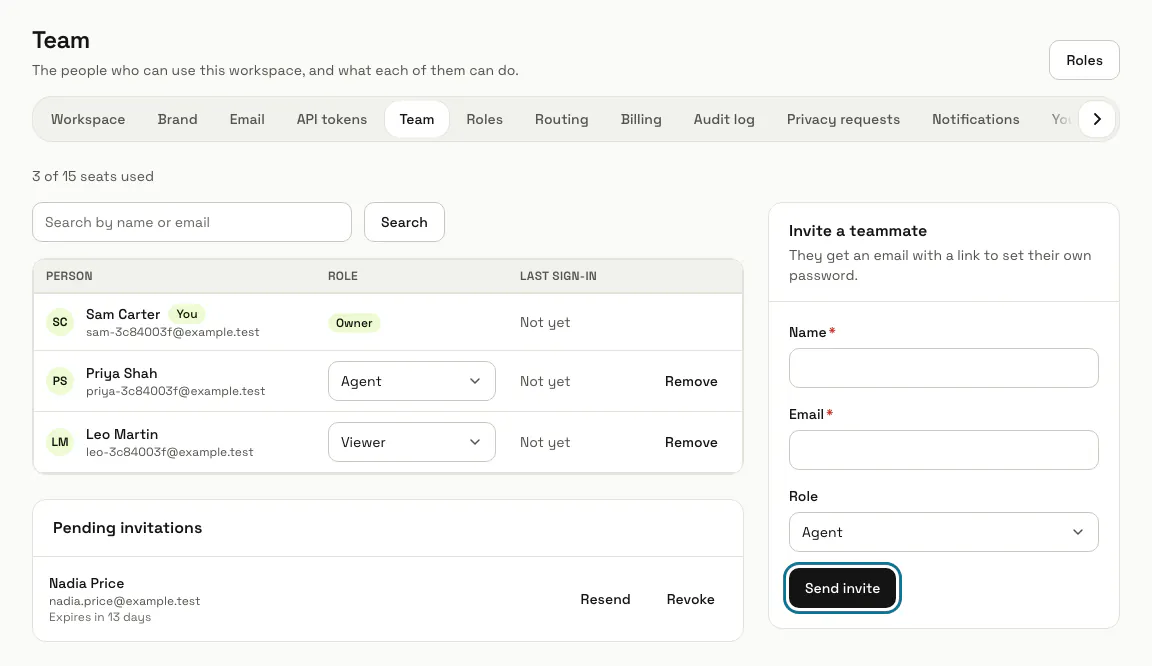
The page lists everyone in the workspace with their role and their last sign-in. The line at the top shows how many of your plan's seats are used.
Step 2: Fill in "Invite a teammate"
Type their "Name" and "Email", pick a "Role" (Agent unless you choose another) and press "Send invite". They get an email with a link to set their own password.
You cannot give a role with more access than your own, and an email address that already has a MagizAI account cannot be invited.
Step 3: Press "Resend" on a pending invitation
Invitations wait under "Pending invitations" for 14 days. "Resend" sends the email again, and "Revoke" withdraws it so the link stops working.
Step 4: Pick a new role in the "Role" column
The change saves as soon as you pick it and says "Role updated.". The owner's role and your own cannot be changed here.
Step 5: Press "Remove" to take someone off the team
After you confirm, they lose access to the workspace straight away, and their past replies stay in the inbox. The owner cannot be removed, and nobody can remove themselves.
Step 6: Open the link in the invitation email
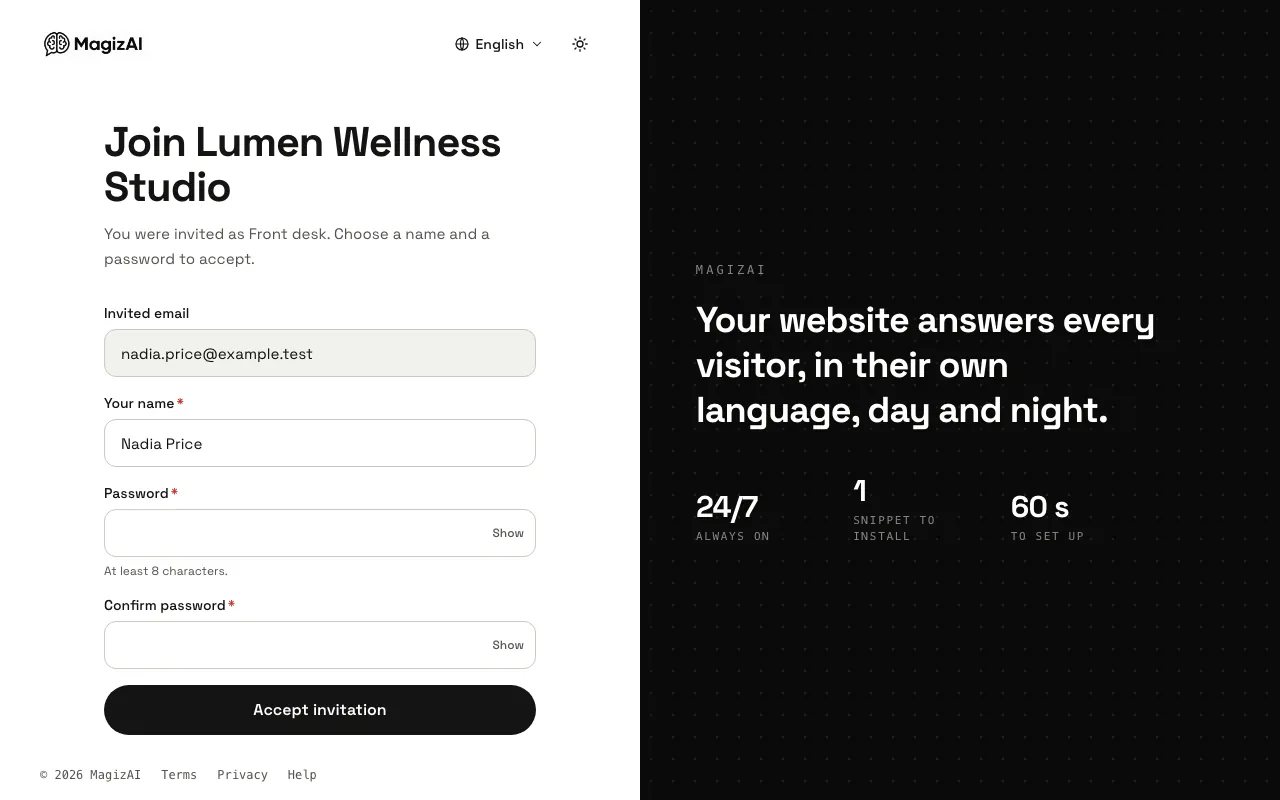
This is what the new teammate sees: "Join" with your workspace name, and the role they were invited as. They type their name and a password of at least 8 characters, press "Accept invitation" and land on Home, signed in.
A link that expired or was already used shows "This invitation is not valid". Send them a new invitation.
Tips
- The workspace menu, the square with your workspace's first letter at the top of the left menu, also has a "Team" link.
Limits and switches
- Your plan sets how many seats the workspace has. Pending invitations count as used seats, so an invitation is refused once every seat is used or promised.
Stuck on a step? Ask our team