Inbox and team
Roles and permissions
Use the four built-in roles or build your own from a list of permissions, so each person can do exactly their job.
Who can use it: Owner and Admin, or a custom role with "Invite, change and remove teammates and roles".
Step 1: Press "Roles" on the Team page
Each role shows what it allows and how many people hold it. Owner, Admin, Agent and Viewer are built in and cannot be edited.
Step 2: Compare the built-in roles
The Owner can do everything, including transferring ownership and deleting the workspace, and an Admin can do everything else. An Agent sees the inbox and the reports and answers chats. A Viewer can read the inbox and the reports but not reply.
Step 3: Press "New role"
Give it a "Role name", such as Front desk, and a "Description" if you like.
Step 4: Tick its permissions
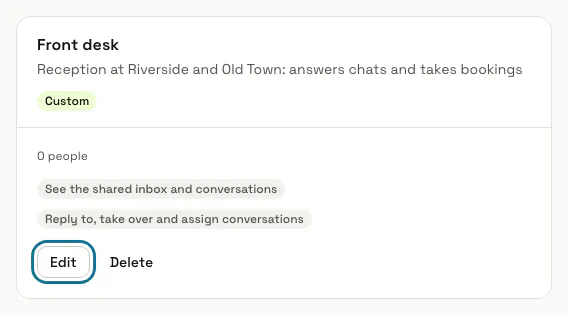
Tick what people with this role may do, for example "See the shared inbox and conversations" and "Reply to, take over and assign conversations" for a front desk, then press "Create role". The list offers only the permissions you hold yourself, and never ownership of the workspace.

Step 5: Give the role to a teammate
On the Team page, pick it in the "Role" column, or in "Role" when you invite someone. Once someone holds it, the role gets its own line under "Team inboxes" in the inbox, and routing rules can send chats to it.
Step 6: Press "Edit" to change a custom role
Change its name or its permissions and press "Save role". "Delete" removes the role and moves its people to Viewer.
Tips
- The permissions you can combine: "See the shared inbox and conversations", "Reply to, take over and assign conversations", "See analytics and reports", "Create, edit and delete chatbots", "Manage training and knowledge", "Change workspace settings and connections", "Invite, change and remove teammates and roles" and "See and manage billing and the plan".
Stuck on a step? Ask our team