Inbox and team
Routing, business hours and supervision
Send each chat that needs a person to the right teammate, tell visitors when your team is back, and follow chats as a supervisor.
Who can use it: Owner and Admin, or a custom role with "Change workspace settings and connections". Supervising a chat in the inbox needs "Reply to, take over and assign conversations" (Owner, Admin and Agent).
Step 1: Open "Routing" in Settings
Routing rules decide who gets a chat when it reaches a human. Without a rule, every chat that needs a person waits under "Waiting for a human" in the inbox for anyone to take.
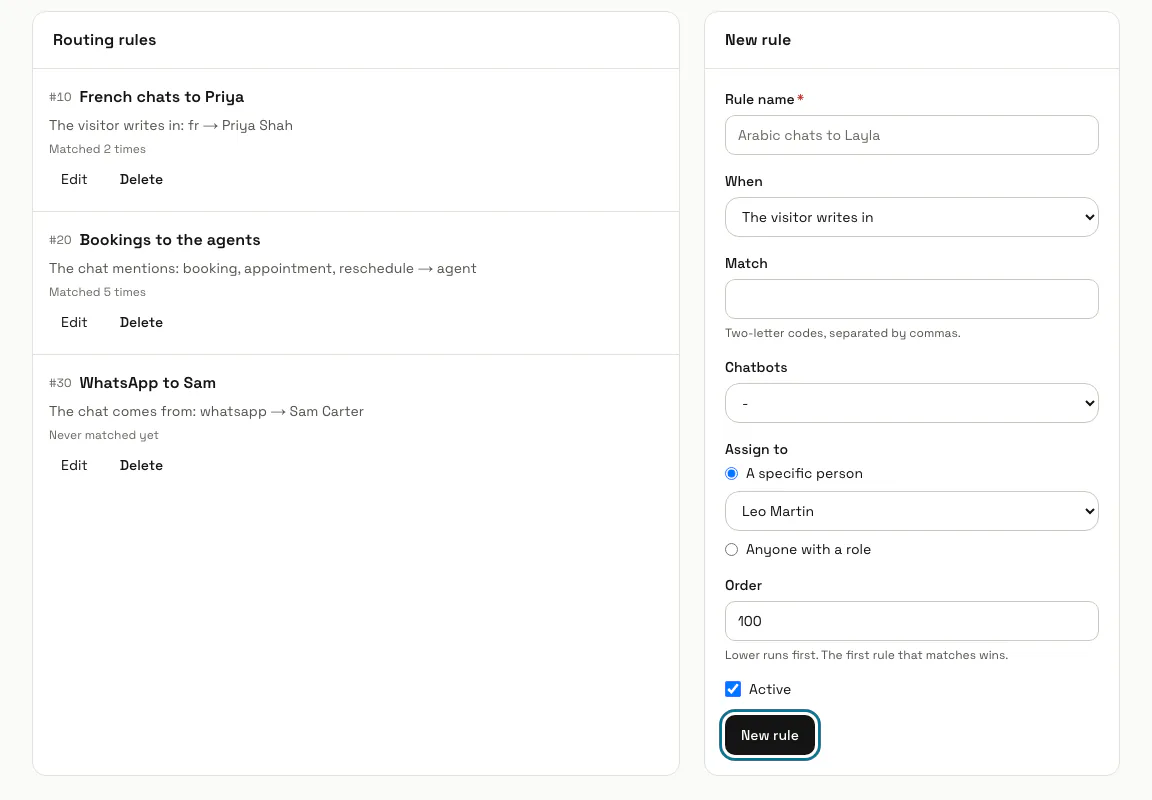
Step 2: Choose when the rule applies
Give the rule a "Rule name" and pick "When": "The visitor writes in" (two-letter language codes such as fr), "The chat mentions" (whole words, separated by commas), "They are on a page containing", "The chat comes from" or "Anything else". Under "Chatbots", pick one chatbot or leave "-" for all of them.
For "The chat comes from", type website, whatsapp or email, separated by commas. A rule that says web matches chats from your website too.
Step 3: Choose who gets the chat
Under "Assign to", pick "A specific person", or "Anyone with a role" to give the chat to whoever on that role has the fewest open chats. Set the "Order" (lower runs first, and the first rule that matches wins), keep "Active" ticked and press "New rule".
Step 4: Press "Edit" to change a rule
Each rule shows its order, what it matches, who it assigns to and how many times it matched. A rule never moves a chat that already has an owner, and a rule pointing at someone who left is skipped so the next rule is tried.
Step 5: Turn on "Use business hours"
In Settings, Workspace, the "Business hours" panel takes your team's timezone, the open days with "From" and "To" times, and "Holidays", one date per line. With it off, your team is treated as always available.
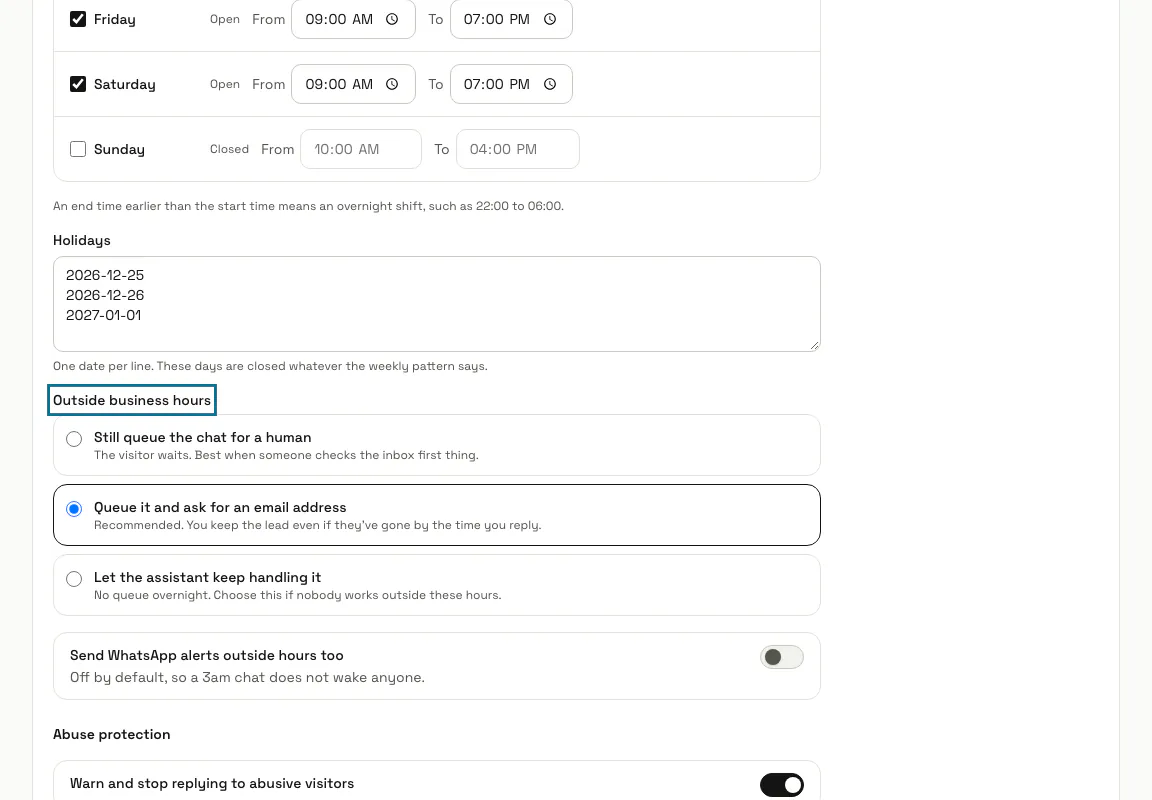
Step 6: Choose what happens outside business hours
Outside your hours the AI tells visitors when the team is next available instead of promising that someone is coming. Under "Outside business hours", choose "Still queue the chat for a human", "Queue it and ask for an email address" or "Let the assistant keep handling it" (no queue overnight), then press "Save changes".
"Send WhatsApp alerts outside hours too" stays off unless you switch it on, so a chat at 3am does not wake anyone.
Step 7: Check "Warn and stop replying to abusive visitors"
In the same panel, under "Abuse protection", the switch is on for a new workspace. Set "Warnings before the assistant stops replying" (a threat counts as two) and add your own words, one per line. The transcript is kept, your team can still reply, and "Resume replying" in the inbox lets the assistant answer that chat again.
Business hours and abuse protection are saved together by one "Save changes" button. The switch always shows what the assistant does now, so saving new hours leaves abuse protection as it was.
Step 8: Press "Supervise" on a chat in the inbox
Find it under "More actions" or in the details panel under "Supervision and routing". You see new messages and can leave private notes for whoever is answering, and the visitor sees nothing; the same section shows the language the visitor writes in and which rule assigned the chat.
Tips
- Routing runs when a chat reaches a human. Chats the AI is still answering are not assigned to anyone.
Limits and switches
- Business hours and routing need a plan that includes them. Without one, your hours and routing rules are kept but not applied: the chat treats the team as open and no rule assigns a chat.
Stuck on a step? Ask our team