Business apps
Customer page
A private page where each customer sees their own bookings, invoices and receipts, memberships and signed forms, after a code sent to them.
Who can use it: Owner and Admin, or a custom role with "Change workspace settings and connections". Sending a sign-in link from a person's page in Customers needs "Reply to, take over and assign conversations" (Owner, Admin and Agent).
Step 1: Open Customer page from Apps
Press "Apps", then "Customer page". The screen takes the word Customers uses for people, so it may be called "Client page" or "Patient page" instead.
Step 2: Share the page's address
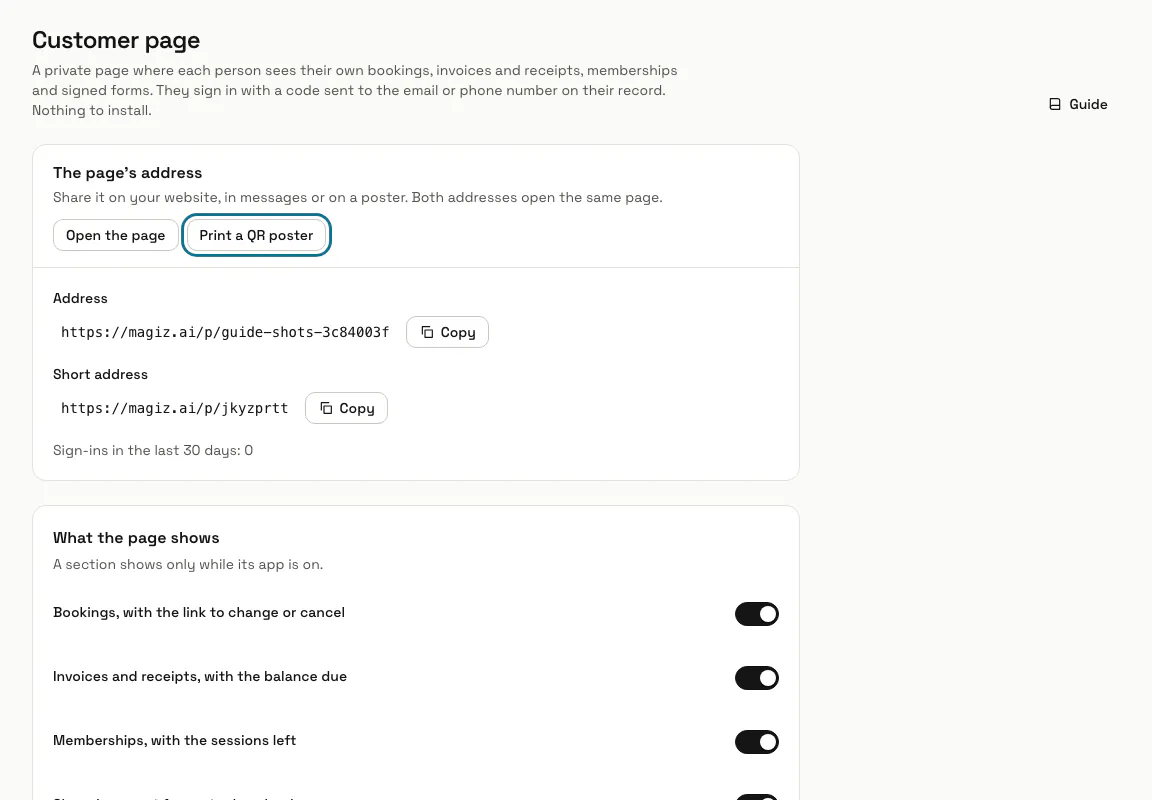
Under "The page's address" are two addresses that open the same page: one with your workspace's name and a short one. Press "Copy" to put one on your website or in a message, or "Print a QR poster" for the front desk.
Step 3: Choose what the page shows
Under "What the page shows", switch on the sections you want: bookings with the link to change or cancel, invoices and receipts with the balance due, memberships with the sessions left, and signed consent forms to download. A section shows only while its app is on.
Step 4: Add your own words
Type "A line under the greeting", such as a number to call about a bill, and "A line at the foot of every page", such as your address or opening hours. Each takes up to 300 characters. Press "Save".
Step 5: See how a customer signs in
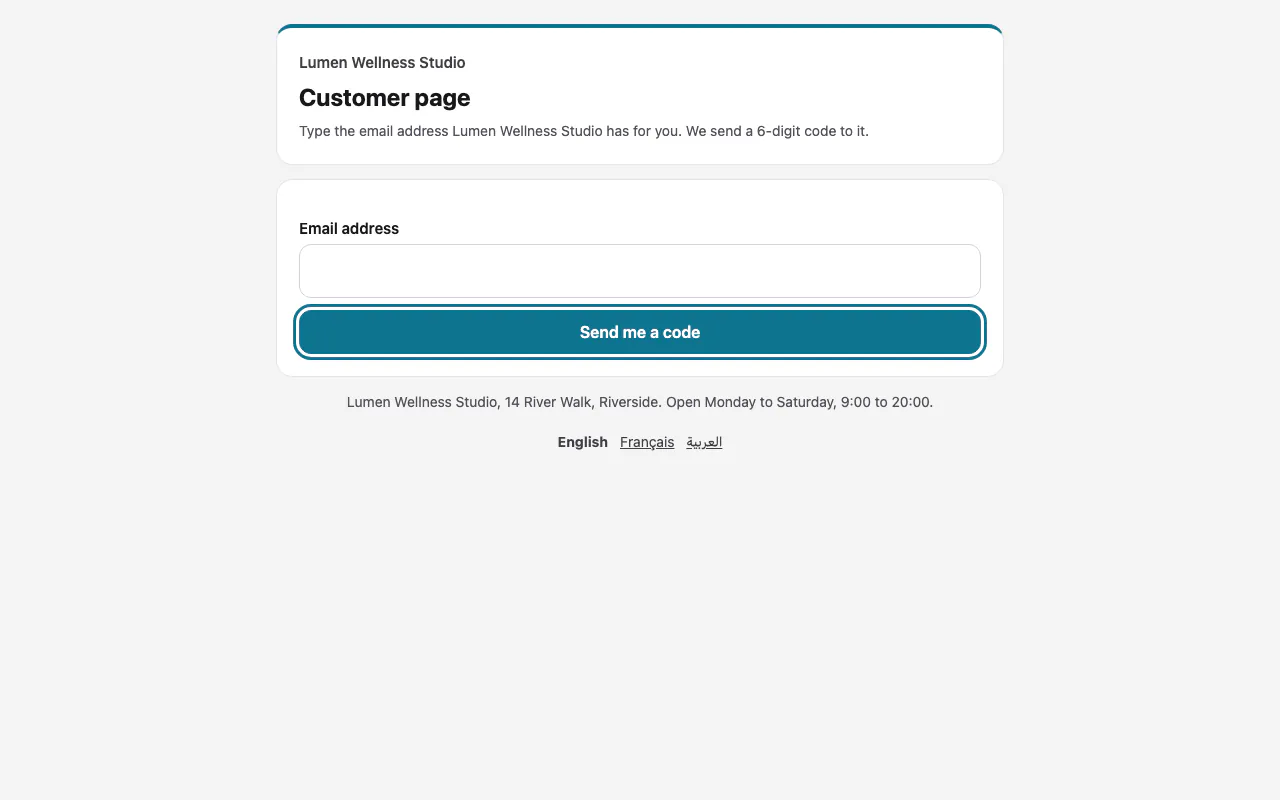
The customer types the email address on their record, presses "Send me a code", types "The 6-digit code" and presses "Open my page". A code works for 10 minutes and 5 tries, and the page then stays open for 30 minutes in that browser. It never says whether an email address is on your records.
Step 6: Send a sign-in link
On a person's page in Customers, press "Send a sign-in link" to email them a link to their page. It works for 7 days and still asks for a code.
Tips
- Once your WhatsApp number is connected and the code template is approved by Meta, customers can type a phone number instead and get the code on WhatsApp.
- The page only shows: nothing can be changed from it, except a booking through the booking's own page.
- Every opening of the page is written to the access log, and the screen counts the sign-ins of the last 30 days.
Limits and switches
- Customer page is off until an Owner or Admin turns it on in Apps. It needs Customers, which turns on with it.
- Your plan can leave the page out. Its address then answers "not available", and the screen says so.
Stuck on a step? Ask our team