Business apps
Bookings
Booking forms for appointments, stays and requests. Customers book on the form's own page, on your website or in the chat, and you answer here.
Who can use it: Owner, Admin and Agent, or a custom role with "Reply to, take over and assign conversations". Making and changing booking forms needs "Change workspace settings and connections" (Owner and Admin).
Step 1: Press "New booking form"
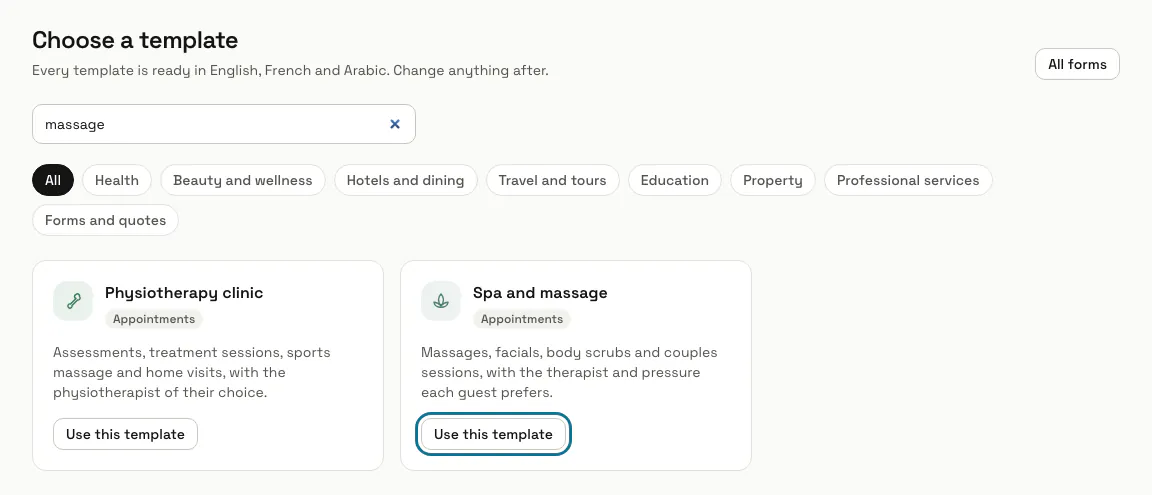
Open Bookings from Apps. On "Choose a template", search or pick a group such as "Beauty and wellness", and press "Use this template" on the closest one. Give the form a name, choose the "Customer language" and the chatbot, then press "Create and edit".
Every form starts from a template, as a draft. Templates come with services and opening hours, but no prices and no team.
Step 2: Open the "Services" tab
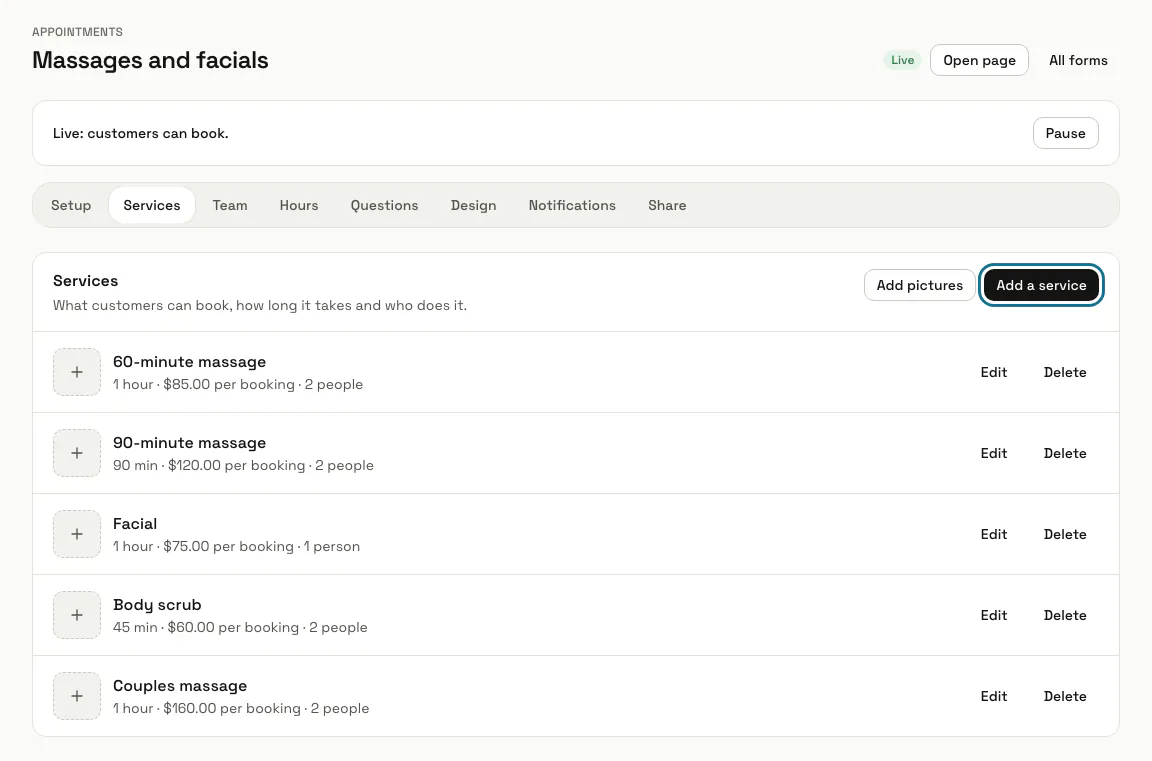
Press "Edit" on a service, or "Add a service". Set the "Length (minutes)", a "Break after (minutes)" if you need time between bookings, and the "Price". Add a "Picture" to each one, or drop several at once with "Add pictures".
Prices show only once the form has a "Currency", set in the Setup tab.
Step 3: Open the "Team" tab
Press "Add a person" for everyone customers can book with: a name, a role and a photo. Switch on "Own working hours" to give someone their own days and times. Then tick who does what under "Who does it" in each service.
The team is shared by all your forms. Only appointment forms have a Team tab.
Step 4: Open the "Hours" tab
Switch on each day the form takes bookings and set its times; a lunch break is two ranges. Under "Closed dates", add holidays and days off, and nothing can be booked on them.
Step 5: Open the "Notifications" tab
Under "To the customer", "Email" sends a message when a booking is received, confirmed, moved, declined or cancelled, and "WhatsApp" does the same from your connected number. Under "To your team", choose who hears about new bookings. Reminders are set in the Setup tab with "First reminder" and "Second reminder".
WhatsApp needs a connected WhatsApp number. Until then customers get email only.
Step 6: Press "Go live"
Customers can book once the form is live. The Share tab has the "Booking page" link and a QR code, and under "On your website" one line to copy that shows the form inside a page or as a booking button. If a chatbot is chosen in the Setup tab, it also takes bookings in its chats, offering free times as buttons and booking only after the visitor confirms.
Copy the line from your form's Share tab: it carries the form's own key.
<script src="https://magiz.ai/booking.js" data-form="YOUR_FORM_KEY" async></script>Step 7: Press "Calendar"
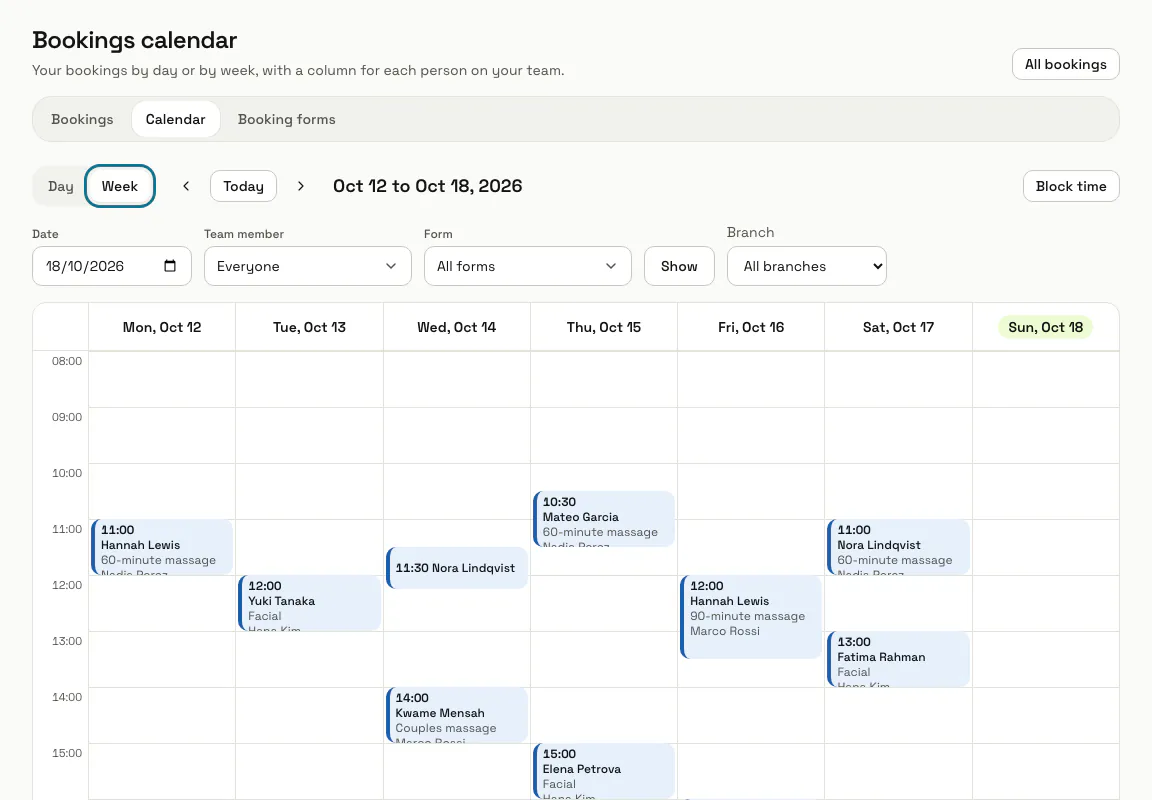
New bookings appear in the list under "Upcoming", and those waiting for your answer under "Requests". The calendar shows them by "Day" or "Week", with a column for each team member, and "Block time" keeps someone free for a meeting or leave.
Step 8: Press "Confirm"
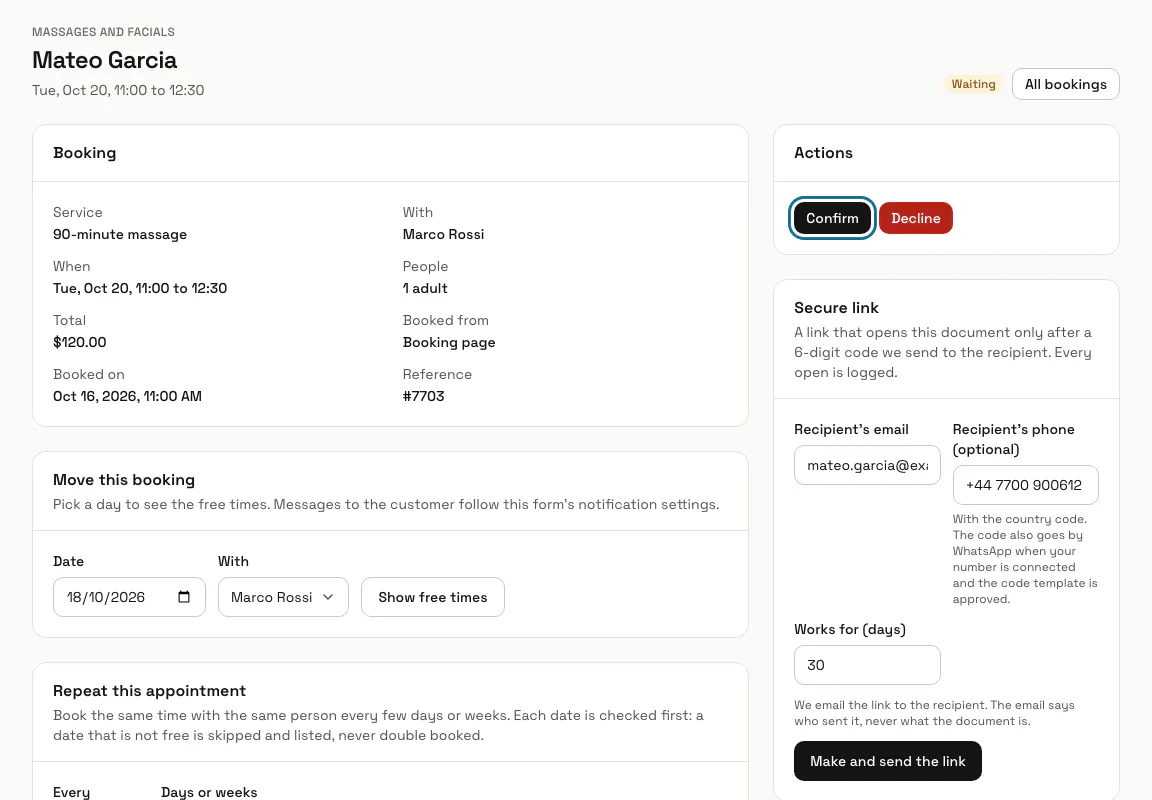
Open a booking to see its details, the customer's answers and its history. A waiting booking has "Confirm" and "Decline". A confirmed one can be moved under "Move this booking" or cancelled with "Cancel booking", and once its start has passed it can be marked "Mark as done" or "Did not come".
Confirming, declining, cancelling and moving a booking send the customer a message when the form's Notifications have it on.
Tips
- A stay form has "Rooms" and "Closed dates" instead of services, a team and hours. A request form has "Options" and always waits for your answer.
- The Questions tab adds your own questions, including a "File upload" for pictures or documents, up to 5 files. The chat cannot take files, so a visitor asked for one is sent to the booking page.
- The Preview of a form that is not live makes real bookings, so test it with your own details.
- "Export CSV" on the Bookings list downloads the bookings it shows.
Limits and switches
- Your plan sets how many booking forms you can make, 5 unless your plan says otherwise. "Booking forms" shows how many you use, for example "2 of 5 forms on your plan", and at the limit its button becomes "Upgrade for more forms".
- Bookings is on for a new workspace. It cannot be turned off while Queue is on, because Queue needs it.
Stuck on a step? Ask our team