Business apps
The Apps page
Apps are tools built into MagizAI, such as Bookings, Queue and Customers. The Apps page is where a manager turns each one on or off.
Who can use it: Everyone in the workspace. Each person sees the apps their role may open. Turning an app on or off needs "Change workspace settings and connections" (Owner and Admin).
Step 1: Open the Apps menu
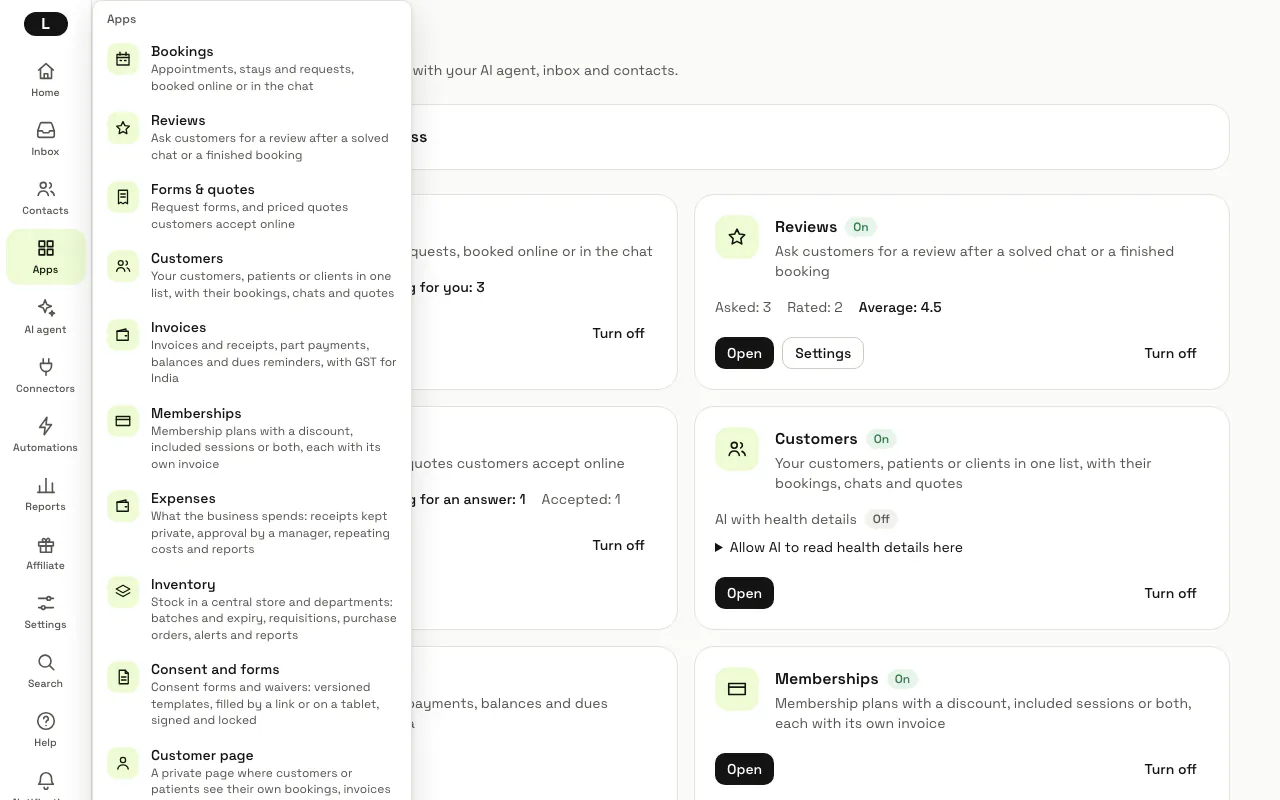
Press "Apps" in the left menu. It lists the apps that are on for your workspace and that your role may open, each with a line on what it does. Press an app to open it, or "All apps" at the bottom to see every app.
Step 2: Read the cards on the Apps page
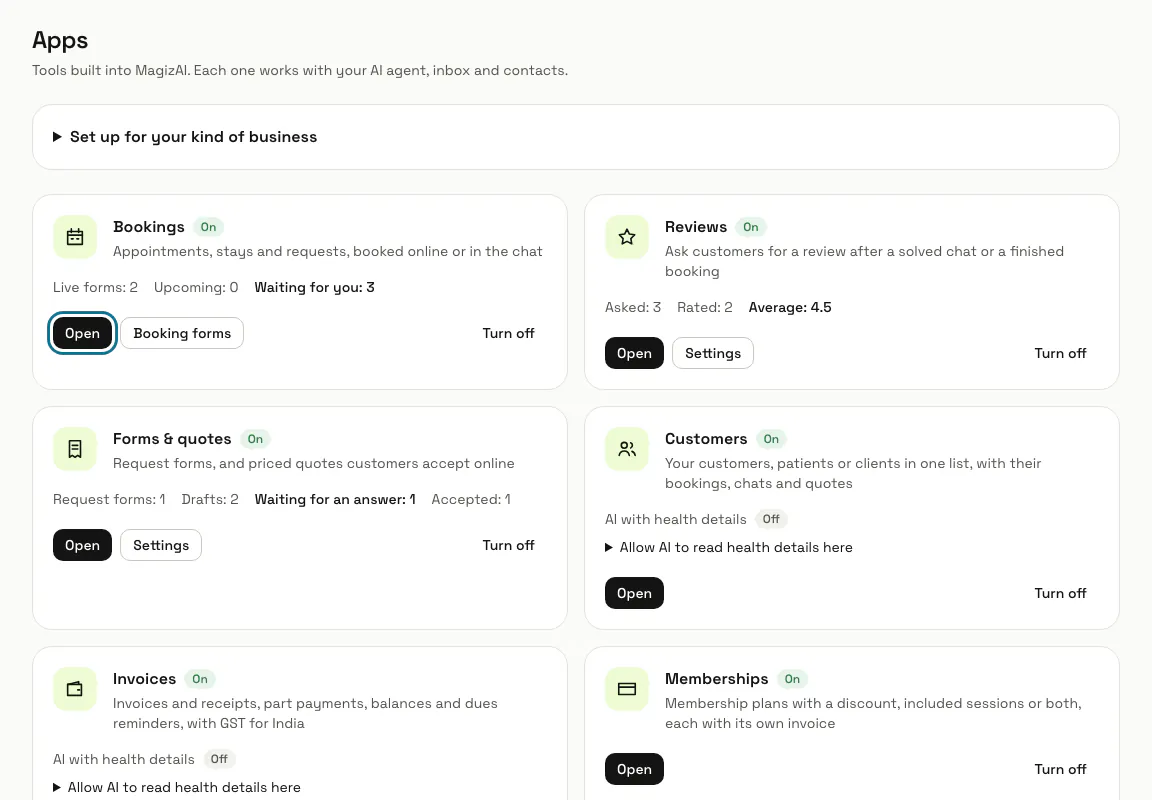
Each app has a card with its name, an "On" or "Off" badge and what it is for. A card that is on has an "Open" button. Bookings, Reviews and Forms & quotes also show a few counts, such as live forms and bookings waiting for you.
Step 3: Press "Turn on"
An app works straight away once you turn it on, and it appears in the Apps menu. If it needs another app, its card says so first, for example "Needs Bookings, which turns on with it." on Queue, and both are turned on together.
Only people who may change workspace settings (Owner and Admin) see "Turn on" and "Turn off". Everyone else sees "Ask a workspace manager to turn it on." on an app that is off.
Step 4: Press "Turn off"
The app leaves the Apps menu, and anyone who opens one of its pages is sent to the Apps page with a note that it is off for this workspace. Its data is kept: turn it on again and everything is where you left it.
Step 5: Turn off the apps that need it first
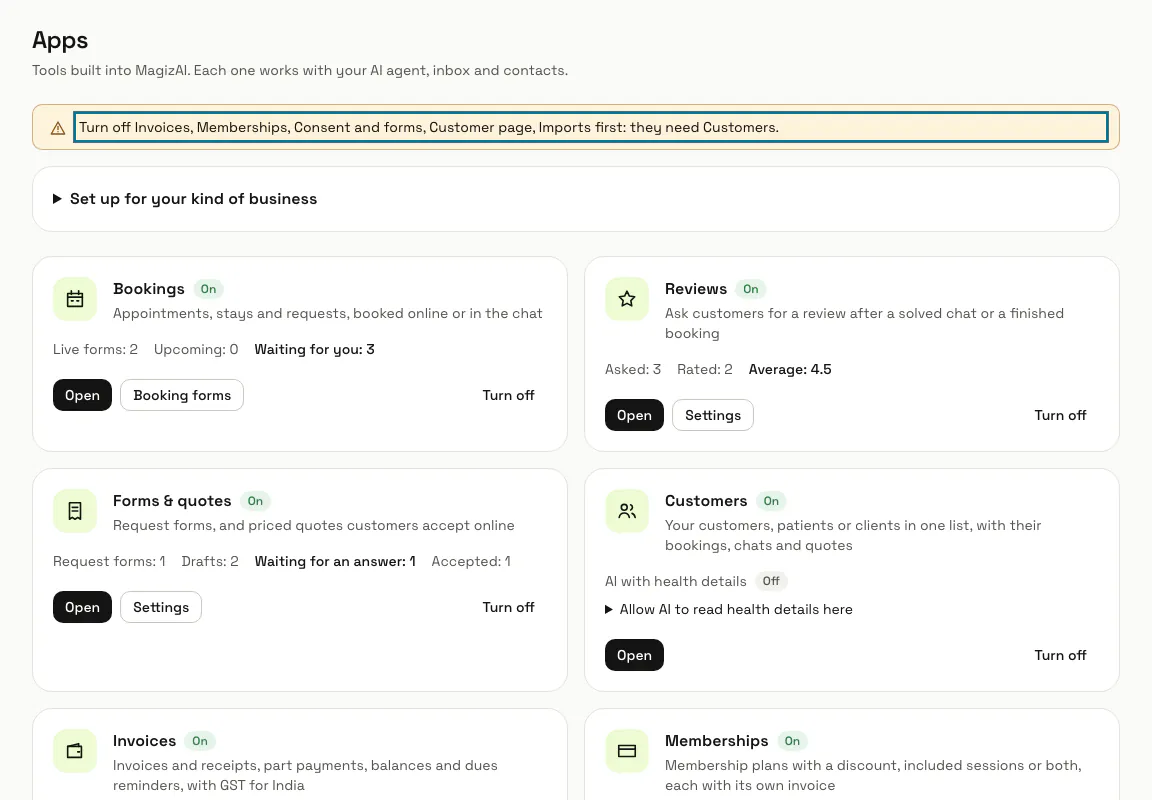
An app cannot be turned off while an app that needs it is on. MagizAI names the apps to turn off first, for example Imports and Invoices before Customers, and changes nothing.
Step 6: Check what your plan allows
Your plan sets how much you can use some apps: how many booking forms in Bookings, queue lines in Queue and active branches in Branches, and how many rows one file may hold in Imports. Each of these apps shows the limit on its own page.
Tips
- Every switch is written to the "Audit log" in Settings as "Turned an app on" or "Turned an app off", with who did it.
- Bookings is on for a new workspace. The other apps start off until a manager turns them on.
Limits and switches
- Turning apps on and off needs the Owner or Admin role.
- Plan limits per app: booking forms (Bookings), queue lines (Queue), active branches (Branches) and rows per import (Imports).
Stuck on a step? Ask our team