Business apps
Customers
One list of the people your business serves, with their bookings, chats, quotes and leads. Call them customers, patients or clients.
Who can use it: Owner, Admin and Agent, or a custom role with "Reply to, take over and assign conversations". The "Settings" tab, the sync, "Export CSV" and "Erase" need "Change workspace settings and connections" (Owner and Admin).
Step 1: Open Customers from Apps
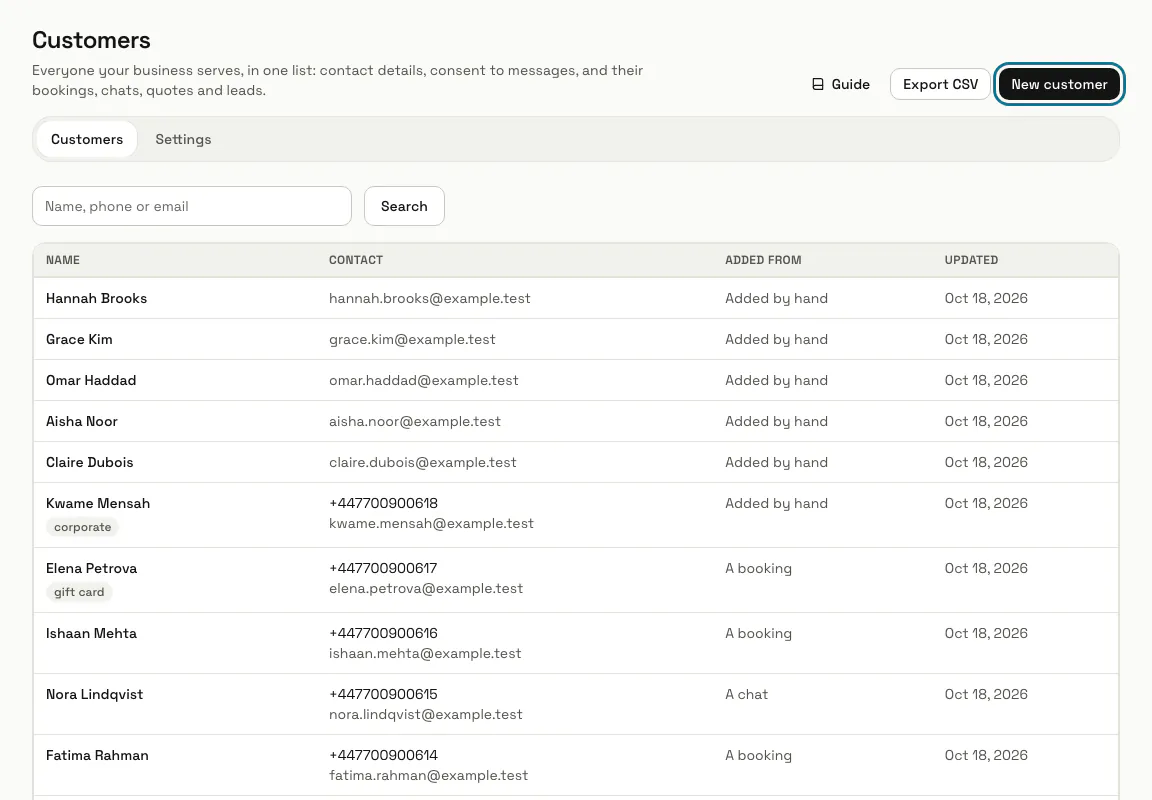
The list shows each person's name, contact details, where they were added from and when they last changed. Search by name, phone or email.
Step 2: Open the "Settings" tab
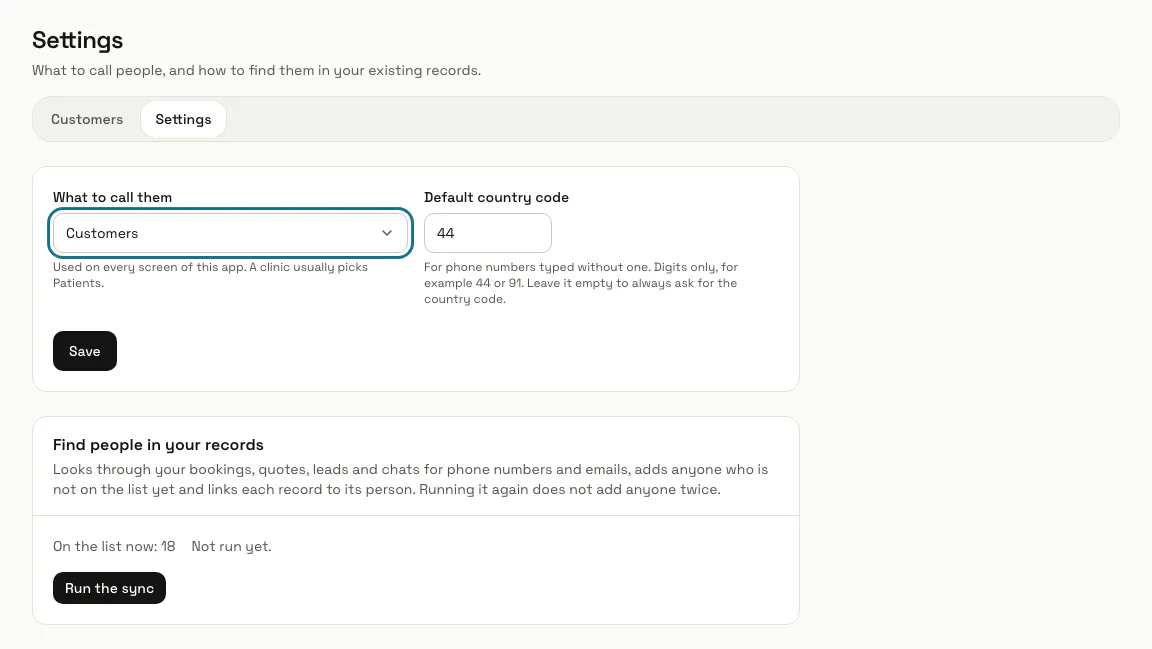
Under "What to call them", choose Customers, Patients or Clients: the app's headings, buttons and empty lists follow. Set a "Default country code" (digits only, for example 44 or 91) so phone numbers written without one still match, then press "Save".
The left menu and the Apps page keep the name Customers.
Step 3: Press "Run the sync"
Under "Find people in your records", it looks through your bookings, quotes, leads and chats for phone numbers and emails, adds anyone not on the list yet and links each record to its person. Running it again adds no one twice, and MagizAI also runs it once a day.
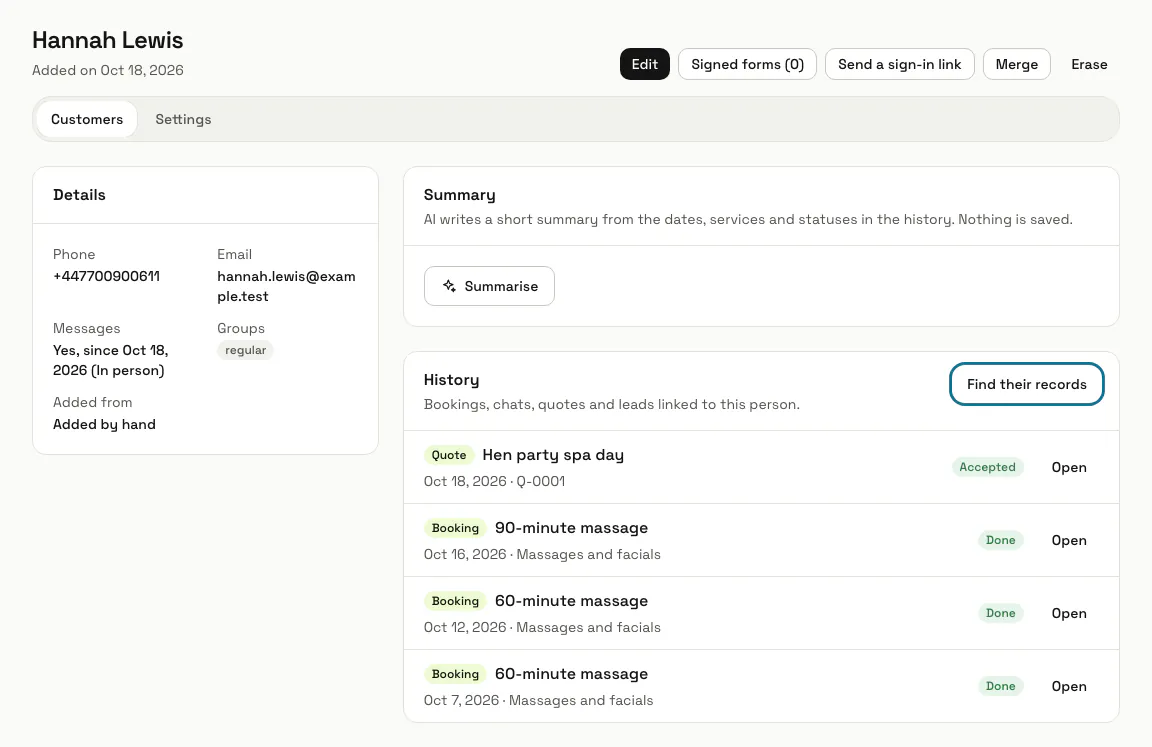
A new booking or chat reaches a person's page at the next sync, not the moment it is made, unless you press "Find their records" on that person.
Step 4: Press "New customer"
Only "Name" is needed. Write the phone with its country code, and switch on "Agrees to receive messages" only when the person has said yes. Press "Add": bookings, chats, quotes and leads with the same phone or email are linked to them straight away.
Step 5: Open a customer
Their page shows "Details" and a "History" of their bookings, chats, quotes and leads, each with an "Open" link. "Find their records" links any record with their phone or email, and "Summarise" asks AI for a short summary of the history, which uses one AI message and is not saved.
Step 6: Press "Merge"
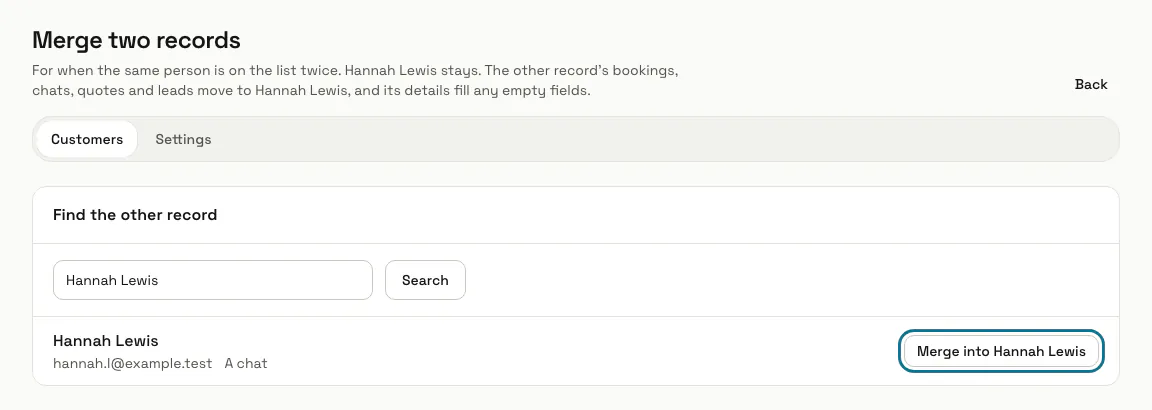
For a person who is on the list twice. Search for the other record and press "Merge into" with this person's name: its bookings, chats, quotes and leads move across, and its details fill any empty fields. The name of the person you started from stays.
A merge cannot be undone. When both records have a phone or an email, the one on the record you keep stays and the other is dropped.
Tips
- "Export CSV" downloads the people the current search matches.
- "Erase" deletes a record and its links. Their bookings and chats stay, and the sync never adds that person again from them.
- A number written without a country code is refused unless a "Default country code" is set, so set it before the first sync.
Limits and switches
- Phone numbers and emails are unique: two people on the list cannot share one.
Stuck on a step? Ask our team