Business apps
Consent and forms
Write consent forms and waivers once, then have customers sign them by a link or on a tablet at the desk. Each signed form is locked.
Who can use it: Owner, Admin and Agent, or a custom role with "Reply to, take over and assign conversations". Writing and changing templates needs "Change workspace settings and connections" (Owner and Admin).
Step 1: Open Consent and forms from Apps
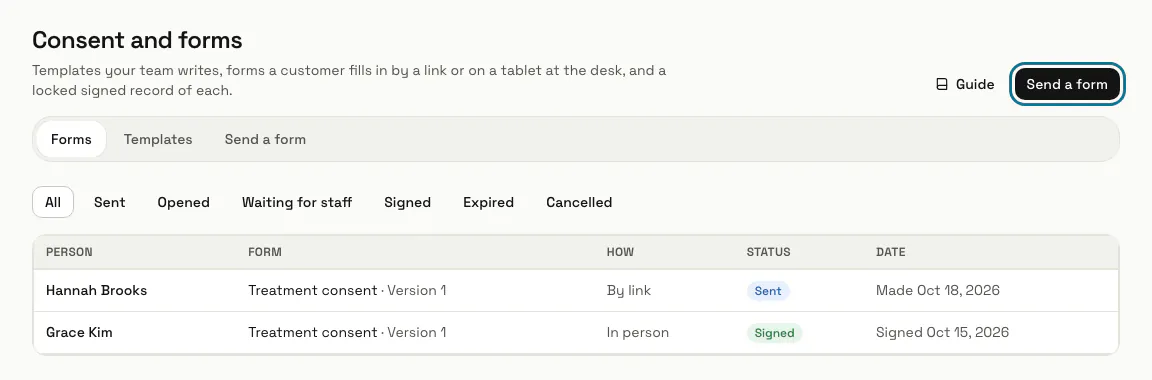
Press "Apps", then "Consent and forms". The Forms tab lists every form with the person, the template, how it was filled in and its status: Sent, Opened, "Waiting for staff", Signed, Expired or Cancelled.
Step 2: Press "New template"
On the Templates tab, give it a "Title" and the "Language of the form", write the "Text", and add "Risks" and "Aftercare" if you want them. Add "Boxes to tick", each of which must be ticked before signing, and "Questions" with a short text, yes or no, or date answer. Tick "A staff member signs too" if staff sign after the person. Press "Save".
"Help from AI" can draft a template or make your text plain. These are suggestions only: read and change them before you save.
Step 3: Save a change as a new version
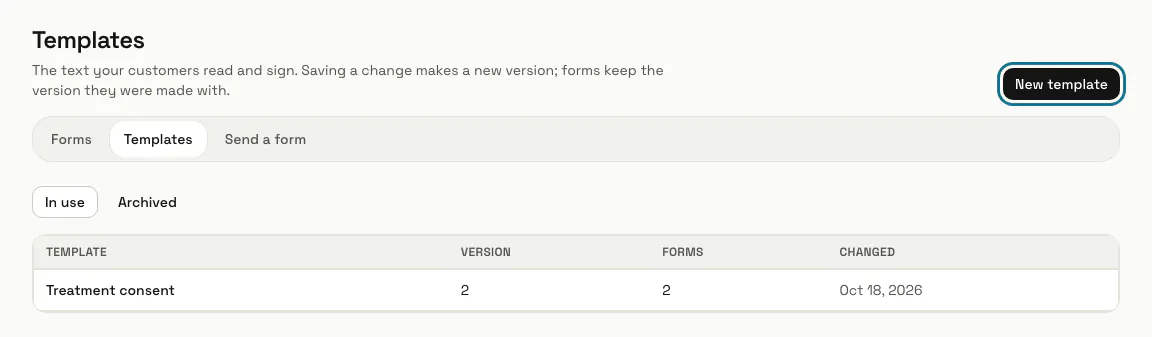
Open a template, change it and press "Save as a new version". Forms already made keep the version they were made with, and every version stays readable under "Versions".
Step 4: Open the Send a form tab
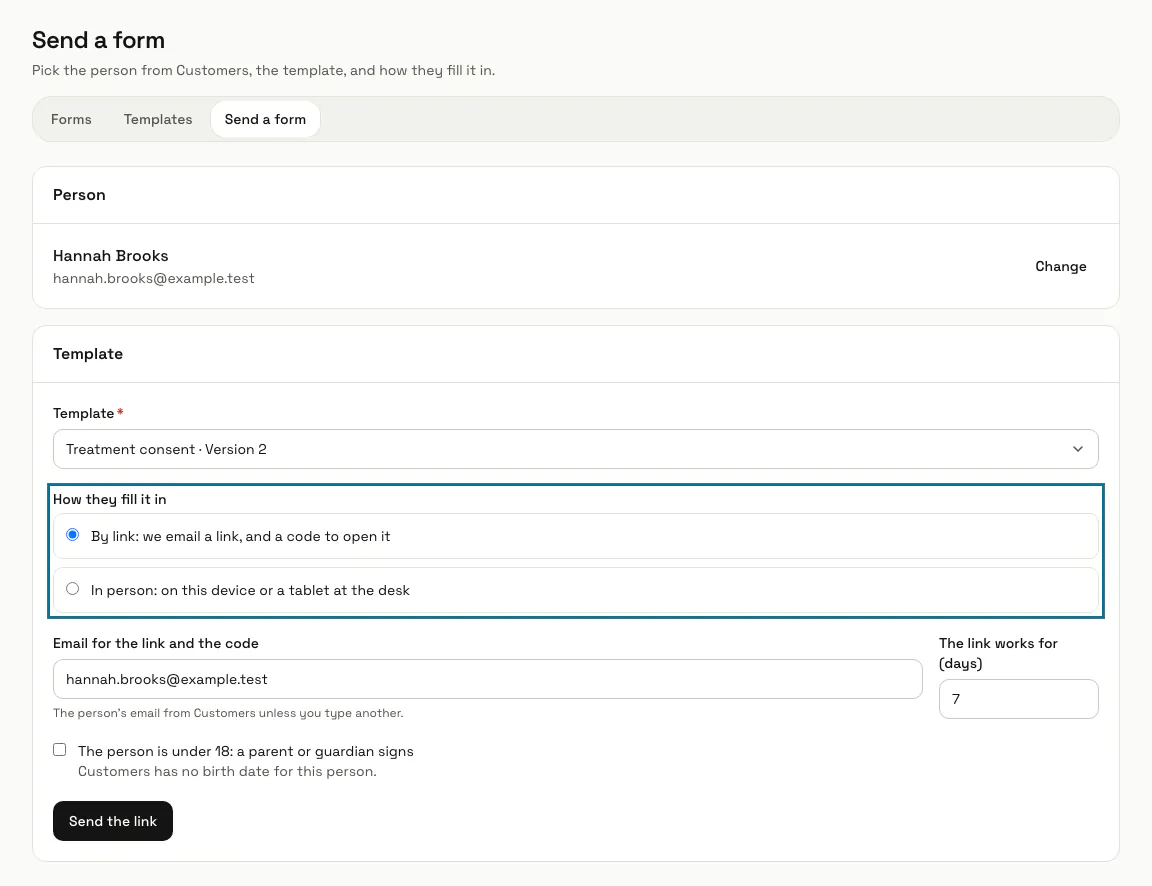
Find the person from Customers and press "Choose", then pick the "Template" and how they fill it in: by link, or in person on this device or a tablet at the desk. For a person under 18, a parent or guardian signs.
Step 5: Press "Send the link"
We email the person a link, and it also shows once on your screen with "Copy the link". They open it, ask for a 6-digit code by email that works for 10 minutes, read the form, tick the boxes, answer and sign by drawing or typing their name. The link works for 7 days unless you choose up to 30.
Step 6: Press "Start filling in"
For a form in person, the next page asks you to hand the device to the person. When they press "Start", the device is locked to that form. After they sign, they hand it back and you type your own password to use it again.
While a device is locked to a form, every other page of MagizAI on it asks for the staff member's password first.
Step 7: Open the signed record
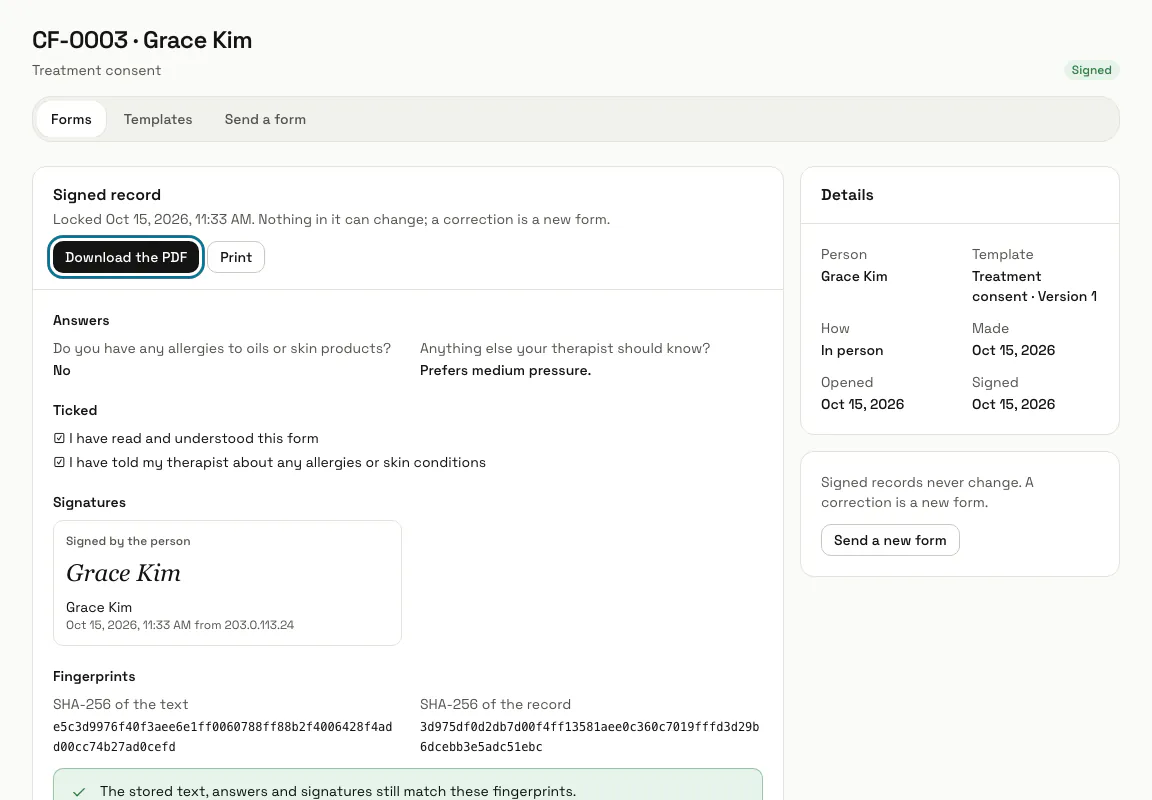
A signed form shows its "Signed record": the answers, the ticked boxes, each signature with its time and IP address, and fingerprints of the exact text. Press "Download the PDF" or "Print". Nothing in it can change; to correct one, press "Send a new form".
Tips
- Opening, printing and sharing a signed record is written to the access log.
- A person's page in Customers shows "Signed forms" with a count, which opens their forms here.
- The person can download their own copy as a PDF straight after signing, from the page where they signed.
Limits and switches
- Consent and forms is off until an Owner or Admin turns it on in Apps. It needs Customers, which turns on with it.
- Your plan can cap how many forms you send or fill in each calendar month. With a cap, "Send a form" shows how many are used. There is no cap unless your plan sets one.
Stuck on a step? Ask our team