Business apps
Inventory
Keep stock in a central store and in departments, with batches and expiry dates, requests from departments, purchase orders and low stock alerts.
Who can use it: Owner, Admin and Agent, or a custom role with "Reply to, take over and assign conversations". They see stock, record use and send requisitions. Items, receiving and issuing stock, purchase orders, Reorder, Reports and Settings need "Change workspace settings and connections" (Owner and Admin).
Step 1: Open Inventory from Apps
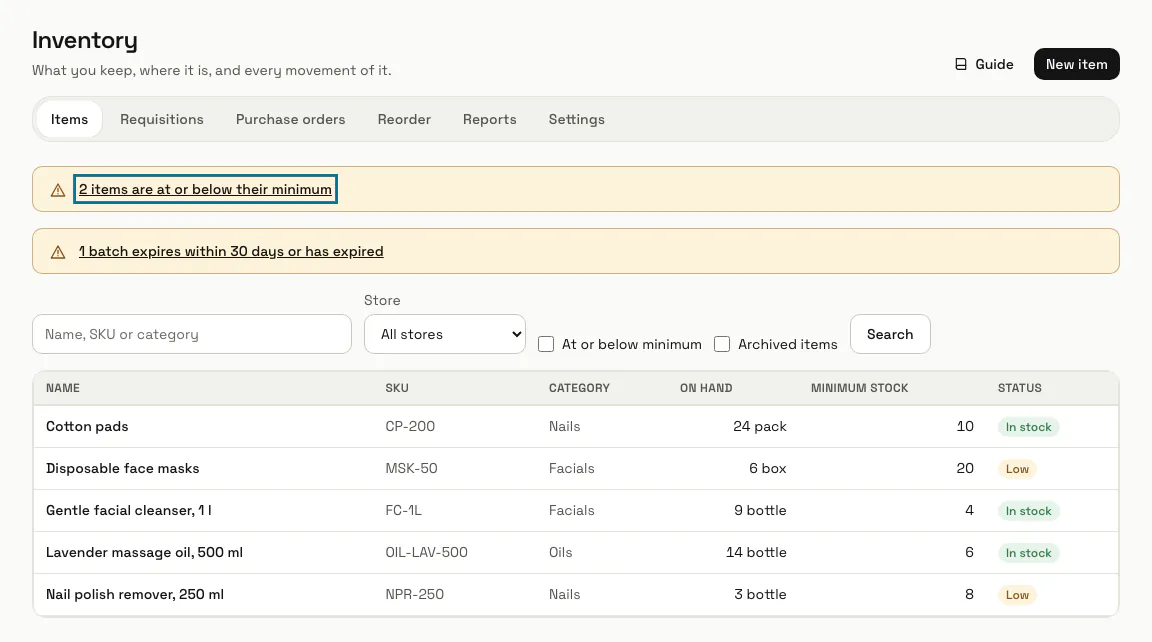
Press "Apps", then "Inventory". Each item shows what is on hand, its "Minimum stock" and whether it is "Low" or "In stock". When items reach their minimum, a line at the top says how many and opens just those items.
Step 2: Add a department in Settings
The "Central store" is made for you: it receives deliveries and issues to departments or rooms. Type a name under "New department or room" and press "Add store". Add the people you buy from under "Suppliers" with "Add supplier".
"Allow stock below zero" is off, so using or issuing more than a store holds is refused.
Step 3: Press "New item"
Give it a "Name", how you count it under "Unit" (box, piece, bottle), a "Category", a "Minimum stock", the "Cost of one unit" and its "Supplier". Press "Save item". Its quantity then comes only from what you receive and use.
Step 4: Receive stock into a batch
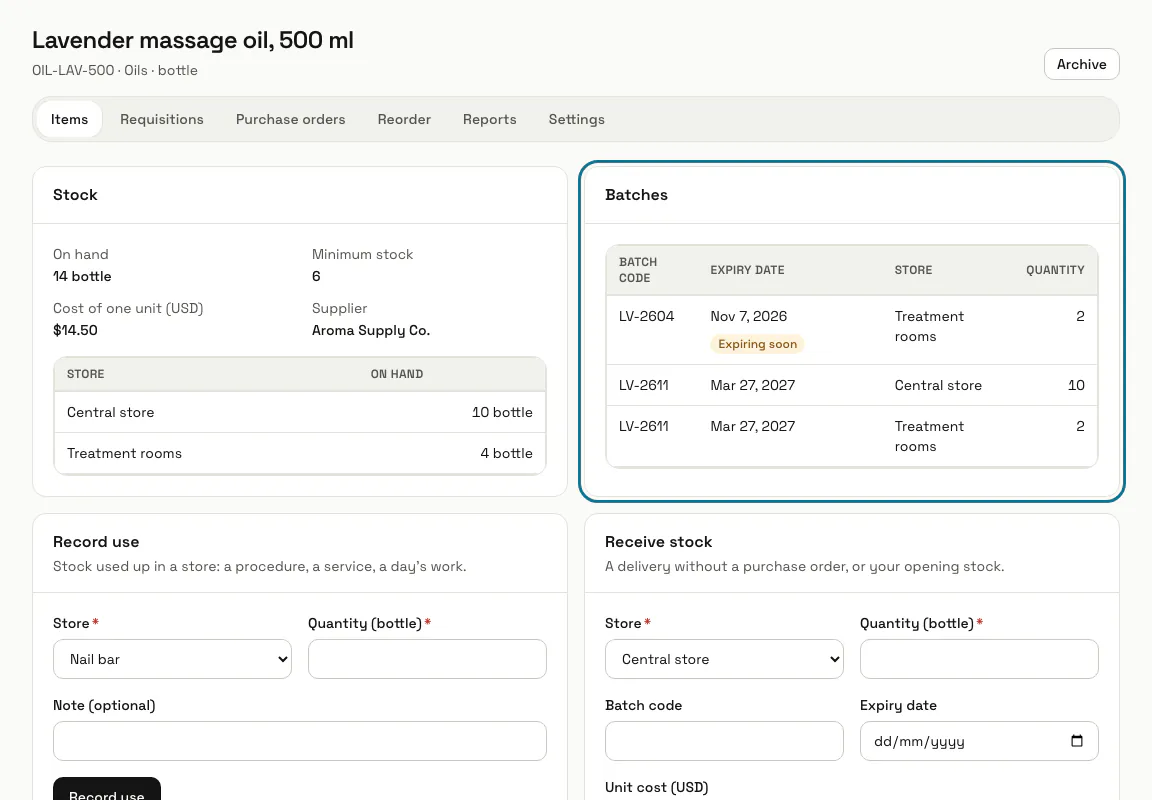
On the item's page, under "Receive stock", pick the store, type the quantity, a "Batch code" and an "Expiry date", and press "Receive". "Batches" marks a batch "Expiring soon" or "Expired", and stock going out takes the earliest expiry first.
Step 5: Issue stock to a department
A manager uses "Issue to a department" to move stock from the central store to a room. Anyone at the desk records what was used in a store with "Record use". "Transfer" moves stock between stores, and "Adjust" fixes a count with a reason.
Step 6: Send a requisition
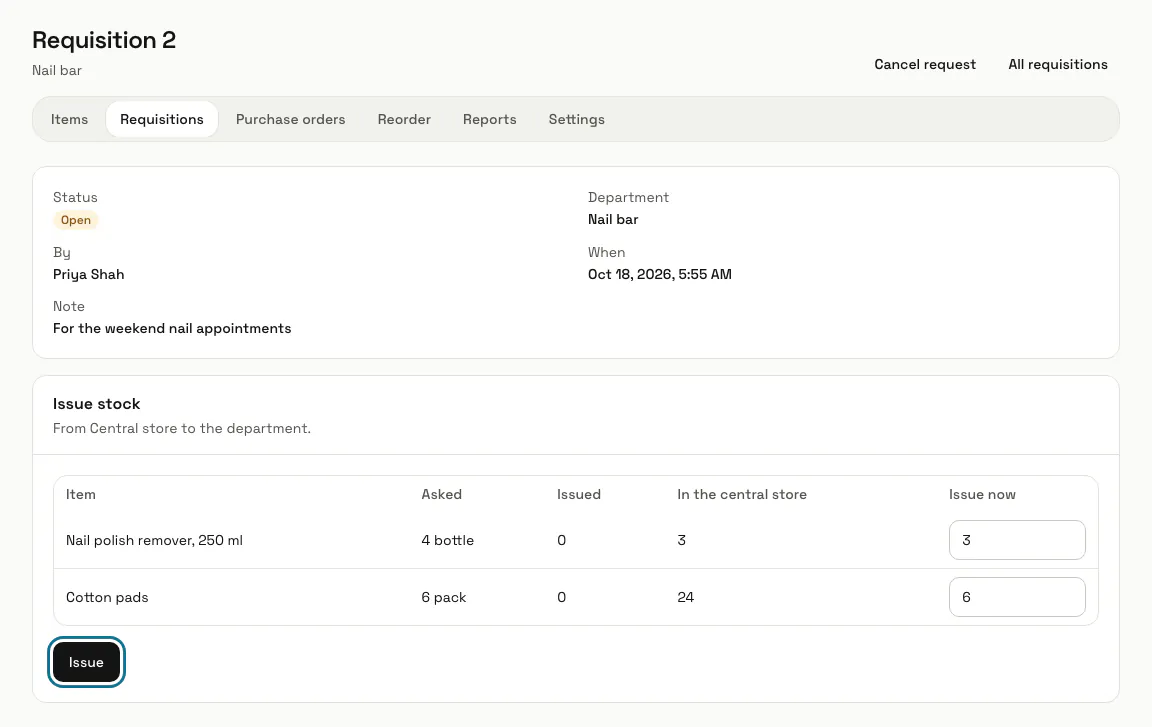
On the Requisitions tab, a department asks the central store for up to five items under "Ask for stock" and presses "Send request". A manager opens it, checks the quantities under "Issue now" and presses "Issue"; what is not issued stays open until it is issued or cancelled.
Step 7: Make a purchase order
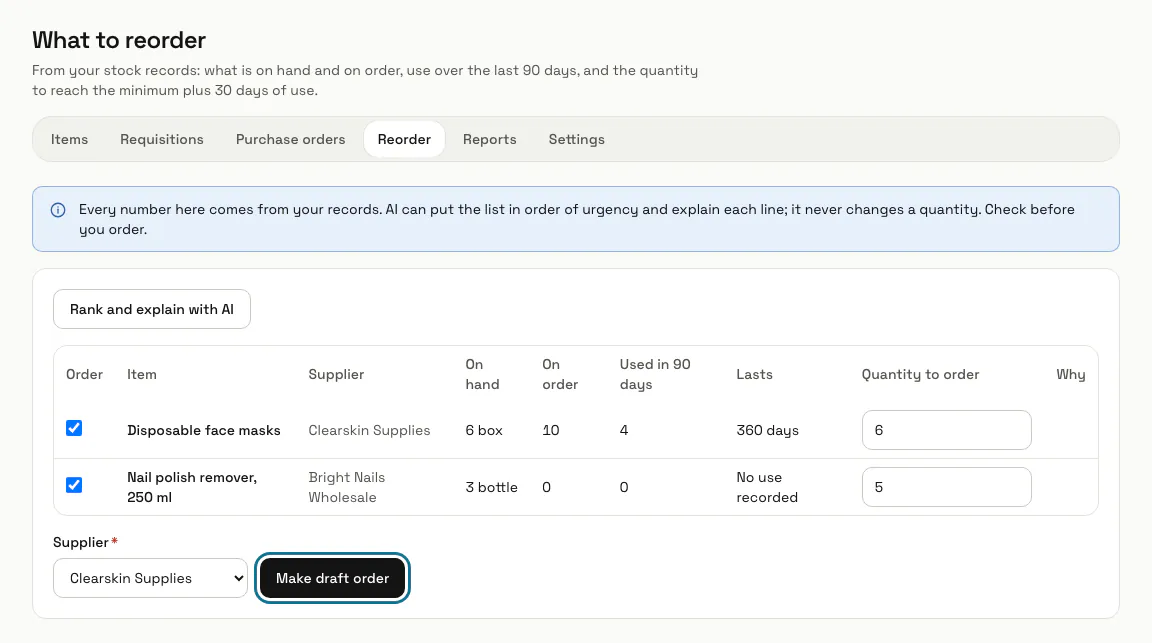
Under "Purchase orders", start one with "Make draft", add its lines and press "Mark as sent" once you have ordered from the supplier yourself. When it arrives, fill in "Arrived" under "Receive a delivery" and press "Receive"; a part delivery leaves the rest due. The Reorder tab lists items short of their minimum plus a month of use and makes a draft order from them.
Step 8: Open the Reports tab
See "Stock on hand" with its value at cost, "Use" by day, week or month, "Expiring batches", "Purchase orders" and every "Movements" line with who moved what. Each view has "Export CSV".
Tips
- Switch on "Email stock alerts to managers" in Settings for a daily email about items at their minimum and batches about to expire, each sent once while it lasts.
- With the Expenses app on, "Make an expense when an order is received" adds each received order as an expense waiting for approval.
- "Rank and explain with AI" on the reorder list puts the lines in order of urgency and never changes a quantity. It counts as an AI message on your plan.
Limits and switches
- Inventory is off until an Owner or Admin turns it on in Apps.
- Your plan can cap how many items you keep at one time; archived items do not count. There is no cap unless your plan sets one.
- Stock alert emails are off until a manager switches them on in Settings.
Stuck on a step? Ask our team