Business apps
Reviews
Email customers a short rating request after a solved chat or a finished booking, and show every rater your public review pages.
Who can use it: Owner, Admin and Agent, or a custom role with "Reply to, take over and assign conversations". Its settings need "Change workspace settings and connections" (Owner and Admin).
Step 1: Switch on "Ask customers for a review"
Open Reviews from Apps and press "Settings". When it is on, one email goes to each customer, at most once every 90 days. Under "When to ask", keep "After a solved chat", "After a finished booking" or both.
Turning Reviews on from the Apps page switches this on too. Asks start from the moment it is switched on: chats and bookings finished before then are never asked about.
Step 2: Choose "How long after"
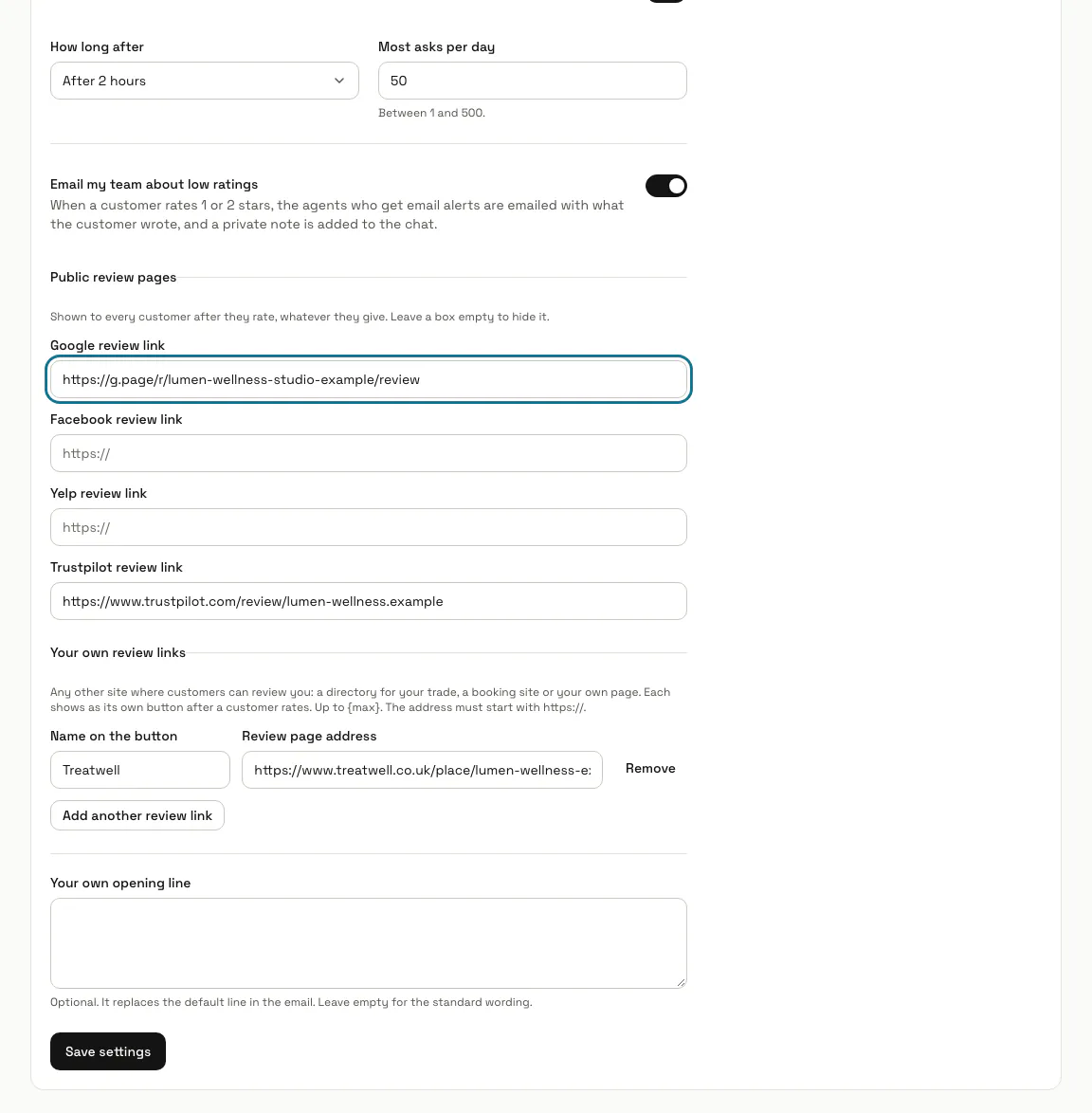
"Right away", or after 1 hour, 2 hours (the default), 1 day or 3 days. "Most asks per day" caps how many go out in a day, 50 unless you change it. "Email my team about low ratings" emails your agents when someone gives 1 or 2 stars.
Step 3: Add your public review pages
Paste the https addresses of your "Google review link", "Facebook review link", "Yelp review link" or "Trustpilot review link", and up to 6 more with "Add another review link". Press "Save settings".
Every customer sees these buttons after rating, whatever they gave.
Step 4: Know what customers see
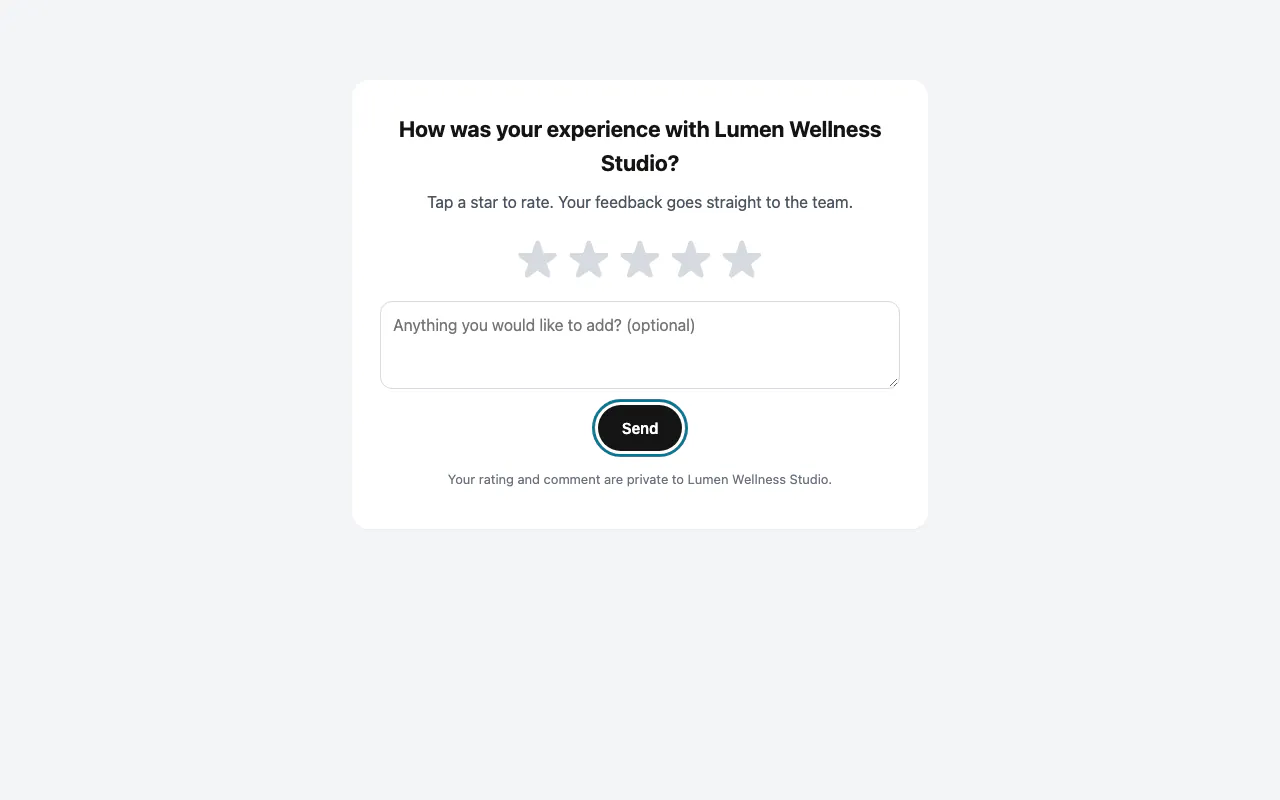
The email has five stars and a "Leave a review" button. It opens a page where the customer taps 1 to 5 stars, adds a comment if they like and presses "Send". The thank-you page then offers a "Review us on" button for each of your public pages.
Step 5: Open the Reviews list
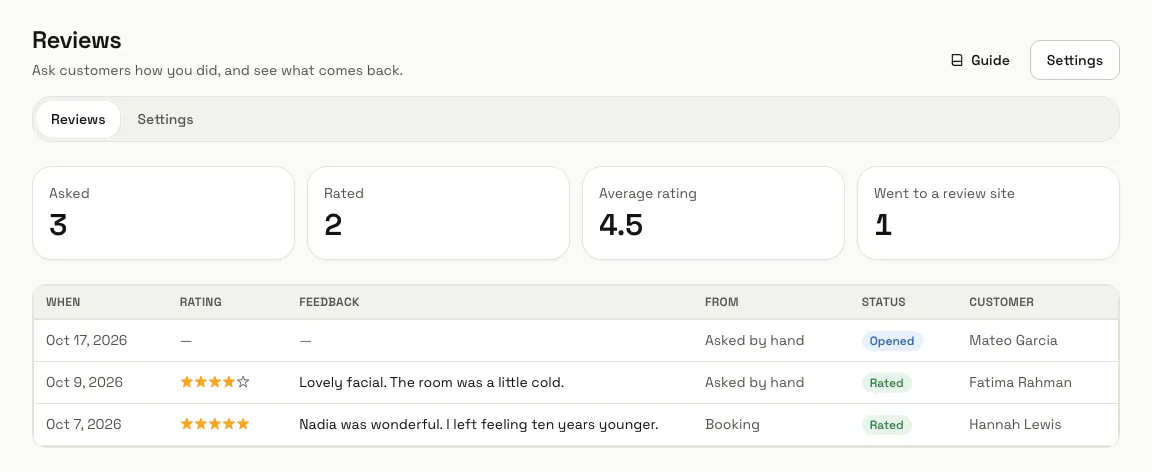
It shows how many were "Asked" and "Rated", the "Average rating" and how many "Went to a review site", then each ask with its rating, feedback, where it came from and its status.
Step 6: Press "Ask for a review"
To ask someone yourself: on a booking marked as done, or for people you select in Contacts. The ask goes out within five minutes.
Tips
- A rating of 1 or 2 stars also adds a private note to the chat it came from.
- Asks go out by email, in the customer's language when it is known.
- The list shows the newest 100 asks.
Limits and switches
- A chat or booking is asked about only when it has the customer's email. Unsubscribed addresses are never asked.
Stuck on a step? Ask our team