Business apps
Memberships
Sell membership plans that give a discount, included sessions or both. Each membership has its own invoice and starts once that invoice is paid.
Who can use it: Owner, Admin and Agent, or a custom role with "Reply to, take over and assign conversations". Making and changing plans, cancelling a membership and Settings need "Change workspace settings and connections" (Owner and Admin).
Step 1: Open Memberships from Apps
Press "Apps", then "Memberships". The Members tab lists every membership with its plan, first and last day and price, by All, Active, "Waiting for payment", "Ending in 30 days" and Ended.
Step 2: Press "New plan"
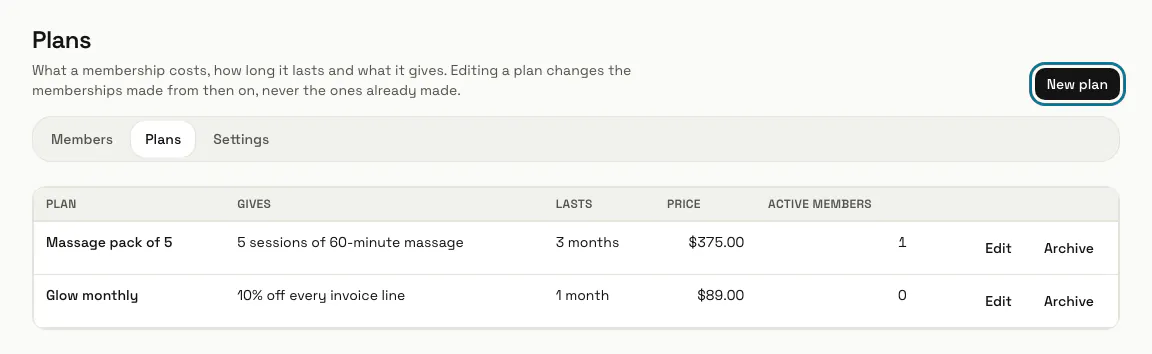
On the Plans tab, give the plan a "Name", a "Price" and how long it "Lasts" in days or months. Under "Included sessions", pick a "Service" and the number of "Sessions"; under "Discount", type the "Percent off" and whether it is on "Every line" or "The services I pick". A plan needs a discount, sessions or both. Press "Save plan".
Editing a plan changes only the memberships made from then on, never the ones already made.
Step 3: Press "Add a member"
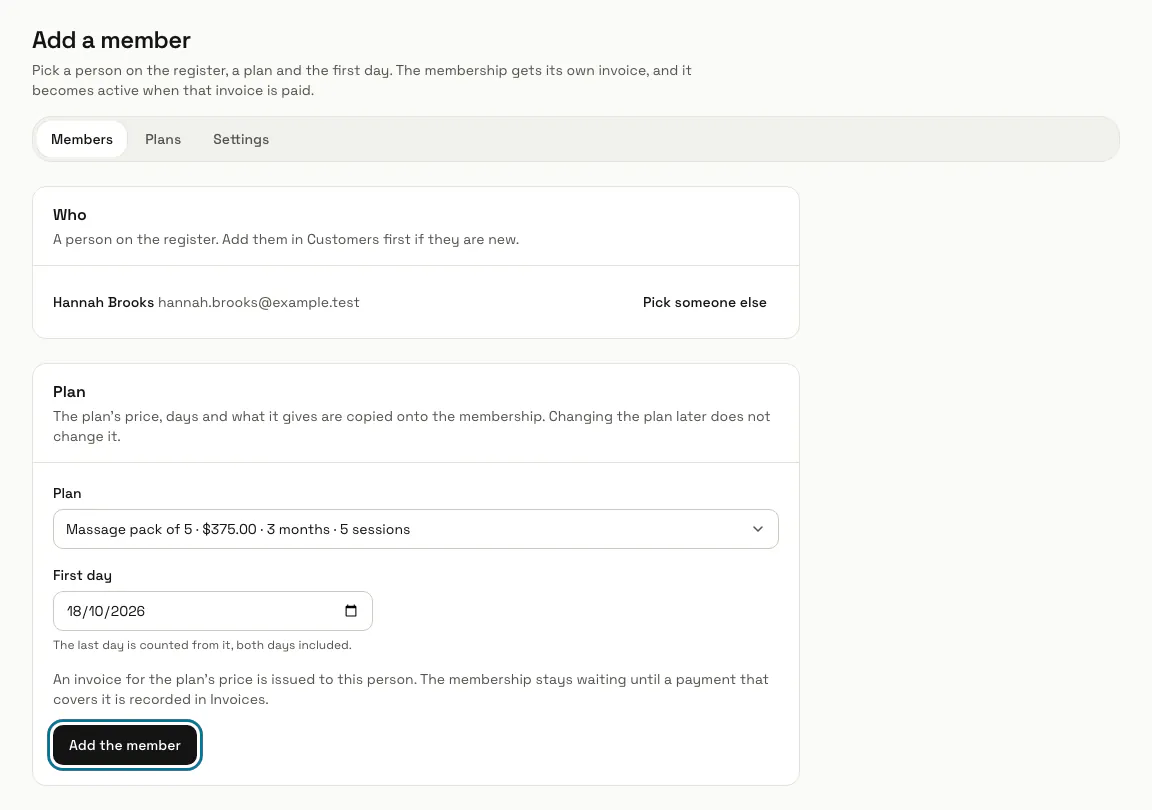
Find the person on the register by name, phone or email and press "Choose". Pick the "Plan" and the "First day"; the last day is counted from it. Press "Add the member".
Step 4: Record the payment on its invoice
The membership gets its own invoice for the plan's price and stays "Waiting for payment" until a payment that covers it is recorded in Invoices. Press the invoice number on the membership to open it. Once it is paid, the membership is Active and its discount and sessions apply.
Step 5: Press "Use one"
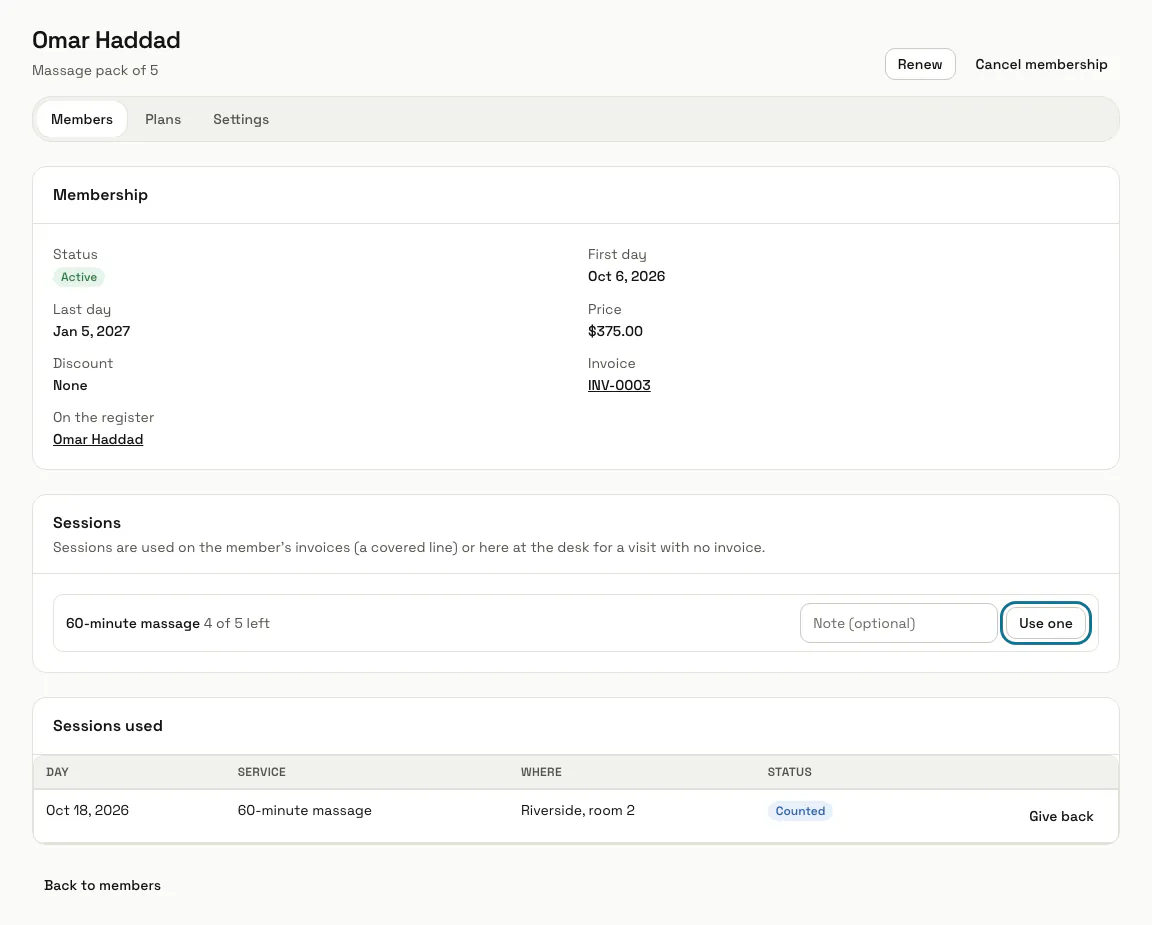
On an active membership, "Sessions" shows how many are left of each service. For a visit with no invoice, add a note if you like and press "Use one". On the member's invoice drafts, "Apply member benefits" puts their discount and covered sessions on the lines.
"Give back" returns a session used at the desk by mistake. A session used on an invoice comes back when its line is taken off or the invoice is voided.
Step 6: Press "Renew"
An active or expired membership can be renewed. The new membership has its own invoice and starts the day after the current one ends. Each day, memberships whose last day has passed turn Expired.
A manager can press "Cancel membership": its benefits stop at once and its invoice is not changed, so void or refund it in Invoices if that is needed.
Step 7: Turn on renewal reminders
In Settings, switch on "Email members before their last day" and set the "Days before the last day". Each membership gets one email, only when its plan is set to "Your team renews it, and the member gets a reminder", sent to the email on the register.
Tips
- A plan that costs nothing has no invoice and is active at once.
- Archive a plan to stop offering it. Its members keep their memberships, and "Offer again" brings the plan back.
- Practices run by doctors registered in India can switch on "This practice is run by doctors registered in India" in Settings. Plans that give a discount are then hidden and no member discount goes on an invoice; plans of sessions only stay available.
Limits and switches
- Memberships is off until an Owner or Admin turns it on in Apps. It needs Customers and Invoices, which turn on with it.
- Your plan can cap how many membership plans you offer; archived plans and their members do not count. There is no cap unless your plan sets one.
- Renewal reminders are off until a manager switches them on in Settings.
Stuck on a step? Ask our team