Business apps
Expenses
Record what the business spends with its receipt, send it to a manager to approve, and see the totals by month, category or supplier.
Who can use it: Owner, Admin and Agent, or a custom role with "Reply to, take over and assign conversations". Approving or rejecting, the Report and Settings tabs and "Export CSV" need "Change workspace settings and connections" (Owner and Admin).
Step 1: Open Expenses from Apps
Press "Apps", then "Expenses". Filter the list by "Approval", "Payment", "Category" and dates. A manager also sees at the top how many expenses wait for their approval.
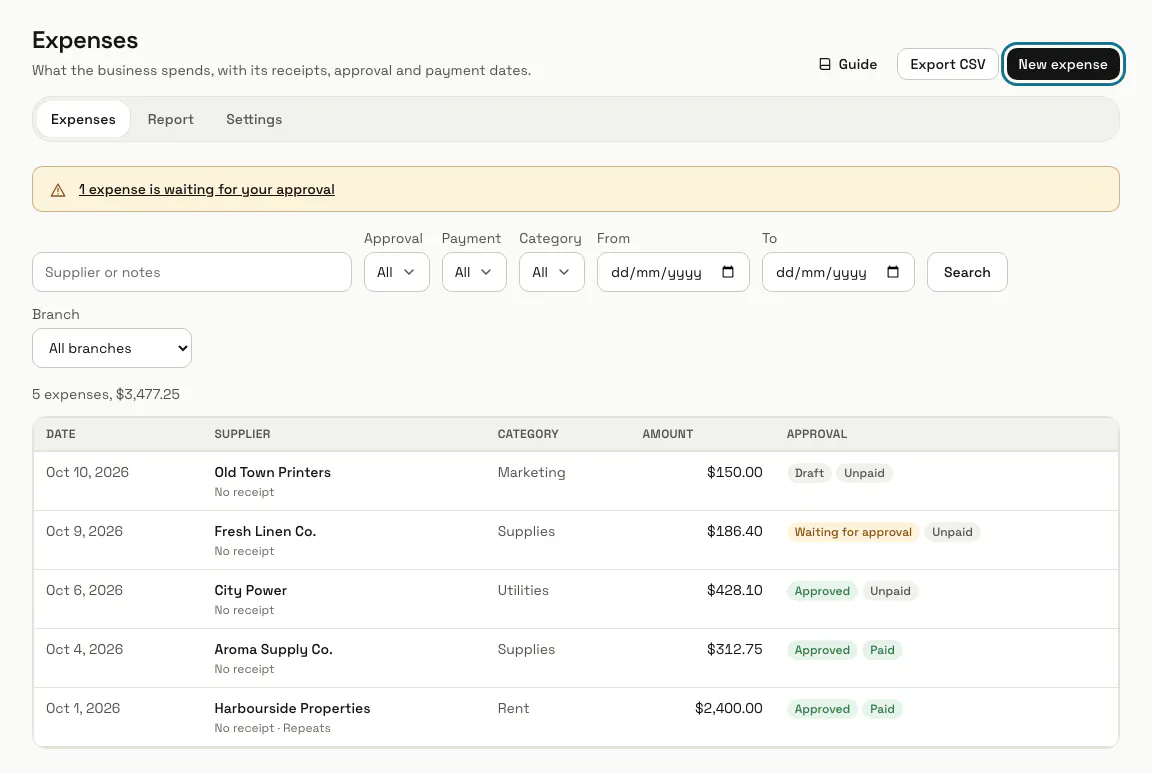
Step 2: Press "New expense"
Press "Add a receipt" to attach a photo or a PDF of up to 10 MB; only your team can open it. Fill in the "Supplier", the "Date", the "Total" including tax and the "Tax", then the "Category", the "Payment" (paid, with the day, or unpaid, with a due date) and "Paid by".
"Fill from receipt" on an added receipt asks AI to read it and fills in what it found. Check every field before you save: nothing is kept until you do, and each reading counts as an AI message on your plan.
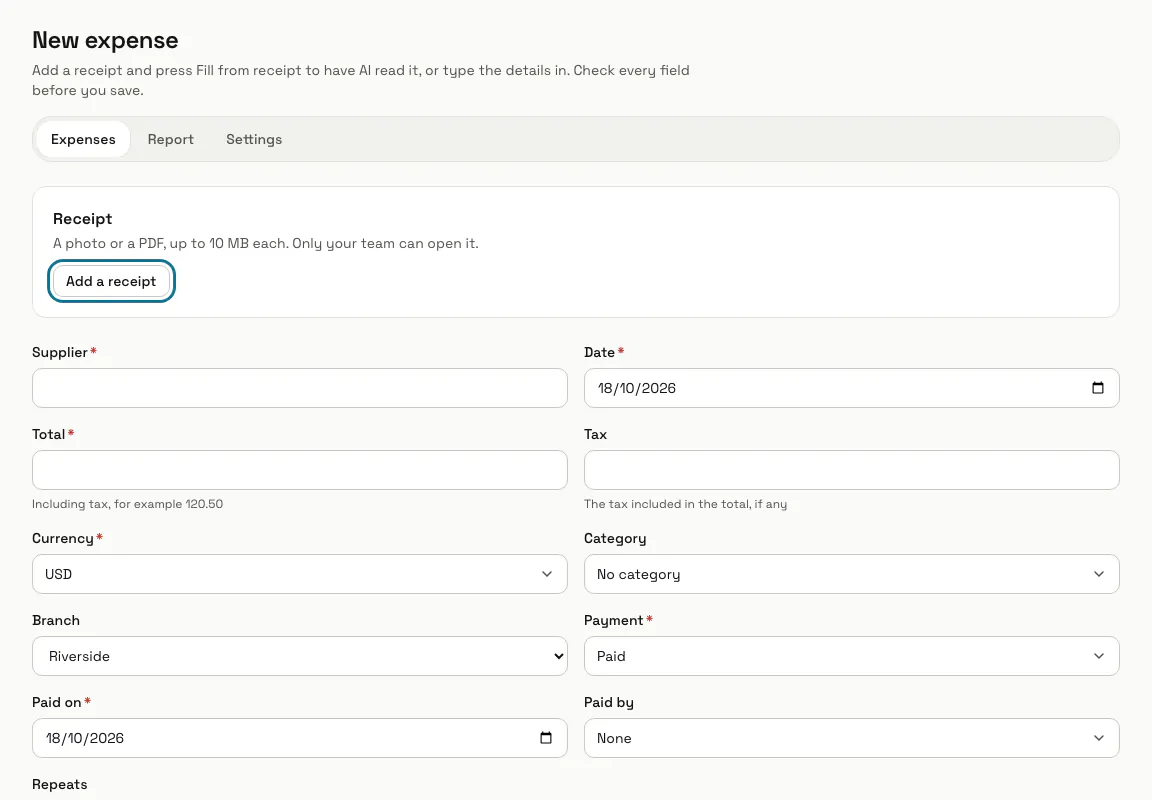
Step 3: Choose how often it repeats
For rent or a subscription, set "Repeats" to every week, every month, every 3 months or every year, and a "Repeat until" date if it ends. On each date a new unpaid expense is added and sent for approval.
Step 4: Press "Save and send for approval"
The expense waits for a manager. "Save as draft" keeps it for later, and a manager can press "Save and approve" instead.
Step 5: Press "Approve"
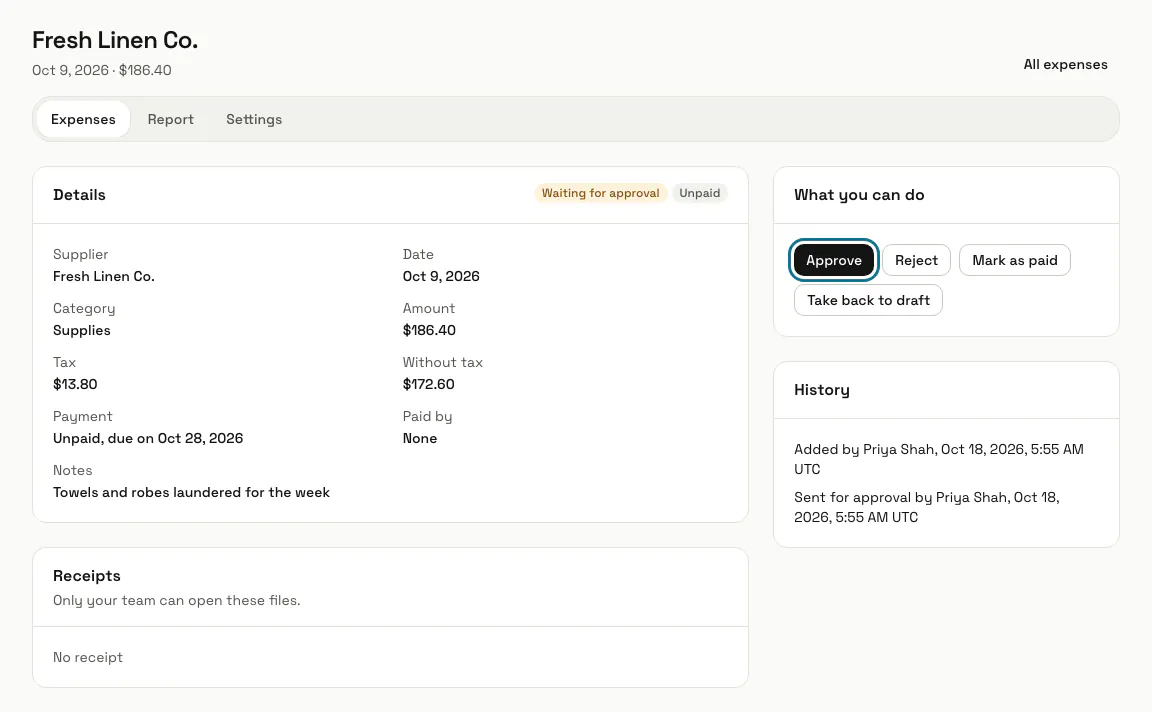
A manager opens a waiting expense and presses "Approve", or "Reject" with a reason that the person who added it sees and can fix. "Mark as paid" records the day it was paid.
An approved expense is locked. A manager can press "Reopen as draft" to change it.
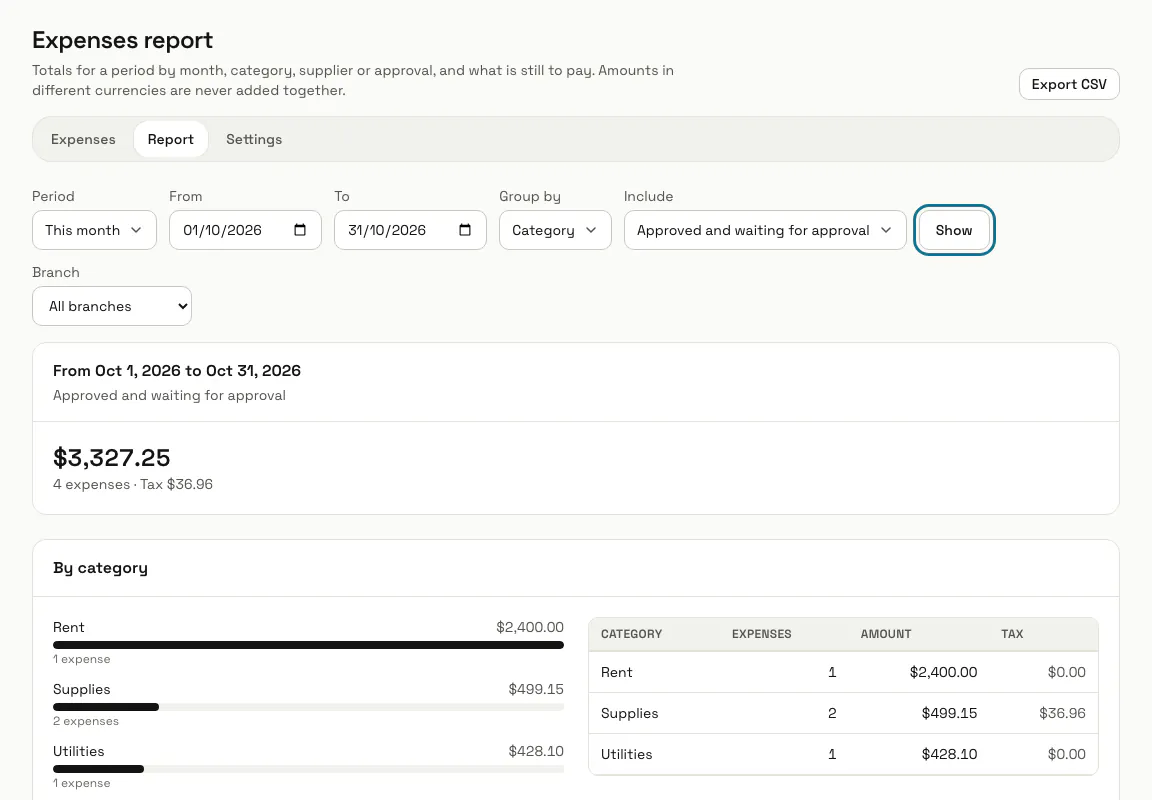
Step 6: Open the Report tab
Pick a "Period", "Group by" month, category, supplier or approval, and what to "Include", then press "Show". "Still to pay" lists unpaid expenses that are overdue or due soon. Amounts in different currencies are never added together.
Step 7: Keep your categories in Settings
Settings starts with a list of categories such as Rent, Utilities and Supplies. Add your own under "New category", or "Archive" one to take it out of the form; expenses that have it keep it. "Repeating expenses" lists each repeat with "Stop".
Tips
- Receipts open only for signed-in members of your team.
- Settings also holds the "Starting currency" for new expenses and how many days count as due soon in the report.
Limits and switches
- Expenses is off until an Owner or Admin turns it on in Apps.
- Your plan can cap how many expenses you add by hand each month. Repeating expenses made on their date count towards it but are never stopped. There is no cap unless your plan sets one.
Stuck on a step? Ask our team