Business apps
Branches
The places your business works from, each with a short code for its invoice numbers, and which team members work at which branch.
Who can use it: Owner and Admin, or a custom role with "Change workspace settings and connections". A manager limited to some branches cannot open it.
Step 1: Press "Add branch"
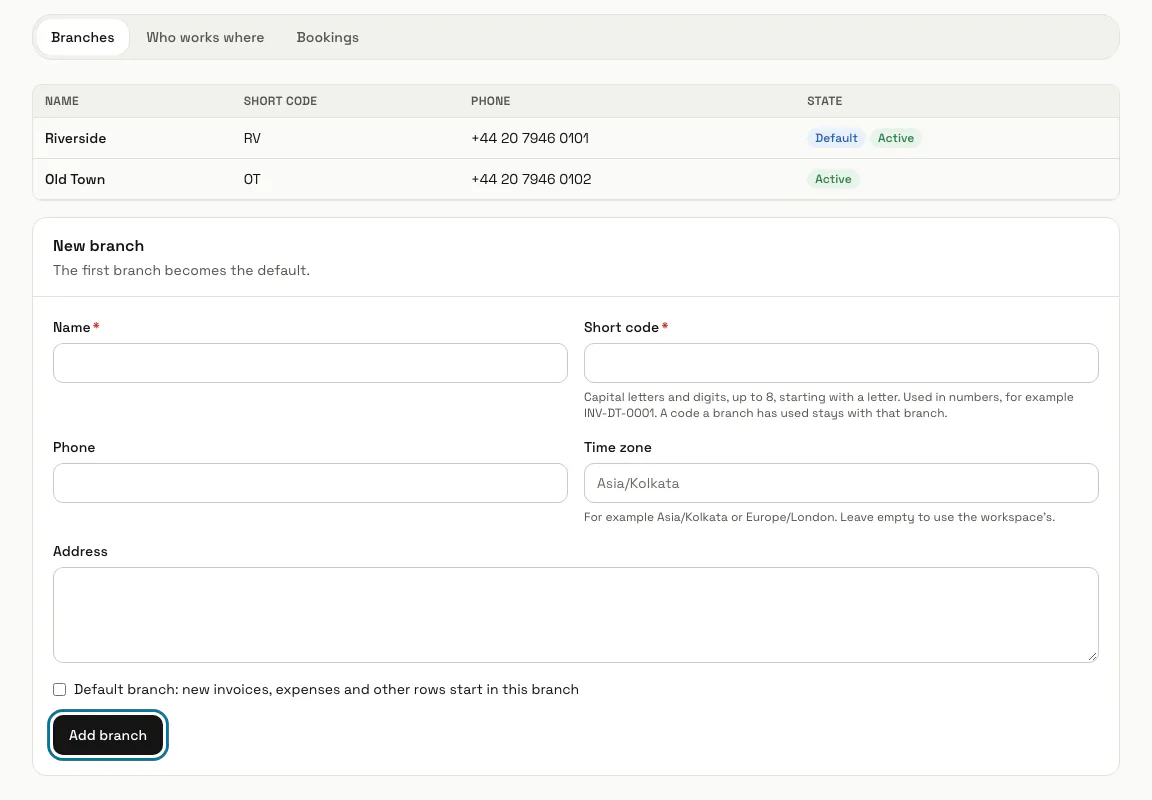
Open Branches from Apps. Under "New branch", write the "Name" and a "Short code", and add the phone, time zone and address if you like. The first branch becomes the default, where new invoices, expenses and other rows start.
A code is capital letters and digits, up to 8, starting with a letter. A code a branch has used stays with that branch, so numbers never repeat.
Step 2: Open the "Who works where" tab
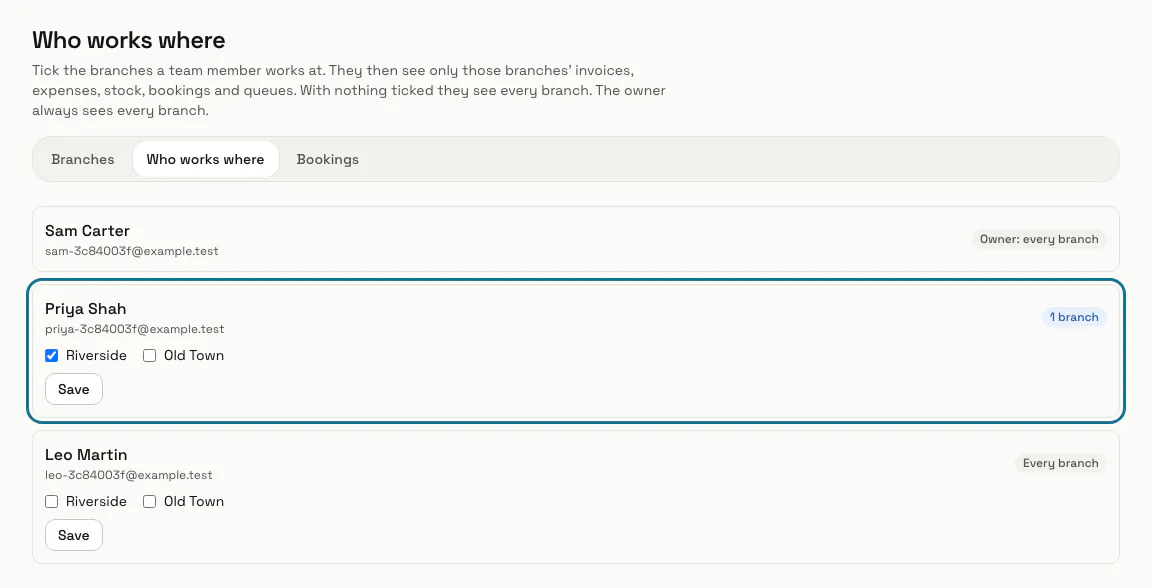
Tick the branches each team member works at and press "Save". They then see only those branches' invoices, expenses, stock, bookings and queues. With nothing ticked they see every branch, and the owner always sees every branch.
Step 3: Open the "Bookings" tab
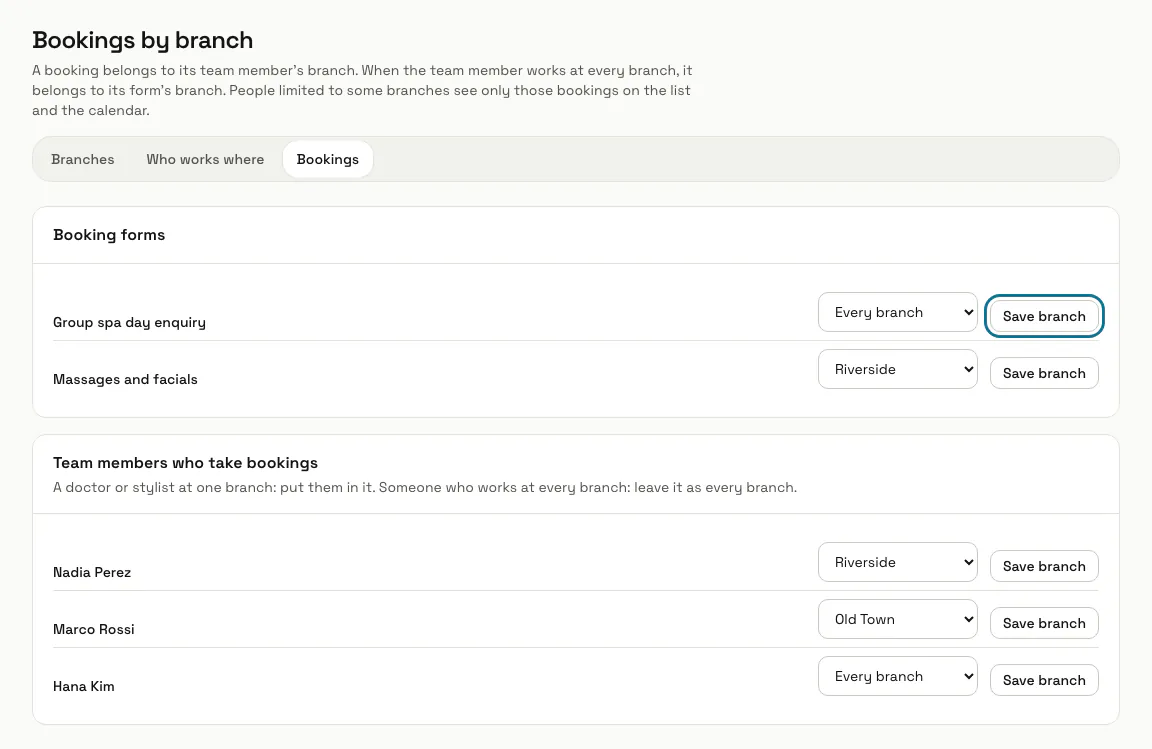
Put each booking form and each team member who takes bookings in a branch, and press "Save branch". A booking belongs to its team member's branch, or to its form's branch when the team member works at every branch.
Step 4: Number invoices per branch
In the Invoices app's settings, switch on "Number invoices per branch". Each branch then gets its own series with its code after the prefix, such as INV-DT-0001, and receipts the same.
Step 5: Press "Archive"
On a branch's page, when it closes. It stops being offered for new rows and stops being the default, while its rows, numbers and people stay. "Bring back" makes it active again.
Tips
- People who see two or more branches get a "Branch" filter on lists such as Bookings.
- Branches are never deleted, only archived.
Limits and switches
- Your plan can limit how many active branches you keep; archived ones do not count. At the limit, "New branch" says how many your plan allows.
Stuck on a step? Ask our team