Business apps
Team AI
An AI assistant for your own team: ask questions, draft replies and translate, using what your business trained. Visitors never see it.
Who can use it: Owner, Admin and Agent, or a custom role with "Reply to, take over and assign conversations". Each person sees only their own conversations.
Step 1: Open Team AI from Apps
It opens on a new conversation with "Quick starts" such as "Draft a reply to a customer", "Summarise a text" and "Translate". A quick start only fills the box: nothing is sent until you press "Send".
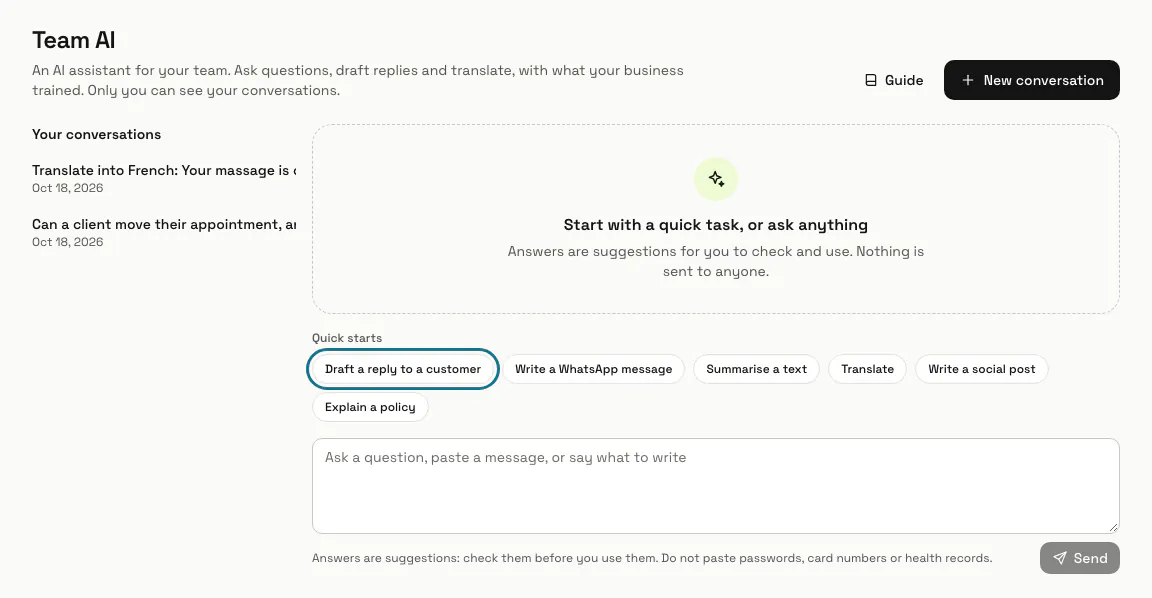
Step 2: Write your message
Ask a question, paste a customer's message or say what to write, up to 8,000 characters. Do not paste passwords, card numbers or health records.
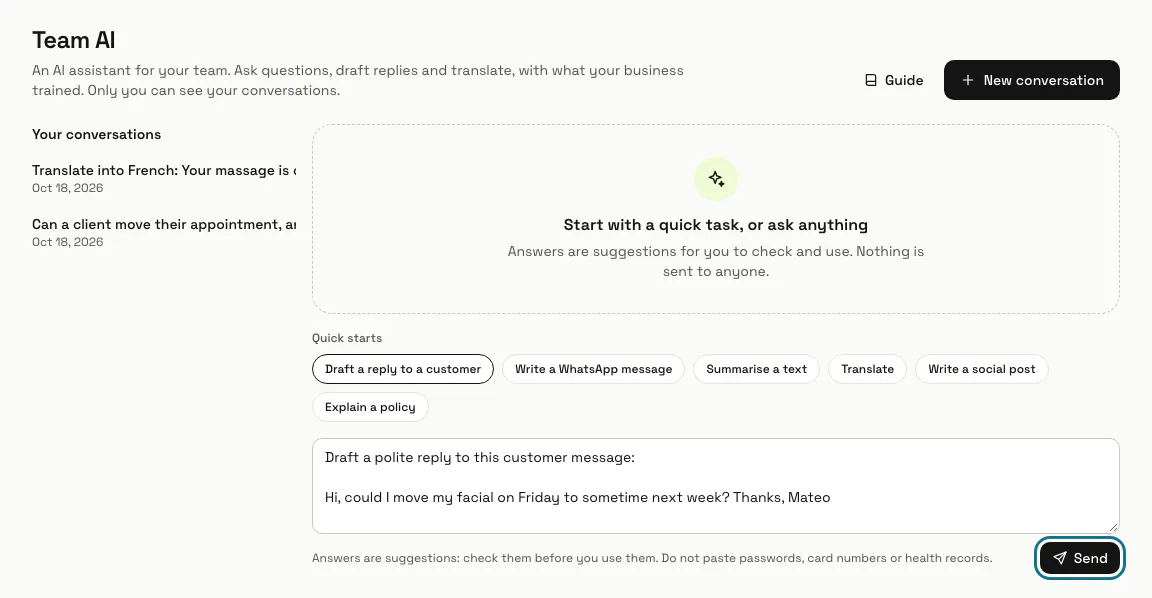
Step 3: Press "Send"
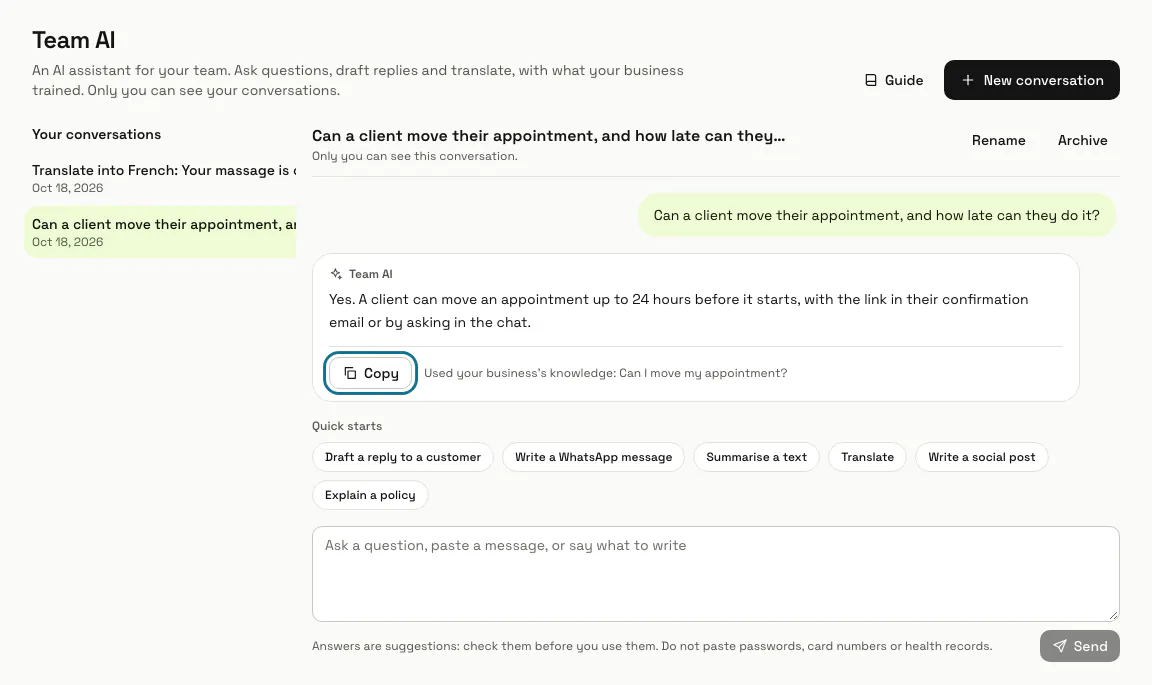
Team AI answers from your chatbots' trained knowledge, including notes meant only for your team. Under the answer a line says which of your business's knowledge it used, or that the answer is general.
Each message you send uses one AI message on your plan, like a chat reply. When the month's AI messages run out, Team AI says so and keeps what you typed.
Step 4: Press "Copy"
Copy the answer and use it where you need it. Answers are suggestions to check first: nothing is sent to anyone from here.
Step 5: Press "New conversation"
It starts a fresh conversation. Earlier ones stay under "Your conversations", where only you can see them: "Rename" gives one a clearer name, "Archive" puts it away, and writing in an archived one brings it back.
Tips
- With no trained knowledge, a note says the answers are general. Train your AI agent with your website, files or notes, and Team AI uses them too.
- Team AI searches up to three of your chatbots with trained knowledge, the most trained first.
Limits and switches
- Every message sent counts as one AI message on your plan.
Stuck on a step? Ask our team