Business apps
Queue
Numbered tokens by QR code or link: people take a number, follow their place on their phone, and the front desk calls them in order.
Who can use it: Owner, Admin and Agent, or a custom role with "Reply to, take over and assign conversations". Setting up lines in the "Lines" tab needs "Change workspace settings and connections" (Owner and Admin).
Step 1: Open the "Lines" tab
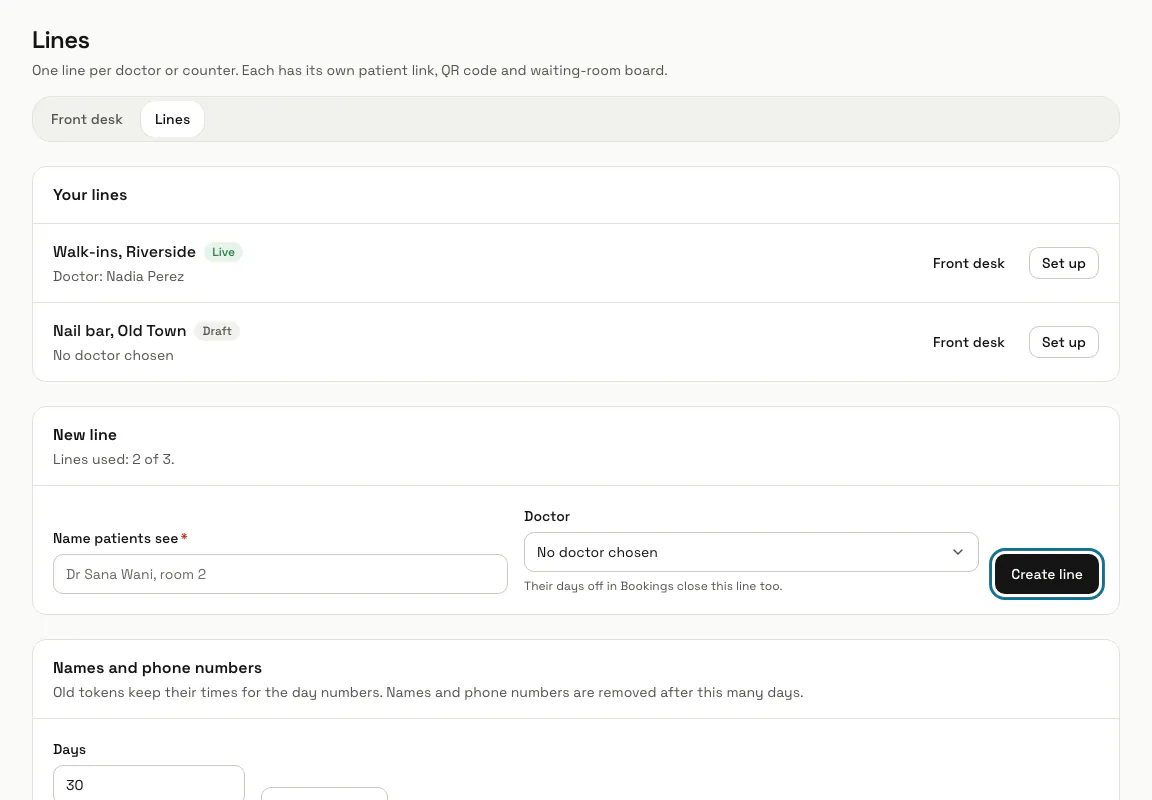
Open Queue from Apps, then "Lines". Make one line per doctor or counter: write the "Name patients see", pick the "Doctor" from your Bookings team if you like, and press "Create line". A new line starts as a draft, so nothing is public yet.
Queue needs Bookings, and turns it on with it. A doctor's days off in Bookings close their line too.
Step 2: Set the line's sittings
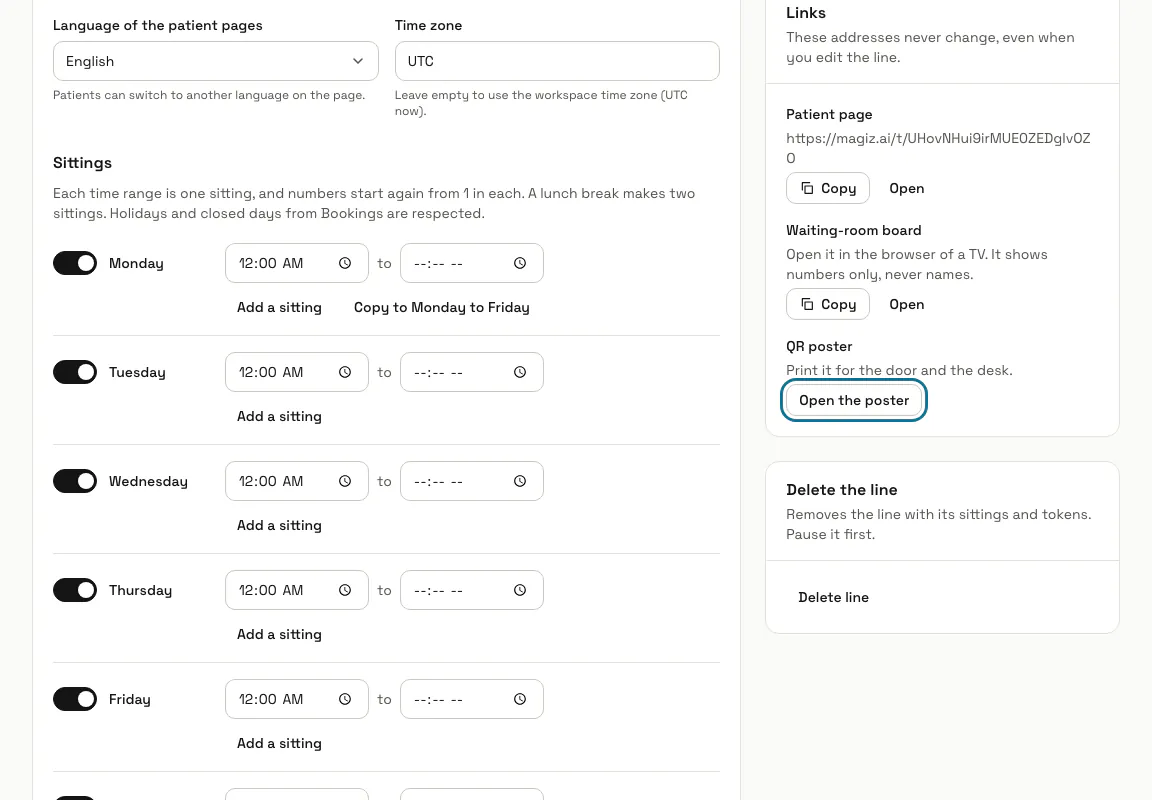
On the line's page, switch on each day and give its times. Each time range is one sitting, and numbers start again from 1 in each, so a lunch break makes two sittings. Under "Rules", set "Most tokens per sitting", "Minutes per patient to start with" and when "Tokens open", then press "Save changes".
Step 3: Press "Make it live"
In the "Status" panel. People can now take tokens from the line's link and QR code. "Pause the line" stops new tokens later, while the desk can still add walk-ins.
A line needs at least one day with hours before it can go live.
Step 4: Print the QR poster
Under "Links", press "Open the poster" and then "Print" for the door and the desk. The "Patient page" is the same address as text, and the "Waiting-room board" is a page for a TV that shows numbers only, never names.
Step 5: Take a token on a phone
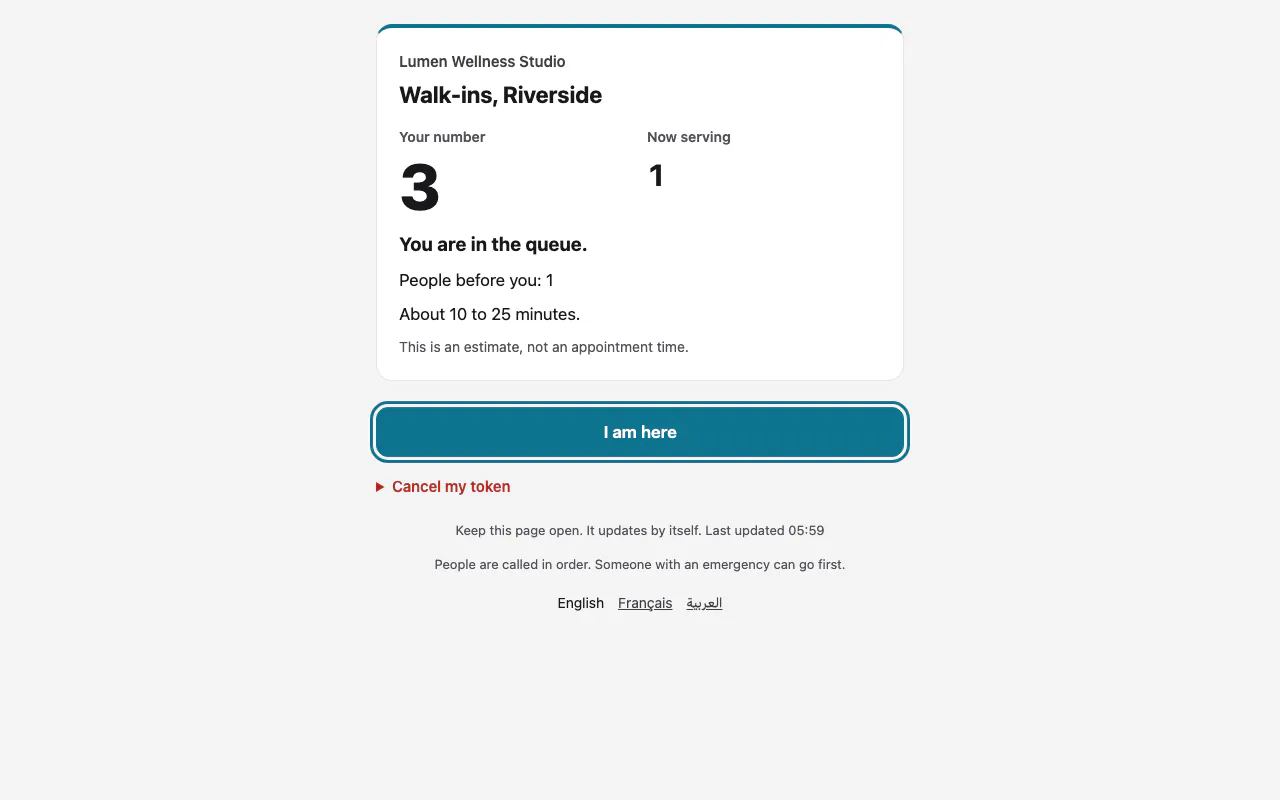
The QR code opens a page with the number now serving, how many are waiting and an estimated wait. The person writes their name, and a phone number if you ask for one, and presses "Take a token". Their page then shows "Your number" and how many people are before them, and updates by itself.
Queue never asks about health: the page tells people not to write anything about it.
Step 6: Press "Next"
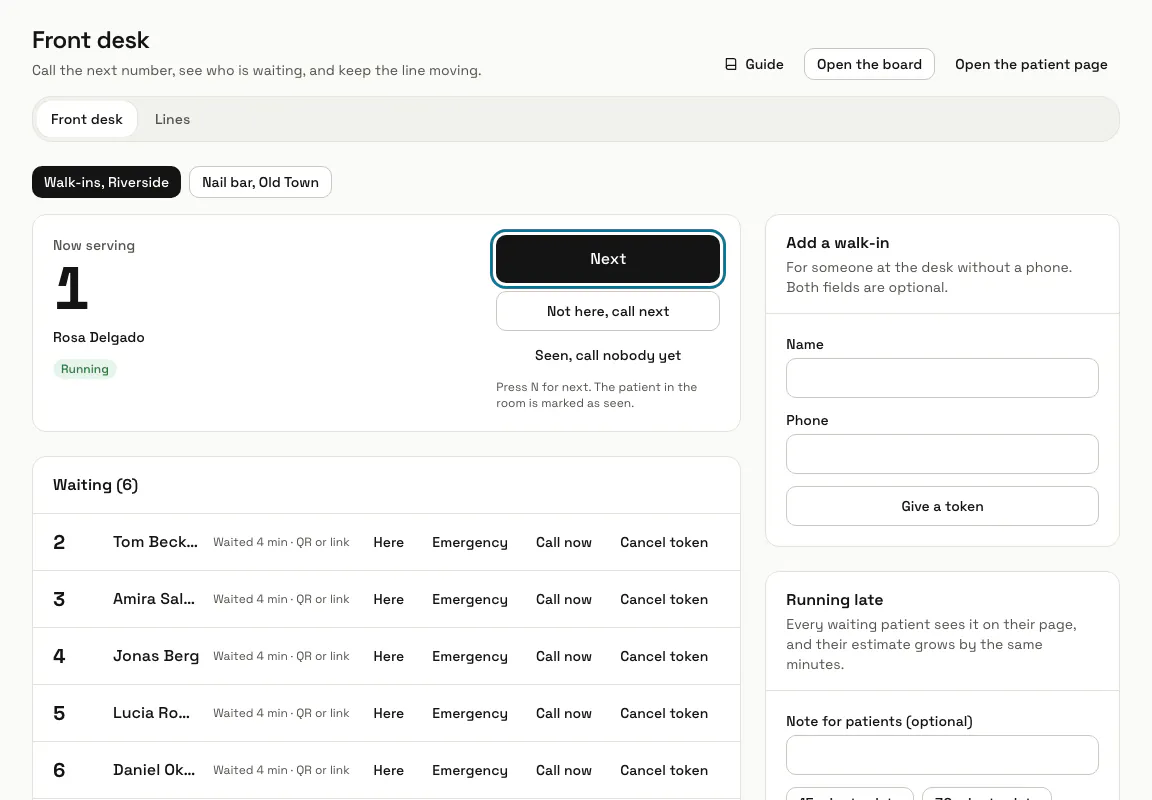
Open "Front desk". "Next", or the N key, marks the person in the room as seen and calls the next number. If someone does not come in, "Not here, call next" counts a miss for them, and "Seen, call nobody yet" finishes without calling anyone.
"Call now" on a waiting person also marks whoever is in the room as seen.
Step 7: Press "Give a token"
Under "Add a walk-in", for someone at the desk without a phone. Name and phone are both optional. If the day runs behind, "15 minutes late" or "30 minutes late" under "Running late" tells everyone waiting on their page and adds the minutes to their estimate.
Step 8: Press "End the sitting"
At the end of the sitting, under "This sitting". The person in the room counts as seen, everyone still waiting loses their token, and no new token is given. A sitting does not end on its own.
Tips
- Names and phone numbers on old tokens are removed after 30 days. Change the "Days" under "Names and phone numbers" on the Lines tab, from 1 to 365. The tokens and their times stay for the day numbers.
- Nothing on the desk sends an SMS or a WhatsApp message: people follow their turn on the page they keep open.
- "Stop new tokens" under "This sitting" stops people taking tokens for the rest of the sitting. The desk can still add walk-ins.
Limits and switches
- Your plan sets how many lines you can run, 3 unless your plan says otherwise. The Lines tab shows how many are used, and at the limit it says "Every line in your plan is in use." with "See plans".
- Queue needs Bookings: turning Queue on turns Bookings on, and Bookings cannot be turned off while Queue is on.
Stuck on a step? Ask our team