Business apps
Forms & quotes
Request forms collect what customers need, and quotes send them a price from your price book that they accept or decline online.
Who can use it: Owner, Admin and Agent, or a custom role with "Reply to, take over and assign conversations". The "Price book" and "Settings" tabs need "Change workspace settings and connections" (Owner and Admin).
Step 1: Open the "Settings" tab
Check that "Quotes" is on, and set the "Currency", "Valid for (days)", the "Discount cap (%)" and the "Terms for new quotes". Press "Save settings".
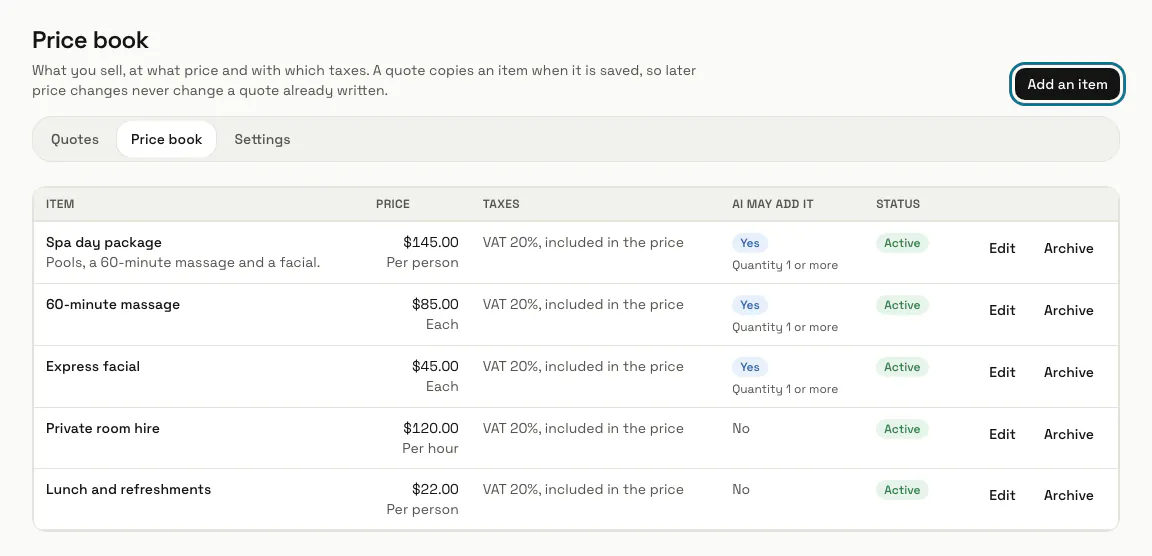
Step 2: Press "Add an item"
In the "Price book" tab, add what you sell: a name, a "Unit price", a unit such as hour or person, and any taxes. A quote copies an item when it is saved, so a later price change never changes a quote already written.
"The AI may add this item to a draft" is off unless you switch it on. The chat's quote assistant works only with items that have it on.
Step 3: Press "Create a form"
Under "Request forms", it opens the Bookings templates, where the "Forms and quotes" group has request forms such as "Home services quote" and "Contact form". What customers send waits under "Requests" in Bookings, with a "Make a quote" button.
Step 4: Press "New quote"
Start "From a request" or "From a conversation", and the customer's details come with it, or start "Blank". The quote opens as a draft. Add lines with "Choose from the price book" and "Add", or "Add a line" to type one, then press "Save and review".
"Packages" let the customer choose one of several, for example Good, Better, Best, and "Optional extras" are ones they can tick.
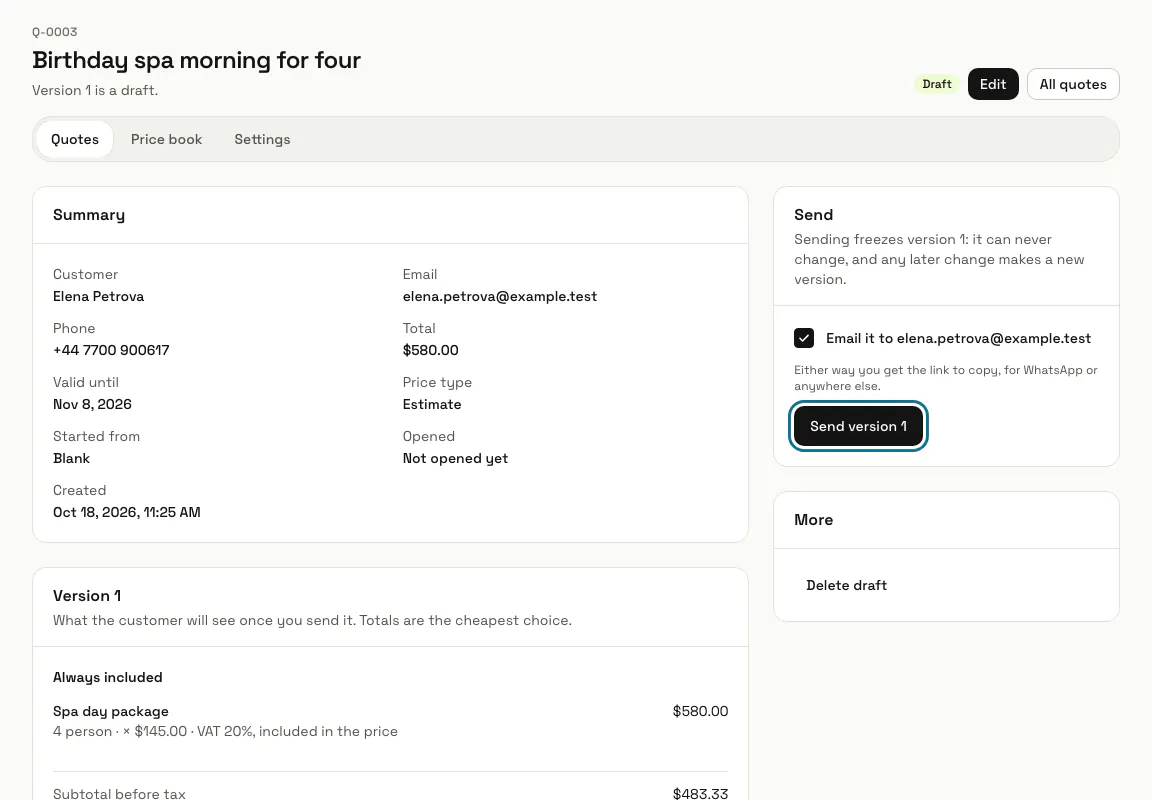
Step 5: Press "Send version 1"
Sending freezes this version: any later change makes a new one. "Email it to" the customer is ticked when the quote has an email, and either way you get the link to copy or share on WhatsApp.
Untick the email box if you only want the link.
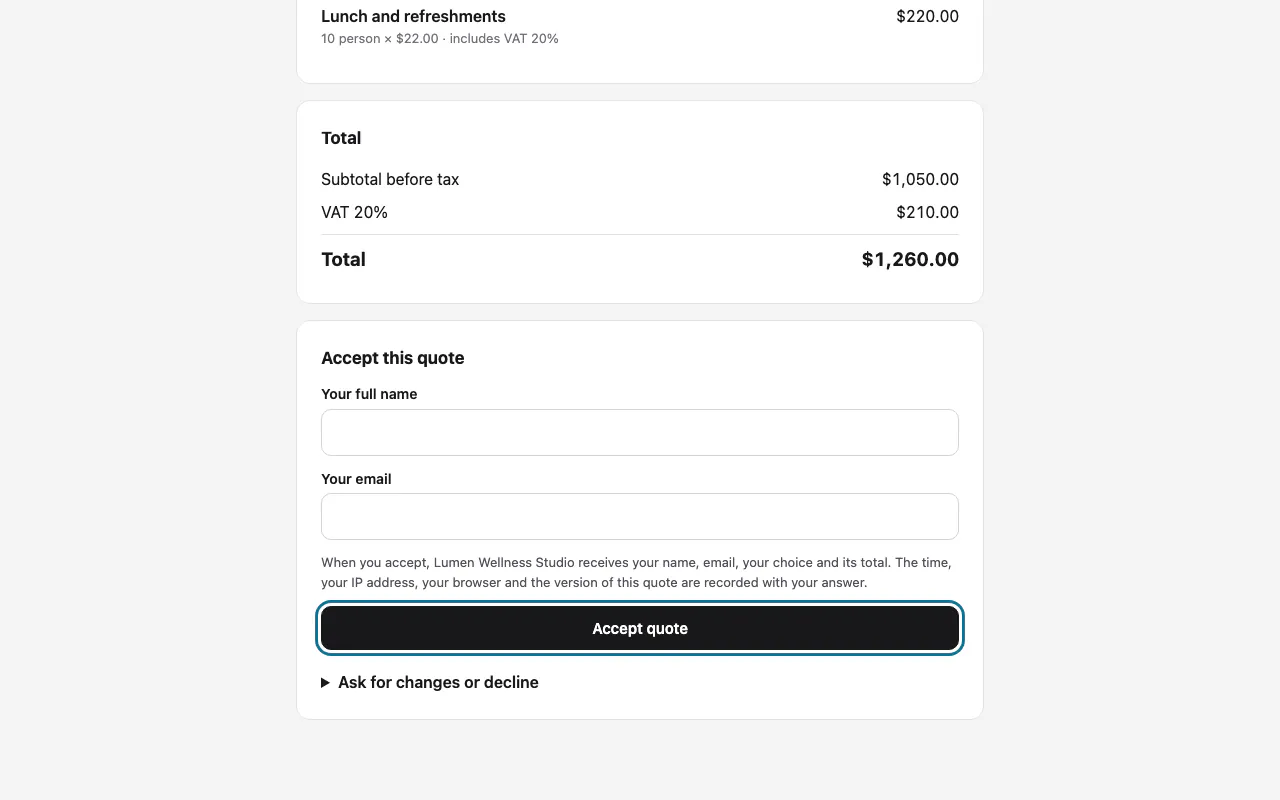
Step 6: Let the customer press "Accept quote"
The link opens the quote with its lines, total and terms. The customer types their full name and email and presses "Accept quote", or opens "Ask for changes or decline". You are emailed when they first open it and when they answer, and its status changes in the list.
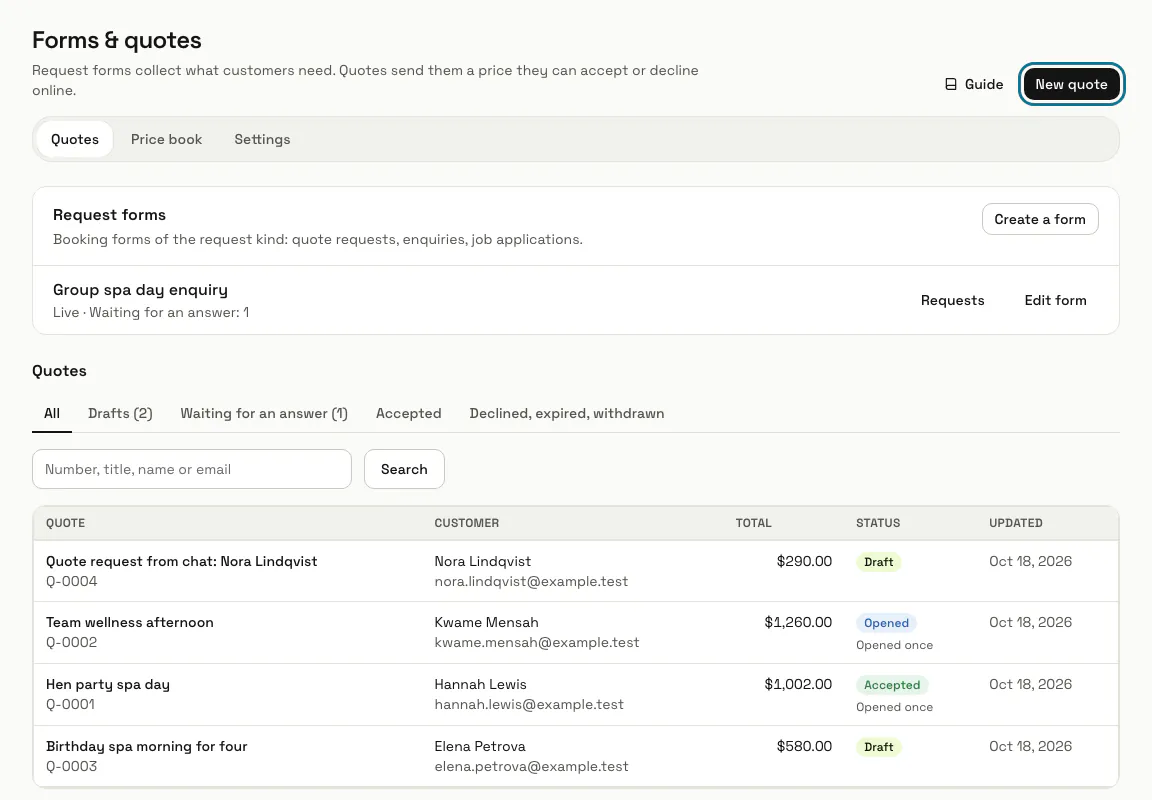
Step 7: Open the "Drafts" tab
When a visitor asks your chatbot for a quote or an estimate, the quote assistant asks what they need, how much, their name and where to send it, then makes a draft for your team. It never says a price and never sends anything: the draft waits here, marked "An AI draft", until someone prices and sends it.
Tips
- A sent quote cannot change. "Make a new version" starts the next version as a draft.
- Opening the customer's link yourself counts as a view.
- Links already sent keep working while Quotes is off.
Limits and switches
- The price book holds up to 500 items.
- Request forms are booking forms: they count towards your plan's booking forms, and they work only while Bookings is on.
Stuck on a step? Ask our team