Business apps
Imports
Bring people, appointments, opening balances and a price list from your old system's CSV or Excel export, checking every column first.
Who can use it: Owner and Admin, or a custom role with "Change workspace settings and connections".
Step 1: Press "New import"
Open Imports from Apps. Under "What does the file hold?", choose "People" (into Customers), "Appointments" (into Bookings), "Opening balances" (into Invoices) or "Price list" (into the Forms & quotes price book).
A kind whose app is off is greyed out until you switch that app on.
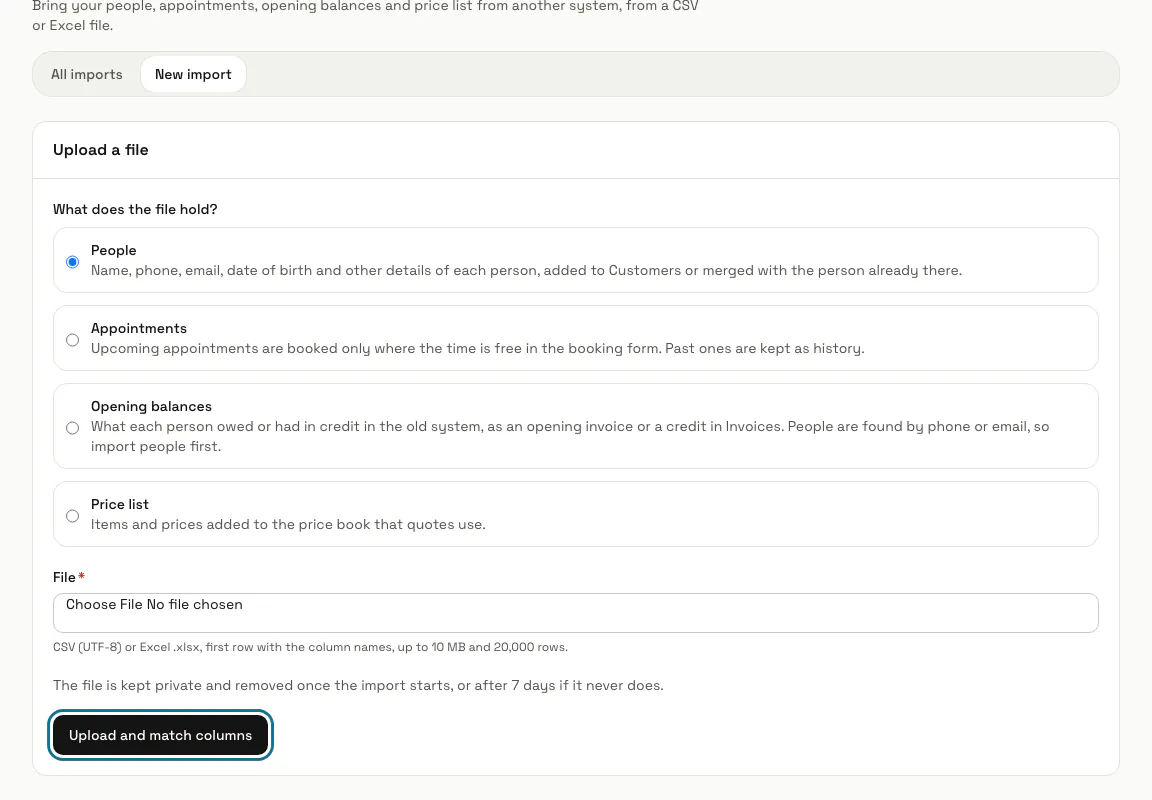
Step 2: Press "Upload and match columns"
Choose a CSV (UTF-8) or Excel .xlsx file with the column names in its first row, up to 10 MB. The file is kept private and removed once the import starts, or after 7 days if it never does.
Step 3: Match the columns
Each field takes one column of your file. MagizAI guesses from the column names; change any guess that is wrong. "Guess with AI" sees only the column names and what the values look like, never the values, and uses one AI message.
Step 4: Press "Save and preview"
The preview shows the first 20 rows as they will be saved: added, merged with someone already there, or skipped with the reason. Existing people are found by phone first, then by email, and only their empty fields are filled.
"Start the import" uses the matching you last saved, so save after every change.
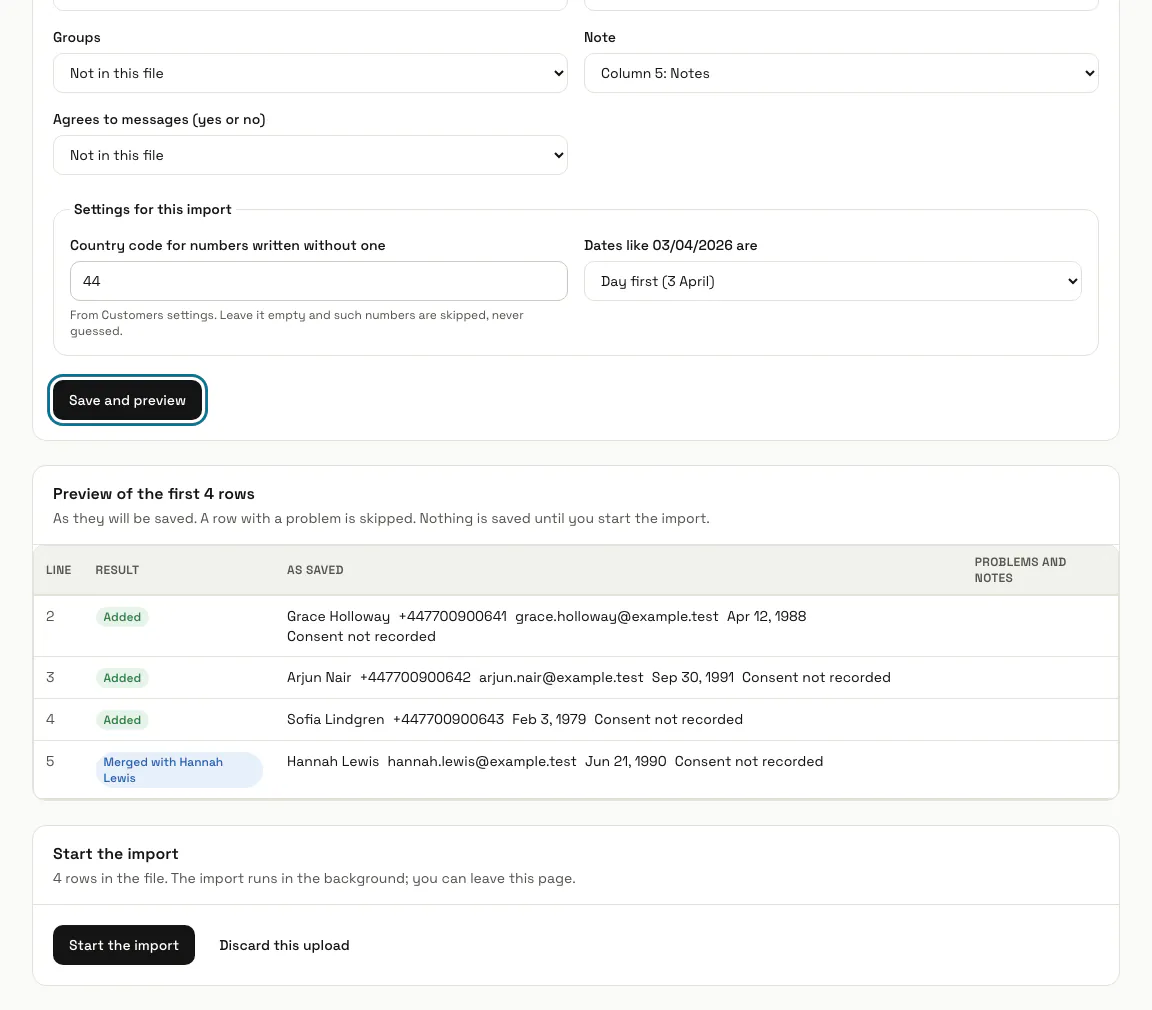
Step 5: Press "Start the import"
It runs in the background, so you can leave the page. When it is done, the result shows how many rows were added, merged and skipped, and "Download the skipped rows (CSV)" gives each skipped row with its reason, to fix and import again.
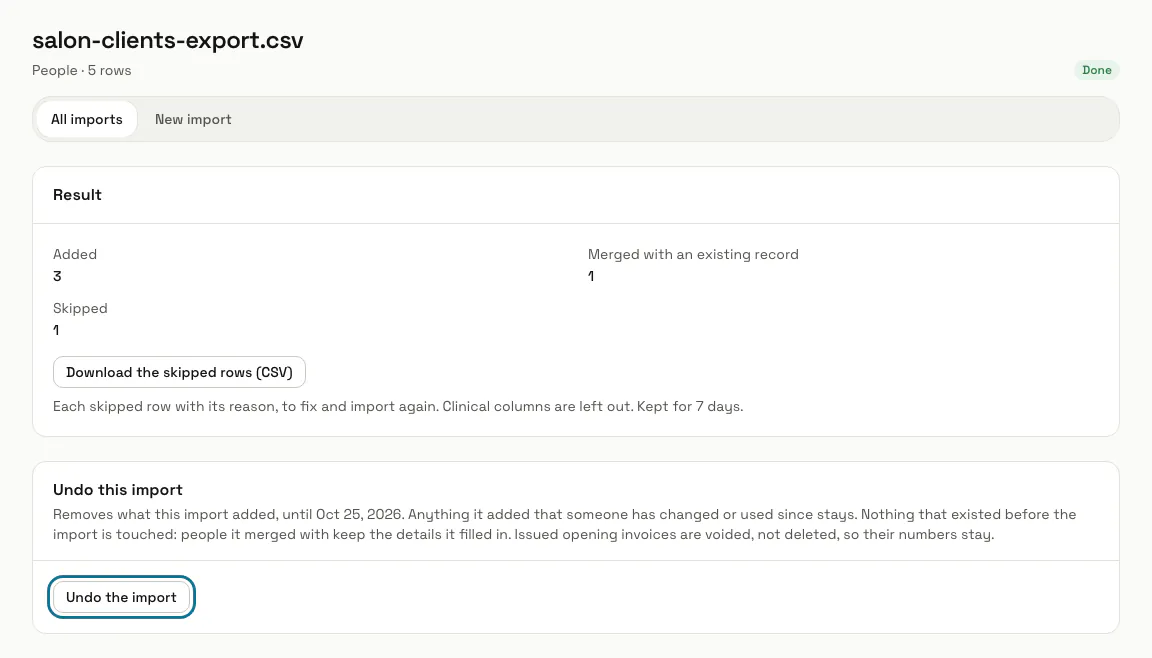
Step 6: Press "Undo the import"
For 7 days after it finished. It removes what the import added that nobody has changed or used since, and touches nothing that existed before. Opening invoices already issued are voided, not deleted, so their numbers stay.
Tips
- Import people first: opening balances are matched to people by phone or email.
- Under "Settings for this import", choose how dates like 03/04/2026 are written and a country code for numbers written without one. Rows with such numbers are skipped when no code is set.
Limits and switches
- One file holds up to 20,000 rows, or fewer if your plan says so; the upload page shows your number.
- Imports needs Customers: turning Imports on turns Customers on.
Stuck on a step? Ask our team