Business apps
Invoices
Bill your customers, record what they pay and keep balances and receipts. Your team records the payments; MagizAI never holds the money.
Who can use it: Owner, Admin and Agent, or a custom role with "Reply to, take over and assign conversations". Settings, voiding an invoice or a payment, and "Export CSV" need "Change workspace settings and connections" (Owner and Admin).
Step 1: Open Invoices from Apps
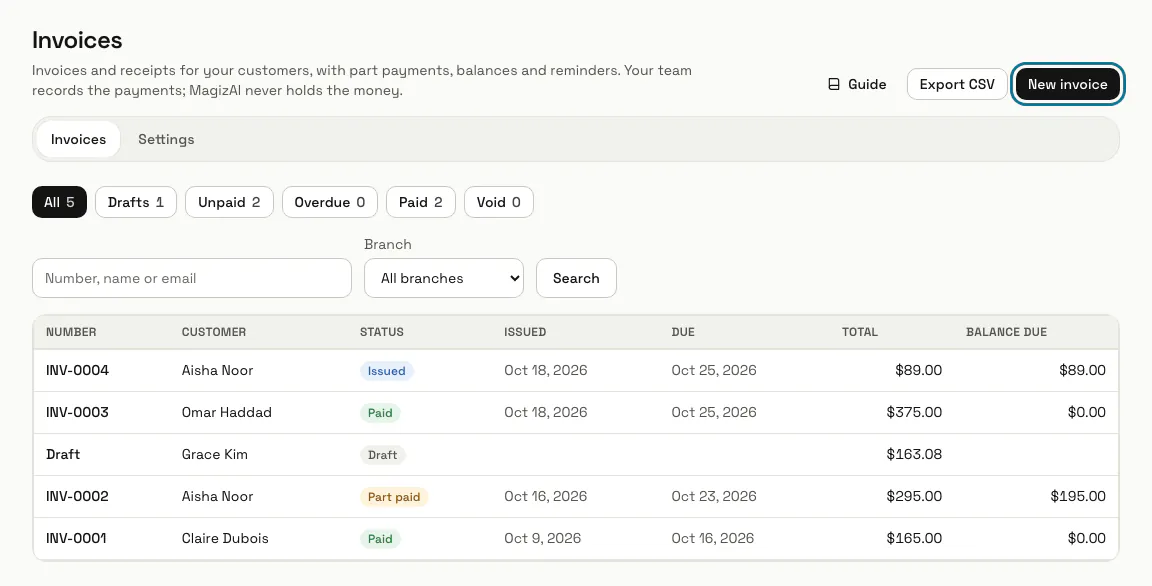
Press "Apps" in the left menu, then "Invoices". The list has a button for each state: All, Drafts, Unpaid, Overdue, Paid and Void, and a search by number, name or email.
Step 2: Open the Settings tab
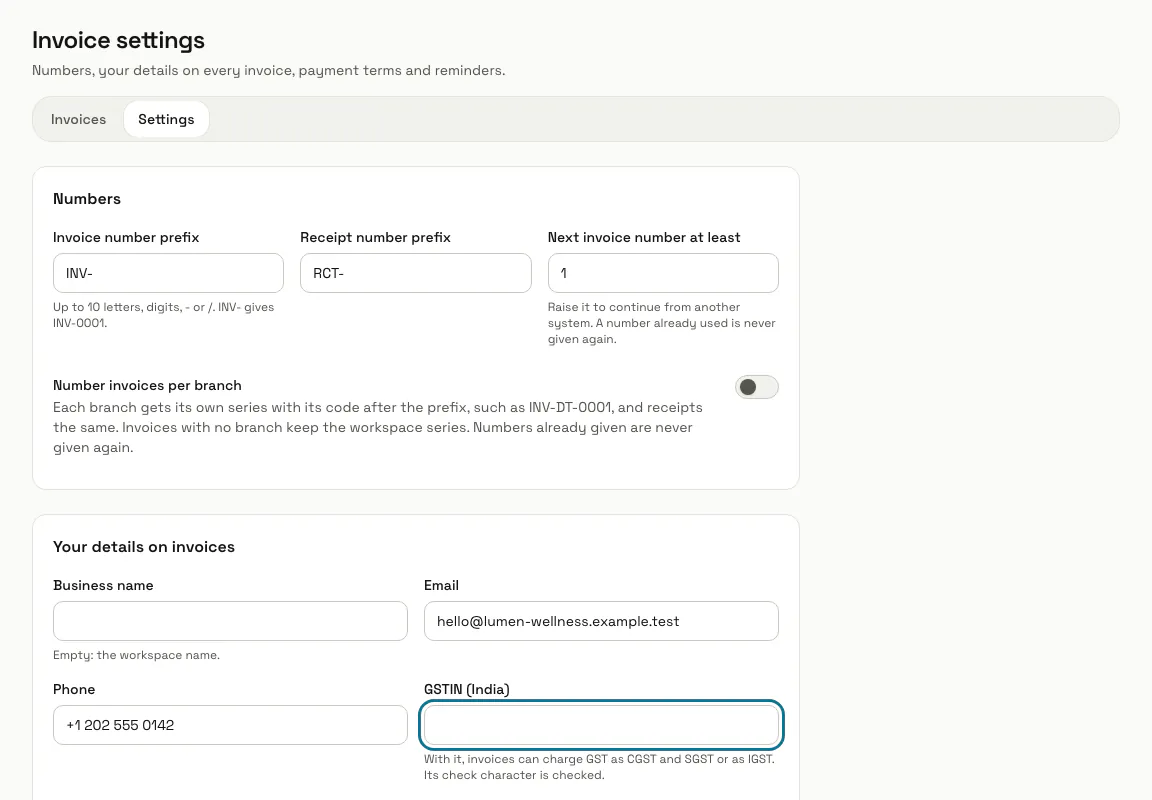
Set the "Currency for new invoices", the "Invoice number prefix" (INV- gives INV-0001), the "Payment terms (days)" and your details printed on every invoice. "How to pay" holds your bank or card details for unpaid invoices. Press "Save settings".
To charge GST in India, add your "GSTIN (India)" here first. Its check character is checked, and without it a draft cannot charge GST.
Step 3: Press "New invoice"
Choose where the draft starts: "Quick bill" to type the lines yourself, "For a customer" to find a person on the register, "From bookings" to bill ticked bookings at their booked price, or "From an accepted quote". Nothing is numbered or sent yet.
Step 4: Add the lines and taxes
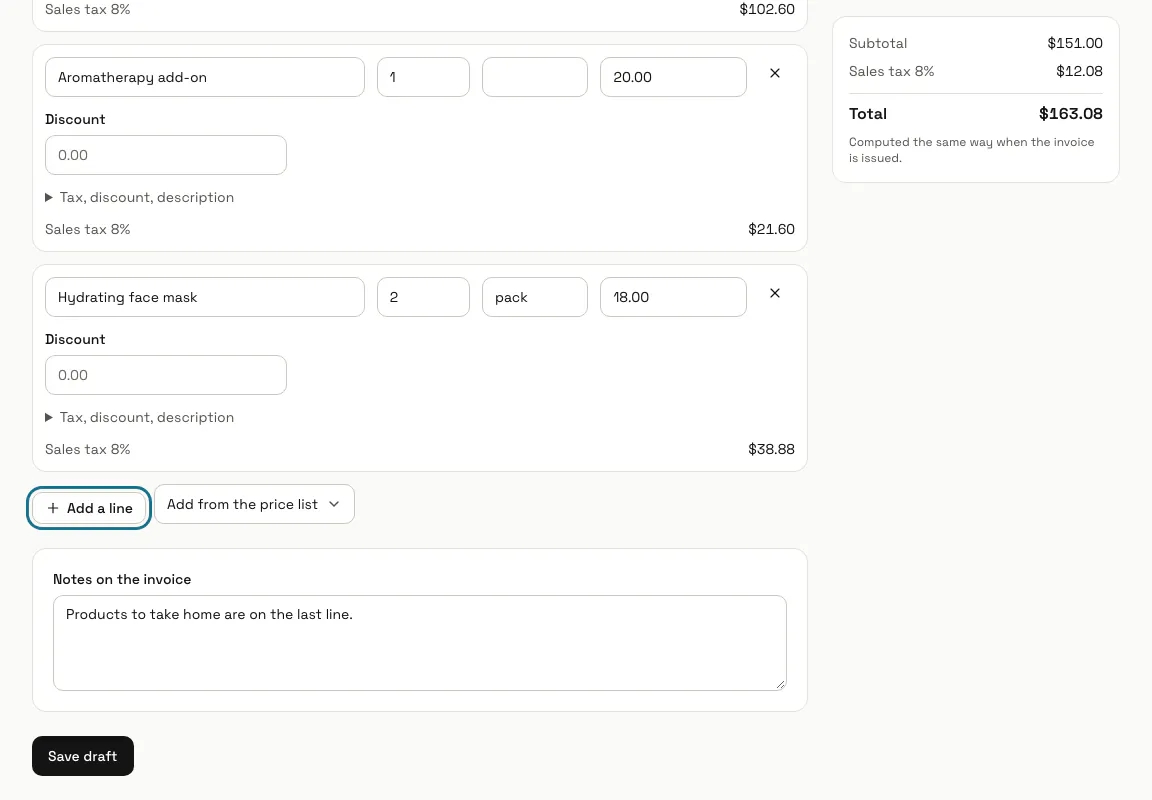
Give each line an "Item", a "Qty" and a "Unit price", and a "Discount" if there is one. "Tax, discount, description" opens the line's description, "Price includes tax" and "Other taxes" with a name and a rate. With a GSTIN in Settings, choose "Within the state (CGST and SGST)" or "Between states (IGST)" under "GST" and give each line its "GST %" and "HSN or SAC". Press "Save draft".
Step 5: Press "Issue invoice"
Confirm in the box that opens. The invoice gets the next number and its due date, and from then on it can no longer be changed. A draft can still be removed with "Delete draft"; an issued invoice cannot be deleted.
To correct an issued invoice, a manager voids it under "Void invoice" with a reason, then you issue a new one. The number stays, marked void, and anything paid on it moves to the customer's credit.
Step 6: Share the customer link
Every issued invoice has a "Customer link" at /i/... Press "Copy link" and send it, or use "Send by email", which sends the link with the PDF attached. The customer opens the invoice and its receipts without signing in, and can print it or save the PDF.
"New link" makes a fresh address, and the old one stops working.
Step 7: Record a payment
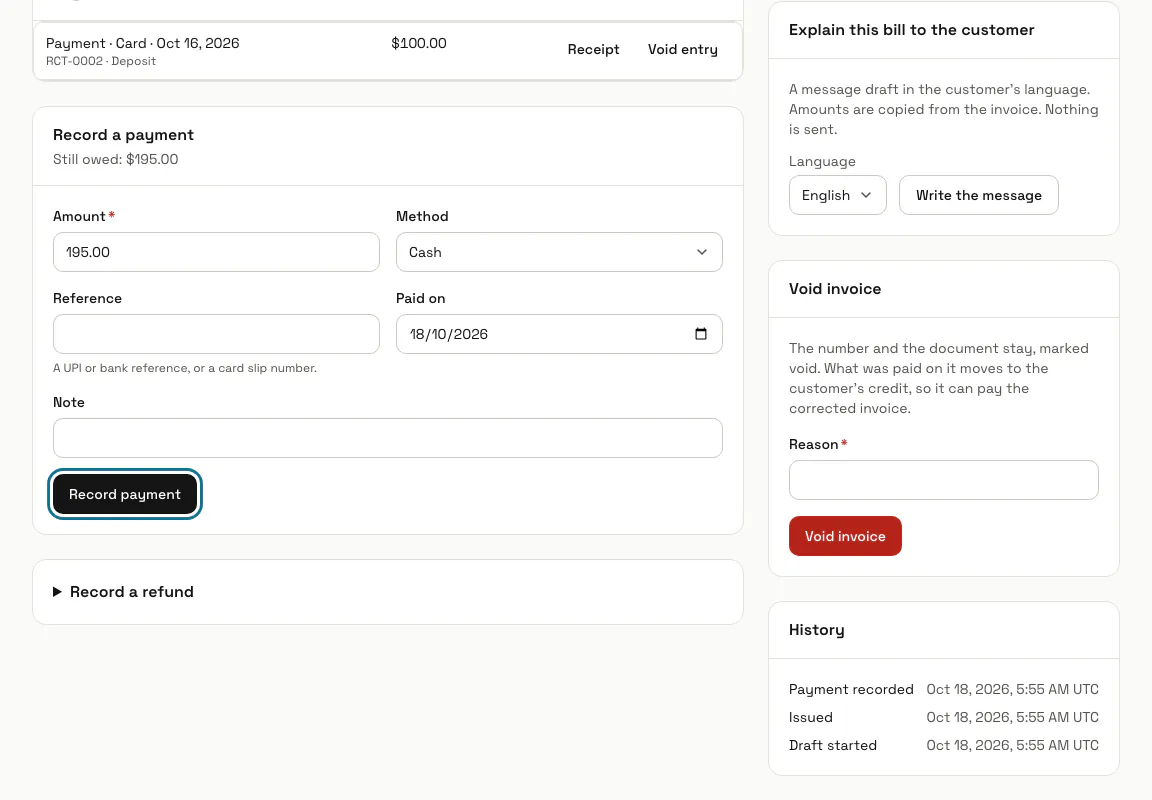
Under "Record a payment", the "Amount" starts at what is still owed. Pick the "Method", add a "Reference" if you have one and press "Record payment". Each payment gets its own receipt number, and a part payment leaves the invoice "Part paid" with the rest shown as "Still owed".
Step 8: Turn on dues reminders
In Settings, under "Dues reminders", switch on "Email customers about overdue invoices" and set how many days apart reminders may go. Once a day, each overdue invoice of a customer with an email address gets at most one reminder in that time.
Tips
- Press a customer's name in the list to see their balance: what they owe, their credit, their payments and "Record an advance" for money paid before an invoice.
- There is no separate credit note. A refund goes on the invoice under "Record a refund", and the "Customer credit" method keeps it as credit for the next invoice.
- "Explain this bill to the customer" writes a message draft with AI in the customer's language. Nothing is sent, and it counts as an AI message on your plan.
Limits and switches
- Invoices is off until an Owner or Admin turns it on in Apps. It needs Customers, which turns on with it.
- Your plan can cap how many invoices you issue in a calendar month; drafts, payments and receipts are not counted. There is no cap unless your plan sets one.
- Dues reminders are off until a manager switches them on in Settings.
Stuck on a step? Ask our team