Automation
Agents
AI agents that do a task with your knowledge and the tools you choose. Every run is logged step by step, and actions wait for a manager.
Who can use it: Owner, Admin and Agent, or a custom role with "Reply to, take over and assign conversations". Making, changing and trying agents, approving what they ask to do and Agents settings need "Change workspace settings and connections" (Owner and Admin).
Step 1: Turn on Agents in Apps
Agents is off until a manager turns it on. Press "Apps" in the left menu, find "Agents" and press "Turn on".
Step 2: Press "New agent" and write its role
On the Agents page, press "New agent". Give it a "Name" and write the "Role and instructions" as you would brief a new colleague: what it does and how. Facts come from its knowledge and tools, not from the role.
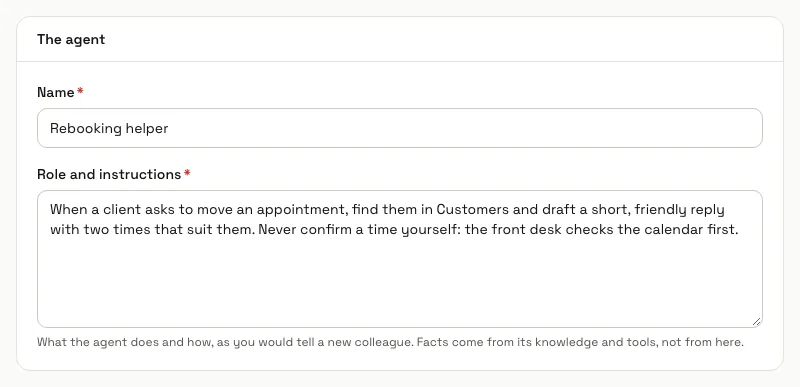
Step 3: Choose its knowledge and tools
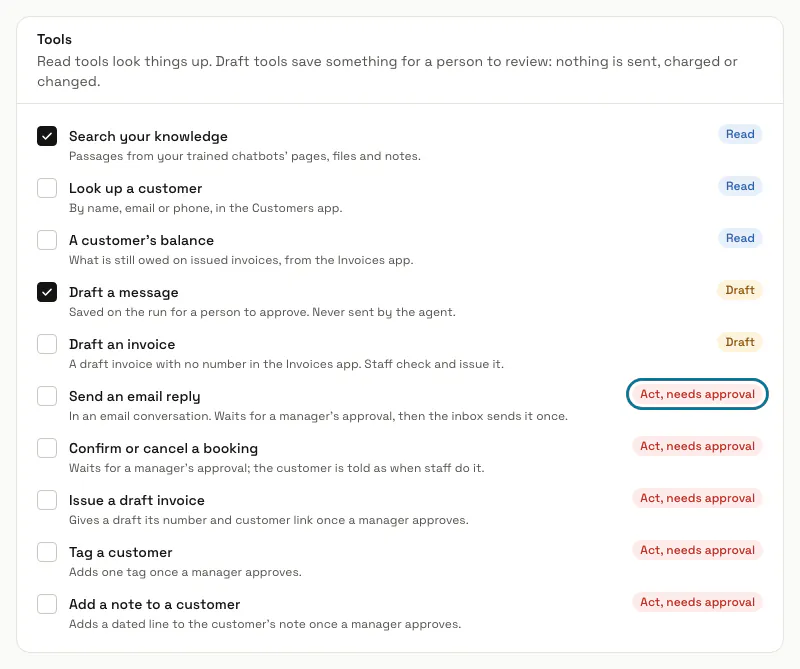
Under "Knowledge", pick "All your trained chatbots", "Chosen chatbots" or "No knowledge". Under "Tools", tick only what it needs: read tools look things up, draft tools save something for a person to review, and tools marked "Act, needs approval" change a record only after a manager approves.
A tool from an app that is off, such as Customers or Invoices, is not offered until that app is on.
Step 4: Set the model, language and limits
Pick the "Model" ("Standard: the workspace's model" or "Fast: quicker and cheaper") and the "Answer language". Under "Limits", set "Model calls per run" (1 to 20), "Seconds per run" and "Tokens per run", then press "Create agent".
Step 5: Try it with a task
On the agent's page, type a "Task" under "Try it" and press "Run the agent". The run is metered like a chat reply, and anything the agent drafts or asks to do waits on the run.
Step 6: Open the run from the Runs tab
The "Runs" tab lists every run with its agent and version, where it came from, how it ended, its approval, its tokens and a cost estimate. Open one to read the task, the answer and each step in order, with the arguments of every tool call.

Step 7: Approve or reject what it asked to do
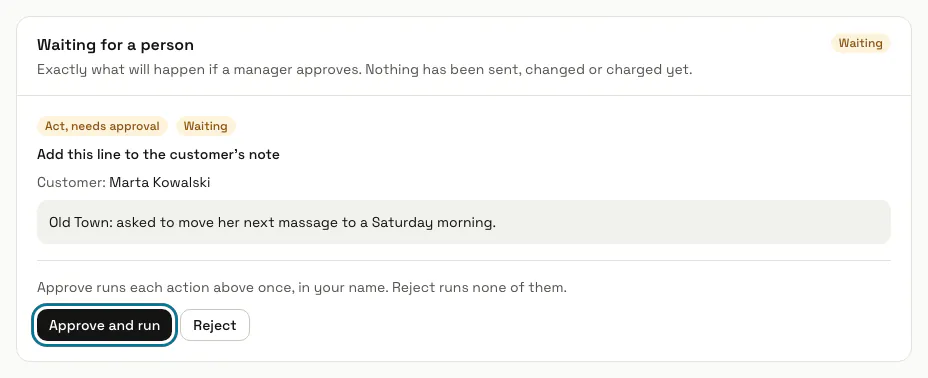
A run that asks to act shows "Waiting for a person" with exactly what will happen. A manager presses "Approve and run" to run each action once, in their own name, or "Reject" to run none; the "Approvals" tab lists every run that is waiting.
Other members see the run and the words "A manager approves or rejects drafts."
Step 8: Change it and read its versions
Edit the agent and press "Save as a new version". Runs already going keep the version they started on, and "Versions" shows the role, tools and limits of every version, newest first.
Tips
- A run with several actions shows "Approve this one" and "Reject this one" beside each, and goes on once every action is decided.
- An agent with at least two other active agents can work as a team: "Try it as a team" on its page lets it plan sub-tasks for the specialists you pick, and a checker reviews the result before anything is used.
- In a workflow, the "Agent" step gives the agent a task; a chatbot can also pass chats on one subject to an agent from "Specialist agents" in its Settings tab.
- Agents settings holds the cost caps per run and per day, in US dollars, and "Stop all agents", which ends every running and waiting run at once.
- Runs are kept for 400 days.
Limits and switches
- Your plan sets how many active agents you may keep: 3 unless your plan says otherwise. Archived agents do not count, and one more is refused with "Your plan keeps up to 3 agents. Archive one or change plan."
- Each model call of a run counts as one AI message on your plan.
- The cost caps are $0.50 per run and $10 per day for the workspace until a manager changes them in Agents settings. A run that would pass a cap stops and says which one.
- Agents is off until a manager turns it on in Apps.
Stuck on a step? Ask our team