Automation
Automations
Run steps the moment something happens in a chat: reply, tag, email your team, hand the chat to a person or call your own system.
Who can use it: Owner and Admin, or a custom role with "Change workspace settings and connections".
Step 1: Open Automations
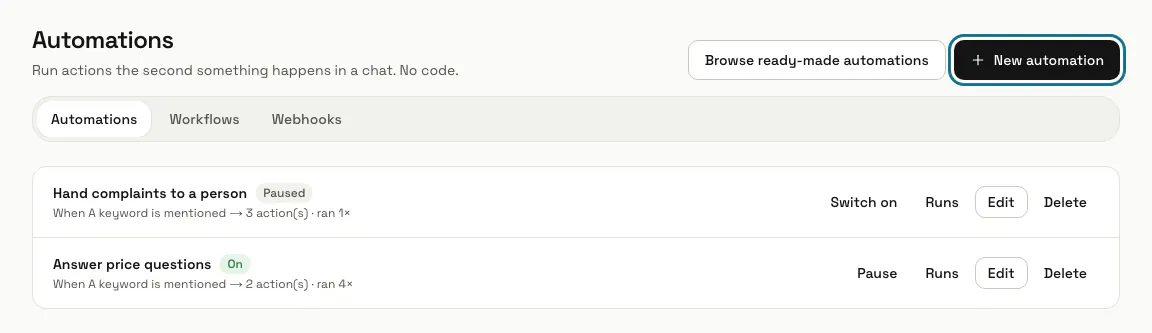
Press "Automations" in the left menu. Each automation shows its trigger, how many steps it has, how many times it ran and whether it is "On" or "Paused".
Step 2: Start from a ready-made automation
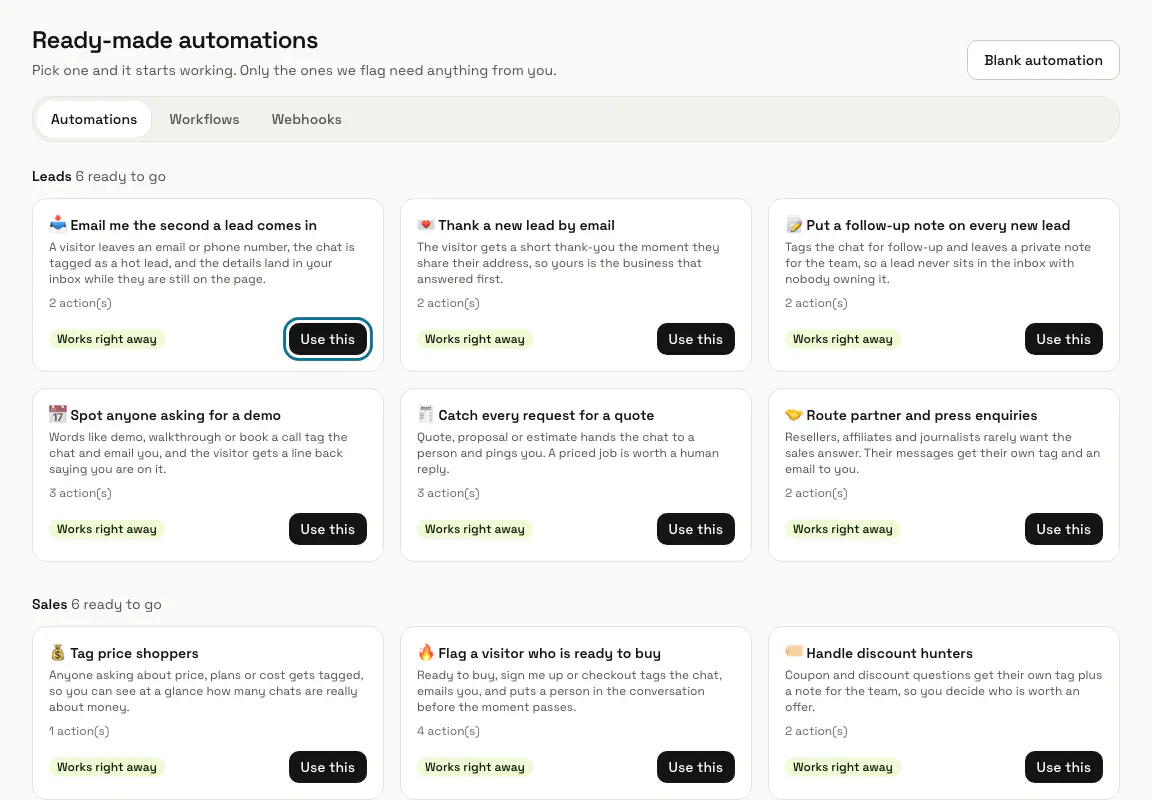
Press "Browse ready-made automations", read a card and press "Use this". A card marked "Works right away" starts working at once; one marked "Needs one detail from you" is added switched off until you fill that detail in.
A card you already added shows "Already added" and an "Open it" link, so you never get two copies by accident.
Step 3: Press "New automation" and choose a trigger
Type an "Automation name", then pick the "Trigger": a new chat starts, a visitor leaves their details, a visitor confirms a request for your team, a keyword is mentioned, a chat needs a person, or a visitor asks to be contacted later. For "A keyword is mentioned", type the words in "Keywords (comma-separated)"; upper and lower case both match.
Step 4: Choose when it may run
Under "Only run when", switch on "It hasn't fired for this chat yet" to stop repeat replies and tags in one conversation. Switch on "The visitor left an email or phone" to skip anonymous visitors.
Step 5: Add the steps
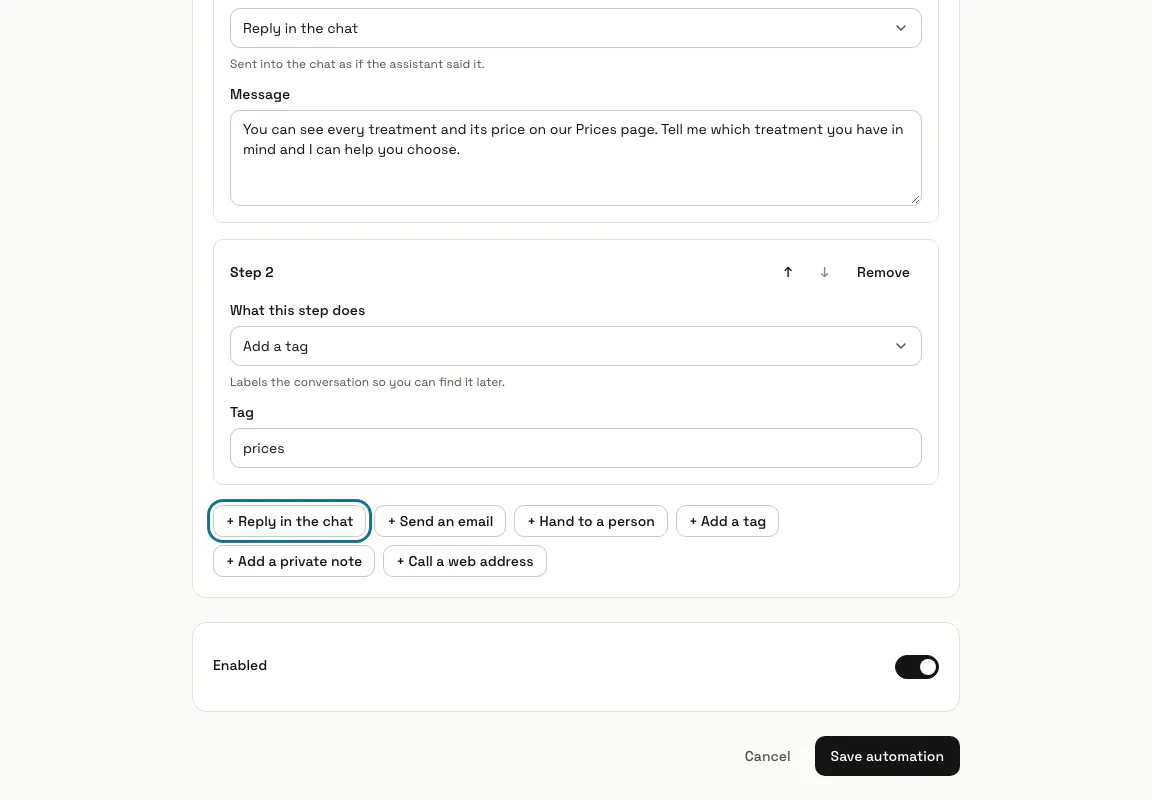
Each step does one thing: "Reply in the chat", "Send an email", "Hand to a person", "Add a tag", "Add a private note" or "Call a web address". Steps run from top to bottom; use the arrows to change the order and "Remove" to drop one.
A step with an empty field is refused when you save, with its number, for example "Step 1 needs attention: write the reply."
Step 6: Press "Turn it on"
A new automation is saved with "Enabled" on and works from the next matching chat. Switch "Enabled" off first to save it paused; when you edit an automation, the button says "Save automation".
Step 7: Pause it or switch it on from the list
Press "Pause" to stop an automation without losing it, and "Switch on" to start it again. A "Finish setup" badge means a step or a keyword is still missing: press "Edit" and fill it in.
Step 8: Check what it did under "Runs"
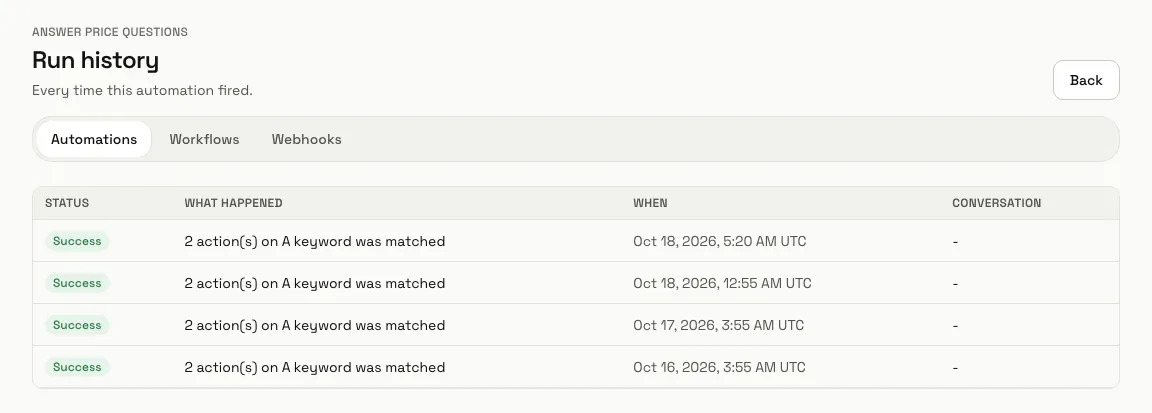
Press "Runs" beside an automation to open its "Run history": each time it fired, with "Success", "Failed" or "Skipped", what happened and when. A "View conversation" link opens the chat it ran on.
Tips
- One failing step does not stop the others or the conversation: the run is marked "Failed" and the chat carries on.
- "Hand to a person" marks the chat for your team and pauses the AI in that conversation.
- To sort a chat with AI before acting on it, use a workflow: it can branch on what the visitor wants.
Limits and switches
- Up to 20 steps in one automation.
Stuck on a step? Ask our team