Channels and connectors
MCP servers
Connect your own MCP server and choose which of its tools the assistant may use, such as checking stock or booking a slot in your own systems.
Who can use it: Owner and Admin, or a custom role with "Change workspace settings and connections".
Step 1: Open "MCP servers" from Skills
Press "AI agent" in the left menu, then "Skills", then "MCP servers". Your servers are listed as "Connected", "Error" or "Not checked".
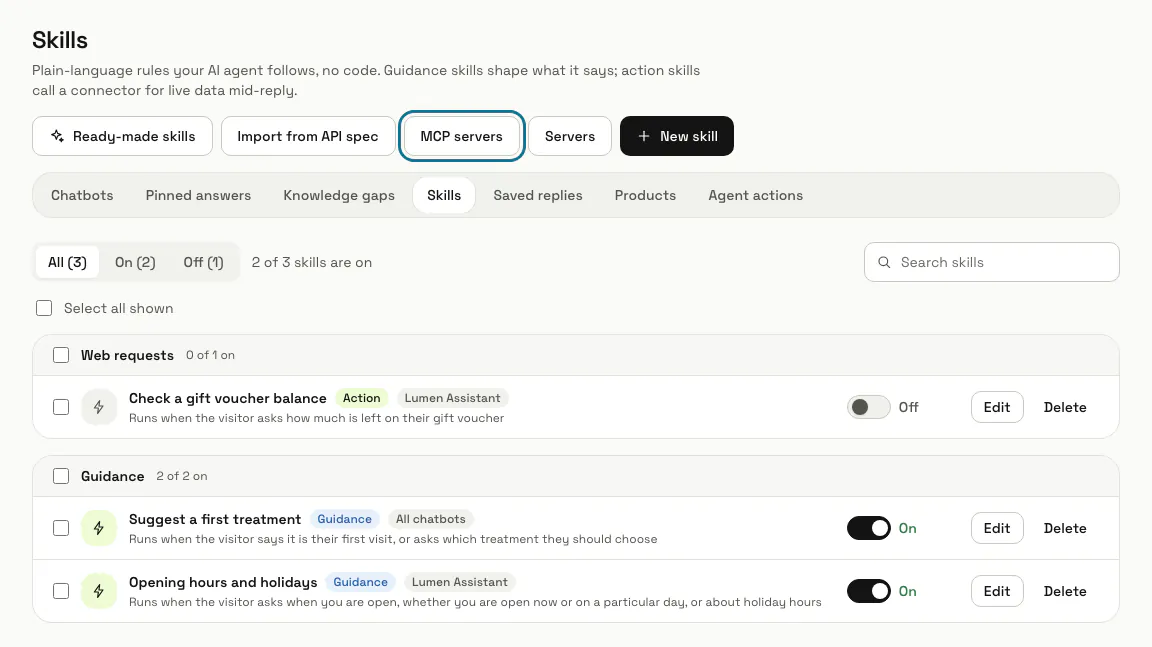
Step 2: Fill in "Connect a server"
Give it a name and its "Server address": the Streamable HTTP address, starting with https:// and reachable from the internet. Under "Authentication" choose None, Bearer token, Custom header or Username and password; the secret is stored encrypted and never shown again.
Local (stdio) servers cannot be connected.
Step 3: Press "Connect and read tools"
MagizAI connects, reads the server's tools and opens its page. If your plan does not include MCP servers, the panel says "Your plan does not include MCP servers. Upgrade to connect one." instead of the form.
Step 4: Tick the tools the assistant may use
Each tool shows its name, its description and the server's own hints, such as "Server says: read-only". Those hints are not checked by MagizAI, so you decide how each tool is treated.
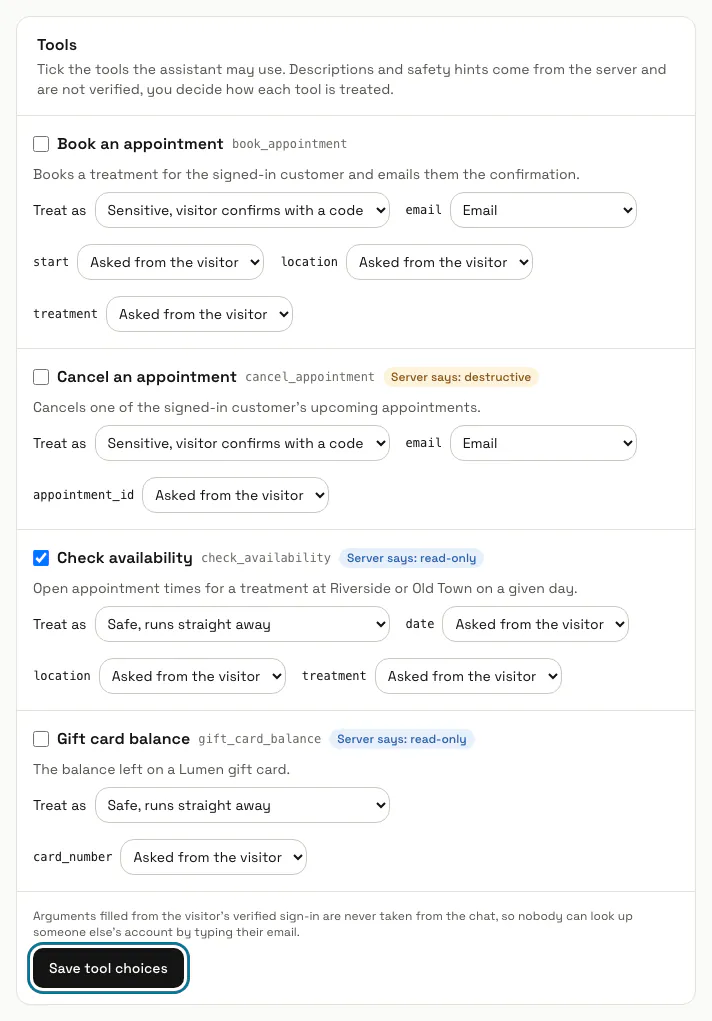
Step 5: Choose "Treat as" for each tool
Safe runs straight away. Sensitive makes the visitor confirm with a code first. A tool its server declares destructive cannot be saved as safe.
Step 6: Fill arguments from the signed-in visitor
Beside each argument, pick Account ID, Email, Name, Company or Plan to fill it from the visitor's verified sign-in, or leave "Asked from the visitor". A filled argument is never taken from the chat, so nobody can look up someone else's account by typing their email.
Step 7: Press "Save tool choices"
Each ticked tool becomes a skill. Sensitive tools start switched off: turn them on under Skills. "Recent tool calls" then lists each call with its result and the time it took.
Step 8: Press "Read tools again" when the server changes
A tool that changed is marked "Changed on the server" and waits for you to review and save it. "Remove server" deletes the server and every skill built from its tools. Starter servers to build from are on the public page /mcp.
Limits and switches
- MCP servers are off unless your plan includes them. Your plan sets how many you can connect, 20 at most.
Stuck on a step? Ask our team