Channels and connectors
WHMCS module
For hosting companies: the MagizAI module puts the chat in your WHMCS client area and lets the assistant answer from each signed-in client's account.
Who can use it: Owner and Admin, or a custom role with "Change workspace settings and connections".
Step 1: Upload the module to WHMCS
Download it from the public page /whmcs or from /downloads/whmcs/latest.zip, and upload the modules/addons/magizai folder into your WHMCS root. In WHMCS open System Settings, Addon Modules, press Activate on "MagizAI Live Chat", then Configure to choose the admin roles that may manage it.
It needs WHMCS 8.0 or newer and PHP 7.4 or newer. Connecting with a code needs module 1.7.0 or later.
Step 2: Open Connectors, WHMCS
Press "Connectors" in the left menu, then the WHMCS tile. The page starts with "Connect with a code (recommended)", which replaces copying keys between the two systems.
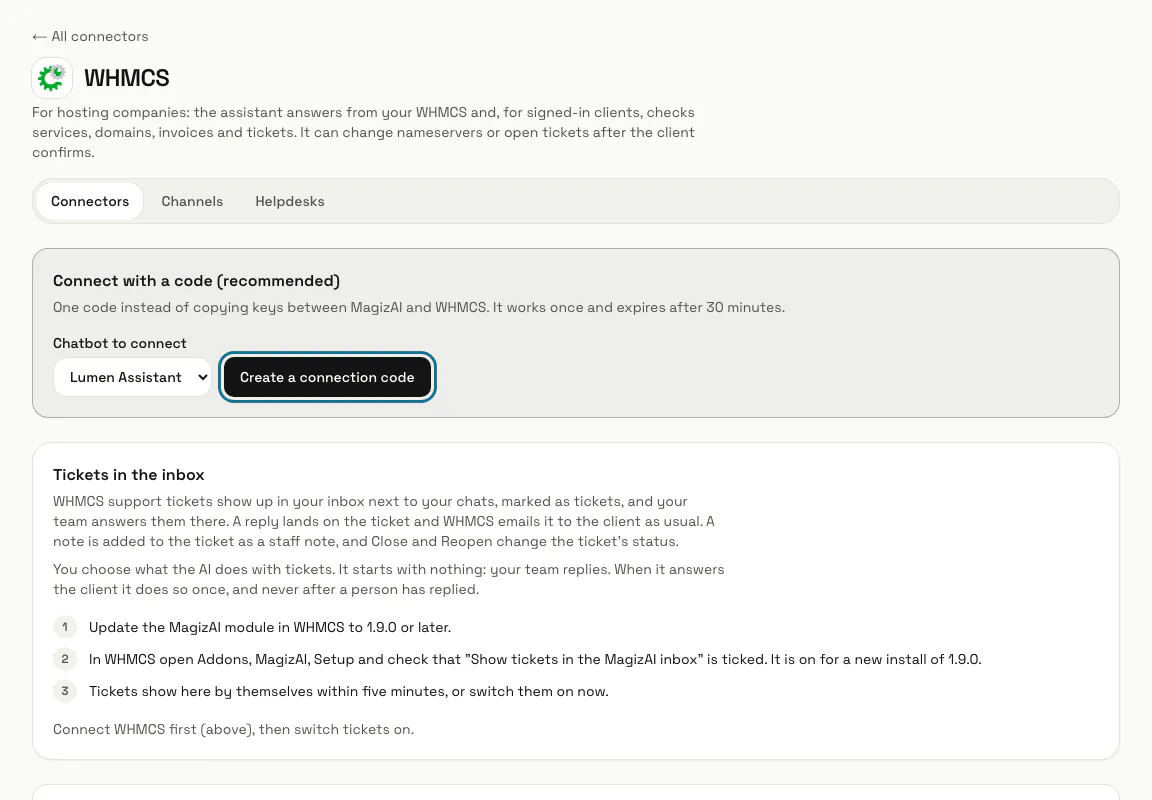
Step 3: Press "Create a connection code"
First pick the chatbot under "Chatbot to connect". The code is shown once, works once and expires after 30 minutes, so copy it straight away.
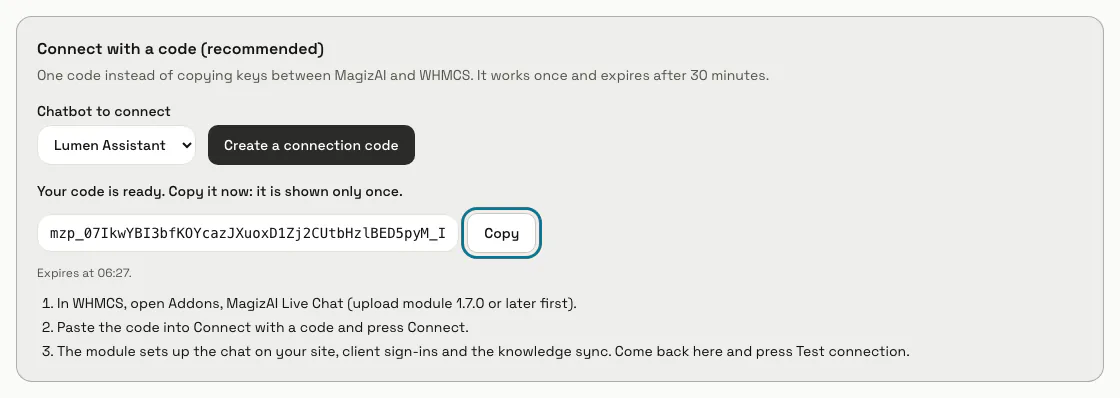
Step 4: Paste the code in WHMCS and press Connect
In WHMCS open Addons, MagizAI Live Chat, and paste it into "Connection code" on the Setup tab. The module sets up the chat on your site, client sign-ins and the knowledge sync by itself.
To connect with keys instead, paste the module's "WHMCS address" and "Bridge secret" (it starts with mzb_) into the form on the WHMCS connector page and press "Save and test".
Step 5: Press "Test connection"
The test names the module and WHMCS versions and imports your plans for the chat. "Module state" then says "Up to date" or how many releases behind you are, with a download link when there is an update.
Step 6: Press "Add WHMCS skills"
This adds the account look-ups for the assistant: services, domains, invoices and tickets of a signed-in client. Anything that changes a client's account, such as nameservers or a new ticket, starts switched off; turn it on under Skills.
Step 7: Show WHMCS tickets in the inbox
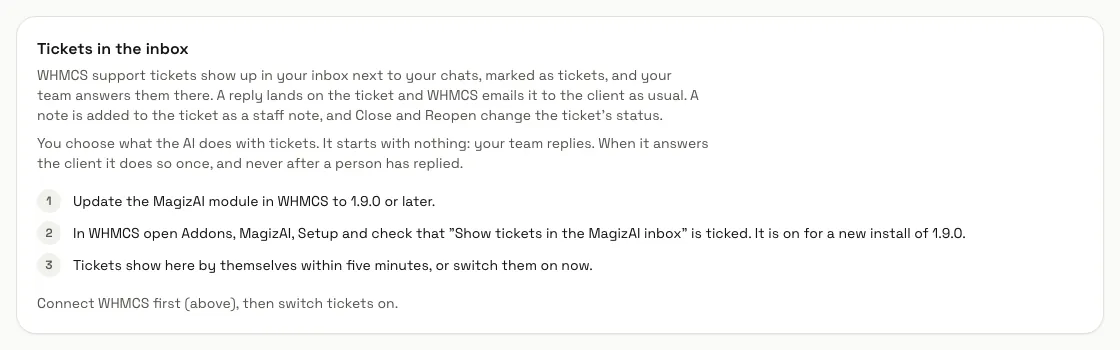
With module 1.9.0 or later and "Show tickets in the MagizAI inbox" ticked on its Setup tab, a ticket comes into your inbox within seconds of being opened or answered. As a backup MagizAI also checks WHMCS every minute, or every five minutes while those instant updates arrive, and the panel says whether they do. Choose what the AI does with a new ticket: nothing, so your team replies (recommended), a private suggestion, or one answer to the client when it is confident.
From module 1.10.0 the module's Setup tab shows whether ticket updates reach MagizAI, and why not when they do not. "Send a test ticket update" there checks the path in one press.
Step 8: Choose what clients can do in the chat
The module's "What the assistant may do" tab has the final say. Signed-in clients can check services, invoices, payments, orders and tickets; changes are confirmed with one tap on "Confirm", and a service password is shown only after a 6-digit code emailed to the account.
Placing orders, accounts for new clients and, from module 1.10.0, changing a domain's contact details, paying an invoice from the account credit and running server commands stay off until you tick them on that tab. Turning the registrar lock on or off is on for a new install. The client always pays the invoice on your own site: no card details pass through the chat. From module 1.10.1, the message after Save names each action switched on or off, read back from WHMCS, and a red message names any change WHMCS did not keep.
Step 9: List the server commands clients may run
For VPS and server plans: on the module's Actions tab, tick "Run a server command you list (such as reboot) on a service". In "Server commands from the chat" below it, write each command one a line as your server module names it, such as reboot or virtualizor:reboot, and press "Save server commands".
Nothing is offered until a command is listed. Commands that create, suspend, terminate, delete, reinstall, rebuild, wipe, restore, renew or change a password, package or plan are refused. A client can run 3 an hour unless you change it on the same card, and the chat says a command ran only when the server module reported success.
Step 10: Use MagizAI on the WHMCS ticket page
From module 1.10.0, each ticket in your WHMCS admin area has a MagizAI bar with "Draft a reply", "Improve my text", "Translate my text" and "Summarise". Press "Apply" to put a result in the reply box, or "Undo" to put back what was there. Nothing goes to the client until you send the reply yourself.
Only staff assigned to the ticket's department can use it. It is on after the update; to hide it, untick "Show MagizAI on the ticket page in the admin area" on the module's Setup tab. Each use counts as AI usage in your workspace, as the inbox writing tools do.
Tips
- "Sync plans now" imports your WHMCS plans as cards in the chat. They are also refreshed every night and whenever you test the connection.
- The current module is 1.10.1. To update, upload the new files over the old ones and open Addons, MagizAI Live Chat once; your settings are kept.
Limits and switches
- Account answers and changes work only for clients signed in to your client area.
- MagizAI never gets a WHMCS admin login or API key. It can call only the module, and only for the actions switched on there.
- WHMCS is a connector, so it needs a plan that includes connectors: its answers, look-ups, changes and tickets in the inbox all stop without one. Your plans as cards in the chat also need a plan that includes product recommendations.
Stuck on a step? Ask our team