Channels and connectors
Answer customers on your own WhatsApp Business number from the shared inbox, through the official WhatsApp Cloud API, with the AI replying first.
Who can use it: Owner and Admin, or a custom role with "Change workspace settings and connections". Answering these conversations in the inbox needs "Reply to, take over and assign conversations" (Owner, Admin and Agent).
Step 1: Copy your number's details from Meta
In Meta for Developers, open your app with the WhatsApp product, then WhatsApp, API Setup. Copy the Phone number ID, the WhatsApp Business Account ID and an access token. The App Secret is under the app's Settings, Basic.
The temporary token on API Setup stops working after 24 hours. For a number you keep, make a permanent token for a System User with the whatsapp_business_messaging permission.
Step 2: Fill in "Phone number ID" and "Access token"
They are in the WhatsApp panel on the Channels page. The phone number ID is digits only; "WhatsApp Business Account ID" and "Display number" are optional.
A number can be connected to one workspace only. Another workspace that tries the same phone number ID is told "That number is already connected to another workspace."
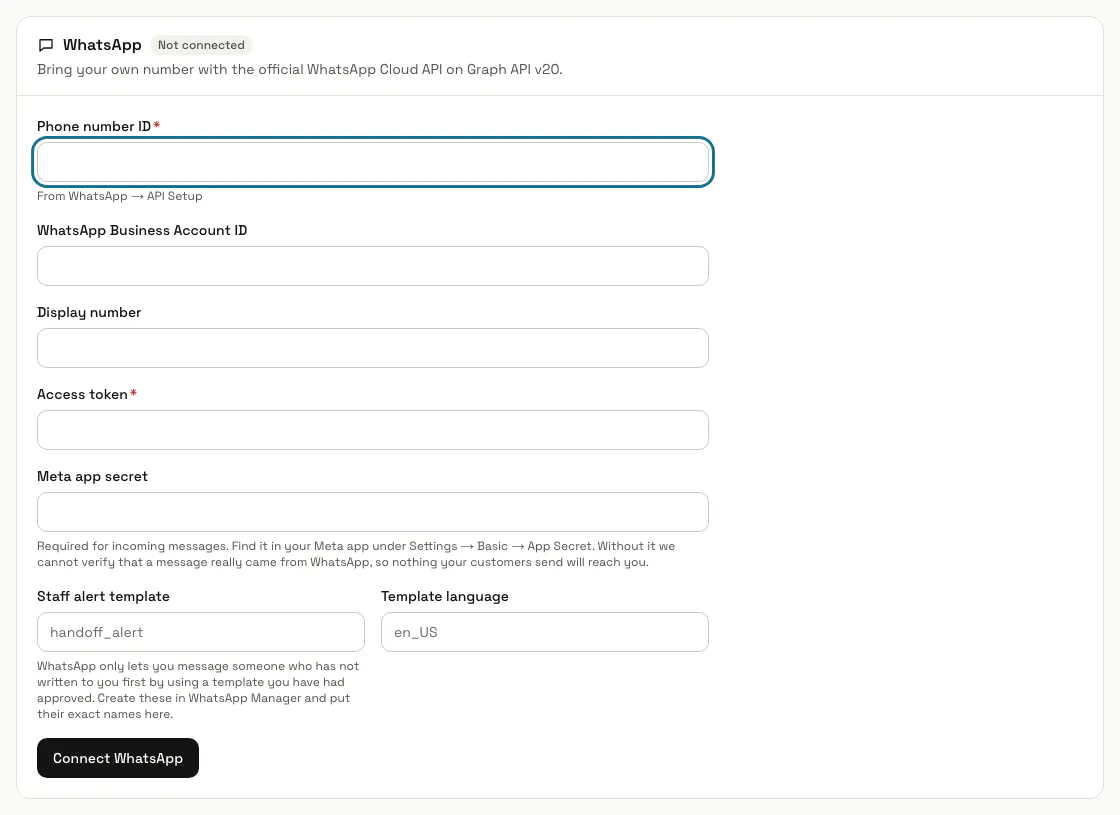
Step 3: Paste the "Meta app secret"
Without it MagizAI cannot check that a message really came from WhatsApp, so nothing your customers send reaches you. Tokens and secrets are stored encrypted and never shown again: leave the field blank to keep the saved one.
Step 4: Press "Connect WhatsApp"
With more than one chatbot, first choose one under "Which agent answers WhatsApp?". The panel then shows "Connected", a "Callback URL" and a "Verify token", each with a "Copy" button.
Saving does not ask Meta anything. "Test connection" does: it checks that your token and number are accepted, and sends nothing.
Step 5: Paste the callback URL and verify token in Meta
In your Meta app open WhatsApp, Configuration, edit the webhook, paste both values and save. Then subscribe to the messages field, so incoming messages reach your inbox.
Step 6: Send a test message from your phone
Write to your business number from any WhatsApp. The panel then says "Incoming messages are working." with the time of the first message, and the chat is in your inbox.
Step 7: Answer WhatsApp chats in the inbox
They carry the WhatsApp channel, and the AI answers until a person takes over. Text messages are read; a photo or a sticker is not. A customer who keeps their number private shows as their @username or "Phone number not shared", and your replies still reach them.
WhatsApp delivers a plain reply only within 24 hours of the customer's last message. After that it accepts only a template Meta approved, so a late reply can fail; the WhatsApp panel then shows the problem WhatsApp reported.
Step 8: Choose who gets a WhatsApp alert
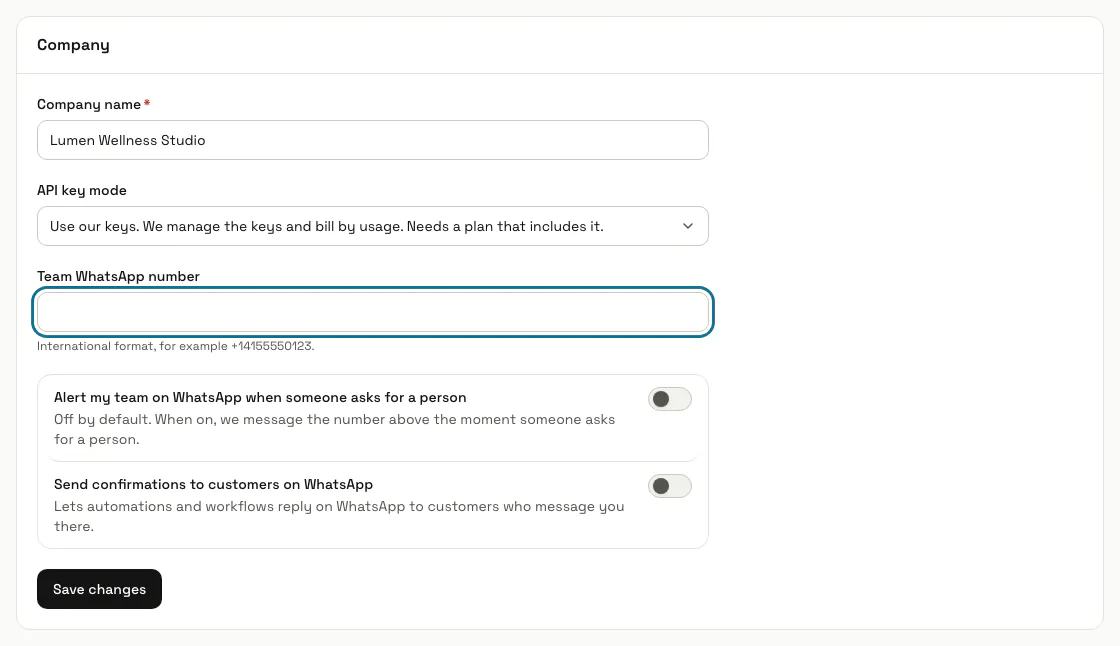
In Settings, under "Company", enter a "Team WhatsApp number", switch on "Alert my team on WhatsApp when someone asks for a person" (off by default) and press "Save changes". The alert is a template, so create one in WhatsApp Manager and put its exact name in "Staff alert template" on the Channels page, with its "Template language" such as en_US.
Tips
- The inbox reminds you that WhatsApp shows formatting marks as typed, so write replies as plain text.
- "Disconnect" deletes the verify token with the number. Connecting again makes a new one, which you paste in Meta again.
Limits and switches
- A workspace connects one WhatsApp number.
- The number cannot stay in the WhatsApp Business app: once it is registered on the Cloud API through this connection it works only through the API. Use a number that is not in the app, or remove it from the app first.
- WhatsApp needs a plan that includes it. Without one, a number cannot be connected; messages from a number already connected still reach the inbox for your team, but the AI does not reply.
Stuck on a step? Ask our team