Channels and connectors
Email inbox
Emails to your support address arrive in the shared inbox as conversations, and replies from the inbox go back to the customer by email.
Who can use it: Owner and Admin, or a custom role with "Change workspace settings and connections". Answering these conversations in the inbox needs "Reply to, take over and assign conversations" (Owner, Admin and Agent).
Step 1: Open the Email panel on Channels
Press "Connectors" in the left menu, then "Channels". The Email panel says "Not connected" until you turn the inbox on.
Step 2: Fill in the "Reply-from address"
Use the support address whose mail you forward to MagizAI, such as support@yourcompany.com. Customers see it on your replies and answer to it, so their answer comes back into the same conversation.
Step 3: Press "Enable email inbox"
MagizAI makes an inbound address for your workspace and shows it in the panel with a "Copy" button. The badge turns to "Connected".
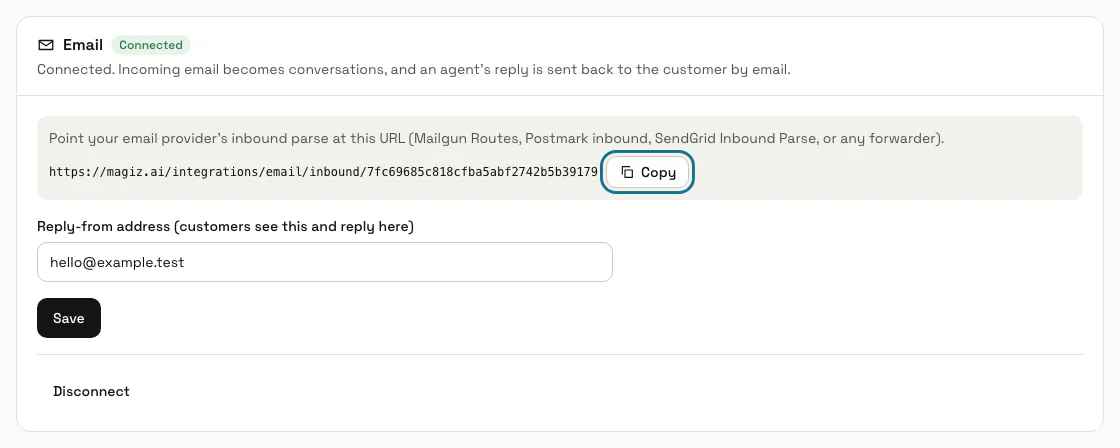
Step 4: Point your mail provider at the inbound address
Set your provider's inbound parse or forwarding rule to post each email to it: Mailgun Routes, Postmark inbound, SendGrid Inbound Parse or any forwarder that posts the message. MagizAI reads the sender, the subject and the plain-text part.
The address contains a secret: whoever has it can put mail into your inbox. Keep it inside your mail provider's settings.
Step 5: Answer email in the inbox
Each email becomes a conversation with the Email channel, starting with its subject line, and later mail from the same sender joins it while it is open. Your reply goes to the customer by email as "Re:" and their subject.
Step 6: Send replies from your own mail server
Until you do, replies go out from MagizAI's address with your workspace name. Your own server is set up under Settings, Email, in the Workspace email topic.
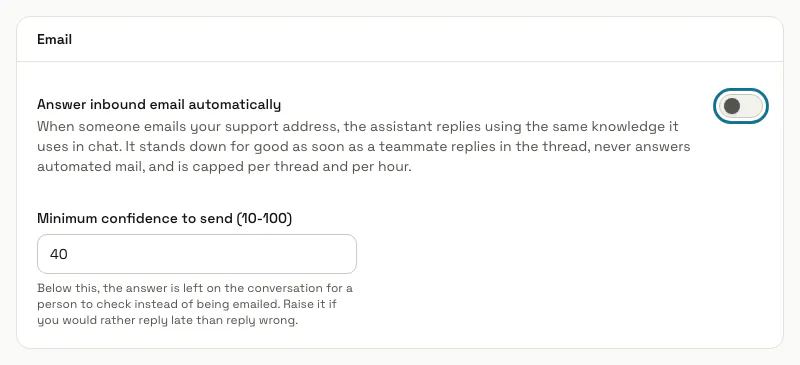
Step 7: Switch on "Answer inbound email automatically"
Open your chatbot, then "Settings" and the "Channels" tab; switch it on there and press "Save changes". The assistant then answers each email with the same knowledge it uses in chat; an answer below "Minimum confidence to send" (40 unless you change it) is left for a person to check.
It stops for good once a teammate replies in the thread, never answers automated mail such as noreply addresses, and sends at most 5 replies a thread and 60 an hour for the workspace.
Step 8: Press "Disconnect"
It asks first, then turns the inbound address off, and mail posted to it is refused. Enabling the inbox again makes a new address for your provider.
Tips
- Email goes to your first active chatbot, so switch on automatic answers on that one.
- With automatic answers off, each email waits in the inbox for a person.
Limits and switches
- A workspace has one inbound email address.
- The email inbox needs a plan that includes it. Without one, the inbox address cannot be turned on; email to an address already set up still reaches the inbox for your team, but the AI does not reply.
Stuck on a step? Ask our team