Channels and connectors
Online stores
Put the chat on your store, connect Shopify, WooCommerce, BigCommerce or the WordPress plugin for the orders of a shopper your site signs in, and add your products on the Products page.
Who can use it: Owner and Admin, or a custom role with "Change workspace settings and connections".
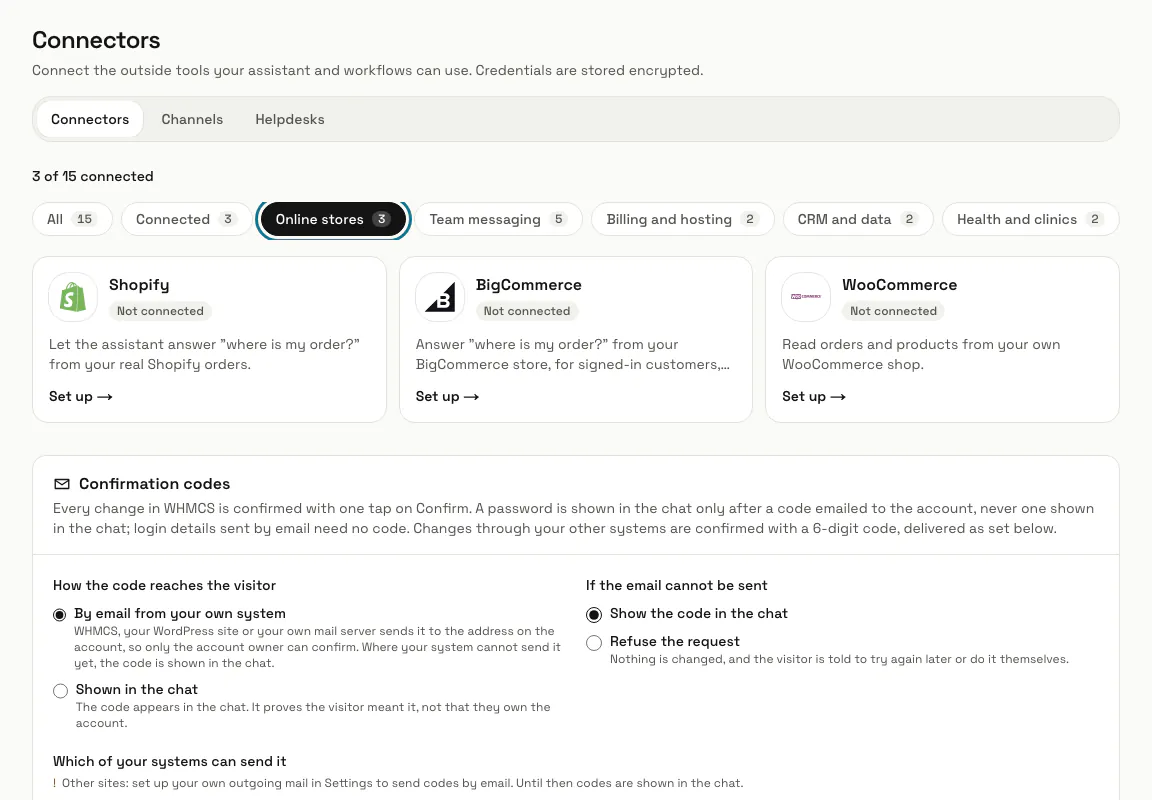
Step 1: Press "Online stores" on Connectors
The chip shows Shopify, BigCommerce and WooCommerce. Press "Set up" on a tile to open its page.
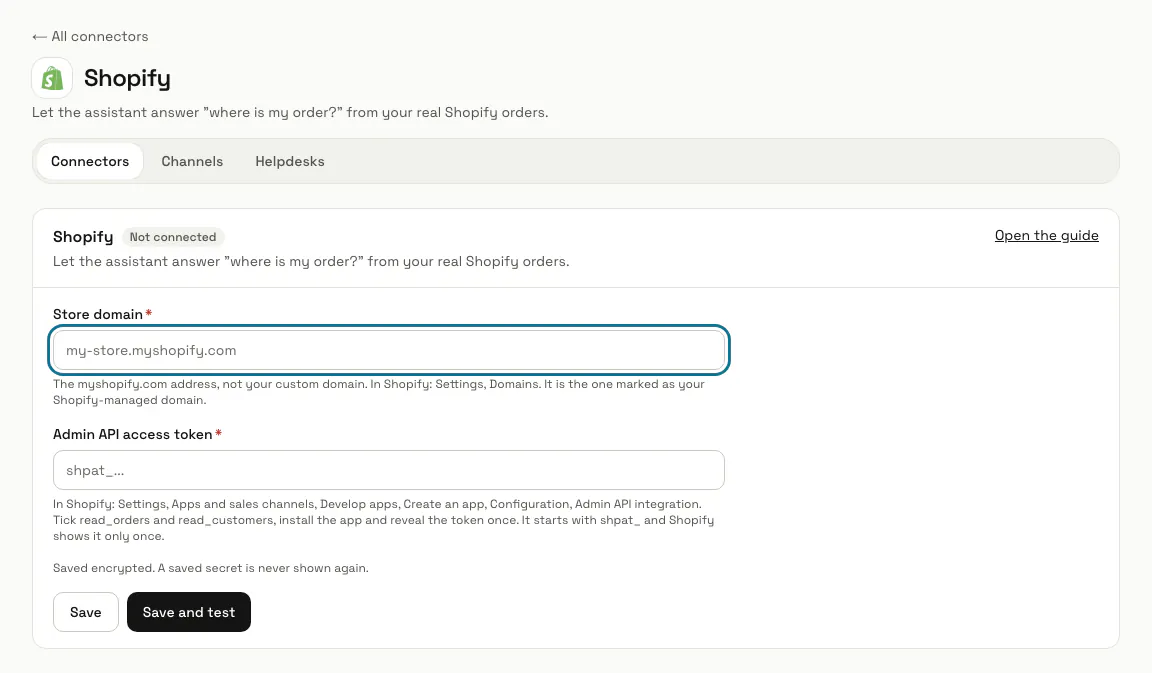
Step 2: Connect Shopify with an Admin API token
In Shopify create an app under Settings, Apps and sales channels, Develop apps, tick read_orders and read_customers, install it and reveal the token (it starts with shpat_ and is shown once). Paste it with your myshopify.com "Store domain" and press "Save and test".
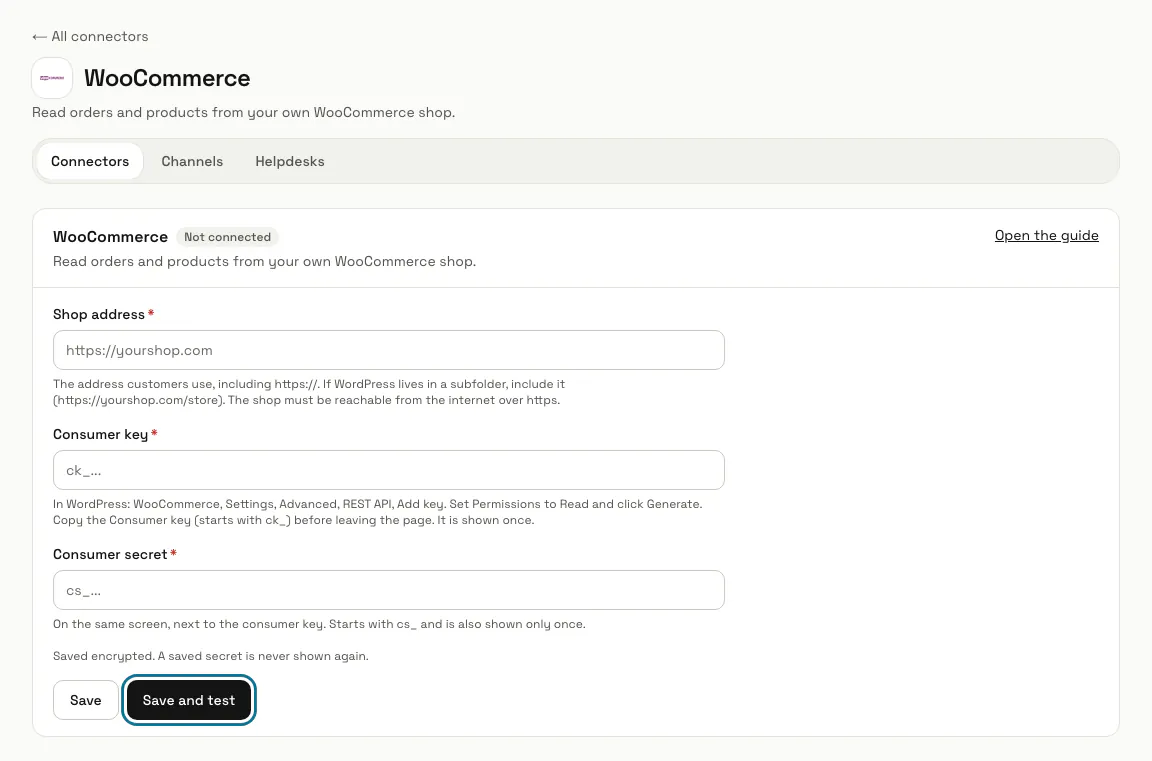
Step 3: Connect WooCommerce with REST API keys
In WordPress open WooCommerce, Settings, Advanced, REST API, Add key, set Permissions to Read and press Generate. Paste the "Shop address", the "Consumer key" (ck_) and the "Consumer secret" (cs_), which WordPress shows only once.
Step 4: Add the chat to BigCommerce with Script Manager
The page says the one-click app is not available yet: MagizAI is not in the BigCommerce App Marketplace. Add the chat yourself. In your BigCommerce control panel open Storefront, Script Manager and click Create a Script, choose Footer, Storefront pages and Functional, enter the script by hand and paste the one-line snippet from your chatbot's Install page. Then give it your products on the Products page: a product page, a category page or your sitemap, or a CSV file.
The store API account on this page (the "Store hash" from your API path and an access token with read-only Orders and Products) is what "Check an order (BigCommerce)" reads. If the page shows "Install on BigCommerce" instead, the one-click app is open to you: it puts the chat on the storefront and imports your products, then syncs them every night.
Step 5: Install the WordPress plugin
Download it from your chatbot's Install page (WordPress), upload it in Plugins, Add New, activate it and open Settings, MagizAI. Paste your widget key and identity secret. To train the assistant on your pages, posts and product descriptions, add your chatbot key and an API token and tick the sync box.
Step 6: Connect the plugin's MCP server
In the plugin, tick "Switch it on" under MCP and generate a token. In MagizAI add https://your-site/wp-json/magizai/v1/mcp as an MCP server with that Bearer token; the shop tools, such as product search, stock and delivery costs, then read WooCommerce at the moment a visitor asks. MCP servers need a plan that includes them, and product cards still come from the Products page.
The plugin's customer tools (orders, tracking) and change tools ship switched off. Before turning them on, fill each email argument from the visitor's verified email in MagizAI and mark the change tools "Sensitive".
Step 7: Add the "Check an order" skill
Under Skills, "Ready-made skills", add "Check an order" for Shopify or "Check an order (BigCommerce)". They work for a signed-in shopper only: the assistant looks up orders for the email your site signed, and says so when none come back. A standard Shopify or BigCommerce storefront does not sign shoppers in to the chat by itself: your developer has to make the signed token on your server ("Signed visitor identity" on the Install page).
Tips
- With Shopify connected, the inbox shows the Shopify orders of the visitor's email under "Orders and billing" in the conversation's details.
Stuck on a step? Ask our team