Channels and connectors
Helpdesks and tickets
Let the AI that answers your chat work on tickets in Zendesk, Freshdesk, Help Scout, WHMCS or your own system, as private drafts or replies.
Who can use it: Owner and Admin, or a custom role with "Change workspace settings and connections".
Step 1: Open the Helpdesks tab
Press "Connectors" in the left menu, then "Helpdesks". Each connected system shows its mode, its activity (replied, drafted and tickets) and its status.
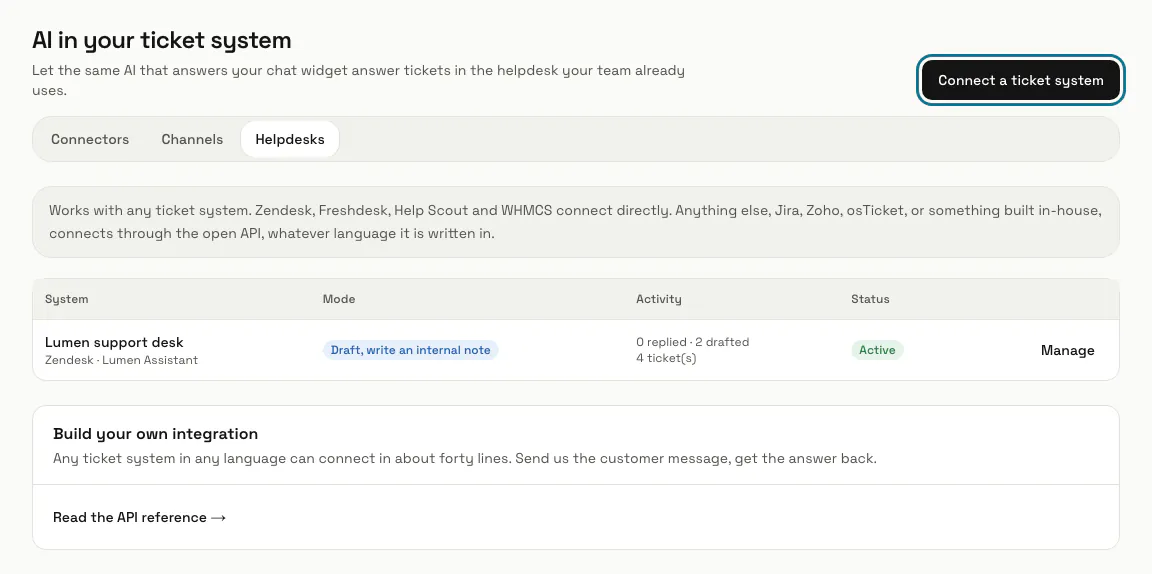
Step 2: Press "Connect a ticket system"
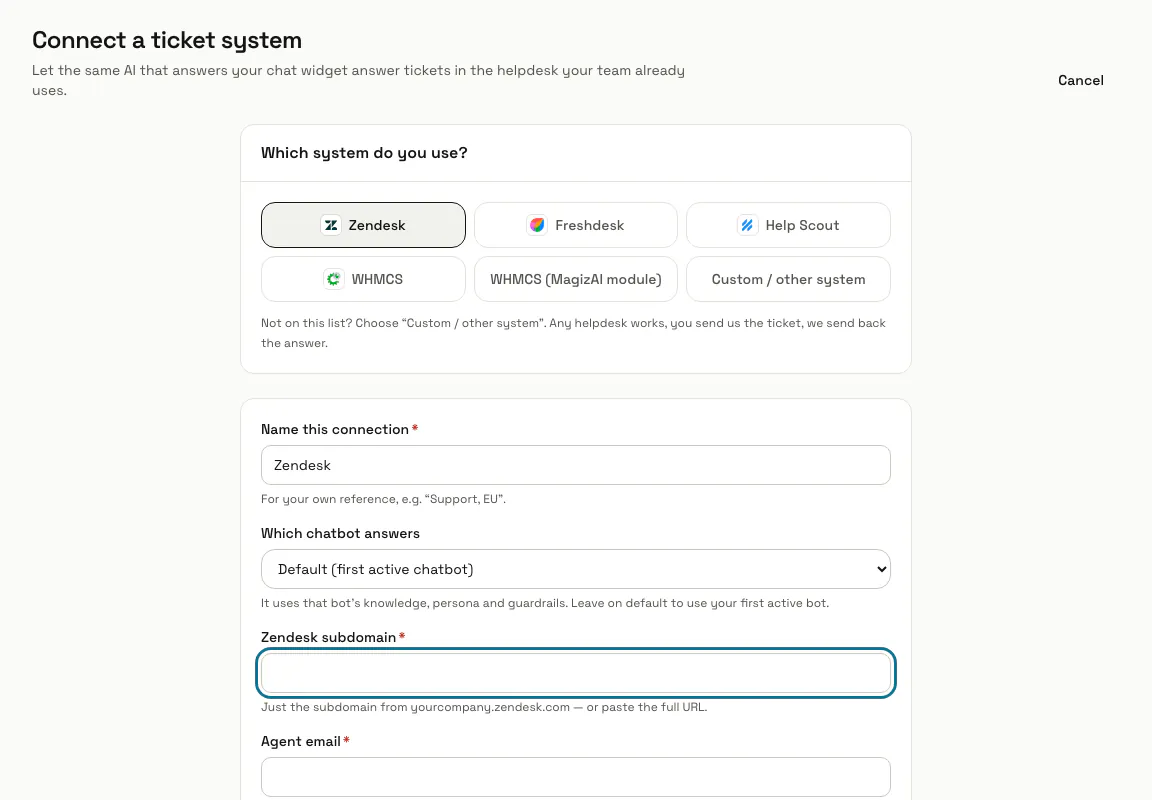
Choose Zendesk, Freshdesk, Help Scout, WHMCS, WHMCS (MagizAI module) or "Custom / other system". A custom system sends MagizAI the customer's message through the open API and gets the answer back, in any programming language.
Step 3: Fill in the connection and press "Connect"
Name it, pick "Which chatbot answers" (its knowledge, persona and guardrails are used) and paste the keys the form asks for, such as the subdomain, agent email and API token for Zendesk. A new connection starts in draft mode, so nothing reaches a customer yet.
Step 4: Copy the webhook URL and signing secret
For Zendesk, Freshdesk, Help Scout and custom systems, the next page shows both. Add the URL as a webhook in your ticket system. WHMCS needs no webhook: with the MagizAI module 1.9.0 or later, tickets arrive at once through the module's ticket hooks, and MagizAI also checks every minute as a backup, or every five minutes while those updates arrive. With an older module MagizAI checks every minute, and a WHMCS connection with an API key every five minutes.
Both are shown once. "Generate a new URL" makes another one and stops the old one at once.
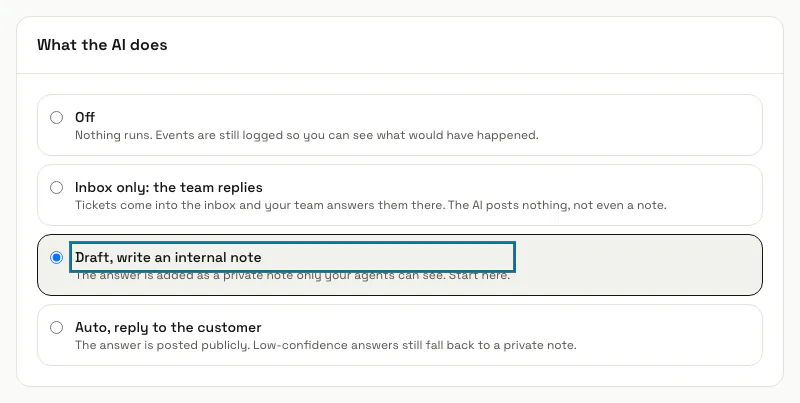
Step 5: Choose what the AI does
Off only logs what would have happened. Inbox only posts nothing on tickets. Draft adds the answer as a private note only your agents see. Auto posts it to the customer, and an answer below the confidence you set still becomes a private note.
Only WHMCS tickets through the MagizAI module are copied into the MagizAI inbox. For the other systems, "Inbox only" means your team keeps answering in the ticket system.
Step 6: Set the rules and press "Save changes"
Under "Rules" set the confidence needed to reply publicly (55), the most AI replies per ticket (3) and per hour (60), whether to stand down once an agent replies, overnight-only hours, tags and the line added to public replies. Tickets tagged billing, legal, refund, complaint or escalation are skipped unless you change the list.
Step 7: Choose the pace and what goes to a person
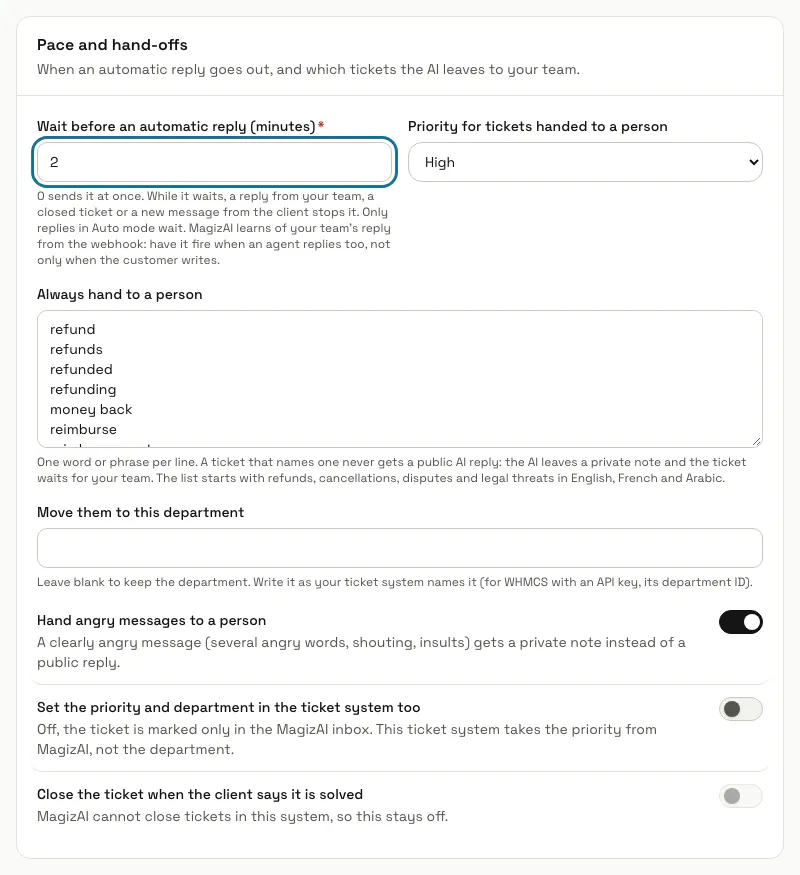
Under "Pace and hand-offs", "Wait before an automatic reply (minutes)" holds an Auto mode reply for that long, and a reply from your team, a closed ticket or a new message from the client in the meantime means it is not sent. A new connection starts at 2 minutes; one made before this setting existed stays at 0. A ticket that names a phrase in "Always hand to a person" (refunds, cancellations, disputes and legal threats to start with) or sounds angry, with "Hand angry messages to a person" on, never gets a public AI reply: the AI leaves a private note, the ticket waits for your team at the top of the inbox, and everyone who gets alerts is told once.
"Priority for tickets handed to a person" (High to start with) shows on the ticket in the inbox. "Set the priority and department in the ticket system too" sends it to Zendesk, Freshdesk or WHMCS with an API key; the MagizAI module for WHMCS cannot take it yet. "Close the ticket when the client says it is solved" is off until you switch it on, and works only where MagizAI can close tickets: WHMCS through the MagizAI module.
Step 8: Read "Recent activity"
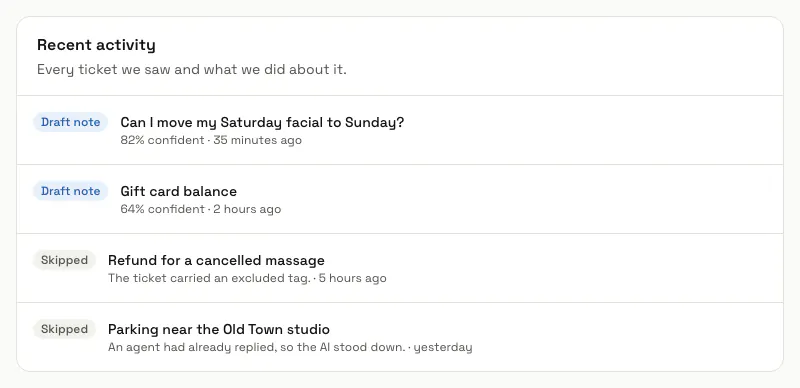
Every ticket MagizAI saw is listed with what it did: Replied, Draft note, Waiting to send with the time it goes, Skipped with the reason, Closed, or Failed. "Test connection" checks the keys, and "Pause" stops all answering until you press "Resume".
Step 9: Bring WHMCS tickets into the inbox
With the MagizAI module for WHMCS, tickets show in the inbox under the "Tickets" filter with a Ticket label: number, subject, department, status, priority and "Open in WHMCS". A reply there is posted to the ticket and WHMCS emails it to the client.
Tips
- Leave a new connection in draft for a week and read its notes before you switch it to auto.
- In the inbox, an AI answer that is waiting says when it goes to the ticket, with "Don't send" to stop it. One that was not sent stays as a note that says why.
- "Disconnect" at the bottom of a connection's page leaves answers already posted where they are.
Stuck on a step? Ask our team