Channels and connectors
Connectors
Connect the tools your business runs on, such as Shopify, Stripe, HubSpot or Telegram, so skills, workflows and the assistant can use them.
Who can use it: Owner and Admin, or a custom role with "Change workspace settings and connections".
Step 1: Open Connectors
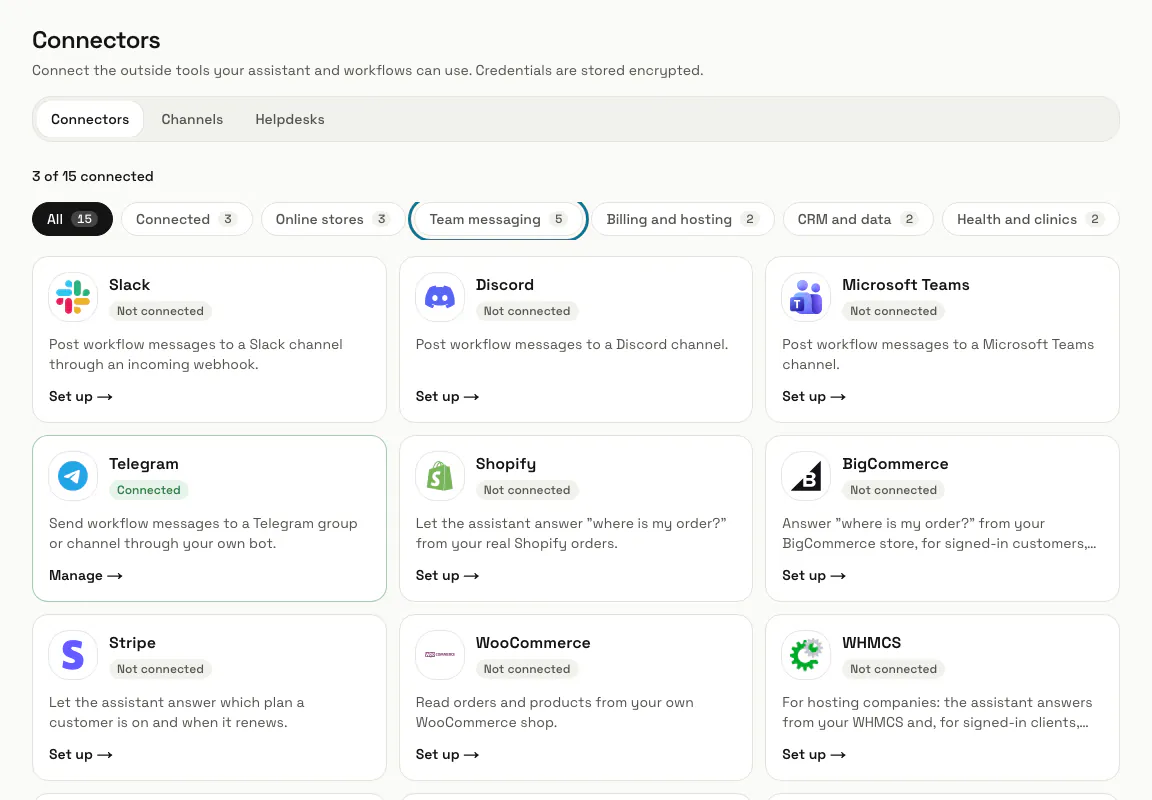
Press "Connectors" in the left menu. Each connector has a tile marked "Connected", "Not connected", "Always available" or "Needs attention", and the line above the tiles counts how many are connected.
Step 2: Pick a group
The chips filter the tiles: Online stores (Shopify, BigCommerce, WooCommerce), Team messaging (Slack, Discord, Microsoft Teams, Telegram, Email), Billing and hosting (Stripe, WHMCS), CRM and data (HubSpot, Google Sheets), Health and clinics (Oracle Health, athenahealth) and Developers (HTTP request). "Connected" shows the ones in use.
Step 3: Press "Set up" on a tile
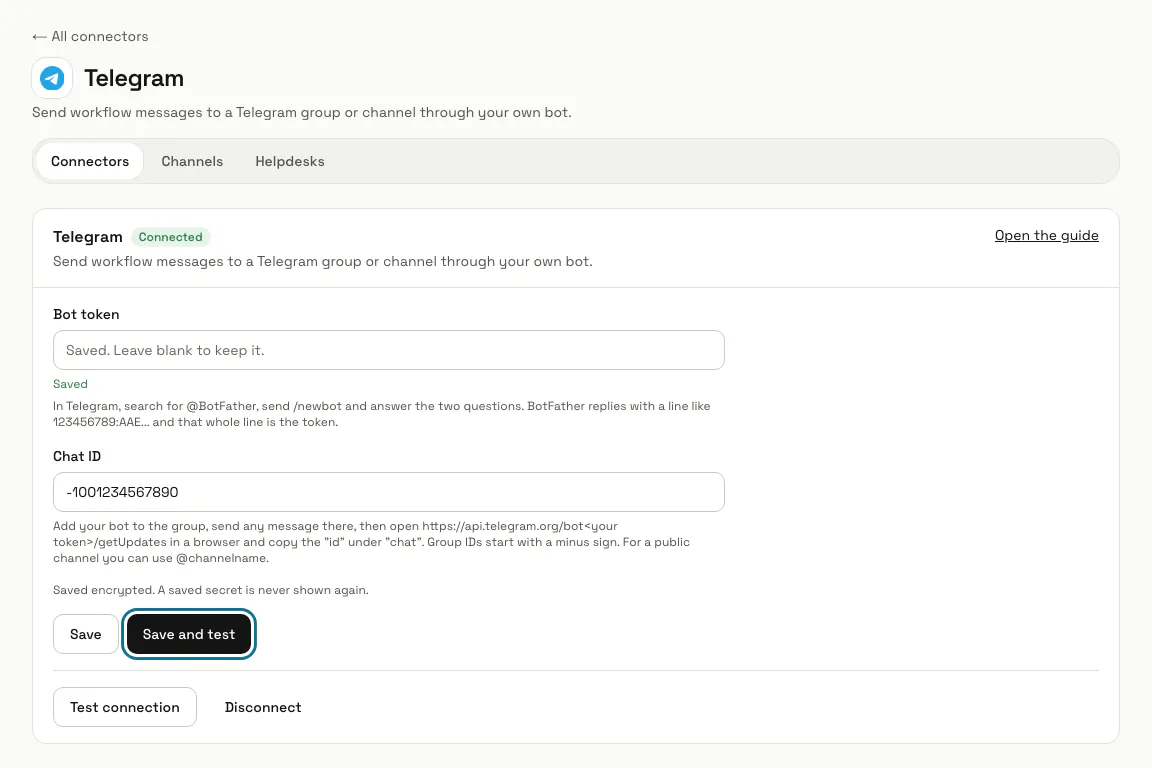
The connector's page has its fields, a help line under each one saying where to find the value, and "Open the guide" for the other company's own instructions.
Step 4: Paste the keys and press "Save and test"
MagizAI stores the keys encrypted, runs a live check and says what it found or what to fix; a connector with nothing to test has only "Save". A saved secret is never shown again: its field says "Saved. Leave blank to keep it."
Some tests leave a trace you can see. The Telegram test sends "MagizAI is connected. Workflow messages will arrive here." to your chat.
Step 5: Use the connector in a skill or a workflow
A connector does nothing on its own. Workflows post to Slack, Discord, Teams or Telegram, add HubSpot contacts, append Google Sheets rows and call any address with HTTP request. Ready-made skills let the assistant check a signed-in customer's Shopify or BigCommerce order and Stripe subscription.
Step 6: Fix a connection that "Needs attention"
When a connection keeps failing, its tile and page say so, with what to fix and since when. Until it works again, the assistant cannot answer anything that needs it.
Step 7: Choose how confirmation codes reach visitors
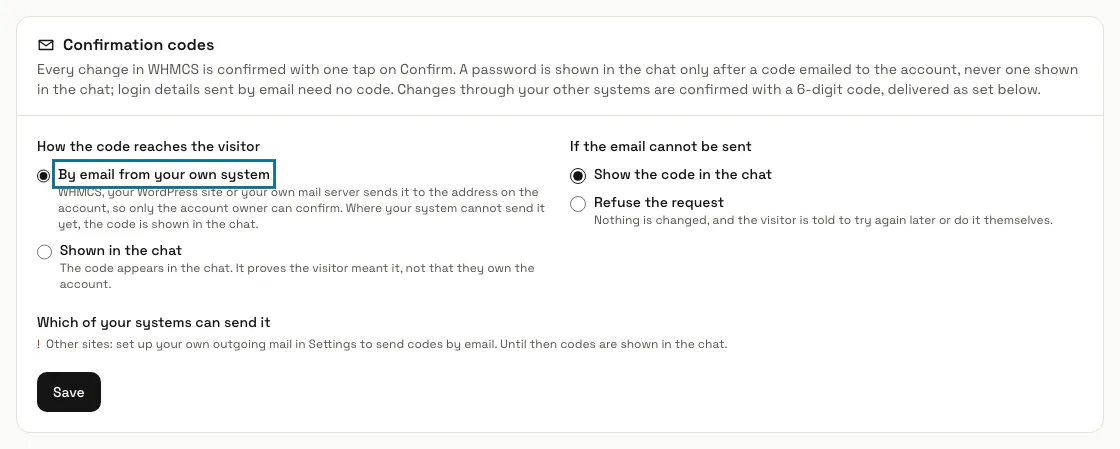
Under "Confirmation codes", pick "By email from your own system" (WHMCS, your WordPress site or your own mail server sends it to the address on the account) or "Shown in the chat". "If the email cannot be sent" decides whether the code is shown in the chat instead or the request is refused.
Step 8: Press "Disconnect"
It asks first, then deletes the saved keys. Anything that uses the connector stops working until you connect it again.
Tips
- Email and HTTP request are always available: Email sends with your workspace mail settings, and HTTP request needs no keys to start.
- Your inbound support address is set on the Channels page. Saving the Email connector never changes it.
Limits and switches
- Connectors need a plan that includes them. Without one, a connector cannot be set up, connector skills and workflow steps on a connector do not run, and your saved details are kept. Email and HTTP need no plan switch.
Stuck on a step? Ask our team