Channels and connectors
Site Doctor
A read-only agent on your server lets the assistant find out why a website on it is broken, for your team or for a signed-in client in the chat.
Who can use it: Owner and Admin, or a custom role with "Change workspace settings and connections".
Step 1: Open Servers from Skills
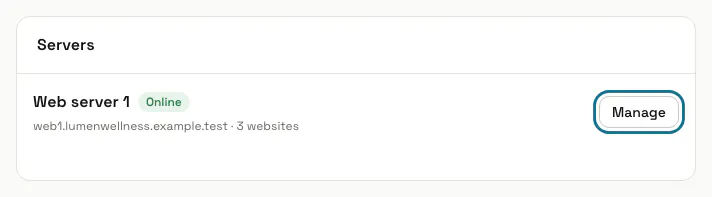
Press "AI agent" in the left menu, then "Skills", then "Servers". Each server shows "Online", "Offline" or "Waiting for install" and how many websites it holds.
Step 2: Press "Add and get the install command"
Under "Add a server", give it a name such as "Web server 1". If your plan includes Site Doctor, the server's page opens with its install command; if not, the panel says "Your plan does not include Site Doctor servers. Upgrade to add one."
Step 3: Run the install command as root
It downloads the agent, checks its checksum, enrols it and starts it as a service, and the page shows the server online within a minute. It works on cPanel, Plesk and plain Linux servers with systemd; the agent only connects out, so no port is opened.
The command works once, for 60 minutes. Press "New install command" for a fresh one.
Step 4: Choose what the server is used for
Under "Settings", "Allow checks on this server" stops every check at once when off. "Let the chat assistant check websites on this server" lets a signed-in visitor with a verified identity have their site checked in the chat, while the technical report goes to your team as an internal note.
With WHMCS connected (module 1.3.0 or later), each client can have only the websites on their own hosting account checked.
Step 5: Press "Start check"
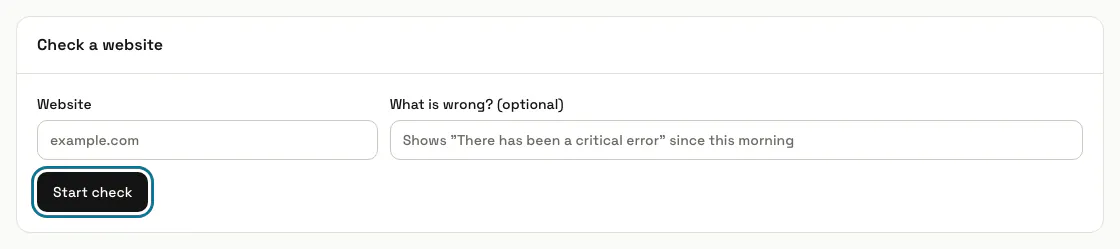
Under "Check a website", pick one of the server's websites and, if you like, say what is wrong. The check usually takes under a minute, and its page refreshes itself.
A website that is not on this server is refused with "That website is not hosted on this server.", and an offline server cannot be checked.
Step 6: Read the result
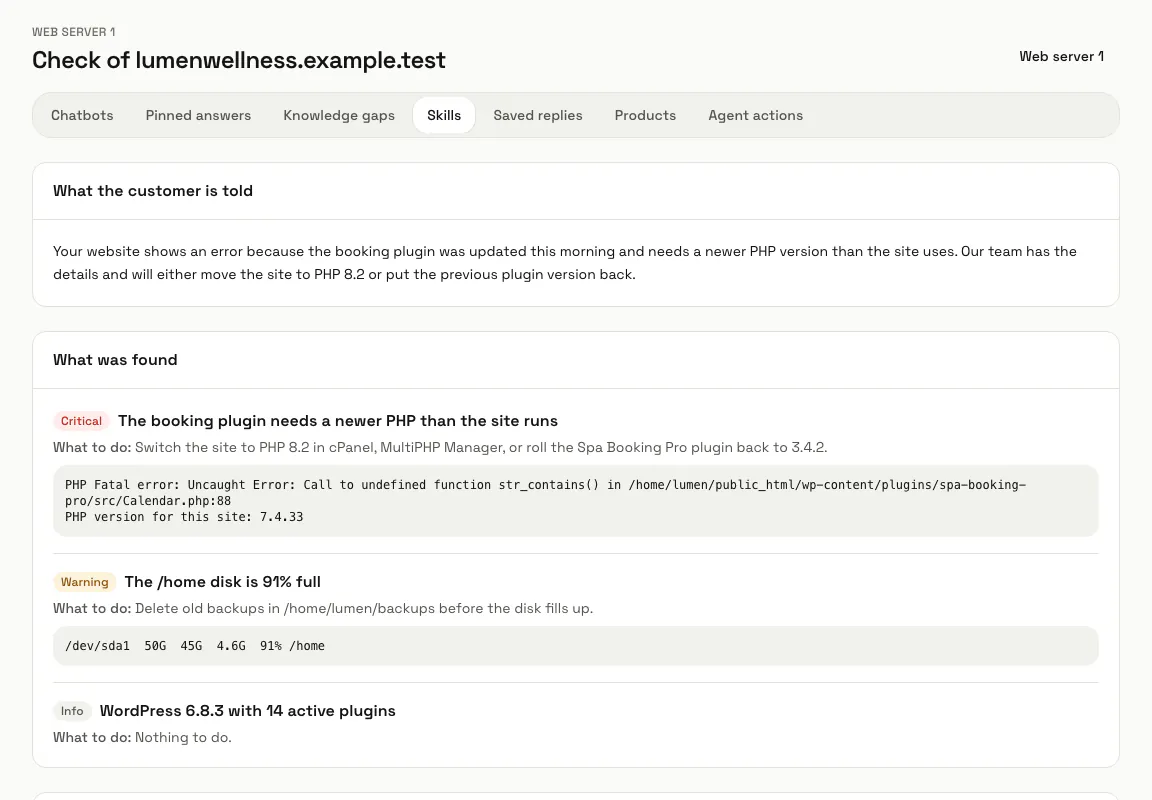
Open the check under "Recent checks". It shows "What the customer is told", "What was found" with a severity and "What to do" for each cause, the technical report and every check that ran.
Step 7: Press "Remove server"
The agent stops working for MagizAI. To uninstall it from the server too, run this there:
systemctl disable --now magizai-agent
Tips
- The agent only reads: it never changes, deletes or restarts anything.
- "Read websites again" asks the agent to list the server's websites again within a minute.
Limits and switches
- Site Doctor is off unless your plan includes it. Your plan sets how many servers you can add, and the Servers list shows how many you have used.
Stuck on a step? Ask our team