Channels and connectors
Channels
One page for where customers reach you: the chat on your website, WhatsApp and email, plus alerts to Slack, Discord or Microsoft Teams.
Who can use it: Owner and Admin, or a custom role with "Change workspace settings and connections".
Step 1: Open the Channels tab
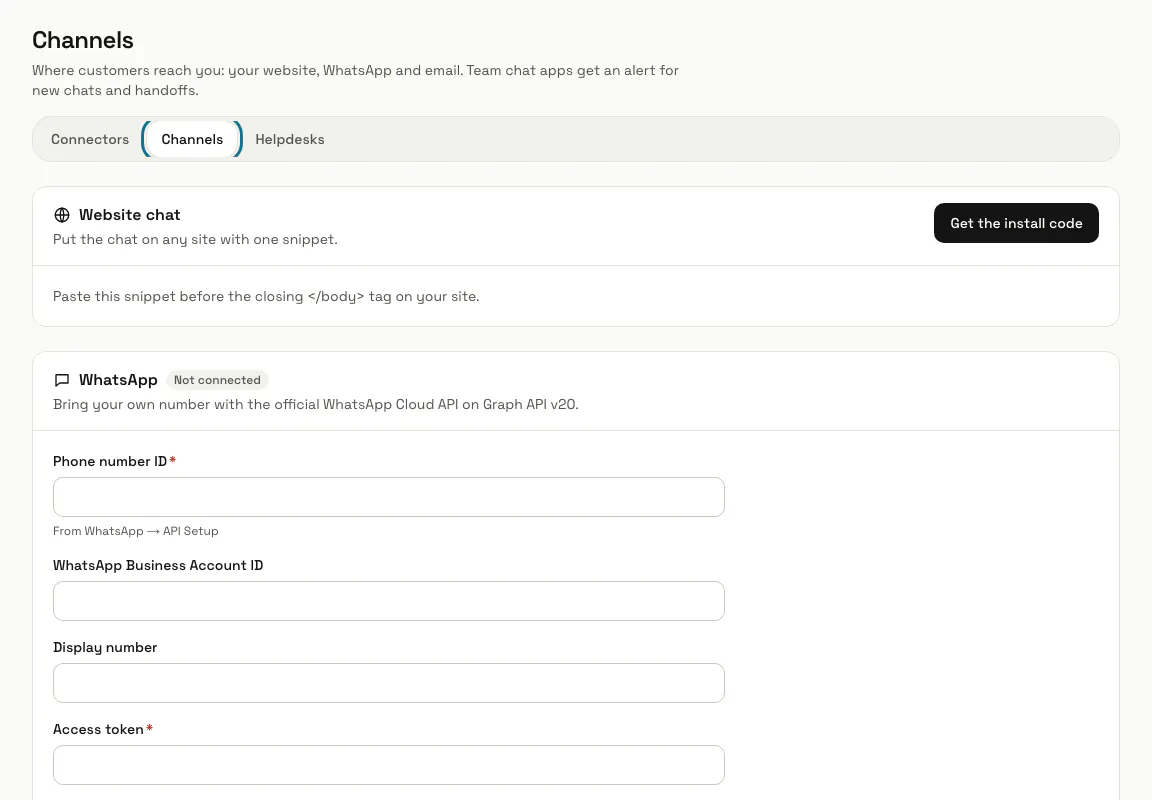
Press "Connectors" in the left menu, then the "Channels" tab. The page lists Website chat, WhatsApp, Email, Slack, Discord and Microsoft Teams, each with a "Connected" or "Not connected" badge.
Step 2: Press "Get the install code"
Website chat opens the Install page of your first chatbot, with the snippet to paste before the closing </body> tag of your site. With no chatbot yet, the button is "New chatbot" instead.
Step 3: Connect WhatsApp or email
Each has its own panel on this page and its own topic in this guide. WhatsApp needs the details of your Meta app; email needs a mail provider that forwards your support address to MagizAI.
Step 4: Paste a Slack, Discord or Teams webhook address
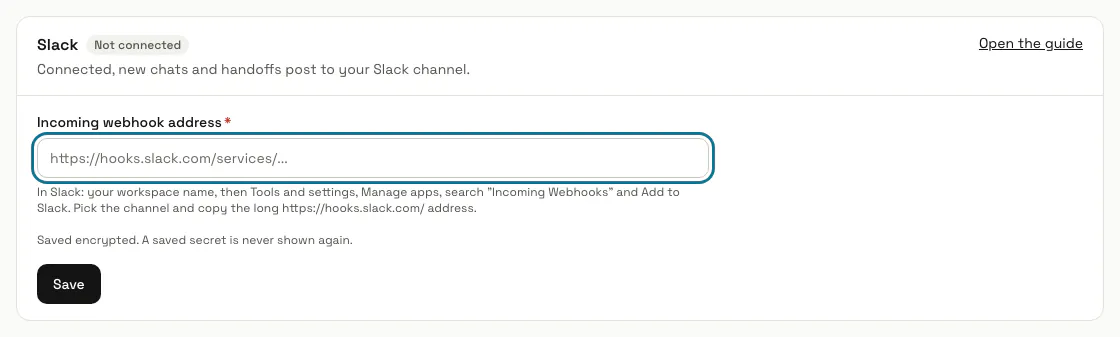
Each card has one field for the incoming webhook address of the channel your team watches. The help under the field says where to copy it, and "Open the guide" opens that app's own instructions.
A Slack address must start with https://hooks.slack.com/ and Discord takes only its own webhook addresses, or the card refuses them. Teams takes any https address, because Microsoft hosts its webhooks on several domains.
Step 5: Press "Save"
The badge turns to "Connected" and the address is stored encrypted: it is never shown again, and a blank field keeps it. "Send a test" then posts "MagizAI is connected. New chats and handoffs will show up here." to the channel.
Step 6: Read the alerts in your team chat
MagizAI posts a line when a new chat starts (with the chatbot and the page), when a visitor asks for a person and when a visitor sends a request for your team. The conversation stays in the inbox: a reply typed in Slack, Discord or Teams does not reach the customer.
Step 7: Press "Disconnect"
It asks first, then removes the saved address. The alerts stop until you paste an address again.
Step 8: Open Connectors for everything else
The last panel, "Shopify, Stripe and more", leads to the Connectors page, where order lookups, subscriptions, WHMCS and Telegram are set up.
Tips
- Slack, Discord and Teams are the same connections on the Channels page and on the Connectors page: one saved there shows here too.
- Workflows can post their own messages to the same Slack, Discord or Teams channel.
Stuck on a step? Ask our team