Automation
Workflows
Build a flow on a canvas: a trigger, an AI step that sorts the chat, branches, and the replies, tags or tools that follow each answer.
Who can use it: Owner and Admin, or a custom role with "Change workspace settings and connections".
Step 1: Open the Workflows tab
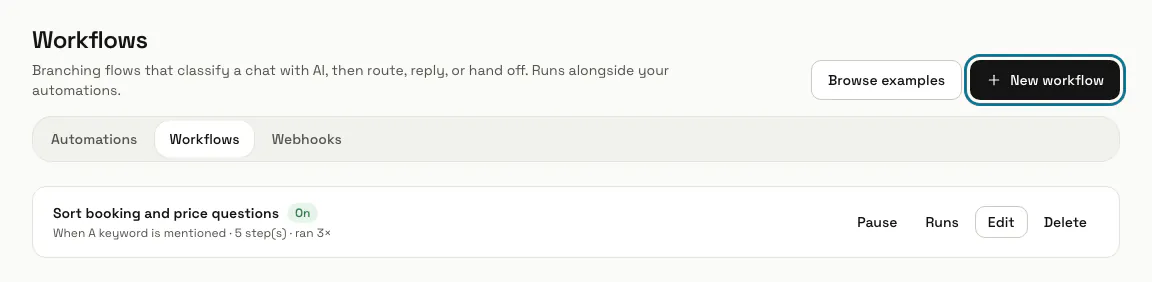
In "Automations", press the "Workflows" tab. Each workflow shows what starts it, how many steps it has, how many times it ran and whether it is "On" or "Paused".
Step 2: Start from an example
Press "Browse examples", read what a flow does and press "Use this flow". It is added switched off, so you can read it over and switch it on when you are happy.
A flow marked "Needs one detail from you" also needs that detail before you switch it on.
Step 3: Press "New workflow" and name it
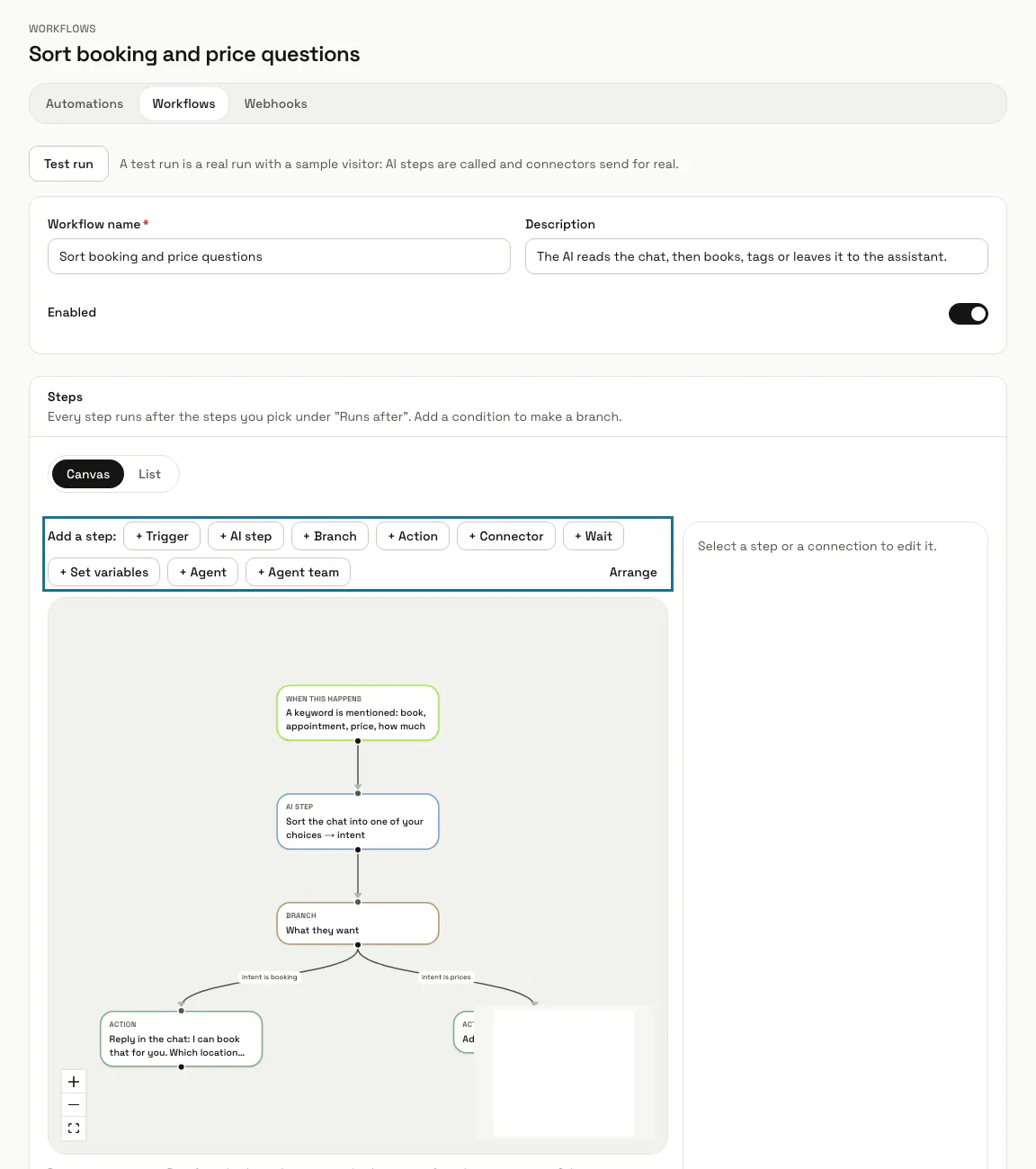
Type a "Workflow name" and, if you like, a "Description". The canvas starts with one trigger card, "When this happens": select it and choose what starts the flow, such as a new chat, a keyword, a booking change, "On a schedule", "Incoming webhook" or "Custom event".
Step 4: Add steps from "Add a step"
Press "+ AI step", "+ Branch", "+ Action", "+ Connector", "+ Wait" or "+ Set variables". A new step joins under the step you selected; drag from the dot under a card to the dot on top of another to connect them, and press "Arrange" to tidy the canvas.
Step 5: Select a step to fill it in
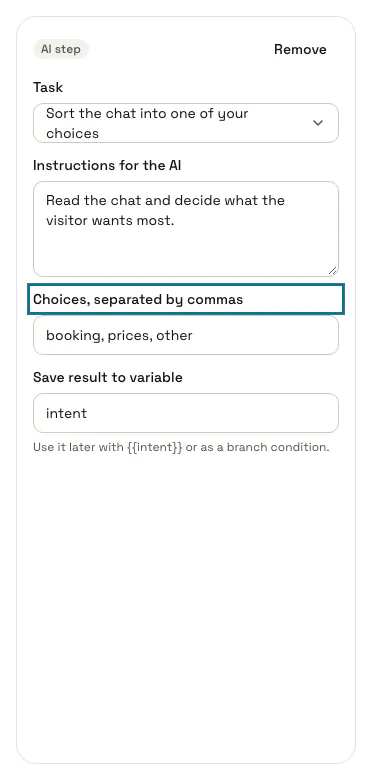
The panel beside the canvas edits the selected step. For an AI step, pick the "Task", write the "Instructions for the AI", list the "Choices, separated by commas" and name the variable under "Save result to variable", such as intent.
Step 6: Put a condition on a connection
Select the line between two steps and fill "Only when" with a variable, a "Comparison" such as "is" or "contains", and a value, for example intent is booking. A connection with no condition always runs the next step.
Step 7: Press "Create workflow"
Every step is checked when you save, and a workflow without a trigger is refused. Keep "Enabled" on to start it now; on a saved workflow the button says "Save workflow".
"Test run" on a saved workflow is a real run with a sample visitor: AI steps are called and connectors send for real.
Step 8: Read the path under "Runs"
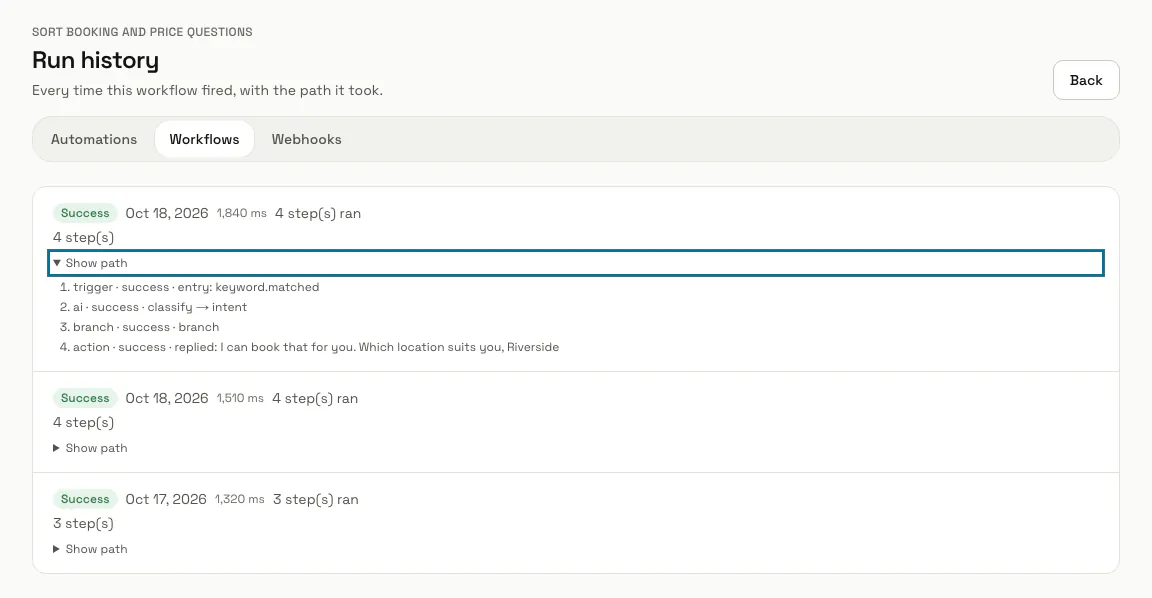
Press "Runs" beside a workflow. Each run shows its status, the day, how long it took and how many steps ran; press "Show path" to see every step it took.
Tips
- Prefer plain fields to the canvas? Open the "List" tab: it edits the same steps and connections.
- A step the trigger cannot reach is marked "Not connected to the trigger: this step never runs."
- An "Incoming webhook" trigger gets its secret address after you save. Anyone who has the address can start the workflow, so keep it private.
- With the Agents app on, "+ Agent" and "+ Agent team" give a task to your AI agents; when an agent drafts something, the steps after it wait until a manager approves it on the run.
- A "Wait" step holds the steps after it for up to 30 days.
Limits and switches
- Up to 100 steps and 10 triggers in one workflow.
- A flow added from the examples starts switched off.
Stuck on a step? Ask our team