Insights and reports
Analytics
Reports in the left menu: how much work the AI took off your team, how well it answered, how fast, and what it cost.
Who can use it: Owner, Admin, Agent and Viewer, or a custom role with "See analytics and reports". Changing the cost per ticket needs "Change workspace settings and connections" (Owner and Admin).
Step 1: Press "Reports" in the left menu
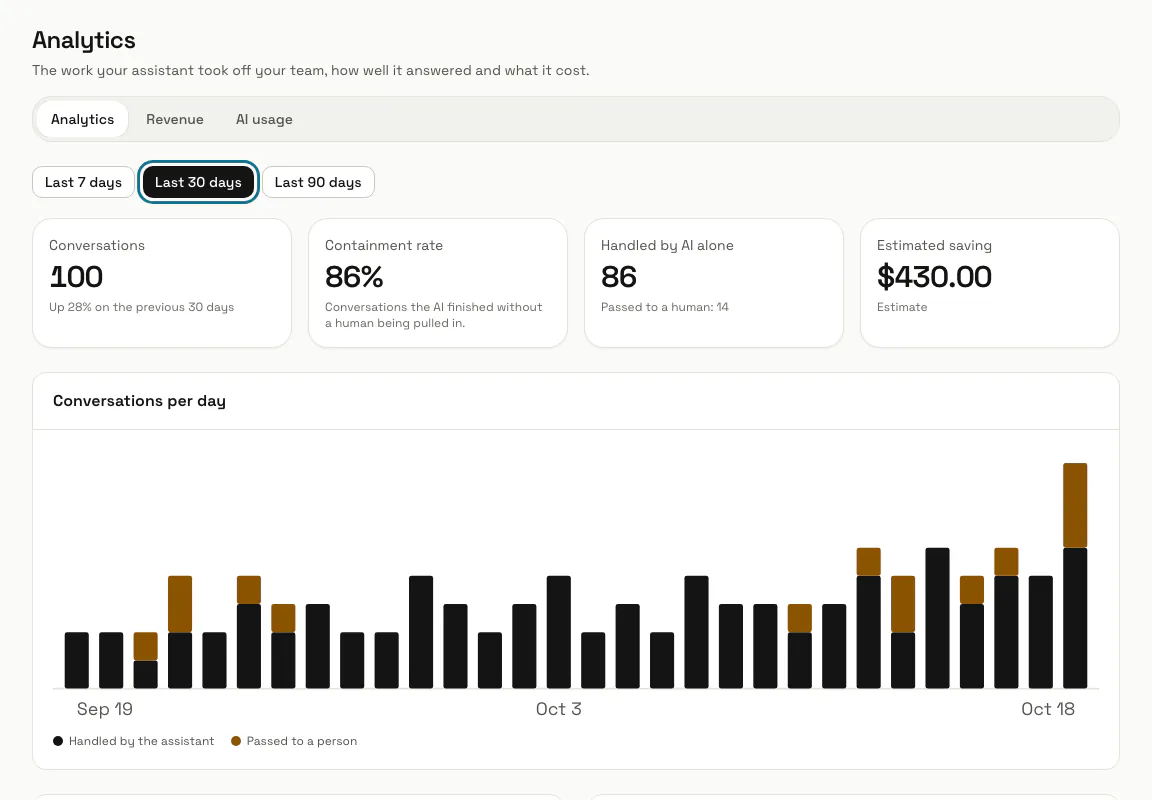
It opens Analytics, with the Revenue and AI usage tabs beside it. Pick "Last 7 days", "Last 30 days" or "Last 90 days"; "Conversations" says how it changed on the same number of days before.
Step 2: Read the numbers at the top
"Containment rate" is the share of the chats the AI replied to that it finished without a person being pulled in, split into "Handled by AI alone" and "Passed to a human". "Estimated saving" is the chats the AI handled alone times your cost per ticket. "Conversations per day" shows the same split day by day.
Step 3: Check the answer quality
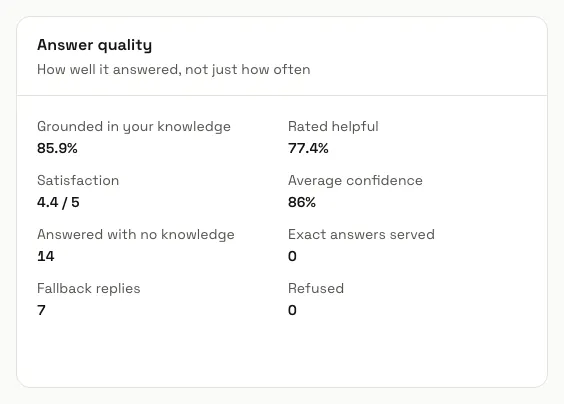
"Grounded in your knowledge" is the share of AI replies backed by at least one trained source. Beside it are the replies "Rated helpful", the visitors' "Satisfaction" out of 5, the "Average confidence" and how many replies were fallback, refused or exact answers.
Step 4: Set your cost per ticket
"Response speed" shows the "AI first reply" and the "Human pickup after handoff". Under "What it costs", a manager types "Your cost per human ticket" and presses "Save"; the saving estimate uses it.
Step 5: See what people ask about
"What people ask about" lists the top tags from the AI tag classifier. "Who replied" splits assistant and team replies, with the busiest chatbots, and "Knowledge gaps" counts the questions the AI could not answer, with "Review gaps".
Step 6: Open Insights from the panel
With the Insights app on, "Topics and AI quality" links to its "Topics" and "AI quality" pages, which sort every finished chat into topics. With it off, a manager sees "Open Apps" to switch it on.

Step 7: Watch this month's messages
At the bottom, "This month's messages" shows how many of your plan's AI messages are used. "See AI usage" opens the details.
Tips
- The saving and the AI spend are shown in US dollars, and the cost per ticket is 5 until a manager changes it.
- "Estimated saving" is an estimate, not a measurement.
Limits and switches
- Analytics is always there for the roles that may see it. The Insights panel needs the Insights app, which a manager turns on in Apps.
Stuck on a step? Ask our team