Insights and reports
AI usage
How many AI messages your workspace used this month against your plan, and the calls, tokens and cost behind them by kind of work and by model.
Who can use it: Owner, Admin, Agent and Viewer, or a custom role with "See analytics and reports".
Step 1: Open the AI usage tab
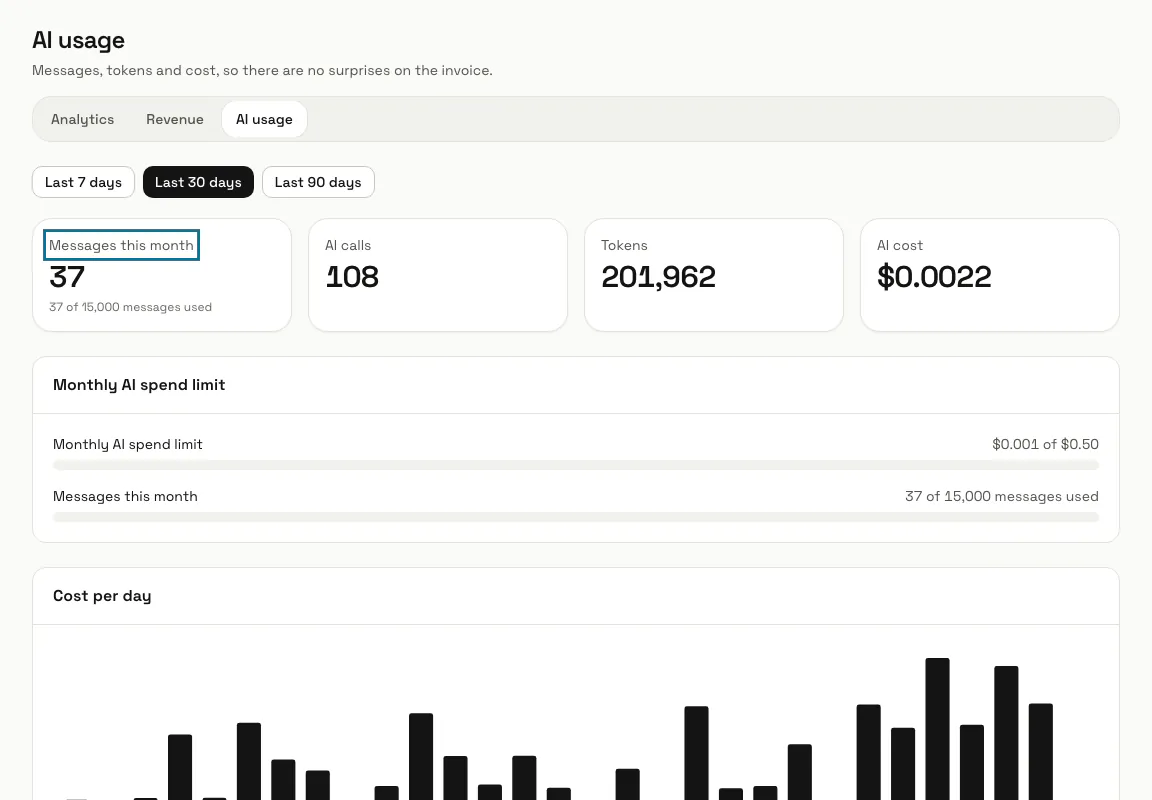
Press "Reports" in the left menu, then "AI usage". Pick "Last 7 days", "Last 30 days" or "Last 90 days" for the "AI calls", "Tokens" and "AI cost".
Step 2: Read "Messages this month"
This is what your plan counts: each AI reply your chatbots wrote, and each AI request made in the apps, such as reading a receipt or asking your numbers. Fallback and refused replies are not counted. The month starts on the day of the month your workspace was created.
Step 3: Check the spend limit
Under "Monthly AI spend limit", a workspace on our AI key sees how much of its limit is used, or that no spend limit applies. A workspace on its own AI keys is billed by its provider, not by us.
Step 4: See the cost by kind of work
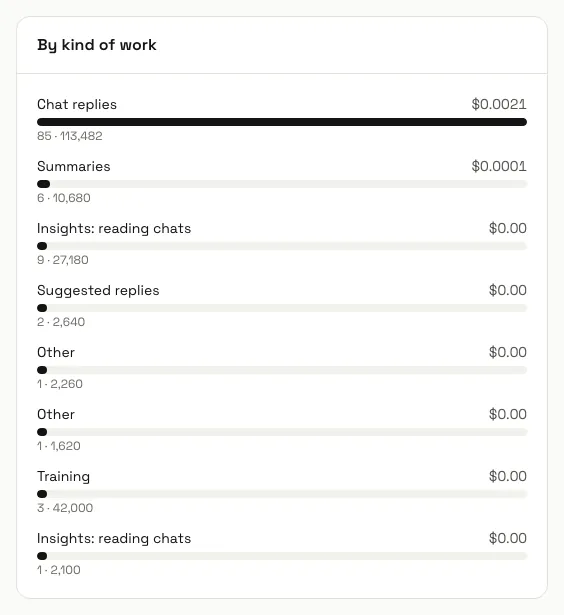
"By kind of work" splits the cost into chat replies, training, reply polishing, summaries, suggested replies, tagging, search ranking and "Insights: reading chats"; AI used inside the apps shows as "Other". "By model" lists each model with its calls, tokens and cost, and "Cost per day" shows the trend.
Step 5: Plan for the monthly limit
When the month's messages are used up, the chatbot stops writing AI replies and asks visitors to leave their email so your team can follow up, and AI in the apps says the plan's AI messages are used up. The count starts again with the next month; a larger plan in Billing raises the limit.
Tips
- Insights reading chats shows here but is not counted as AI messages on your plan.
- Analytics shows the same messages meter at the bottom, with "See AI usage".
Limits and switches
- Your plan sets how many AI messages a month the workspace may use. A workspace on its own AI keys may have no monthly limit; the tile then shows only the count.
Stuck on a step? Ask our team