Insights and reports
Revenue
Sales your team or your website puts on chats this month: the total, how many chats led to a sale and the average order.
Who can use it: Owner, Admin, Agent and Viewer, or a custom role with "See analytics and reports". "Download CSV" needs "Change workspace settings and connections" (Owner and Admin). Adding a deal value to a chat needs "Reply to, take over and assign conversations".
Step 1: Open the Revenue tab
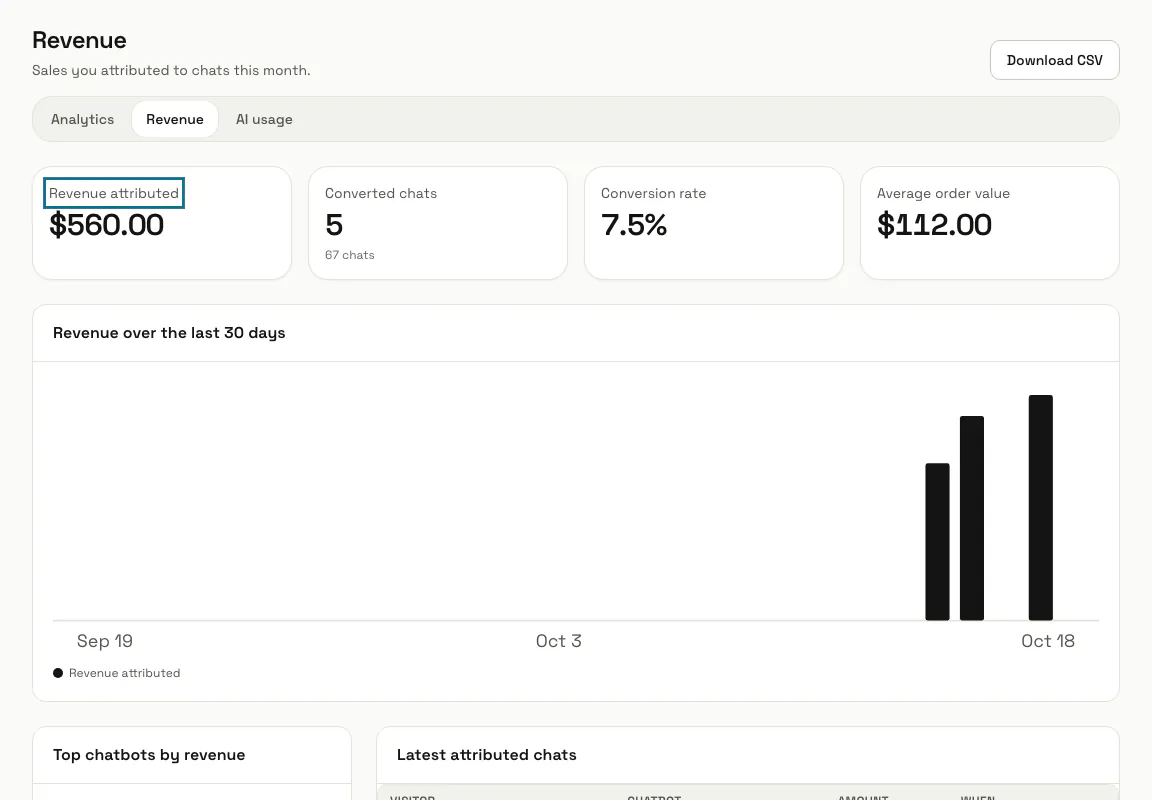
Press "Reports" in the left menu, then "Revenue". "Revenue attributed" is the total of this calendar month's sales, "Converted chats" how many chats had one, "Conversion rate" their share of this month's chats, and "Average order value" the total divided by those chats.
Step 2: Add a deal value to a chat
Open the chat in the Inbox, find "Deal value" in the details beside it, type the sale amount, pick the currency and press "Save". Empty the amount and save to take the sale off again.
Step 3: Count sales from your website
On the page after a purchase, call the widget with the amount and the currency. It counts only when the visitor has chatted in that browser, and the sale goes on that chat.
MagizAI.trackConversion(249.00, 'USD');Step 4: Check the latest attributed chats
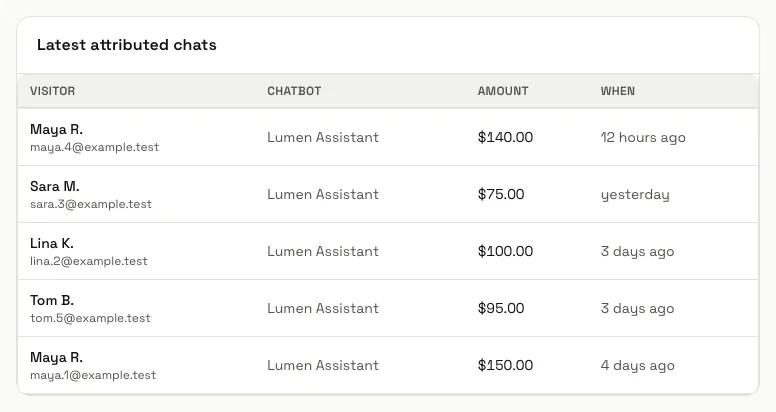
The chart shows revenue per day over the last 30 days, and "Top chatbots by revenue" ranks your chatbots. "Latest attributed chats" lists each sale with the visitor, the chatbot, the amount and when; press a visitor to open the chat.
Step 5: Press "Download CSV"
A manager downloads this month's attributed chats with the chatbot, the visitor, the amount, the currency and where the sale came from.
Tips
- Each chat holds one amount: a new deal value or another sale from the website replaces the one before.
- Keep to one currency. The totals add every amount together and show them in the currency of the latest sale.
Limits and switches
- Exporting revenue to CSV needs a plan with analytics export.
Stuck on a step? Ask our team