Insights and reports
Reports
The Reports app counts your bookings, customers, revenue, memberships and queue by day, week or month, with CSV and Excel export.
Who can use it: Owner, Admin, Agent and Viewer, or a custom role with "See analytics and reports". "Download CSV" and "Download Excel" need "Change workspace settings and connections" (Owner and Admin).
Step 1: Open Reports from Apps
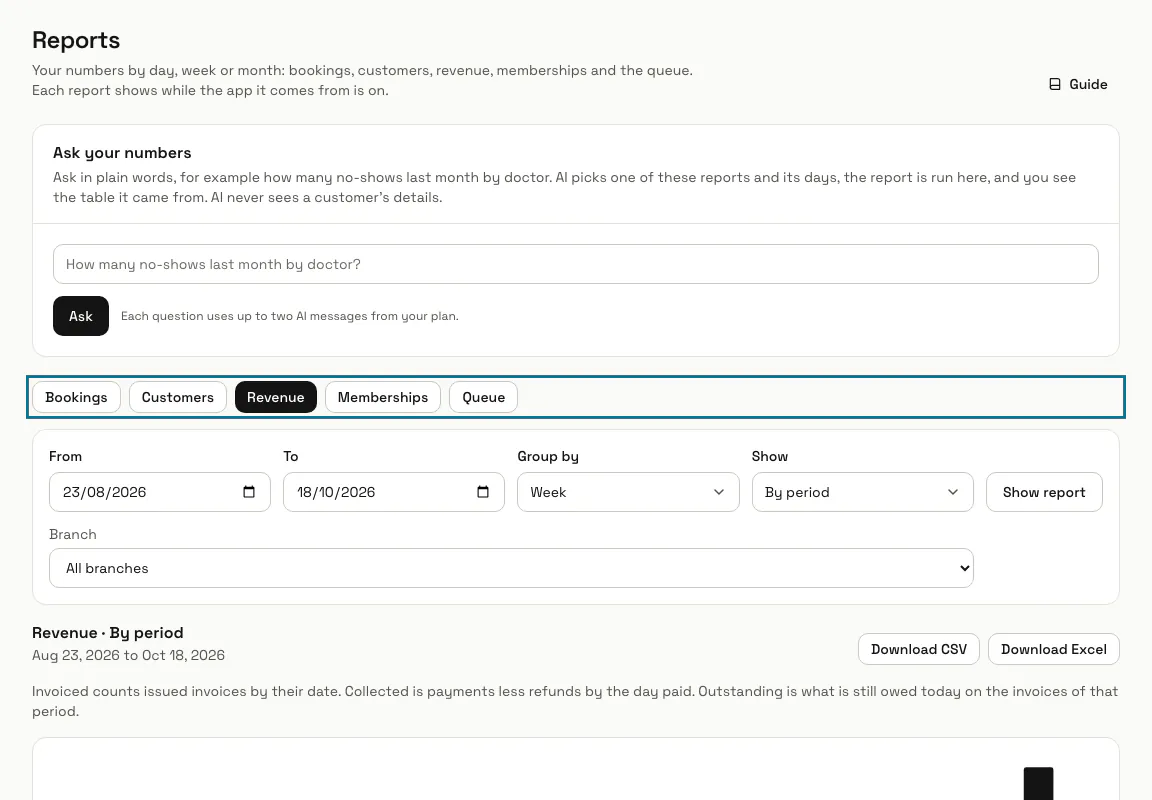
Press "Apps", then "Reports". This is the app, not "Reports" in the left menu, which opens Analytics. Each report shows only while the app it reads is on: Bookings, Customers, Invoices, Memberships or Queue.
Step 2: Pick a report
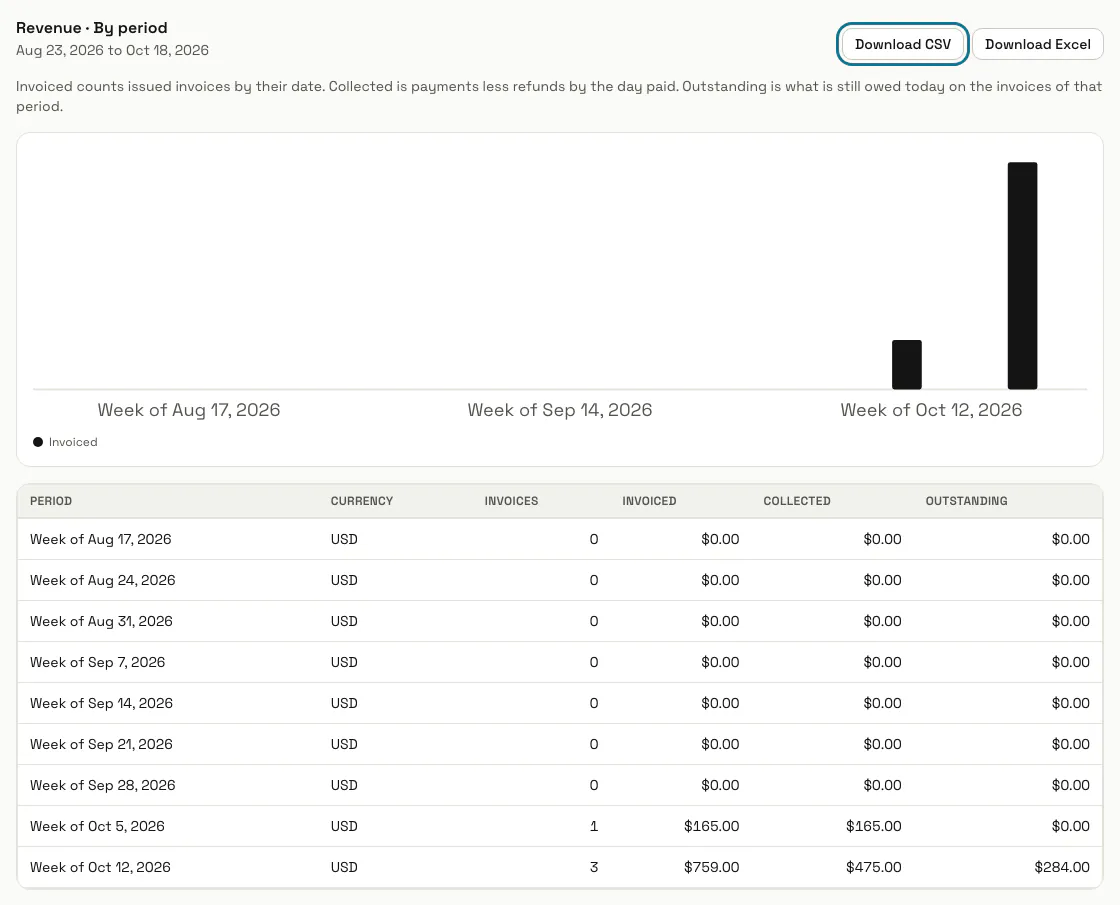
Press Bookings, Customers, Revenue, Memberships or Queue. A line above the table says what it counts; for Revenue, "Invoiced" is issued invoices by their date, "Collected" is payments less refunds by the day paid, and "Outstanding" is what is still owed today.
Step 3: Choose the days and how to group them
Set "From" and "To", "Group by" day, week or month, and "Show" by period or a breakdown such as by service, team member, plan or queue line, then press "Show report". A report covers two years at most.
Step 4: Ask your numbers
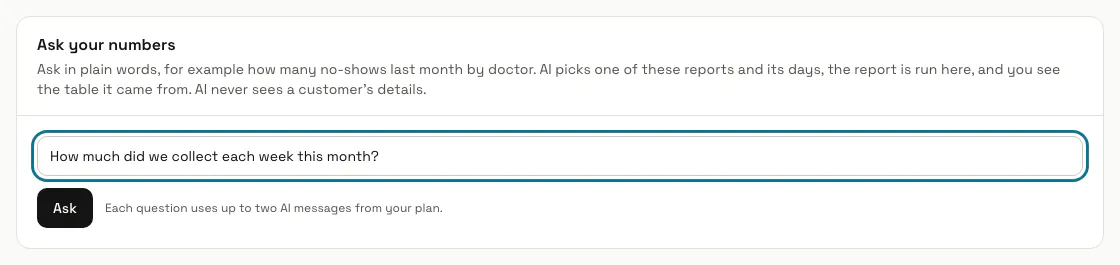
Type a question in plain words, such as how many no-shows last month by team member, and press "Ask". AI picks one of the reports and its days, the report runs here, and you see the table the answer came from. AI never sees a customer's details.
Each question uses up to two AI messages from your plan.
Step 5: Press "Download CSV"
A manager downloads the report on screen as a CSV file, or as a workbook with "Download Excel".
Limits and switches
- Reports is off until an Owner or Admin turns it on in Apps.
- Your plan can leave out the CSV and Excel export; the reports still show.
Stuck on a step? Ask our team